Configure AI for the organization
Administrators and the Owner configure AI in Organization settings > AI Assistant. Availability combines your plan, the organization's activation switch and each member's AI permission. These settings apply to the organization; individual access levels are managed on members.
Enable and grant access
- Open the Configuration tab.
- In the activation section, click Manage, enable Enable the AI assistant, then Validate.
- Open Users and edit the intended member.
- Enable AI access and select AI access level.
- Choose Level 1 - Platform only for platform guidance, or Level 2 - Business data for assistance using business data.
- Validate, then check access with that member.
Business data access still respects the member's permissions. It does not grant universal access to assets. MCP authorization is separate. In the member settings, MCP access enables connections and MCP level allows reads, suggestions or direct writes. Direct writes also require the organization setting and connection consent described in MCP authorizations.
Disabling AI blocks its use without deleting conversations. For everyday actions and proposal review, use the assistant documentation.
Select model and language
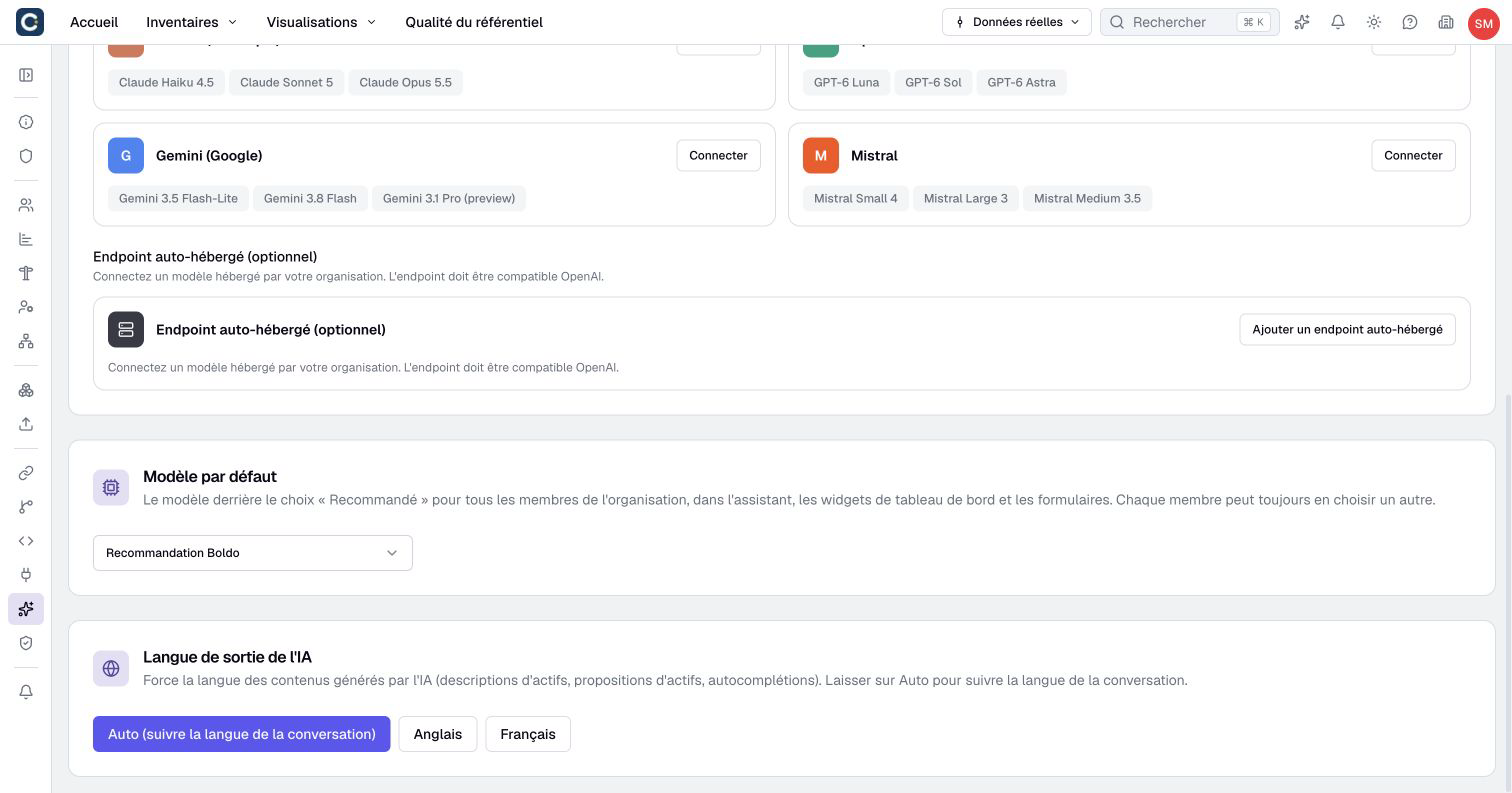
In Default model, choose an available model or Boldo recommendation. The selection saves immediately and controls the recommended choice. Members can still select another available model; this is not an imposed replacement for every existing conversation.
In AI output language, choose Auto, French or English. Auto follows the conversation language; a selected language guides generated content, including descriptions and proposals. Chat replies still follow the language of the member’s message. This does not change the interface language. The choice saves when selected.
If a configured default model becomes unavailable, the page warns you and displays Boldo recommendation. Review the available list rather than relying on a model name from an old screenshot.
Connect a provider key
When your plan supports your own provider credentials, AI configuration offers Claude, OpenAI, Gemini and Mistral.
- On the provider's card, click Connect.
- Enter the provider API key and click Connect to save it. Boldo checks a new key with the provider.
- Check the saved masked key and available models.
- Use Test to check the stored key if needed.
The key is displayed masked, with its last four characters. An invalid, unreadable or unverifiable result needs attention; unverifiable does not establish validity. Use the editing command to replace a key or Delete key and its confirmation to remove it.
Provider credentials use that provider's service and limits. Their requests are not paid from Boldo's included AI budget. Removing a stored key remains possible when a plan change makes that provider option unavailable.
Connect a custom endpoint
A plan with custom endpoints can use an OpenAI-compatible service or Azure OpenAI. The destination must be publicly reachable over HTTPS; HTTP and private or local network destinations are rejected. A model reachable only through your VPN is not supported by this setting.
- Click Add a self-hosted model on the custom endpoint card.
- Select the endpoint kind and enter its service URL and model name, or Azure resource URL and deployment name.
- Enter the API key when required. Azure requires one; an existing stored key can be retained during editing.
- For Azure, enter the API version. Optionally set a display name and additional headers.
- Set the context window and accurately declare image and tool-call support for the model.
- Click Test to check the draft, then Connect to save it. Testing alone does not save.
- Select the resulting model and check an appropriate task in the assistant.
Use the capabilities actually supported by the service. Declaring tool support does not add that capability to a model. Without tool calls, the model cannot use Boldo's assistant tools.
When editing at the same address, a blank key field retains the existing key. Use the explicit key-removal control to clear it. For an existing header, leaving its value blank keeps the stored secret; removing its row removes the header. Changing the endpoint address requires reviewing and re-entering stored credentials as prompted.
Use Delete model and confirm to remove the configuration. Review the default model afterwards if it depended on that endpoint.
Read the budget and usage
Open Usage to inspect Boldo's budget, consumption percentage, reset date and consumption by member, with the models they used. Available periods include 7, 30 and 90 days, the current month and 12 months.
The included budget comes from the plan. This configuration page does not offer an editable spending-limit field. Boldo-hosted generation and conversation compaction consume that budget; provider keys and custom endpoints do not. Document-indexing embeddings are recorded separately and excluded from this budget.
Deleting conversations does not restore consumed budget. If a request is blocked, check activation, member access, model availability and the budget separately. See usage and limits to distinguish AI consumption from presence reports and repository capacity.