Create and organize asset types
Create an asset type when your repository needs a distinct family of objects with its own properties and relationships. Administrators and the Owner manage types in Organization settings > Metamodel. Check existing definitions before adding a similar type.
Create a type
- Open Assets and click Create asset type.
- Enter Name and check the generated Key. Choose an icon and color.
- Enter a Description explaining which objects belong to this type. It is required.
- Configure Enable flow if this type needs a process flow.
- Click Create, then select the type's row.
- Under Properties, add the fields that contributors should fill. Under Relationships, define the allowed connections.
The type is now available as a definition; create its business assets separately in the inventory. Review the new type's permissions for the intended contributors.
A type's revalidation delay, which measures time since attestation, is set in the quality program, not in this form. Editing an asset does not replace attestation. See quality and freshness for the resulting states.
Configure a process type
Enable flow when an asset needs a process diagram referencing other assets. You can enable it on the type even without a plan that includes flow editing; editing individual assets’ flows then remains locked. Choose Referenced asset types, then configure Relationship name, key, color and the relationship's visual style.
You can also open these flow settings from a flow relationship's row in Relationships. This defines the available references, not the process diagram itself. Build the actual flow from the asset's process editor.
To change these settings, open the type and click the editing button on its information card. Make the changes and click Validate. Disabling flow displays a warning and clears the selected referenced types in the form. Removing a referenced type removes its references from process steps and its lanes.
Disabling flow empties the existing process content for assets of this type and removes its flow relationship definitions and data. Re-enabling flow does not reconstruct that content.
Organize types into categories
- Return to the metamodel's Assets tab and click Create category.
- Enter its name and create it.
- Open Organize and drag an asset type into the intended category, including an empty category.
- Reorder types within categories and move the categories themselves.
- Click Apply to save the organization.
Types without a category appear under Uncategorized. Use a category's editing controls to rename it. Deleting a category keeps its types and returns them to Uncategorized; it does not delete the assets.
Organize properties into categories
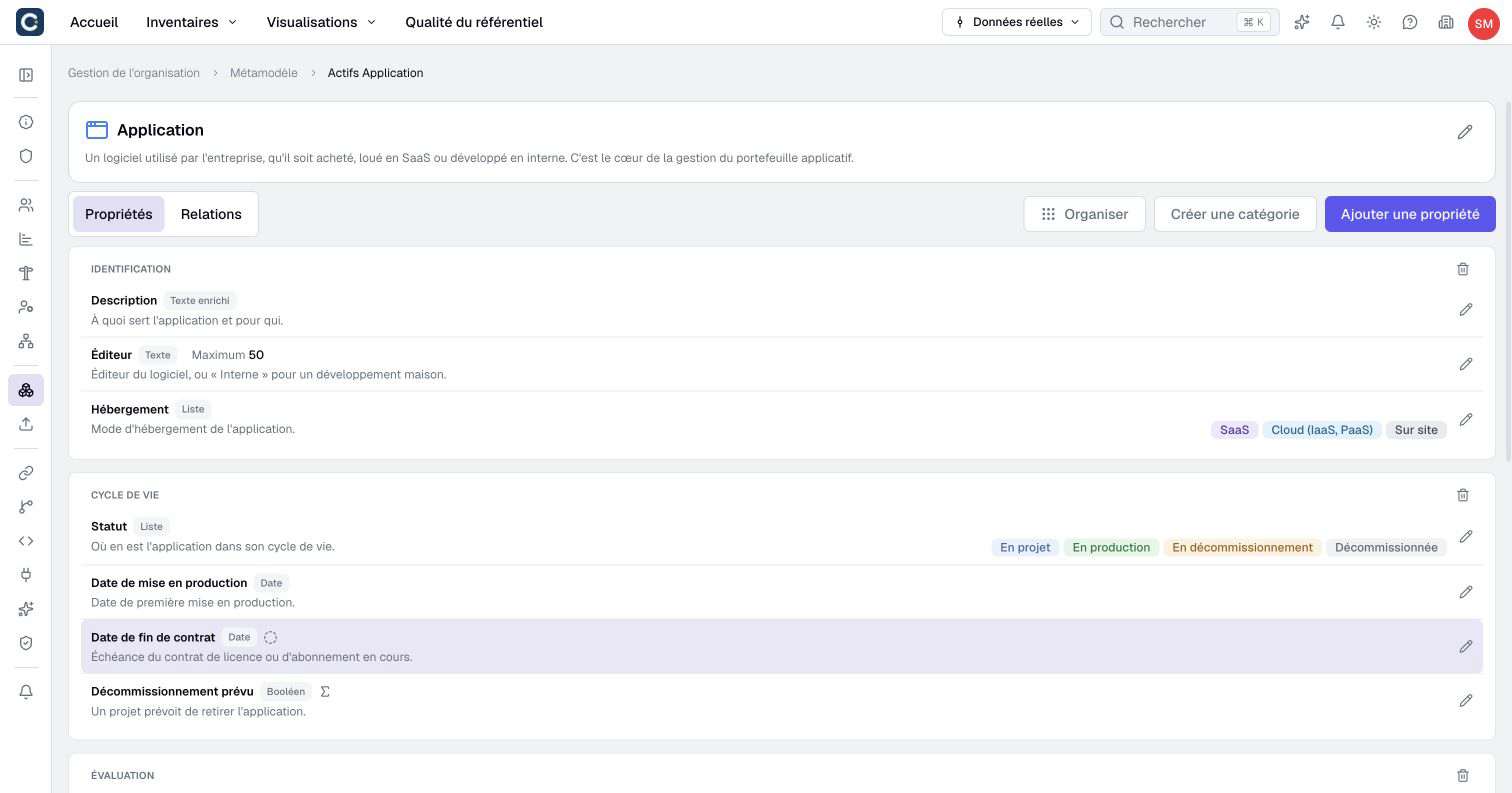
- Open a type, then Properties.
- Click Create category, enter a name and create it.
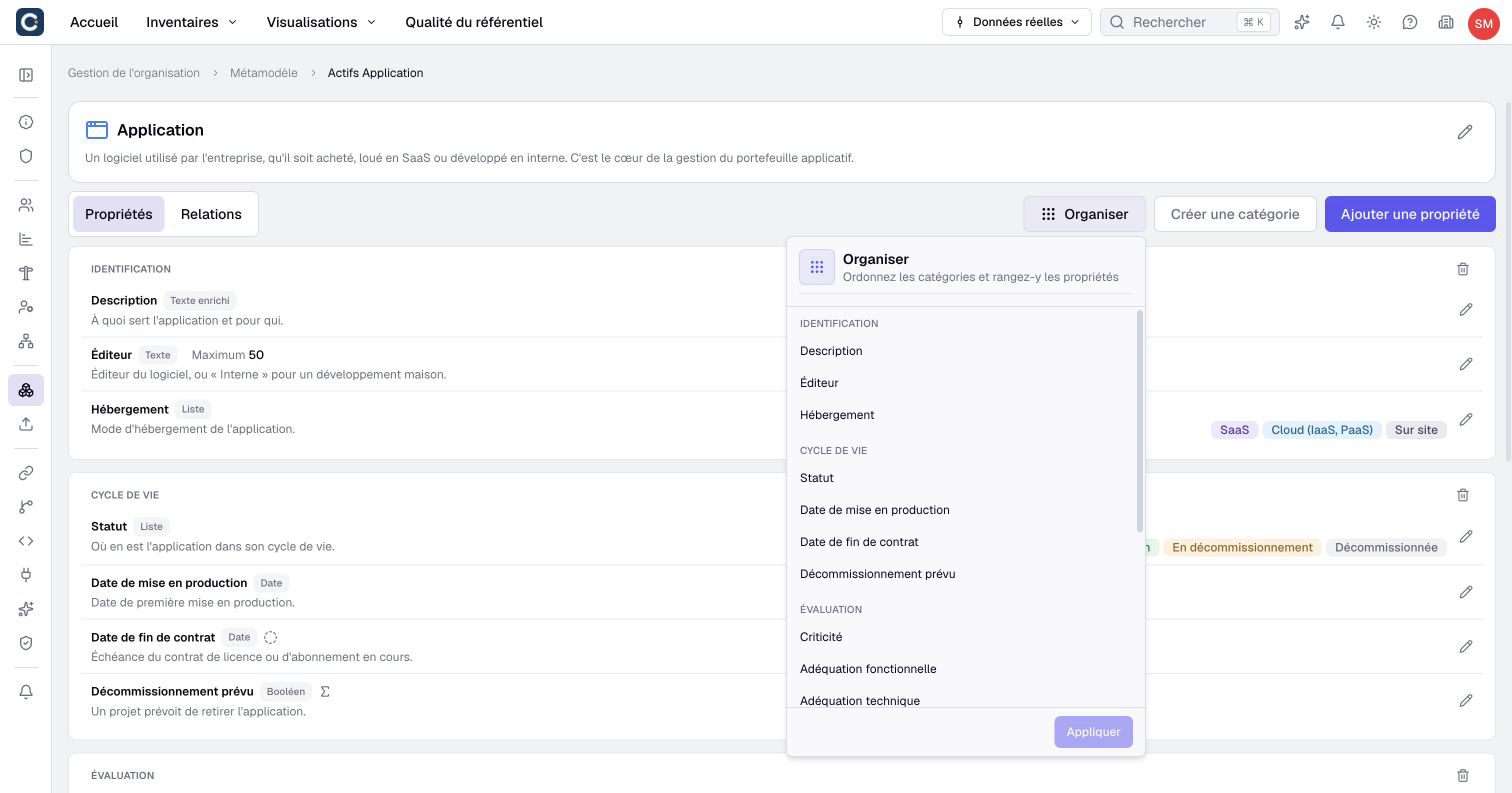
- Open Organize, then drag a property into the category, including an empty category.
- Reorder properties within categories, move the categories themselves, then click Apply.
- Open the page of an asset of this type to inspect the result.
When you create a property, you can also choose its category in the Category field. While named categories exist, properties without a category appear under Uncategorized. Categories organize presentation; they do not create shared values or change access permissions.
Rename a category with its pencil button or by double-clicking its name. Enter saves, leaving the field also saves, and Escape cancels the current edit. To remove a category, click its trash button and confirm Delete category. Its properties become uncategorized with their values preserved. After deleting the last category, they appear without a category heading.
Rename or delete a type
For a name, description, icon or color change, open the type's editing form and click Validate after editing. A key change is a separate decision: review names and keys and the warning before confirming it.
Deleting an asset type removes its active and archived assets, associated relationships, histories and flows. Dependent visualizations may be adapted or removed. This is not an archive operation with a restore command.
To delete, open the type's editing form and click its trash button. Read the warning and any scenario impact. Enter the type's name exactly, then click Confirm. If a calculated property depends on the type, first update that calculation before retrying.
For temporary withdrawal of individual business assets, use archiving instead of deleting their type.