Create and maintain a calculated property
A calculated property derives its value from other data instead of asking contributors to enter it. Administrators and the Owner configure its formula. Use it for a total, classification or date derived from identified sources.
Creating a calculated property, changing its formula or generating a formula with AI requires a plan that includes calculated properties. Formulas on relationship properties require an additional feature. Check your organization's plan before configuring them.
Without these features, existing formulas keep working: their values remain available and are still recalculated when a source changes. Recompute actions remain available. You can remove a formula or delete its property, but cannot create or change a formula.
Choose sources and result
On an asset, a formula can use local properties, properties of related assets and properties of their relationships. On a relationship, it can use its own properties and those of its source and target assets. Relationship formulas cannot aggregate other relationships.
Available result types are Text, Number, Percentage, Currency, Score, Boolean, Date, List and List multiple. Long text, Rich text and Unique key are not result types. Long text and Unique key can supply text to a formula; Rich text cannot be a source.
Choose the result type before composing the formula. Currency needs a currency code, Score a maximum, and lists their allowed choices. A calculated list must return choice keys, not their displayed labels. See the formula reference for syntax and examples.
Create and validate
- Open Organization settings > Metamodel, then the type's Properties and Add a property. For a relationship, open the existing relationship type's page and click Add property.
- Enter the name and key, choose the result type and enable Computed property.
- Configure the result's currency, score maximum or list choices as applicable. Manual defaults and input bounds no longer apply.
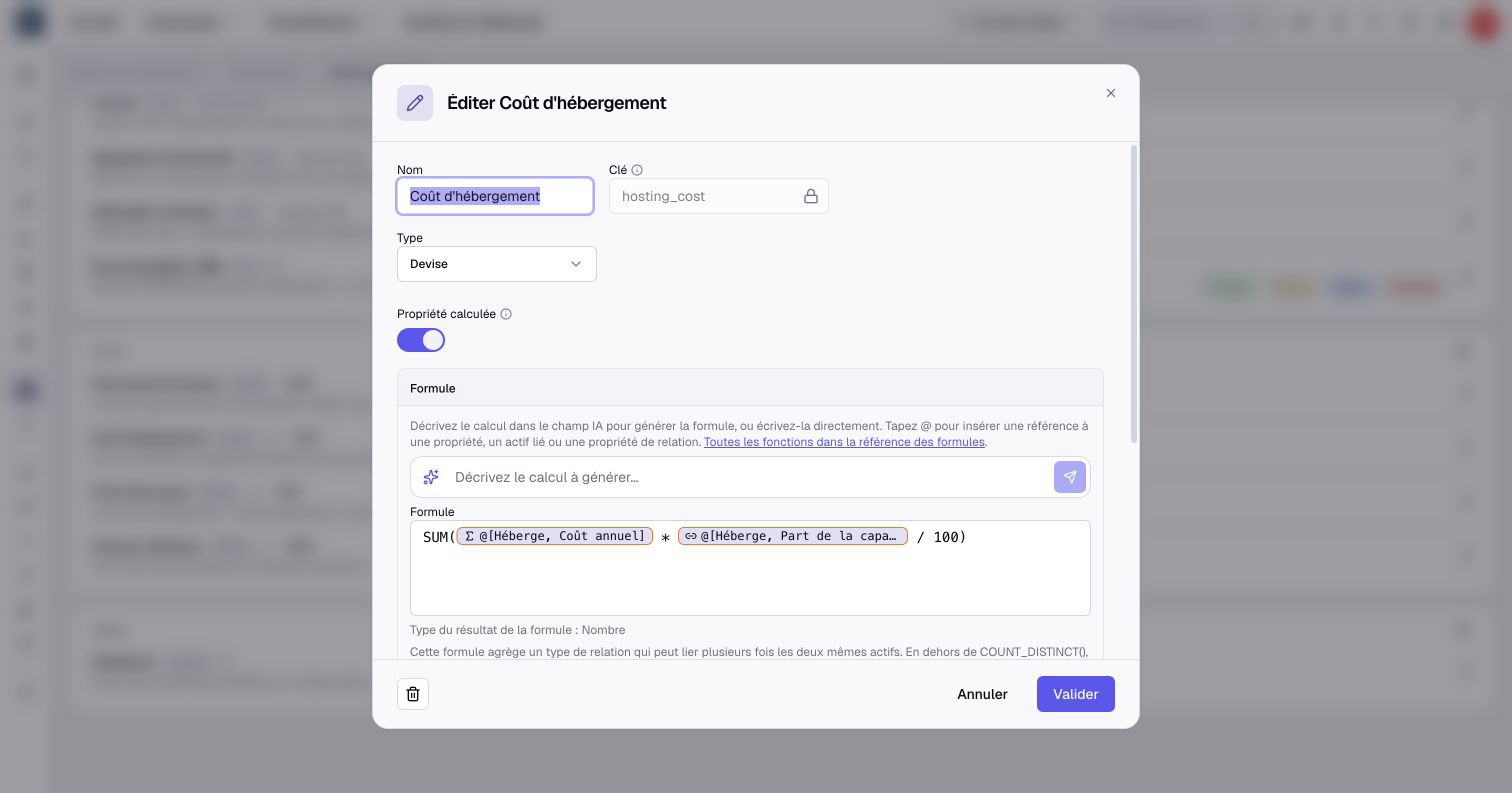
- In Formula, type an expression. Type
@, search and select each reference from the menu. - For an asset calculation, select the relationship and direction to access related values, then wrap the series in an aggregate such as
SUM(...). For a relationship calculation, select its own properties or the source/target groups directly; do not use an aggregate. - Wait for validation. Check the inferred type, any highlighted error and any parallel-relationship warning.
- Click Create, or Validate when editing. If a large recalculation warning appears, review its count and confirm Save and recalculate.
- Check the saved result on an example you can calculate yourself, including a case with missing source data.
Choosing Number of relationships inserts COUNT(...) around the selected reference automatically. Change the function to COUNT_DISTINCT(...) if you need distinct related assets. Do not add a second COUNT around the inserted expression.
References appear as labels in the editor. Select them through @ rather than typing an arbitrary property name. Saving waits for validation of the current formula, result type and options.
Use formula assistance
When AI assistance is available, describe the calculation and name the required properties and relationships. Click Generate formula, then inspect the proposed expression and validation. Restore the previous formula is available when a nonempty formula preceded generation and the generated formula has not subsequently been edited.
Generation does not establish that the formula answers your business question. In particular, check direction, missing values and repeated links. For a weighted cost, confirm whether you need one contribution per relationship or one per related asset.
AI availability follows organization AI settings and its access and usage limits. Writing a formula manually does not require generating it with AI.
Visibility and dependencies
Enable Hide in the interface for an intermediate calculation that should remain available to other formulas without appearing in ordinary screens. Its value is retained. This option is separate from confidentiality permissions and excludes the property from completeness.
Calculated values are read-only in asset and relationship forms and imports. Change their sources or their formula to change the result.
When the plan includes fine-grained permissions, a calculated property is hidden from every role when it is created, including yours, until you open it in Organization settings > Rights. Turning an existing property into a calculated one also removes its current access. Its value is drawn from other data, so a role that sees it can infer values it cannot open, such as a total over assets in a domain it does not access. Only open it to roles that already see the properties, relationships and related assets its formula uses. Boldo does not check those sources for you, and changing the formula later does not change who sees the property.
A formula cannot reference its own property, even through a parent/child relationship. Indirect cycles are also rejected, and a chain of calculated dependencies is limited to ten levels. Use a separate source property for a hierarchy calculation.
A dependent calculation can prevent deletion or conversion of a source property or relationship definition. Update the dependent formula first. If another administrator changed a formula while your form was open, reopen it to load the latest version before applying your edit.
Follow a calculation chain
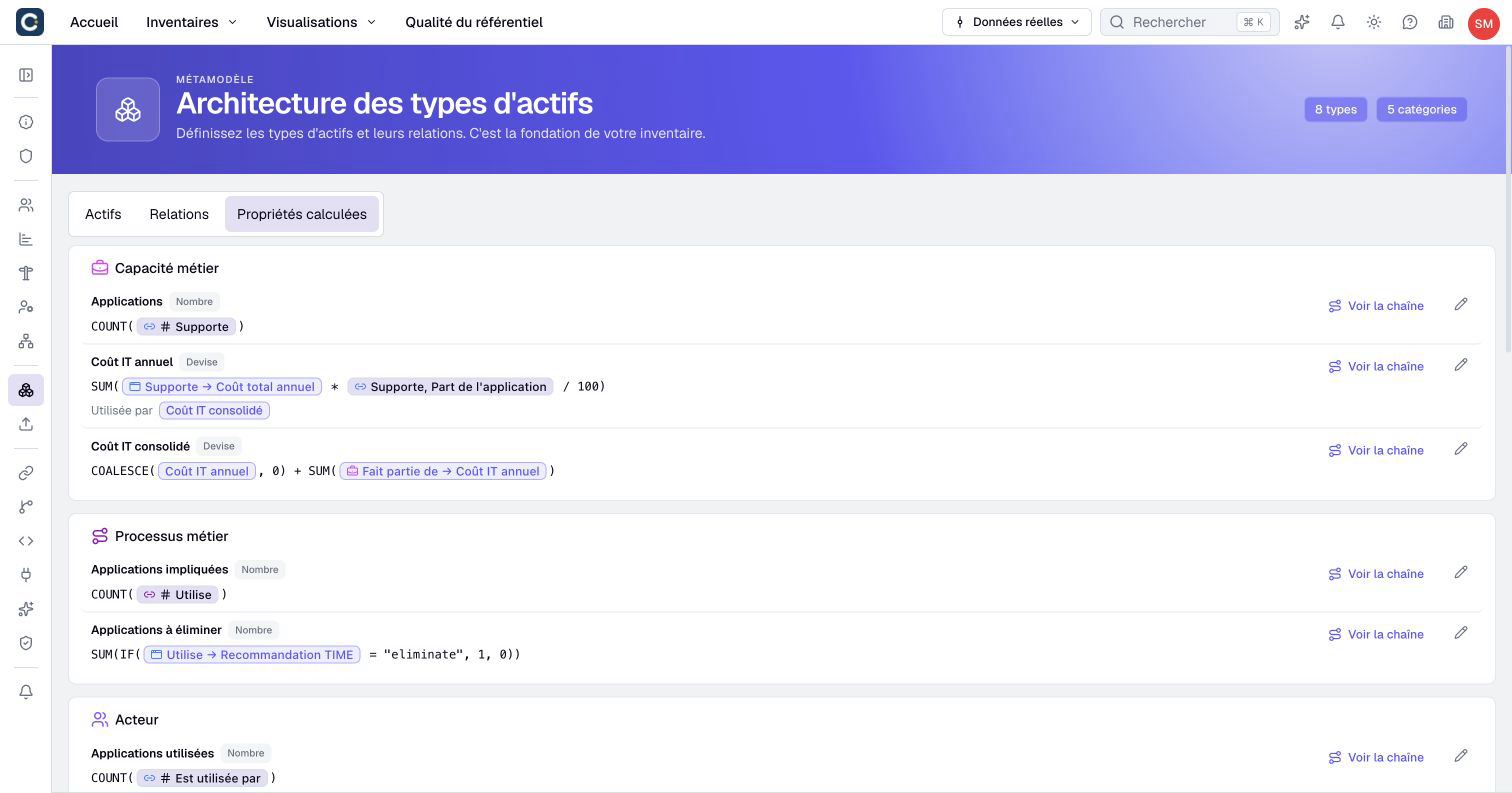
Open Organization settings > Metamodel > Computed properties to inspect calculations across asset and relationship types. Each row shows its formula and result type. Used by identifies other calculations that directly depend on it. Select a calculated reference or a dependent calculation to find its row; use the pencil to edit its definition.
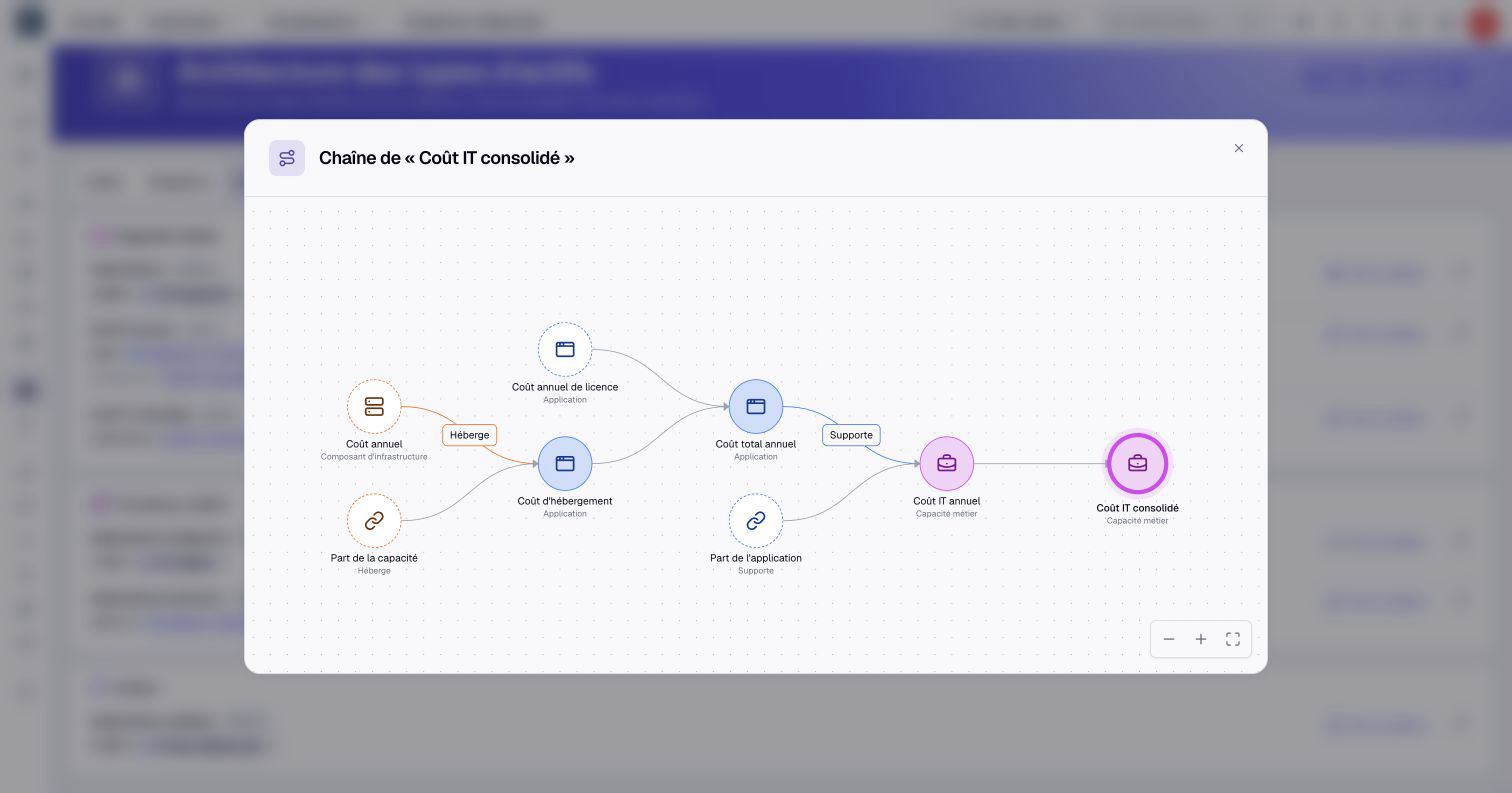
Click See the chain to trace the selected calculation back to its sources and forward to the calculations that use it. The diagram includes intermediate calculations and manual sources. Select a calculated node to return to its row. Use this chain before changing a source or diagnosing an unexpected result.
Recompute and diagnose
Source changes trigger dependent recalculation. Results also depend on the current real or scenario context; a scenario's values should not be read as the real repository's values.
Saving a formula change recalculates the existing values with the new formula. To recompute on demand, use Recompute on an asset's page; the metamodel does not offer this command.
Value possibly out of date indicates that a source change was not fully reflected in a calculation. It is distinct from attestation freshness. With Editor type or higher and permission to edit the asset, open its Information tab and click Recompute. Otherwise, ask an authorized Editor or an administrator to recompute it, then inspect the result.
A blank result is not necessarily an error: missing inputs, division by zero or an empty aggregate can produce it. Use the missing-value rules to diagnose the expression before substituting zero. If recalculation still fails, preserve the error message for support.