Convert a property type
Converting a property changes how its existing values are interpreted and stored. Administrators and the Owner can convert asset and relationship properties. Prepare the target type before confirming; a name change alone does not require conversion.
Open the conversion preview
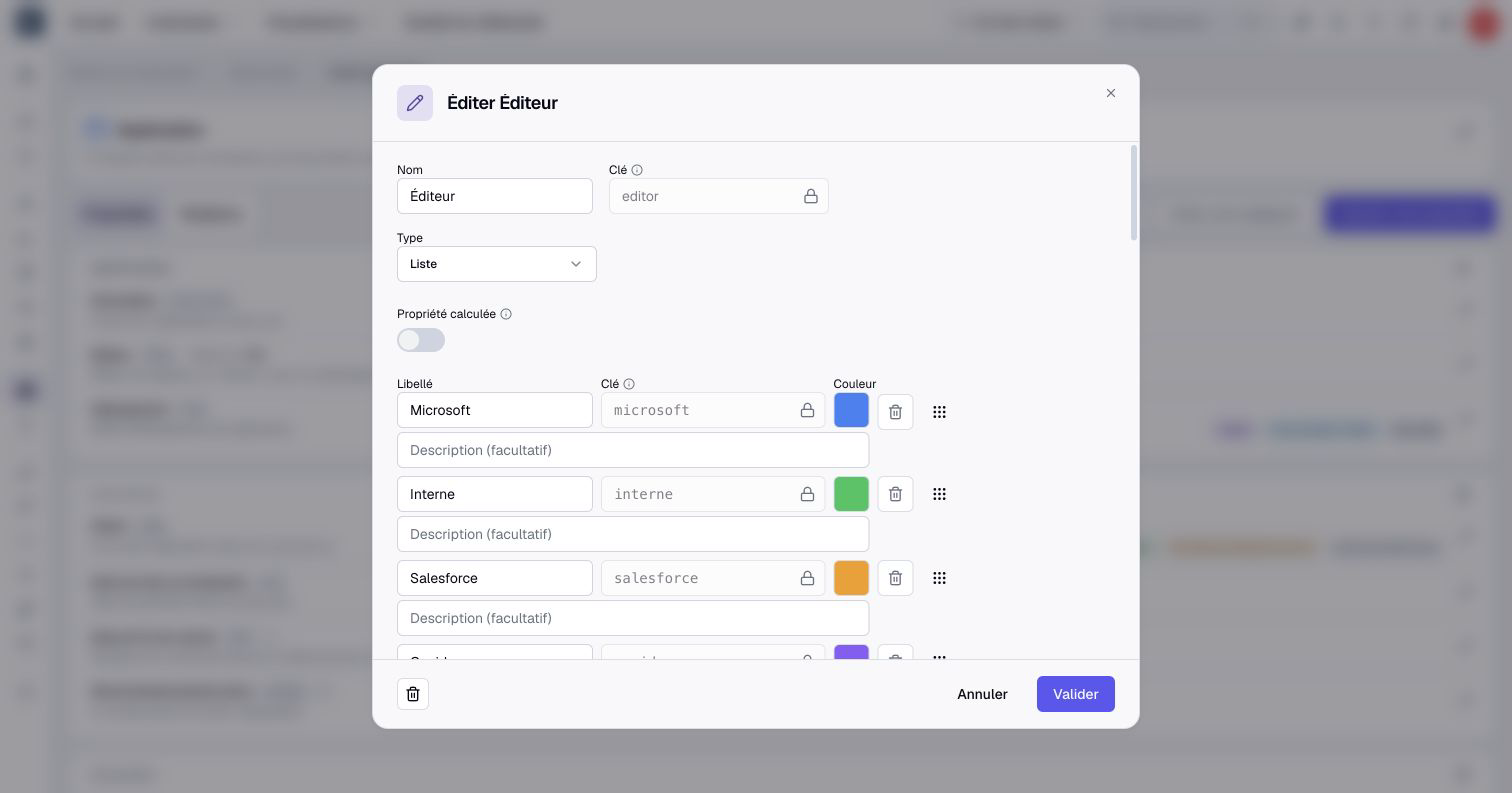
- Open Organization settings > Metamodel, then the asset type or the relationship type containing the property.
- Use the property's pencil Edit button.
- Select the target type and configure its options, such as choices or numerical bounds.
- Click Validate. Where conversion is available, Convert existing values opens.
- Wait for the preview, then compare total, convertible values, failures and examples.
If you also remove saved list choices, Boldo asks you to confirm those removals before continuing to conversion. Read the affected choices and scenario impact; see list maintenance.
The preview includes active and archived values, including scenario copies. Its total can exceed the visible inventory. The total covers stored nonmissing values, not every asset or relationship.
A calculation referencing the property can block a type change, even when the preview shows compatible values, including a Text to Long text conversion. Update its dependent formulas first. Keep an export of important values before a conversion that can lose information.
Review direct conversions
For compatible types, Boldo proposes a direct conversion. Read failed values and constraint violations separately. For numerical targets, Clamp out-of-range numbers to the new bounds brings values to the nearest permitted bound; it changes their amount.
A numerical conversion preserves the number. It does not convert currencies or automatically multiply or divide by 100 for Percentage. Converting rich text to plain text removes formatting. Converting lists to text uses their labels.
For List multiple to text, Separator joins labels; the default is a comma followed by a space. Choose a separator absent from the labels if you plan to split the result again later.
Map values to choices
For a conversion to List, List multiple or Boolean, the assistant can request a mapping instead of a direct conversion.
- Review the proposed mappings; do not assume a matching label expresses the intended business meaning.
- For each source value, choose the target choice or Clear the value.
- If offered, set Delimiter to split a text value before mapping its elements. It accepts one to three characters.
- For a list target, use Create missing options if the proposed new choices belong in your model. You can undo those additions before confirmation.
- When several mapped values must become one, choose Keep the first option or Clear.
- Recheck failures and partially mapped values before continuing.
Keep the first option uses the target choices' order, not a guarantee that the first source word survives. For example, splitting High;Medium does not make High the retained choice if Medium precedes it in the target list.
Only the 200 most frequent distinct source values are offered for mapping. Read the warning about additional occurrences: they are not automatically covered by the mappings shown. If necessary, cancel and simplify or clean the source values first.
Apply and inspect
- Check the final preview, including partial losses inside multiple selections.
- If you accept losses, select the explicit confirmation to clear failing values or drop unmapped elements.
- Click Convert and change type.
- If the key also changed, read and confirm the separate key-change warning.
- Inspect representative current and archived values, scenario copies, calculations and affected visualizations.
- Update import templates or integrations that expect the old type or key.
Convert nothing and clear all values applies immediately when clicked: it changes the type without preserving the current values. Do not expect a second confirmation. An unsupported conversion instead presents a destructive Change Type warning. Cancel if you need to retain data that the preview cannot convert.
Convertible historical values are converted; unconvertible historical values can remain in their previous form. Do not assume every old activity entry now has a uniform representation.
Resolve a blocked conversion
Mapping may be blocked when values belong to domains you cannot read. Ask an administrator with access to those domains to perform it. Administrator type alone does not bypass business-data permissions.
Duplicates block conversion to Unique key. Accepting other failures does not resolve duplicates; clean the conflicting values first. Uniqueness is assessed within the relevant real or scenario context.
The preview is not a lock on concurrent edits. If values changed and conversion is refused, reopen or refresh the preview and review it again. If an error screen appears after submission, reload and check the saved type and values before attempting the conversion again. Arrange a quiet editing window for a sensitive conversion rather than relying on an old preview.