Invite and manage members
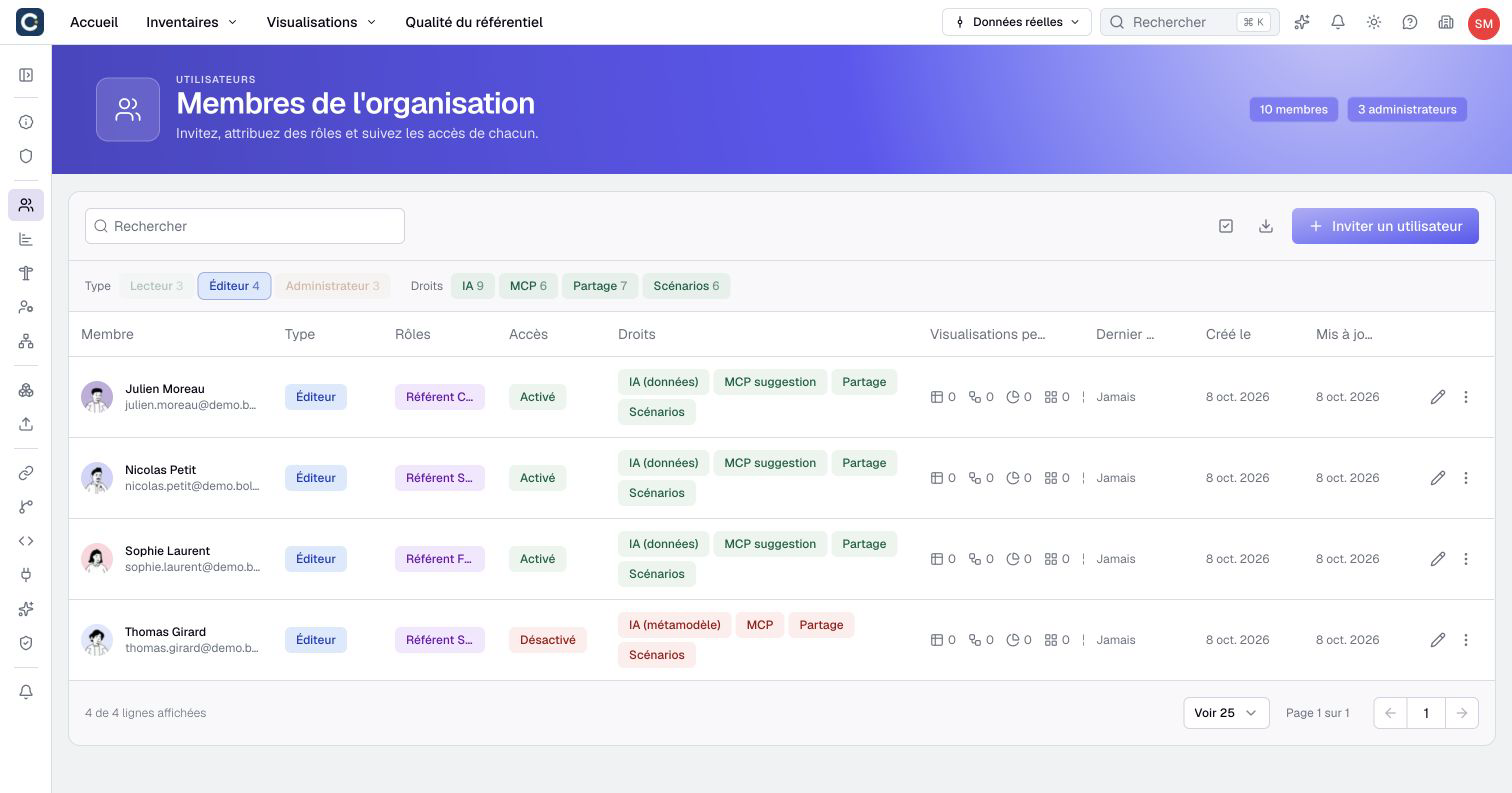
Administrators and the organization Owner manage members under Organization settings > Users. A member's type and roles apply to this organization; they are separate from the person's global Boldo account.
Invite a member
- Open Users and click Invite User.
- For an email invitation, enter Email and choose User type: Viewer, Editor or Administrator. Viewer is the initial choice.
- Select Roles when fine-grained permissions are included in your plan.
- Click Create.
- Find the member in the table and check their email address, type and roles.
The Owner type is not offered by this invitation form. Viewer capacity is separate from Editor, Administrator and Owner seats. When the chosen capacity is full, the dialog offers a plan change instead of creation.
With SSO configured, the dialog initially offers SSO user and explains admission through the identity provider. It does not create an SSO identity. Authorize the person at the provider and follow the agreed sign-in procedure. If SSO is mandatory, email invitations are unavailable.
An existing account with a password keeps it. A new account or one without a password receives a password-setup link. The member appearing in the table does not prove email delivery.
Reinviting is not the way to restore a disabled sign-in method. Open the existing member instead. An already active email membership is treated as a duplicate.
Find and compare members
Use the search field and the Type and Rights filters to narrow the Users table. Rights filters include AI, MCP, Sharing and Scenarios, depending on the available features.
Several values within one filter mean “any of these”; combining Type and Rights requires both criteria. For example, select Viewer and MCP to find Viewers authorized to connect an external assistant. Counts beside filter values describe all members, not only the currently filtered rows.
The table initially lists Owners, Administrators, Editors and Viewers in that order, then sorts names within each type. Inspect roles, sign-in methods, feature access and last-access information before changing a member. A granted feature permission does not replace its plan, organization or data-access requirements.
Change type, roles and feature access
- Search the Users table by email.
- Open the row's edit button or Actions > Edit.
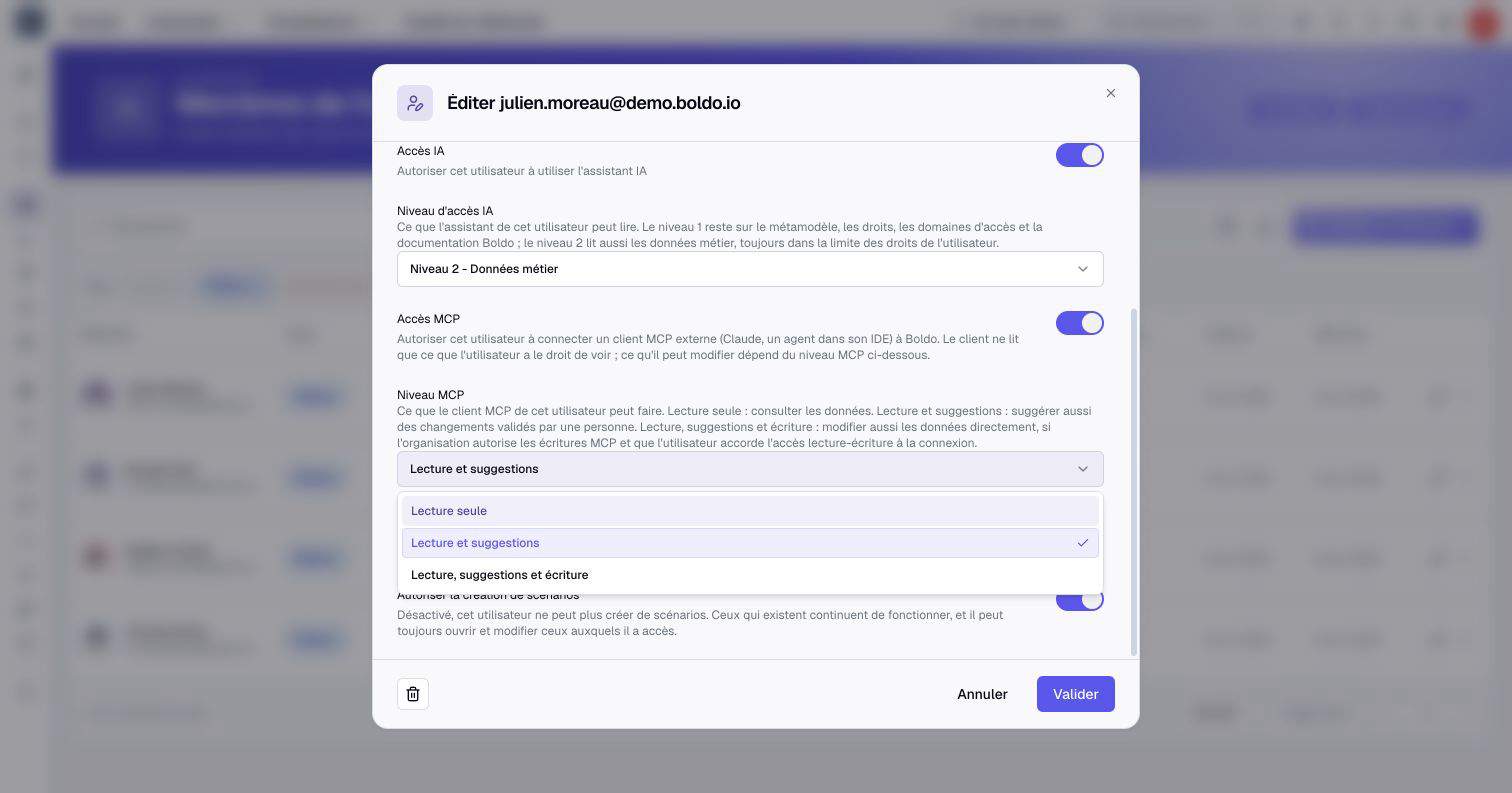
- Adjust the user type, roles and available individual permissions, such as AI, MCP, share-link creation or scenario creation.
- Review all consequences and click Validate.
- Check the saved row and, when access changed, inspect effective permissions.
Your own type and the existing Owner's type are locked in this form. AI access and its access level are separate from data roles; business-data AI access does not bypass those roles.
MCP access authorizes external assistant connections. MCP level then limits them to Read only, Read and suggest, or Read, suggest and write. Direct writes also require an Editor account or higher, organization authorization and a connection authorized for writing. Existing data permissions continue to apply. Follow the MCP access procedure to configure all these conditions together.
Changing an Editor or Administrator to Viewer deletes their personal folders and visualizations, including scenario copies. This includes views, diagrams, charts, nested maps, dashboards and impact analyses. It does not delete every shared item they authored. Prepare needed copies or transfers before confirming.
Disable or restore sign-in methods
- Edit the member and locate the Sign-in methods section.
- On the relevant method, choose Disable temporarily, Re-enable or Remove access, as offered.
- Review the form and click Validate. Method changes are submitted with the form, not immediately when selected.
- If an ownership handover dialog appears, choose an active recipient and click Transfer, or choose Leave without owner. That choice submits the pending access change with the handover.
- Check the member's state and the resulting ownership assignments.
The Owner's methods are protected. For your own account, the method used by your current session cannot be disabled or removed. The last method cannot be removed through the removal action; temporary disabling is a different operation. An email method cannot be re-enabled when the organization requires SSO.
Disabling every method prevents access to the organization. Leave without owner removes that member from ownership; other co-owners remain. Re-enabling access does not restore previous ownership assignments.
API keys are retained during a full suspension, but their requests are refused while the member has no active method. Disabling one method leaves them usable if another remains active. This is different from revoking a key.
If Boldo reports that methods changed elsewhere, reload the member before submitting again. Do not overwrite an outdated form repeatedly.
Update several members
- Enable Bulk edit in the Users table.
- Select the members and click Update in the selection bar.
- In Update users, choose one Field and its new value.
- Review Users to update and Users that will not be updated.
- Click Update, then inspect updated and skipped counts and the affected rows.
Available fields include User type, Roles, AI access, AI access level, MCP access, MCP level, Share links and Scenarios, according to the plan and enabled features. Roles require fine-grained permissions; MCP requires both AI and MCP availability. AI access and its level are separate changes, as are MCP access and its level. Scenario creation also requires scenario availability. Review the eligible members for the chosen field rather than assuming type-change exclusions apply to every field.
A role selection replaces all roles for the targeted members; it does not add to their existing roles. An empty selection means no explicit role, so No role applies. Type changes exclude yourself and the Owner. Sign-in methods are not part of this bulk form.
Choosing Viewer in a bulk update also deletes affected personal content. This path does not provide the individual form's additional deletion confirmation. Review the selection and preserve content before clicking Update. A bulk operation can return a partial result with skipped members.
Transfer responsibilities and remove a member
For a broad handover, choose Actions > Transfer attributions on the source member. Select an active Target user, click Next, inspect Confirm transfer, then click Transfer.
This transfers more than asset ownership: it can reassign creation and modification references, suggestion resolutions, comments, favorites and personal catalog content. It does not transfer roles, preferences, subscriptions, API keys or share links. References naming the source member as the last attester or re-attestation requester are cleared rather than assigned to the recipient. Dates and request reasons remain. The source member remains in the organization.
Prepare integrations and needed personal content before removal. API keys and share links need their own management procedures.
- On the member's row, choose Delete.
- Read the confirmation and choose Confirm.
- If ownership handover is requested, select an active recipient and click Transfer, or choose Leave without owner. This executes removal without returning to Validate.
- Check removal from the organization and the retained content with its intended recipients.
Yourself and the Owner are protected from this removal. With SSO, first remove admission at the identity provider so the person is not admitted again.
Removal deletes organization membership, personal content, their personal AI data in this organization, API keys, share links and associated MCP/OAuth authorizations. The AI usage ledger is anonymized rather than deleted. Removal does not delete the person's global Boldo account or their other organization memberships. Cleanup also removes that member’s personal attribution and the reasons for re-attestation requests they authored, without clearing the need for re-attestation.