Diagnose a user's permissions
Use By user to understand the permissions a member receives from their type, roles and domains. Administrators and the Owner can open this diagnostic when the plan includes fine-grained permissions.
Inspect the member's effective access
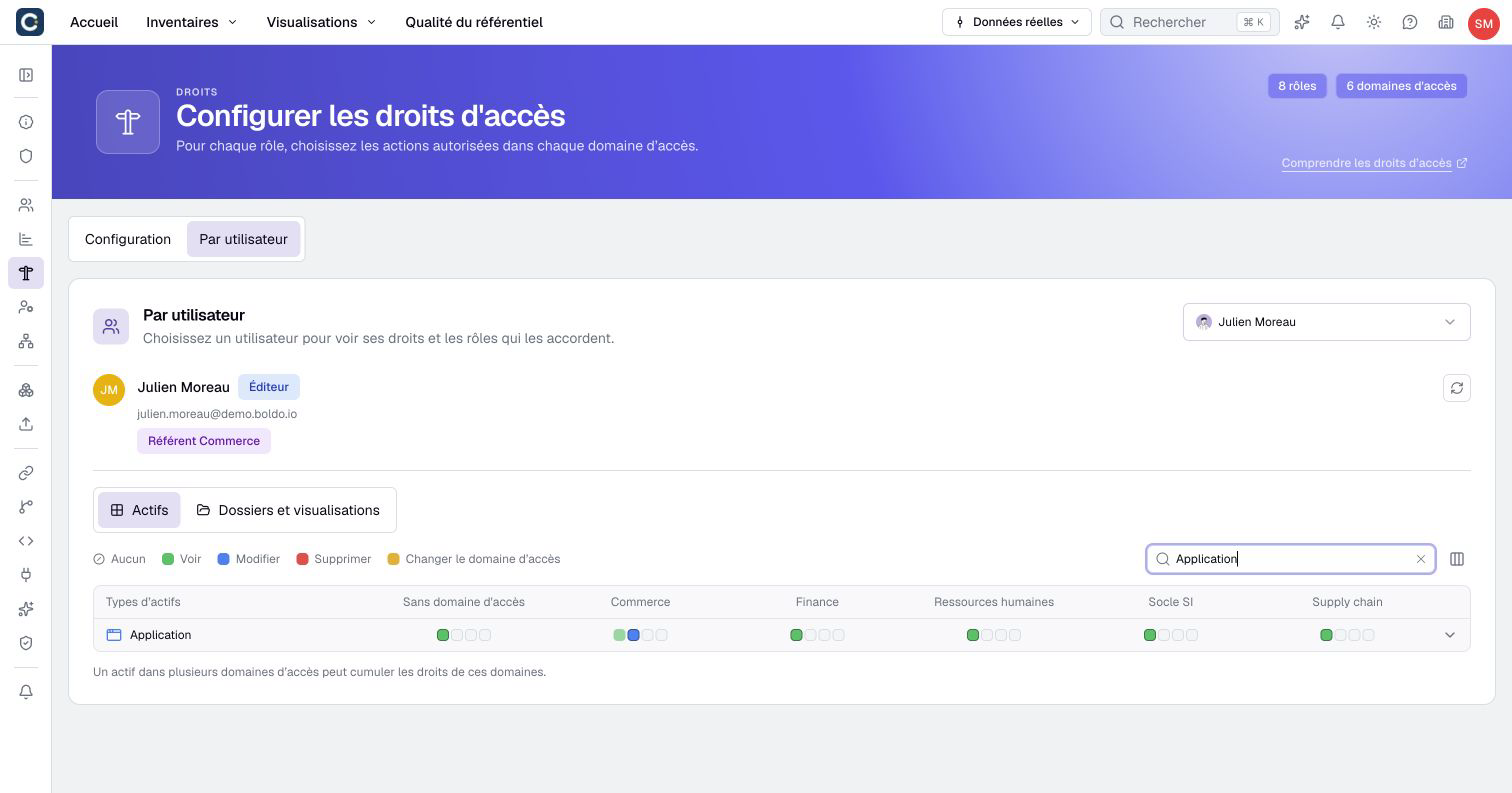
- Open Organization settings > Rights > By user.
- Select Choose a user and search by name or email.
- Read the effective user type and roles in the header. Open a role link if you need its configuration.
- Under Assets, filter displayed domains and search for an asset type.
- Open the type to inspect its properties, relationships and relationship properties. Domains appear as columns.
- Read the effective level, Permission granted by roles when different, and Granted by to identify contributing roles.
- Open Folders and visualizations to inspect content permissions separately.
- After modifying roles or type, click Refresh and verify the intended action in the member's own session.
The selector includes disabled members. Sign-in disabled means they have no active sign-in method; the table can still explain their configured role permissions.
Read-only with the current subscription explains a difference between recorded and effective type. Editing a role will not remove a subscription restriction.
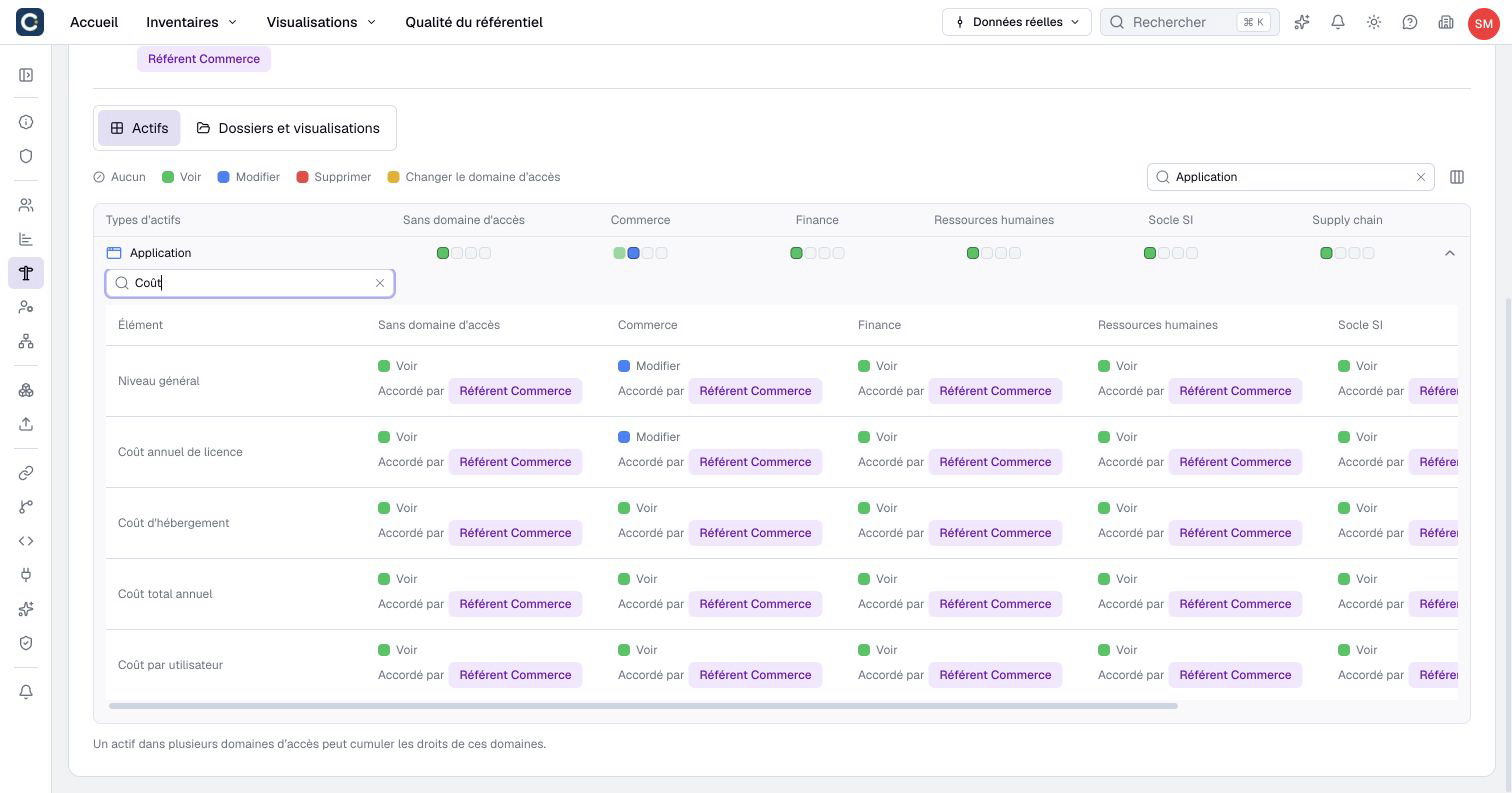
To investigate a particular asset or relationship instead, open its Rights tab. Its report groups members by roles and shows effective access for that item. Filter the main access level, then search properties or filter their permission level. These filters help locate a restriction; they do not change permissions. This is a different entry point from the organization-wide By user report.
Trace why a permission differs
Roles and applicable domains combine. A restrictive cell does not cancel access granted elsewhere. Filtering a domain out of the table changes the display, not the user's permissions.
For a multidomain asset, inspect every applicable domain and contributing role. A member may still edit through a domain that is not currently displayed.
The explanations can identify a Viewer ceiling, subscription restriction, computed property, inaccessible source or relationship ceiling. A computed property remains read-only even if a role is assigned an editing level elsewhere.
Metamodel-hidden properties do not appear in the detail. Their absence is not proof that the member's visible fields represent the entire underlying asset.
Diagnose an unavailable action in order
| Check | What to confirm |
|---|---|
| Organization and member | The report concerns the same organization and account as the blocked session. |
| Sign-in | Membership and an active method, plus applicable SSO, 2FA and IP requirements. |
| Effective type and plan | The action's minimum user type, subscription state and capacity. |
| Feature availability | Plan capability, organization activation and individual permission where required. |
| Data access | Roles and domains for the asset, then its specific property or relationship. |
| Resource state | Computed or hidden property, inactive resource, real-data or scenario context. |
| Content and sources | Access to the visualization and independently to the data or widgets it reads. |
For example, a Viewer can have roles configured with editing permissions while the effective action remains limited by their type. An administrator can have access to settings while a business property remains hidden by their roles.
If the action depends on ownership, check the quality and responsibility rules, not only an Edit cell. Ownership-based attestation and releasing one's ownership have specific conditions.
Understand the diagnostic's limits
By user is not a complete sign-in simulation. It does not prove that SSO, 2FA, IP restrictions or every individual feature permission currently allow the session. It can show permissions for a member who cannot sign in.
It also does not grant access to another person's personal content. A visible visualization does not establish access to its source assets. Check both when an expected widget or asset is missing.
API keys and external links have their own roles and restrictions. Inspect the relevant key or share link rather than applying this member report to every access channel.
After correcting the specific cause, refresh the report and check the concrete action with the affected member. Do not promote them to Administrator as a universal workaround. If permissions allow the action but Home or an editing/suggestion form still fails to load, record the screen and message for support. That loading failure is not itself proof of insufficient permissions.