Configure relationship types
A relationship type defines which asset types can be connected, in which direction and with which information. Administrators and the Owner configure it before contributors create relationships between assets.
Create a relationship type
- Open Organization settings > Metamodel > Relationships and click Create relationship type.
- Select From and To. For example, Application → Team means the Application is the source and Team the target.
- Enter Name, check Key, and choose a color and the line and endpoint styles.
- Use Swap source and destination if the direction needs reversing, then check both endpoints and the generated key.
- Click Create. The relationship type's page opens.
- Add any properties on that page, then check the definition by creating a relationship between representative assets.
You can also start from an asset type's Relationships > Add a relationship. That form keeps at least one endpoint anchored to the current type. Changing one endpoint may reset the other; check both before saving.
The key must be available. A name must not duplicate another relationship type for the same source/target pair. Keep names readable from the source's perspective, and check the direction shown on asset pages.
Line and endpoint symbols control appearance. Available endpoints include filled and hollow diamonds, filled and hollow triangles, and open arrows. An arrow, diamond or many marker does not enforce a numerical cardinality constraint. Choose the display that explains the connection without assuming it limits how many links contributors can create.
Add properties and categories
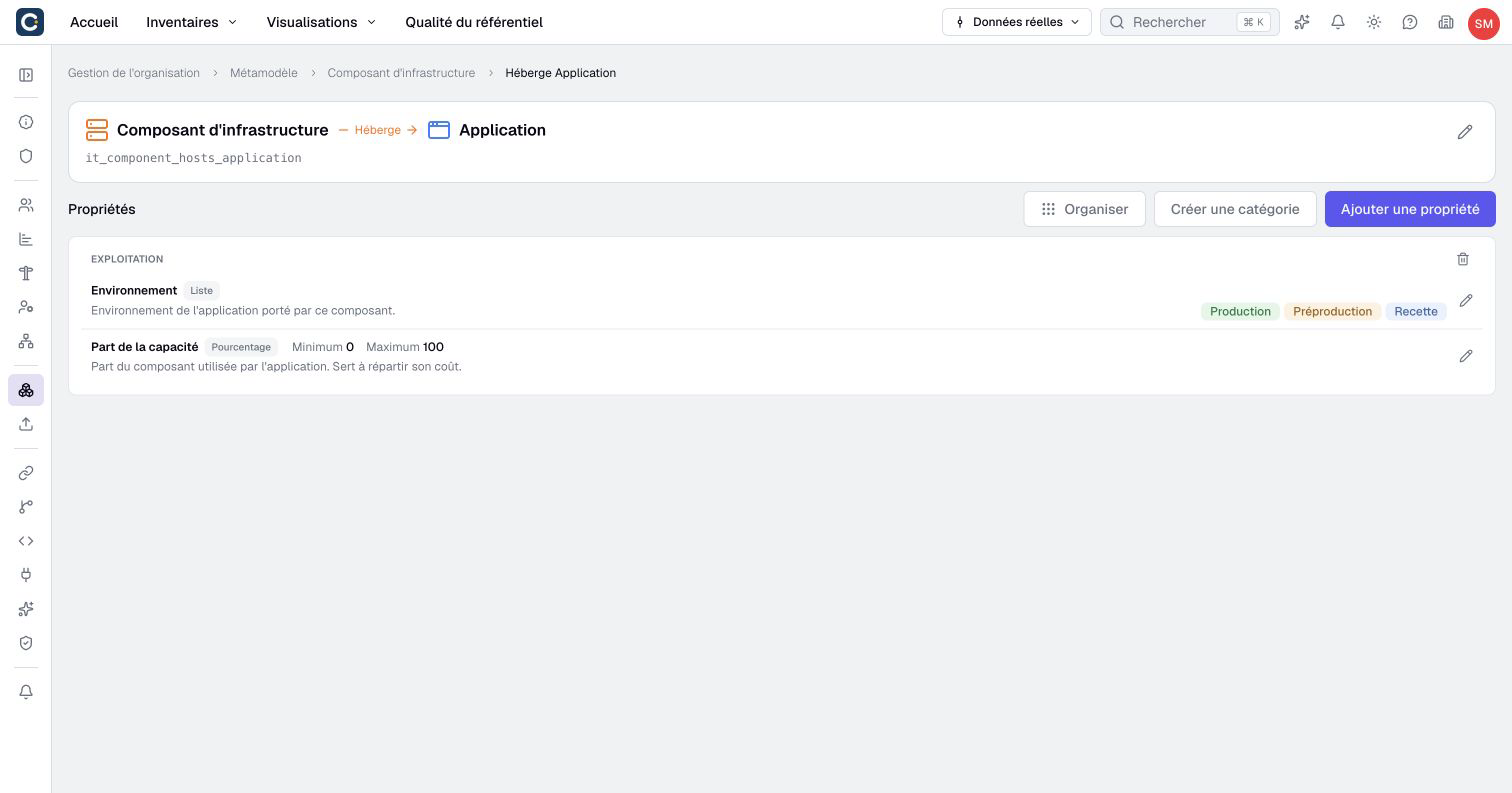
Open the relationship type's page from its row in Relationships, then click Add property. Configure its name, key, type and options. Start from an existing property can fill the form from a property on this relationship type or another one. Check the settings, then create the property. Manual and calculated properties are both added after the relationship type exists.
The property configuration, conversion and calculated-property rules also apply here. For example, record allocation on the relationship when the value belongs to the connection, not to either asset alone.
Adding the first property automatically enables relationship properties. Each property and category has its own save command on the relationship type's page.
Use Create category to organize relationship fields. Open Organize to move properties and categories, then click Apply. Rename a category with its pencil or by double-clicking its name, then click outside the field to save. Removing a category preserves its properties and values, which become uncategorized.
Configure relationship permissions from the source type. Being allowed to edit the target asset alone does not establish permission to create or edit the relationship. Relationship property permissions remain distinct from asset properties.
Parallel links and disabling properties
Adding a property also permits parallel relationships of the same type between the same source and target assets. Two links can then hold different allocations or descriptions. They remain distinct relationships, not one row with several values.
This affects calculations: COUNT counts each relationship, while COUNT_DISTINCT counts distinct related assets. Summing a related asset's value can repeat that value for each parallel link. Review aggregation rules before interpreting a total.
Deleting the last property automatically disables relationship properties unless parallel links remain in the real repository or a scenario. Deleting a property removes its stored values. When parallel links remain, the mode stays enabled even though no property definitions remain.
This check considers active and archived relationships separately. Archiving all duplicates leaves several archived links, so it does not trigger this automatic disabling.
Change or delete a definition
Open the relationship type's page and click the pencil beside its source, name and target. Make your changes, then click Validate. Changing its name or style while keeping the same endpoints preserves existing links. If the key changes, review the key warning and update external imports and integrations.
Read the endpoint-change warning before clicking Validate; there is no guaranteed second confirmation. Changing From or To removes the existing relationships and their associated data and history. It does not reconnect the old links to new assets. Property and category definitions can remain, but this does not preserve the deleted links' values.
Dependent aggregate formulas or formulas incompatible with the new endpoints can block the change. Review the identified dependencies before retrying, then inspect affected scenarios and visualizations. If the refusal persists for a formula that appears compatible, contact support before deleting calculations to force the change.
To delete the relationship type, use the trash button in its editing form and click Confirm after reading the warning. You do not need to retype the name. This removes its relationships; it is different from archiving one relationship. Calculated dependencies may prevent deletion.
Flow relationships are configured through the asset type's Enable flow settings. They cannot be converted into ordinary relationships through this form.