View an asset's full page
An asset's page brings together its properties, connections and activity. Use it to understand the item before changing it or relying on it in a decision.
The information you see depends on the asset type, your permissions, the organization's plan and the current real data or scenario context.
Open an asset's page and choose a tab
- Find the asset in an inventory or global search.
- Select its name, or use Actions → Open in the inventory.
- Check the name, type and data context.
- Choose the tab corresponding to what you want to understand.
| Tab | What it provides |
|---|---|
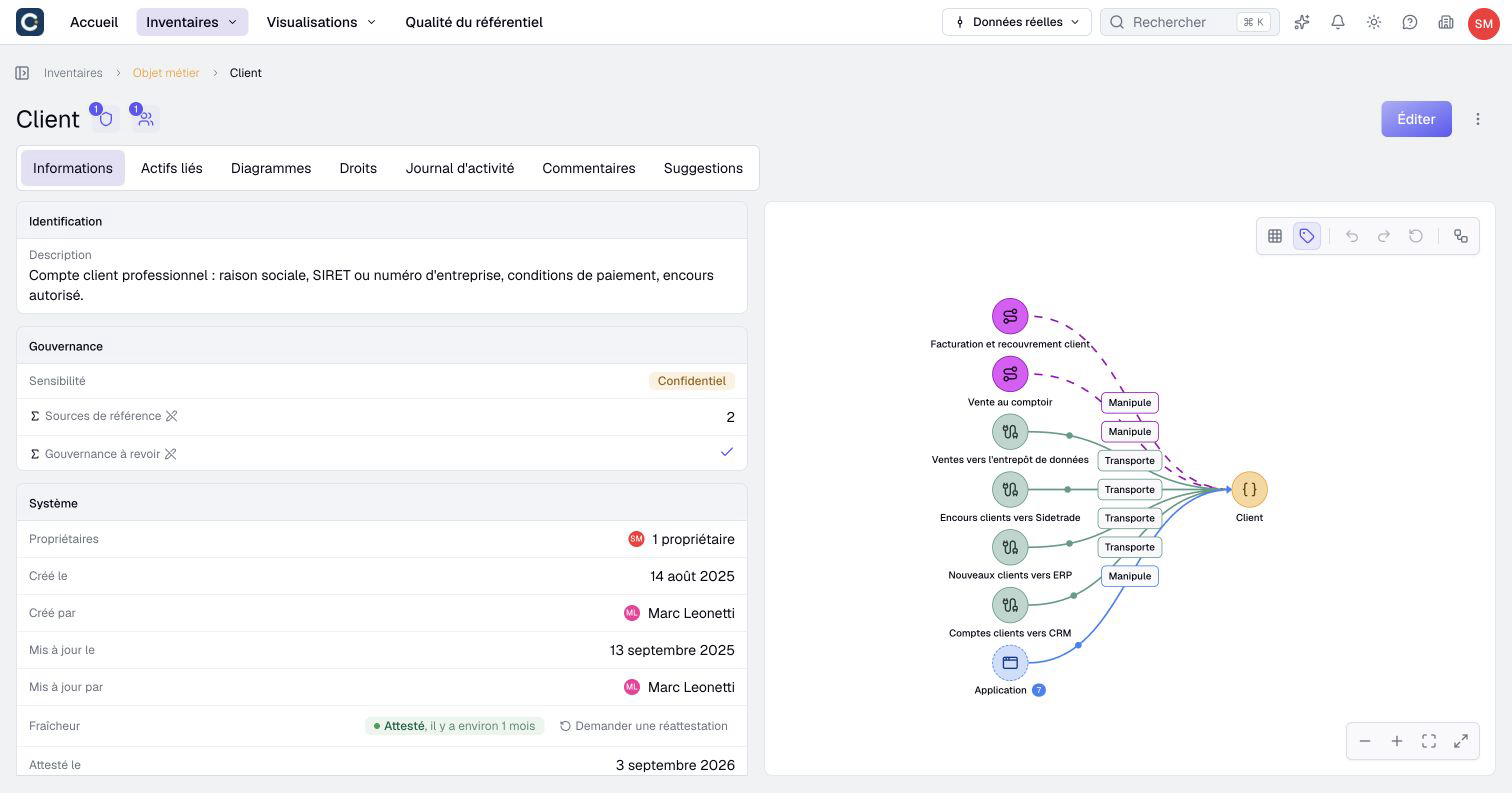
| Information | Property values, system information and a graph of accessible connections |
| Related assets | Linked assets grouped by type and relationship direction |
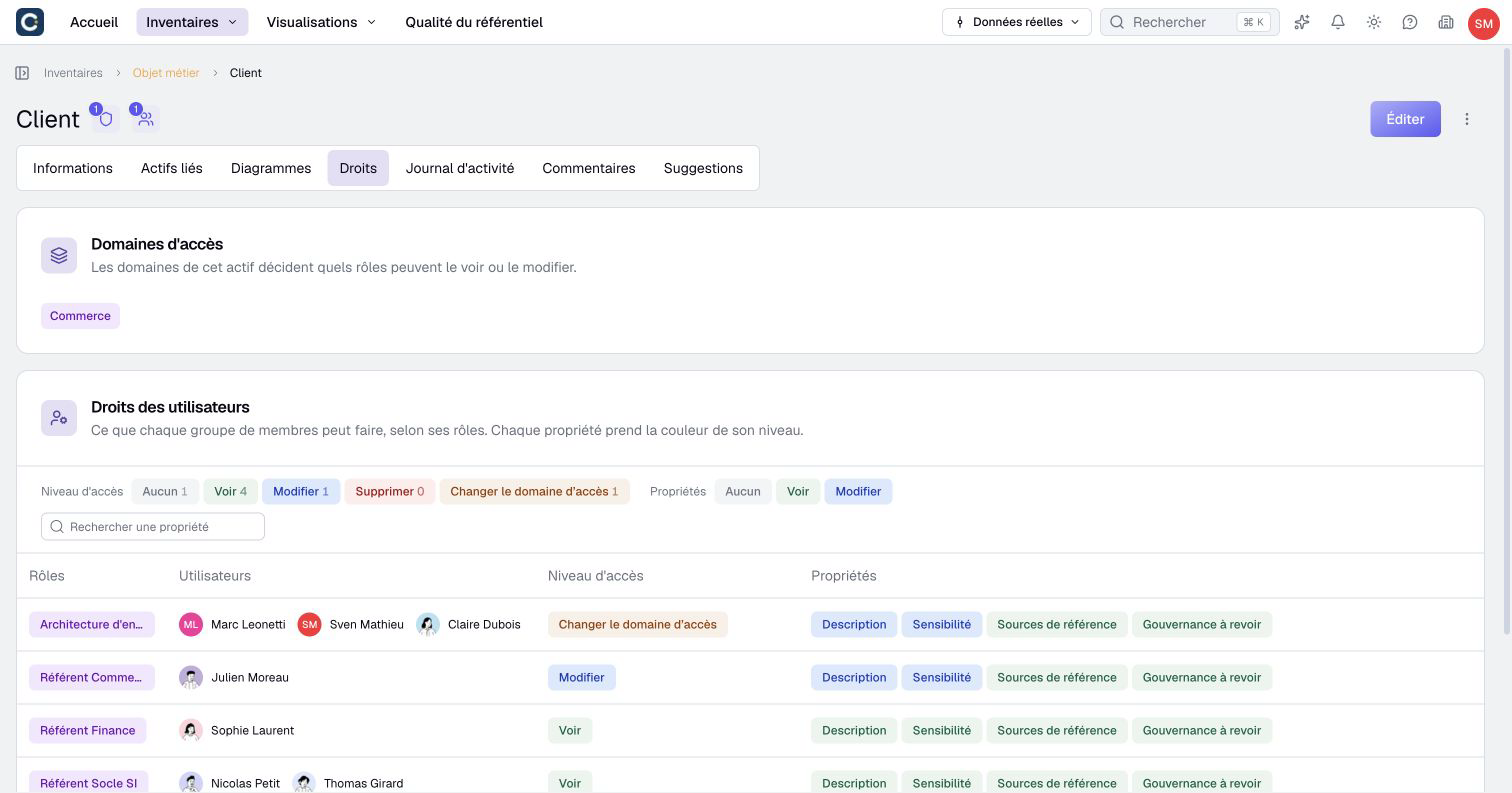
| Rights | Details of access to the asset, when included in the plan |
| Activity log | Recorded changes, when history is available |
| Comments | The discussion about the asset, when available |
| Suggestions | Suggested changes and their review |
A process opens on Information by default and also offers Flow editor when the feature is available. With that tab open, the page’s ⋮ menu includes the available flow actions, such as version history and export. Access to the asset's properties and access to its flow are separate; see processes.
A creation suggestion opens a dedicated page with its author, date and note, followed by the suggested properties and relationships. Depending on your permissions, you can edit, create, refuse or withdraw it. It is not yet an active inventory asset. Creating it also accepts eligible suggested relationships; links awaiting another asset's creation or additional permissions remain pending. See creation suggestions.
Read properties and system information
In Information, properties follow the categories and order defined in the metamodel. Custom labels and choices can differ between organizations.
A blank or unavailable value does not always mean that nobody entered it. A property can be hidden by the model, restricted by permissions, or calculated from information you cannot access.
API, MCP or AI beside a manual property identifies the channel of its last recorded change. Hover over the badge for the date and author, when available. It describes that property, not every value on the asset, and does not certify its accuracy.
Calculated properties have an indicator. Value possibly out of date indicates that a source changed but recomputation did not complete. This is separate from information freshness. If Recompute is available, you can request a recalculation, then check the updated result. This does not attest that the underlying business information is correct.
The System card belongs to Information; it is not another tab. It shows owners, creation and update information, and the completion score when available. An archived asset also shows its archive date.
In real data, when quality management is enabled, the card can also show freshness, the last attestation and a request for reattestation with its author and reason. Owners, completeness and attestation describe different aspects of quality. A recent content update is not necessarily a recent attestation.
Explore connections in the graph
The graph beside the properties is an exploration of the asset's accessible neighborhood. Its layout is automatic. Several relationships of the same type and direction can be grouped to keep the graph readable.
- Select an asset's icon in the graph to open its inspector.
- Review Outgoing relationships and Incoming relationships.
- Use the
+and−controls to show or hide a connection or a section of connections. - Select a neighboring asset's name to expand it when needed and select its node.
- Use Open in the inspector to open that asset's full page.
Showing or hiding a connection changes the graph being explored. It does not create or delete a relationship in the knowledge base. Expand a group to inspect its members instead of treating its summary as a single asset.
Select an individual connection to inspect its Source, Target and readable relationship properties. A line connected to a group selects the group instead. Editing controls appear only where your permissions allow them.
Use Zoom in, Zoom out and Fit view to adjust the display. Fit view frames the currently displayed nodes; it does not undo your exploration. The graph also offers a grid, relationship labels and full-screen controls.
With the pointer over the graph or focus inside it, Ctrl+Z undoes exploration and Ctrl+Shift+Z redoes it; use Cmd on Mac. Back to the initial relationships restores its starting connections; this action can also be undone. These commands change the graph, not inventory data. The exploration history resets when you open another asset or its relationships reload with changes.
Keep an exploration as a diagram
- Show the assets and connections you want to retain.
- Select Convert to diagram when available to your account.
- Enter the name and choose the personal or shared destination and applicable domains.
- Check the counts shown in the creation dialog.
- Confirm creation and inspect the new diagram.
Conversion supports up to 500 asset nodes and remains subject to permissions and diagram limits. Partially expanded groups become text summaries rather than silently adding all hidden members.
The new diagram is a saved visualization. Exploring an asset's graph alone does not create or save a diagram. Use the diagram procedure to edit the result.
Read linked assets and where the asset is used
In Related assets, expand a relationship group to read the connected assets. Read its direction and label before interpreting the connection. Parallel relationships can produce several occurrences involving the same asset; a relationship count is not necessarily a count of distinct assets.
Select the relevant name to inspect an endpoint. For changes to a connection or its properties, follow relationship management.
The Used in icon beside the asset's name counts the content that uses this asset: diagrams, dashboards, impact analyses that start from it, and processes whose flow mentions it. Hover over it to list them, then select one to open it. Items you cannot open are counted without being named.
Views, charts and nested maps are not listed: they select assets by type and property, not one asset in particular. The icon does not appear when nothing uses the asset.
Inspect access to this asset
Open Rights when available. The page shows the asset's access domains, then groups members by their roles and effective access. Use the access-level filters to find groups with a particular level. Under Properties, filter by permission level or use Search a property to find a field.
Read the displayed level and its explanation together. Hidden metamodel properties are omitted. Filtering this report changes only its display; it grants or removes no permission. Administrators can open a role's configuration from its link. To investigate one member across the organization, use By user.
Inspect activity and discuss a change
- Open Activity log when available.
- Expand a grouped row to read its individual changes and compare the old and new values.
- Use the Date or Field column to change the sort order when needed.
- Use the pagination controls to inspect earlier entries.
When sorted by date, the log groups changes saved together under one expandable row. A creation groups its initial values beneath it. Sorting by field displays changes individually.
The log distinguishes content changes from responsibility and quality events. Read the old and new values; for lists and relationships, the display identifies additions and removals. API, MCP or AI identifies the recorded channel. For an accepted suggestion, the log also credits its author and channel beside the member who accepted it.
An administrator working in real data can use Delete from history on eligible entries and select Delete in the confirmation. This removes historical information; it does not restore an old value in the asset. For an entry containing several property changes, the selected property's history can be removed while other property changes remain.
This action requires the applicable editing rights and is not offered for the current state or protected event types such as attestations. Do not use it as an Undo command.
Use comments and mentions for discussion. Use suggestions to suggest or review a change. Neither reading the history nor leaving a comment automatically changes a property value.
Recognize an archived asset
An archived asset's page displays an archive banner. Editing and sharing controls differ from those of an active asset; Restore or Delete permanently may be offered according to your rights.
Follow archive and restore before acting. If the asset's page cannot be opened, check the organization, scenario and permissions rather than assuming that the asset was permanently deleted.