Import or update assets
An asset import can create records, update their properties and connect them to other assets. The matching key determines which record each row addresses.
You need an Administrator or Owner account. This administrative import is not restricted to the business permissions used for ordinary editing. Check the organization and real data or scenario context before proceeding.
Load and map the file
Prepare a CSV or XLSX file first. Keep a copy of the current data if you may need to reconstruct previous values.
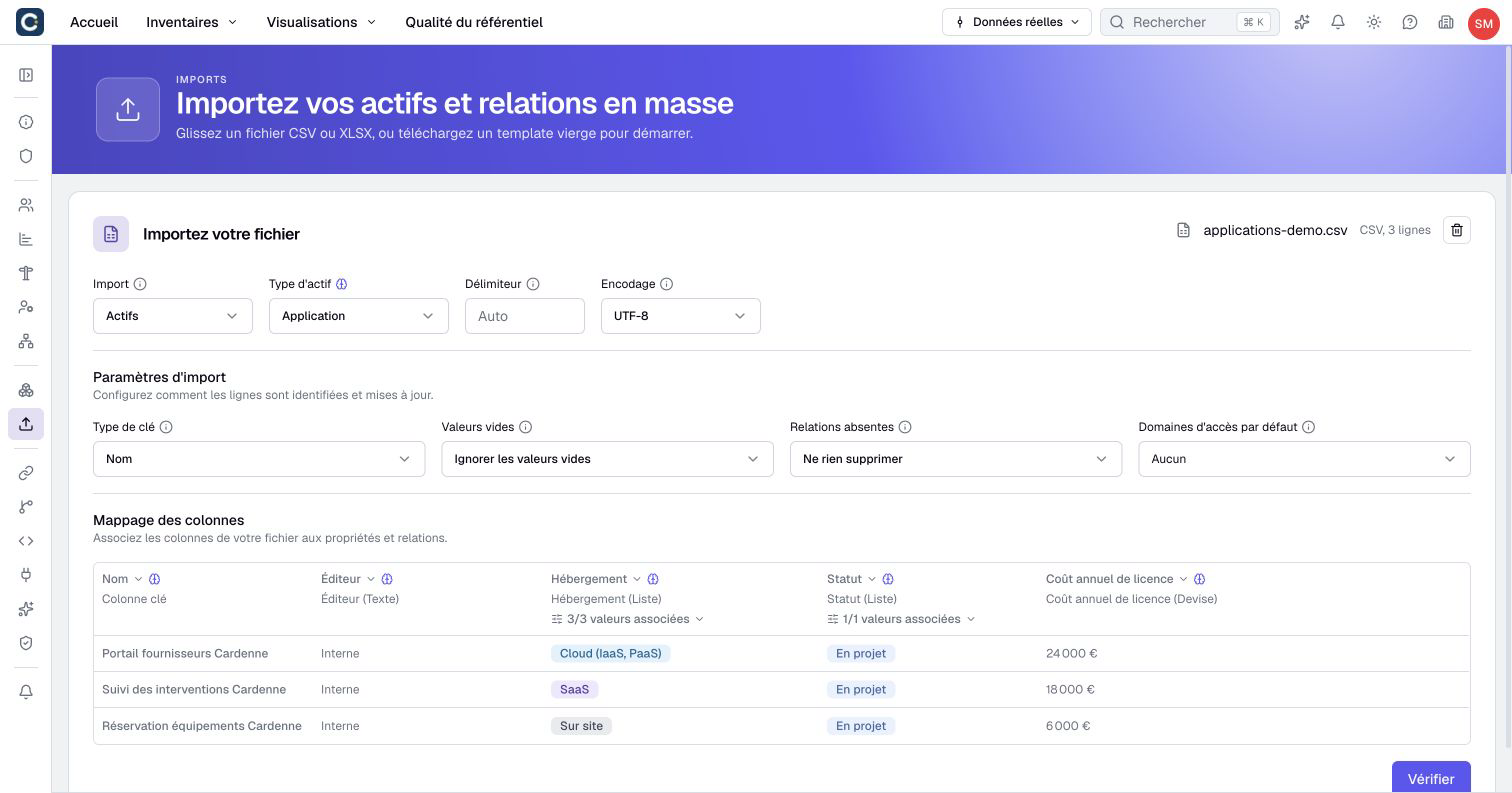
- Open Imports in the organization settings. From an inventory, Actions → Import CSV / XLSX opens the same page.
- Select the upload area and choose your file, or drag it onto that area.
- Check Assets and the asset type, including any automatically detected choice.
- For CSV, correct Delimiter or Encoding if the displayed data is wrong.
- Choose Key type and inspect the column marked as the matching key.
- Check the destination in each column header. Open the options summary below that destination to inspect its settings.
- Review empty values, missing relationships and default access domains before selecting Verify.
The displayed table lets you inspect interpreted values. A date should look like a date; a monetary property should show the intended amount. Correct parsing or mapping before reviewing the final changes.
The options panel groups settings for that column: cell delimiter, date format, value mapping, related-asset matching or behavior when a target is missing. A relationship property can also offer Distinguishes multiple relationships. Available options depend on the chosen destination.
Match the intended records
| Key type | Behavior |
|---|---|
| Name | Matches names without case sensitivity. Creates an asset when no match exists. |
| Boldo ID | Finds the existing ID. A supplied name can provide a fallback when the ID is unknown. Without a match, the row is skipped. |
| Unique-key property | Finds that property's value, with a possible name fallback. Can create an asset when a name is available and no existing record matches. |
An empty matching key causes the row to be skipped. A nonempty unknown ID is not a request to create a record with that ID.
To rename an asset, match by its existing ID or stable unique key and provide the new name. Check that the preview shows an update, not an unintended creation.
Several rows can address the same asset. They are merged in file order: the last nonempty value wins with Skip empty values. With Overwrite with empty, a later empty value can replace an earlier value. Row counts therefore need not equal asset counts.
Control replacement behavior
Empty values defaults to Skip empty values. Existing property values remain when their imported cells are empty. Choose Overwrite with empty only when those empty cells should clear the corresponding values.
In the column’s value mapping, No value treats markers such as n/a or - as empty. It is offered for choices and yes/no fields, and for invalid numbers or dates. The Empty values setting then determines whether to preserve or clear the stored value. In a multiple-choice cell, mapped markers are ignored. A cell containing only markers mapped this way is treated as empty. This also applies when several file rows merge into one asset.
Missing relationships defaults to Keep existing relationships. Remove missing relationships can remove links missing from the imported relationship columns. Check every removal in the preview; this is not a general synchronization of every relationship in the knowledge base.
Default access domains apply to created assets when no domains are supplied for them. Imported domain values do not replace the domains of existing assets. Change existing domains through the asset editing workflow.
Assign owners
Map an owner column containing organization members' emails. Set its cell delimiter if you list several owners.
When at least one email resolves to a member, the imported list replaces the asset's owners with the recognized members. Unknown emails are reported and ignored. An empty owner cell, or one containing only unknown emails, preserves existing owners even with Overwrite with empty.
Read owner warnings before confirming. An import can succeed without assigning every owner you requested.
Import related assets
For a relationship column, choose Resolve by: name, Boldo ID or an available unique key. Set the delimiter when a cell contains several references.
With names or unique keys, If target missing offers Create target or Block import. Creation through a unique key uses that key's value as the new target's name. ID matching does not create a missing target.
You can also map relationship-property columns. They must accompany the target column for the same relationship type and direction. Use Distinguishes multiple relationships when a property's values identify parallel instances.
Without a distinguishing property, this asset-import path can affect the first matching active relationship. To update one precise parallel instance, use relationship import with its Boldo ID.
Review and execute
- Select Verify and wait for the preview.
- Read creations, updates, unchanged and skipped records. Expand entries to compare values and inspect relationship additions, changes and removals.
- Resolve blocking conflicts, unexpected creations and owner warnings. Close the preview to adjust the file or mapping, then verify again.
- Select Confirm import only when the proposed changes match your intention.
- Wait for the final success result, then open the inventory using its offered link.
- Check representative created and updated assets, including their owners and relationships.
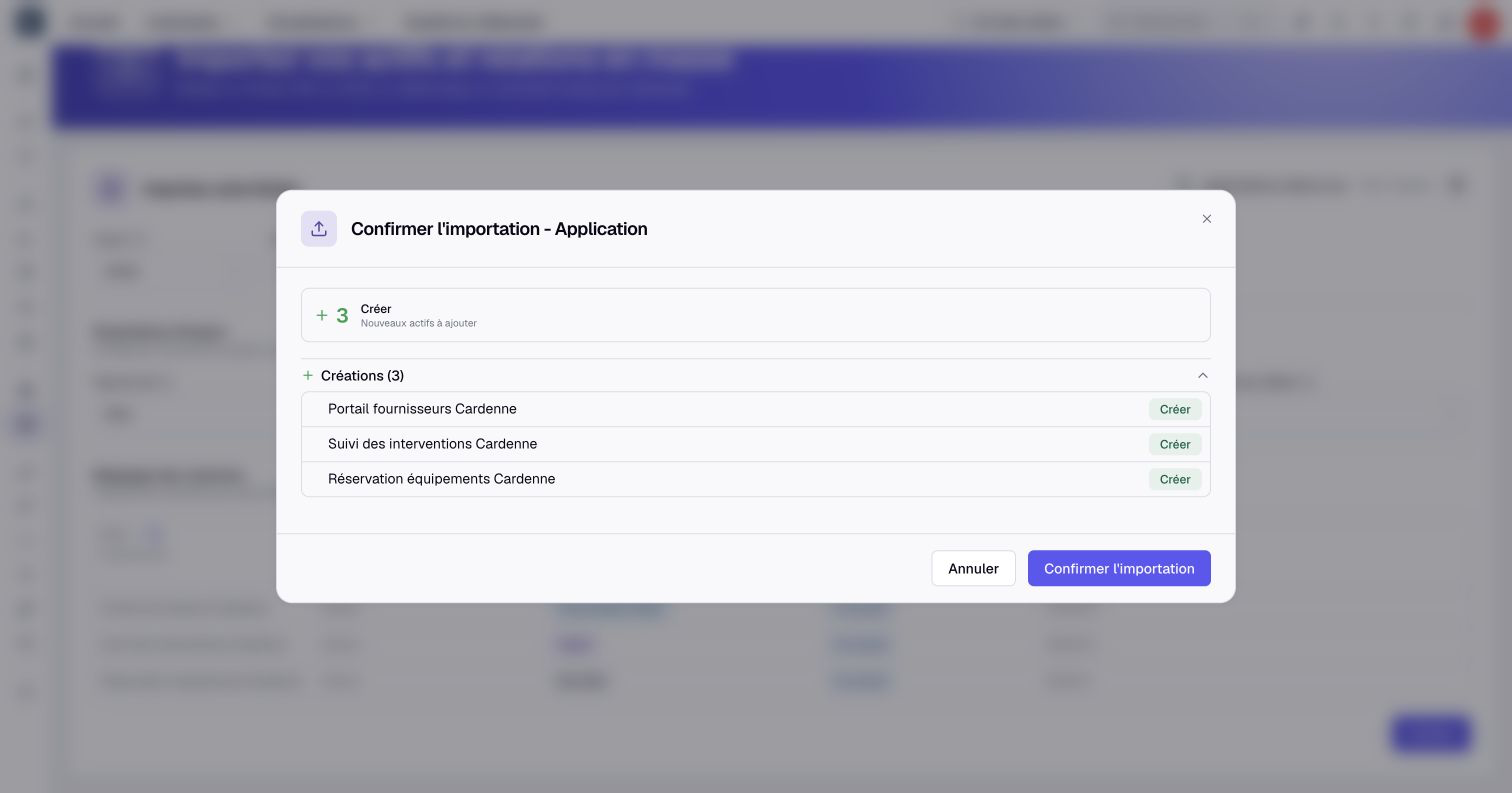
The preview can limit the number of displayed details. Use its counters and truncation notices; visible rows are not necessarily the complete set. If nothing changes, the dialog offers Close instead of an import action.
Verification does not reserve the current data. If someone changes relevant records before confirmation, verify again. Closing a preview cancels that preview; it does not undo a completed import.
If execution is interrupted, check the resulting data before retrying. An asset import can have saved its assets before encountering an error while processing relationships.