View and edit an inventory
An inventory lists the assets of a type configured in your organization. Use it to find information, compare several assets and update authorized values directly in a table.
Changing the table's display and changing an asset's data are separate actions. Saving a view preserves a presentation; saving cell changes writes values into the knowledge base.
Open the inventory you need
- Check the organization and real data or scenario context in the top bar.
- Open Inventories.
- Select an asset type.
- Use the inventory's search field to narrow the list by name.
- Select an asset's name to open its full page, or use Preview for a quick inspection.
Inventory names and available properties follow your organization's metamodel. An organization might show Applications and Business Capabilities; another may use different types. Your access rights also determine which assets and values you can see.
If a selector offers assets and relationships, check which list is active. Relationship editing concerns individual links and their properties, rather than the properties of an endpoint asset.
Select See suggestions, then Creations or Archiving, to review requests for this asset type. Creation suggestions show the view’s property columns plus author, date and note. Search, filter, sort and resize columns as needed. Open a suggestion to inspect or correct it; the grid is read-only. Authorized reviewers can decide individually or for a selection. See creation suggestions and archive suggestions.
Adapt the display
Use the toolbar to choose the table or card presentation. Organize controls the displayed information; Filter by, Sort by and Group by help you focus and compare it.
Use filters for conditions on values or related assets. A name search is useful for finding one item; it does not replace a filter for all assets matching a business rule.
The controls below the list change page and the number of displayed rows. A page of results is not the whole inventory. Check filters, search and archive mode before concluding that an asset is missing.
To reuse a presentation, save an inventory view. For an asset view, the free-text name search is temporary: it is not saved with the view.
Edit values in the table
You need an Editor account type or higher and write permission for the affected assets and properties. A readable cell is not necessarily editable. Calculated properties cannot be entered manually.
- Switch to the table presentation.
- Enable Cells edit mode, or press Ctrl+E on Windows/Linux or Cmd+E on macOS.
- Open an editable cell and change its value.
- Finish that cell's input. If its editor offers Done, select it to return to the table.
- Check the modified-row count under Pending changes.
- Select the count to Review the changes, then inspect the proposed values.
- Select Close to leave the review.
- Select Save in the table’s pending-changes bar, or press Ctrl+S / Cmd+S.
- Wait for the result and check that the final values are present.
Done closes a cell editor; it does not save the table's pending changes. Several changed cells on one asset count as one modified row.
Use Cancel in the pending-changes bar to discard the unsaved cell changes. If you try to leave or change editing mode with a pending draft, read the confirmation before continuing. Reloading the page is not a substitute for saving or resolving a conflict.
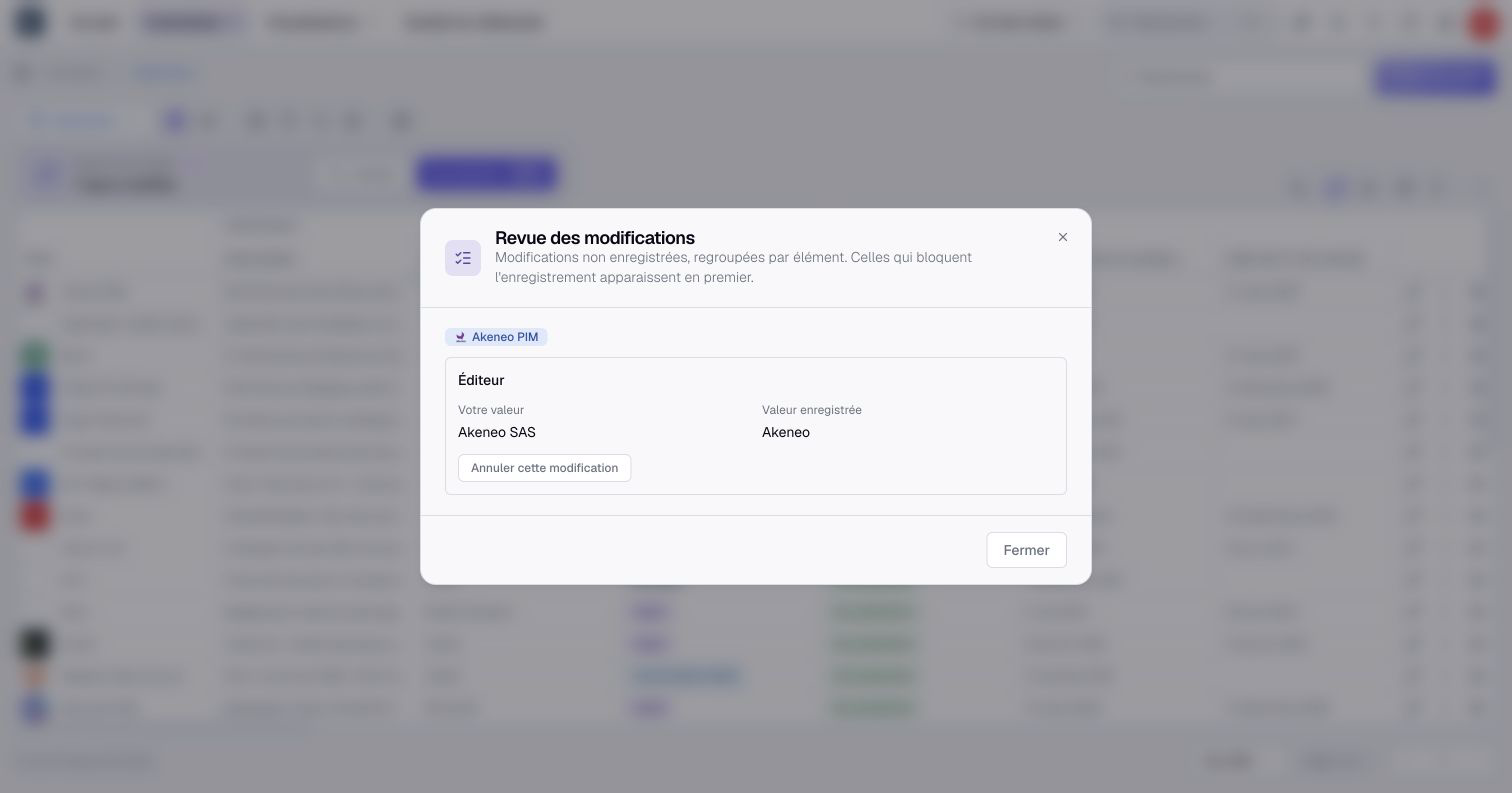
Resolve a blocked save
The review brings problems to the top and shows your proposed values alongside the saved values when you are allowed to read them.
For an invalid value, correct the field and review it again. For a concurrent change, choose Use the saved value or Keep my change explicitly. Another person may have changed the information after you began editing. Close the review, then save the remaining changes.
Use Undo this change to discard one field’s pending change without abandoning the other edits.
If your write permission was removed, discard the affected change or ask an administrator to check your access. If an asset becomes unreadable or unavailable, Boldo does not reveal its values in the review; remove that pending change.
After a save error or uncertain result, inspect the remaining pending changes and the saved data before trying again. Do not assume that an interrupted request proves that no value changed.
Apply an action to several assets
- Enable Select multiple assets, or press Ctrl+Shift+E / Cmd+Shift+E.
- Select the intended rows and check the selection count.
- Choose the collective action offered for your selection.
- Review its scope and confirmation before applying it.
Selection mode and cell-editing mode serve different purposes. Selecting rows does not grant additional permissions, and the available actions depend on the selected assets and your access.
To change the same information across the selection, use bulk editing. A Viewer can suggest those changes. An Editor can choose Suggestion; review which assets will be updated, receive suggestions or remain unchanged before submitting.
Use archive and restore for deletion-related actions. View archives switches to archived assets; archived rows cannot be edited like active assets. Quality actions, when offered, follow the rules described in information review and attestation.
Understand concurrent changes
The change review detects conflicts with remote values already received by the screen. It does not guarantee protection against every concurrent write: saving can overwrite a remote value that has not yet reached your screen. Coordinate sensitive edits and read back the saved result.