Apply changes and understand undo
Apply a scenario to transfer selected changes to its direct source. Review the result before continuing: an operation can apply some changes while leaving others blocked.
You need permission to apply the active, ready scenario and the corresponding destination data permissions. Applying a child also requires management access to its active, ready parent. See scenario access.
Select and apply changes
The same review applies changes to the direct source or copies them into another scenario. Check To before deciding: it names the destination you are reviewing.
- Open the scenario's Actions menu in the data context selector and choose Apply.
- If the review starts with Conflicts, choose Keep the source or Keep the scenario for each conflict. Undecided conflicts stay in the scenario.
- Read each step: one per asset, with its relationships and process flow, then one per visualization.
- Check Accept on the changes or fields you want to transfer. Unchecked changes stay in the scenario. Accept all above a step's list accepts the whole step.
- Check automatically accepted prerequisites. Remove this change and the ones that depend on it takes a prerequisite out with its dependents.
- Click Next, or Summary at the bottom of any step. The counter menu in the header also offers Accept all, Accept nothing and View the summary.
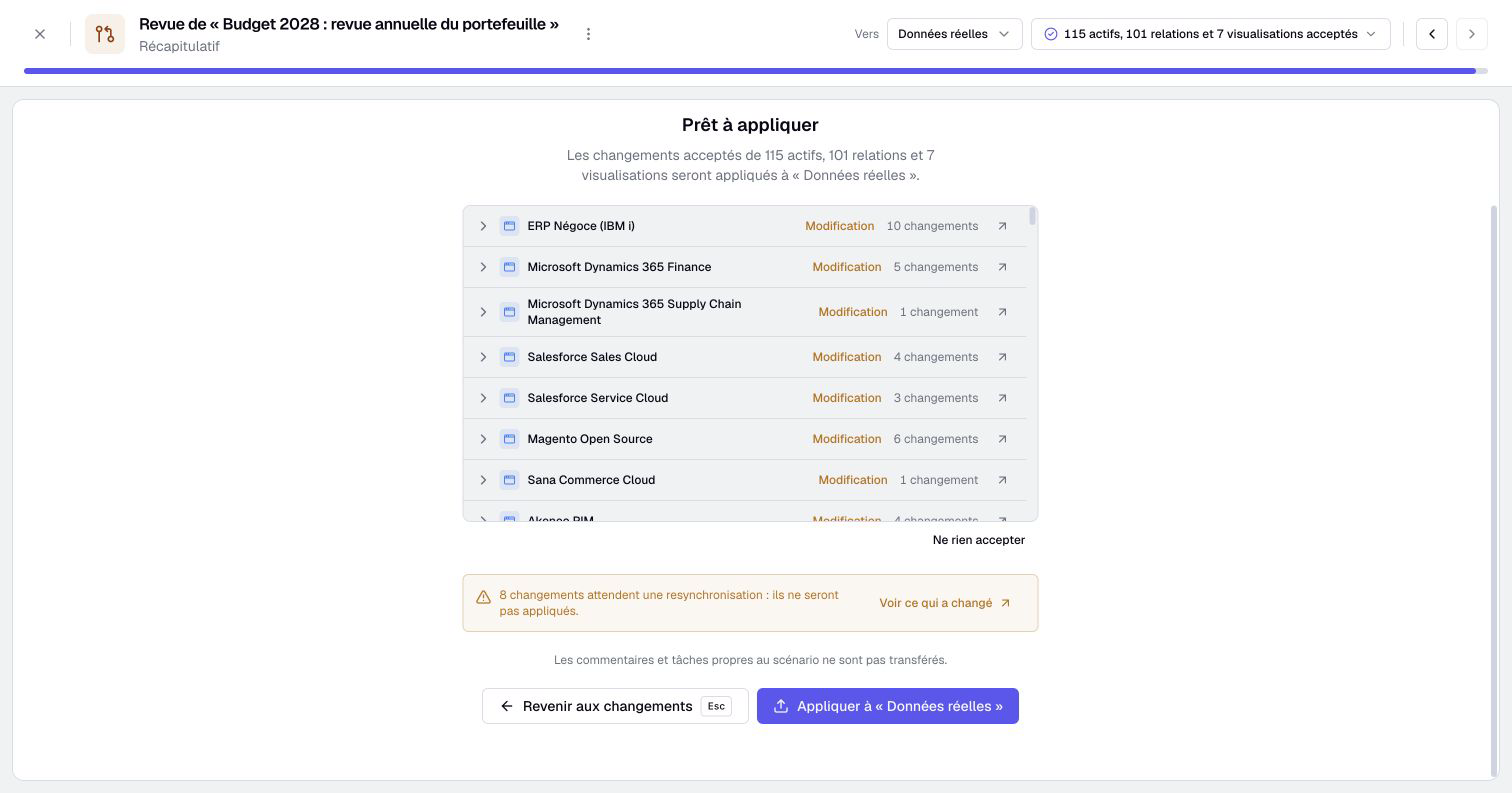
- In the summary, check the line of each asset and visualization, and the destination shown in To. Read warnings about conflicts, changes awaiting resynchronization, blocked changes and pending scenario suggestions.
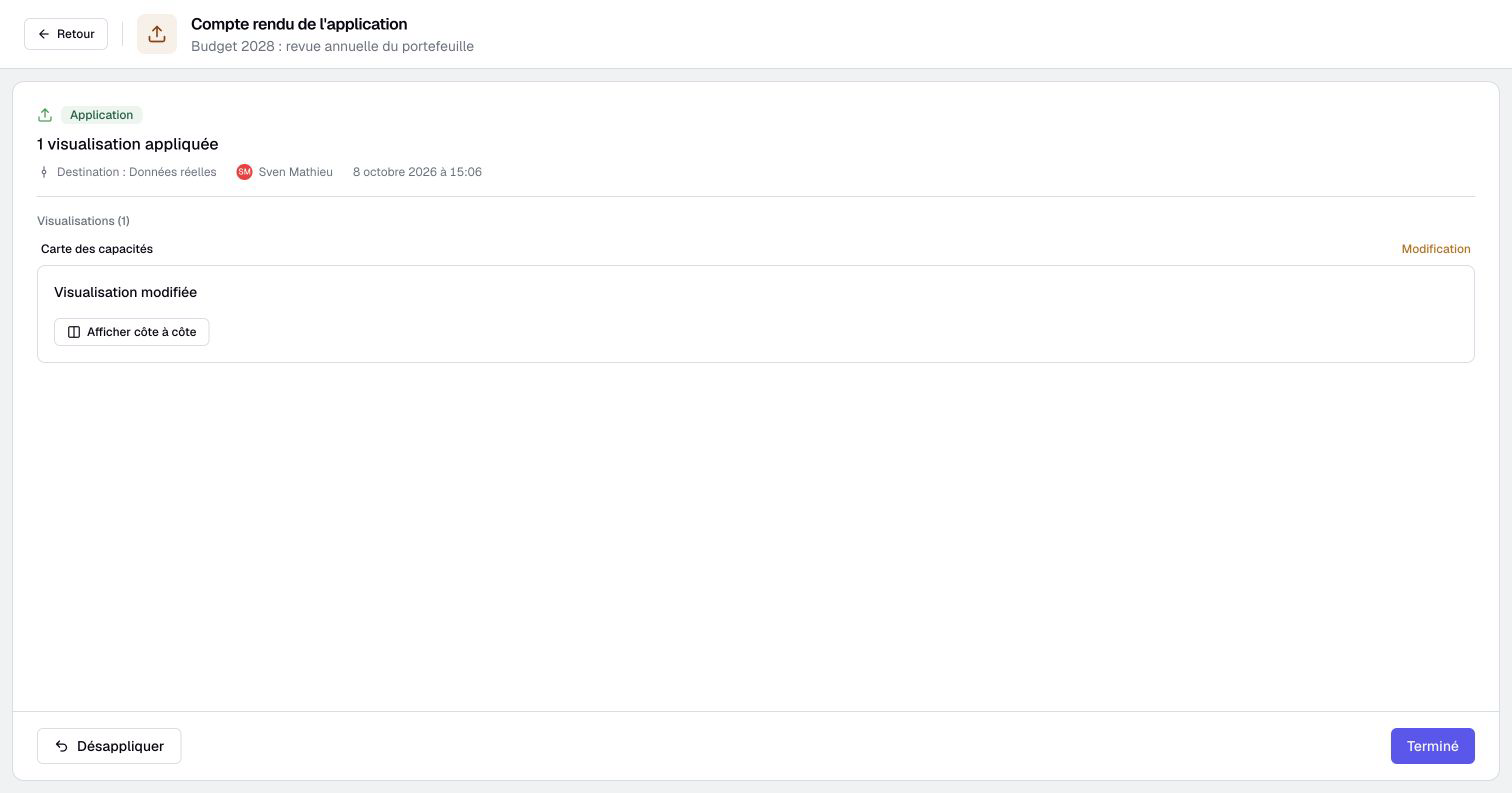
- Click Apply to “…”, then read the Application report, including each result and any remaining synchronization tasks. If the selection must be refreshed, review it again before applying.
The menu entry reads Copy when you cannot apply to the source but manage this scenario and another one, and View changes when you can do neither.
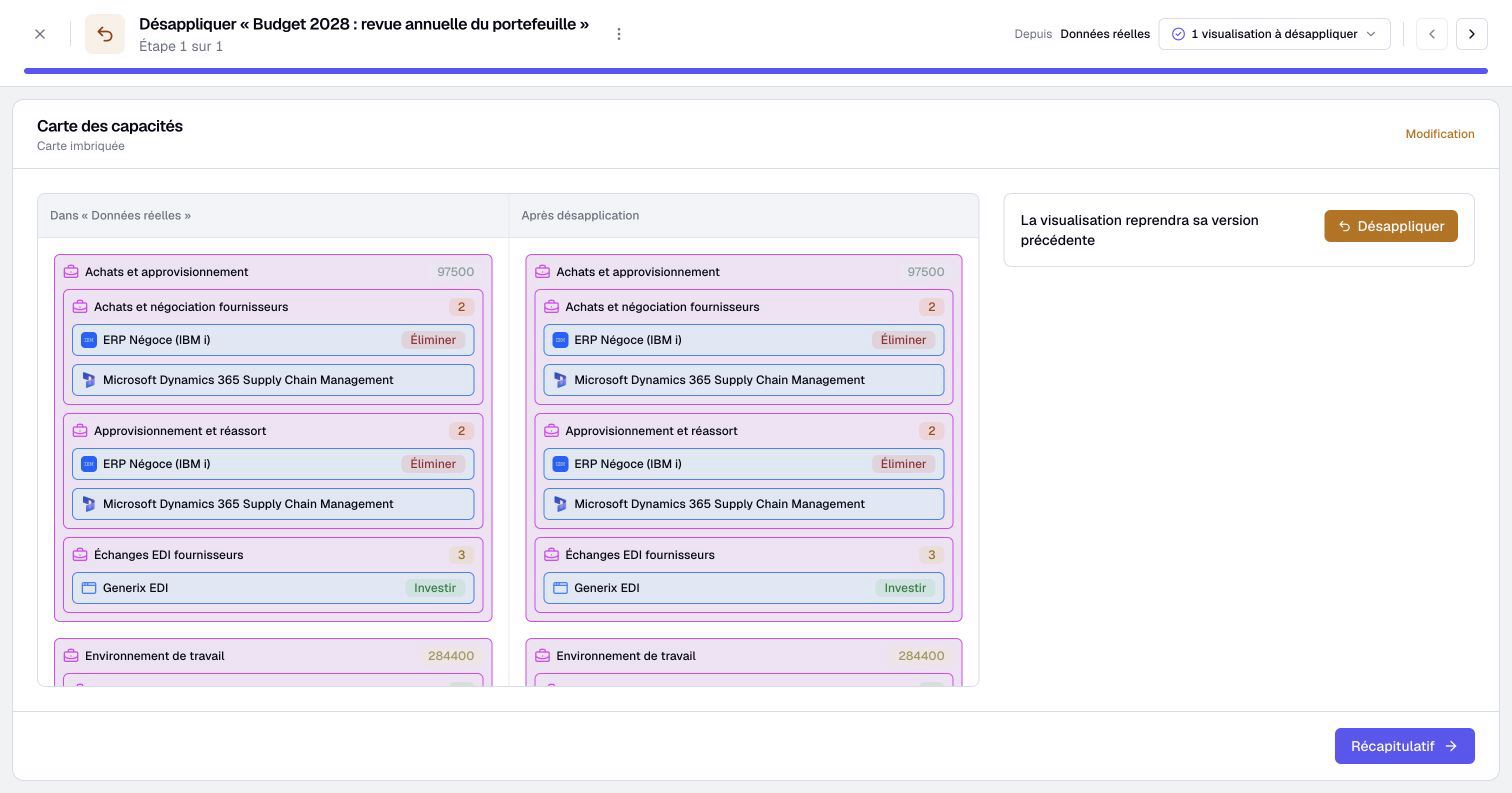
Some modifications can be selected field by field. A visualization is applied as a whole, from its own step. The step shows its name, its type, such as Diagram or Chart, and the operation: Modification, Creation or Deletion. Its preview shows the destination before and the scenario after, side by side. A creation shows only the after, a deletion only the before.
Your destination, choices and position survive leaving the review or reloading the same tab. Closing the tab starts a fresh review. A change edited since your choice must be reviewed again. From the summary, Escape returns to the changes without applying them.
One application takes at most 500 changes, including automatically accepted prerequisites. Beyond that, the summary disables the apply button and asks you to apply in several goes. This is not a limit of 500 asset rows: one item can contain several changes. Unselected or unapplied changes remain in the scenario.
Interpret the change report
| Result | Meaning |
|---|---|
| No label | The change was applied as announced. |
| Already matching | The destination already matches, so no new change was needed. |
| Not applied | The stated reason prevented application, such as permissions, a missing prerequisite or a changed value. |
| Will be applied | The change has not yet been processed, or processing was interrupted. |
| Unapplied since | A later operation unapplied the change. |
An operation marked Completed does not mean every entry was applied. Read individual results. Application is not a single all-or-nothing replacement of the destination.
An Interrupted operation may already have changed data. Its creator can use Restart operation when offered and still authorized. A prepared operation can offer Confirm changes.
Retry synchronization concerns remaining follow-up work, such as refreshes and notifications. It does not mean that no data was written. Resolve warnings about collaborative editors before editing again: a stale editor may otherwise save outdated content.
Understand complete application
When no changes or blockers remain, the scenario is archived with the Fully applied label, and its working copy is removed. If it was your current context, Boldo returns to its source.
If earlier changes were applied and you subsequently discard every remaining change, the review can offer Close the scenario. It requires application rights and no remaining pending, conflicted or invalid changes. It does not close an arbitrary partially applied scenario.
Active and archived children are attached to that source. A busy child can delay closure even after the changes have transferred. Check the scenario state and report instead of inferring closure from an empty selection.
At complete closure, source suggestions accepted in the scenario can mark their pending source counterpart as accepted. For a real-data destination, the author may be notified according to their access and preferences, unless they performed the operation themselves. Rejecting a suggestion in the scenario does not reject its source counterpart.
Comments created in the scenario are not transferred. New pending suggestions created there disappear with the working copy; they are not promoted to the source. Review them before complete application.
This also includes pending creation suggestions. To transfer an asset suggested in the scenario, first have its creation approved there, then select the resulting creation change for application. Submitting a suggestion alone does not create an asset in the source.
Undo eligible applied changes
Undo requires scenario management rights. Delegation through Can apply alone does not grant this action. A parent destination must also be active, ready and managed by you.
- Choose Unapply in the scenario's Actions menu, in the review's More menu or in History. Unapply at the bottom of an application report also opens it.
- If several applications are still in place, choose one under Which application to unapply?.
- Read the Kept step first when it appears. Its changes cannot be unapplied, and each one gives its reason.
- In each asset or visualization step, check Unapply on the changes or fields to take back. Unchecked changes stay applied.
- Use Unapply all above a step's list, or the counter menu: Unapply all, Unapply nothing and View the summary.
- Click Summary at the bottom of any step, check the list, then click Unapply from “…”. If the destination changed meanwhile, nothing is unapplied and the review refreshes.
- Read the Unapply report and check the destination data.
Each card compares the current value In “…” with the value After unapplying. A visualization step shows these two states side by side.
Unapplying an asset creation also selects its associated relationships from the same application operation. Keeping one of those relationships keeps the created asset too. Relationships added later can still block reversal.
Already undone or inaccessible changes cannot be selected. Later edits are protected, even when a value now looks identical to the applied value. A newly created asset may be kept if subsequent relationships depend on it.
Missing history, changed permissions, absent records or incompatible names, unique values and relationships can prevent reversal. Undo does not rewind all later work or recall notifications already sent. It does not guarantee that accepted suggestions reopen or deleted scenario suggestions return.
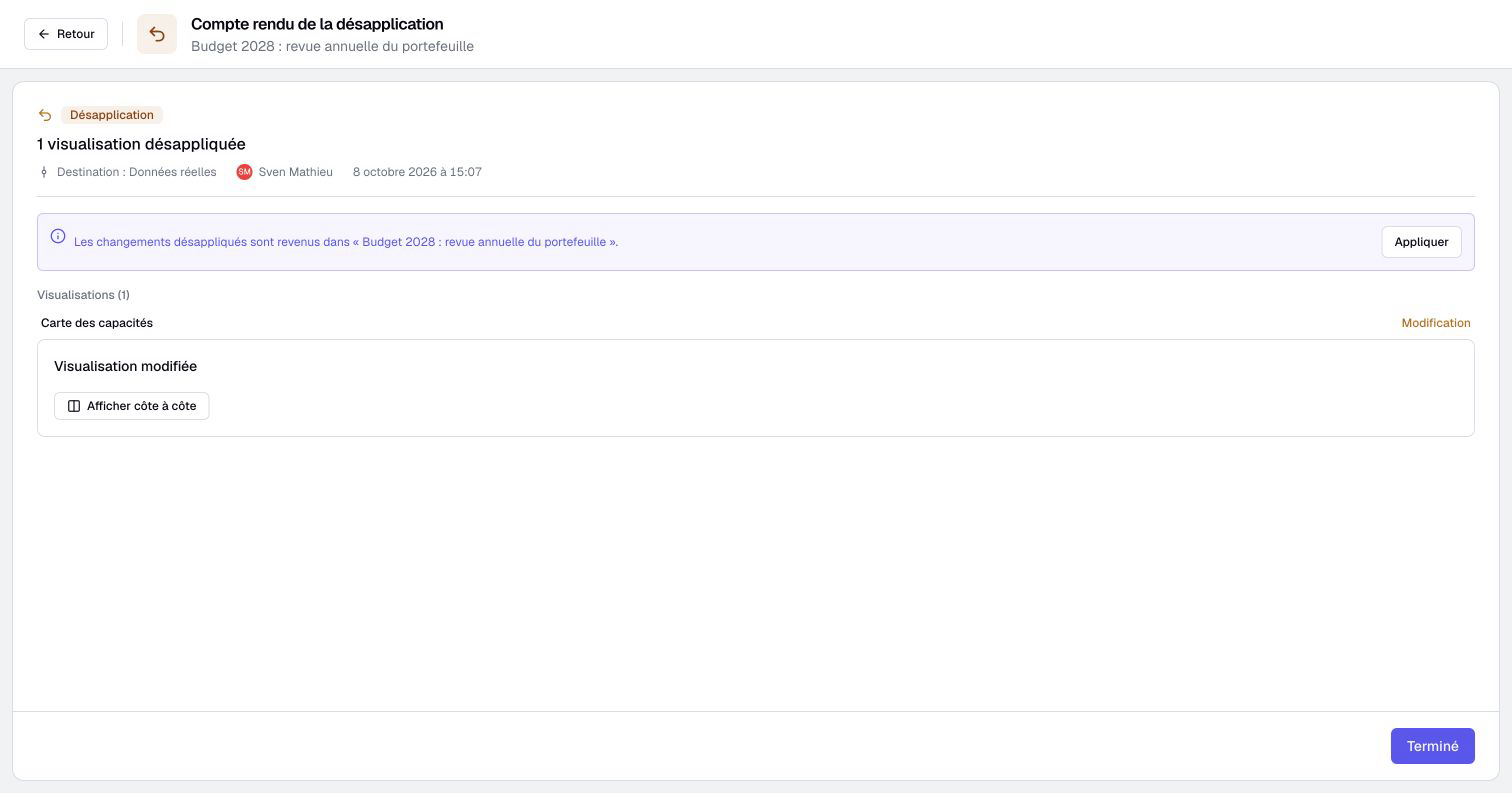
Unapplied changes go back to the scenario, ready to be applied again. If the scenario is closed, reactivate it to work on them again.
Deleting a scenario keeps its application reports, but no menu leads to them any more. A saved link to a report still lets you unapply, subject to permissions and current data. The deleted scenario is not recreated, so the unapplied changes do not go back to it.
Copy changes into another scenario
Reuse selected changes by copying them into another active, ready scenario. You must manage both scenarios. Copied changes also stay in the original scenario.
- Open the review with Apply, or Copy when you cannot apply to the source.
- Choose the scenario under Copy into, in the header's To list or on the Where do the changes go? screen.
- Read the Conflicts step when it appears: values the target changed since, and changes that cannot be copied, with their reason.
- Accept the changes to copy, step by step, as for an application. Accepting a conflicting value replaces the target's value with the scenario's.
- In the summary, check the list and the number of target values that will be replaced.
- Click Copy into “…”, then open the target with View the scenario to check its content.
Cards compare with the target's values, field by field as for an application. Changes the target already holds leave the review. Missing targets or permissions can still affect the result.