Compare and resynchronize a scenario
Comparison helps you separate your scenario changes from changes made in its source. Resynchronization refreshes the scenario from that source and replays your changes, which may reveal conflicts requiring a decision.
Read the comparison
- Open Data context, then the scenario's Actions menu.
- Choose Apply, Copy or View changes, whichever the menu offers.
- When available, select Overview in the review's More menu. Read the source named in the header.
- Examine Assets, Relationships and Visualizations. Compare the Source and Scenario values for each relevant item.
- Open their pages for context. For visualizations, use the side-by-side comparison where offered.
- If Compare with is available, choose another comparison target as needed.
For a top-level scenario, the source is real data. For a child, it is the parent scenario. Compare with appears when other comparable scenarios are available; it is not always displayed.
Changing the comparison target does not change the scenario's parent or the destination of a later application. Overview is unavailable while copying into another scenario; the review cards compare directly with the selected destination.
A difference is not necessarily a change you made. The source has changed identifies source evolution. Computed effect identifies a calculated consequence. The section for items deleted from the source can include assets or relationships you never modified in the copy.
For example, an authorized contributor might update an application's cost while you change its lifecycle in the scenario. The comparison needs to be read in both directions. A displayed difference alone does not prove a conflict.
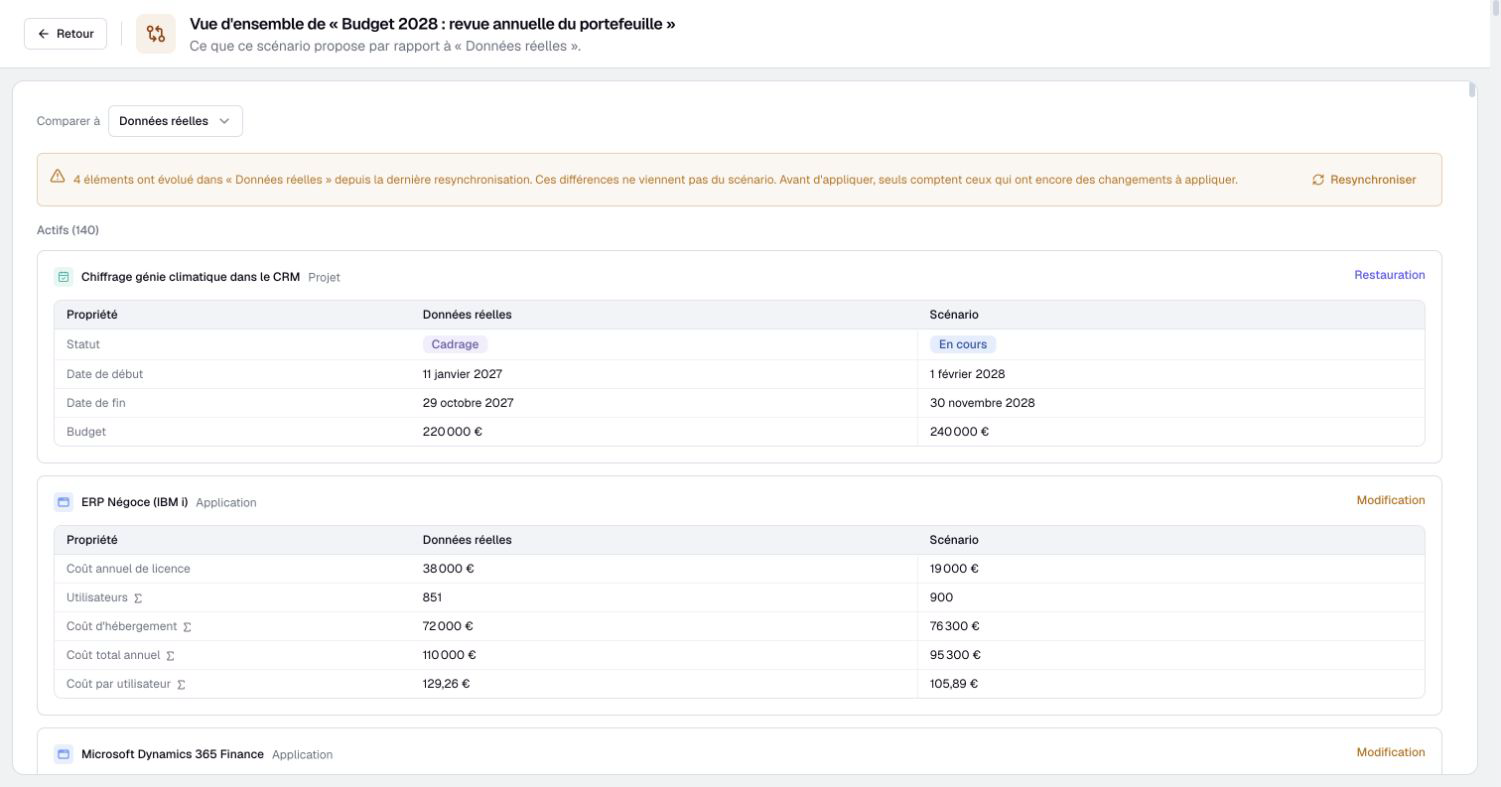
Refresh the scenario from its source
Resynchronization requires scenario management rights. It changes the copy, not the source.
- Save work in open editors.
- Choose Resynchronize from the scenario's Actions menu or the notice about source changes.
- Read the confirmation: the operation takes the latest source data and replays the scenario's changes.
- Confirm Resynchronize and wait. The copy can be temporarily unavailable during preparation.
- Read the result, including any reported conflicts.
- Return to the review or comparison and inspect remaining changes before applying them.
Resynchronizing is useful when another contributor changed the source after your branch was created. It does not guarantee that every change can be replayed unchanged.
Conflicts can involve divergent values, a missing asset, a relationship endpoint that no longer exists, modified visualization content or a data constraint. Resolve the reported cause rather than repeatedly resynchronizing.
Conflicts appear in the Conflicts step of the review and on the scenario's Overview page, with the source and scenario values. A visualization in conflict opens Side by side.
Changes awaiting resynchronization or a conflict decision, and changes that depend on them, are left out of application. Other eligible changes can still be applied. The summary explains what stays in the scenario and links back to Conflicts.
A conflict can close when the source changes again. Its note indicates when resynchronization will resolve it because the source matches the scenario value or has returned to its earlier value.
Resolve a conflict
A scenario manager chooses a resolution after reviewing both values. Data permissions still apply: management access does not reveal hidden properties. When a resolution would touch changes you cannot see, its button is disabled and a note says so.
Keep the scenario value
- Inspect the current source and scenario values of the conflict.
- Choose Keep the scenario when its value is the one you want to keep.
- Check that the change no longer appears among the conflicts.
- Review related changes before applying anything to the source.
Keeping the scenario's value revalidates the change; it does not apply it. A change that can no longer be applied, for example because the type of its property changed, only offers Keep the source.
Keep the source
- Inspect the conflict and the changes that depend on it.
- Choose Keep the source.
- Read the Keep the source? confirmation: the scenario change is discarded and the source value is kept. When other changes depend on it, the confirmation counts them: those not yet applied are discarded, those already present in the scenario are removed at the next resynchronization.
- Confirm with Keep the source, then review the remaining conflicts.
Keep the source discards the conflicting change after confirmation. Unchecking Accept in an ordinary review card only excludes a change from the transfer; it stays in the scenario.
Once the comparison is understood and conflicts are resolved, select the changes to apply. Unselected changes can remain in the scenario for later work.