Organize the catalog into folders
Folders organize your visualizations: views, diagrams, charts, nested maps, dashboards and impact analyses. They do not contain inventory assets. Use them to group presentations by purpose, team or project.
Choose the space
Personal contains your personal visualizations. Shared contains organization visualizations you can access according to your permissions. Shared does not mean publicly accessible on the Internet; external links are a separate mechanism.
You need an Editor account or higher to create or modify folders. Viewers do not have the Personal panel. Folder editing actions are unavailable in a scenario context; return to Real data to organize them.
Create a folder or subfolder
- Open the catalog panel and choose the intended space.
- Open Folder actions > Create folder.
- Enter the Name and check Space.
- Open Destination, choose the root or an existing folder, then confirm Select.
- In Shared, check Access domains when your plan offers them.
- Click Create and find the new folder in the tree.
To create a subfolder, open the parent folder's menu and choose its creation action. Check the destination in the dialog before submitting.
Place a new visualization in the intended folder through its creation dialog. To reorganize an existing one, use move or duplicate. Creating a folder does not increase the number of visualizations allowed by your plan.
Rename and navigate
- Open the folder's menu and choose Rename.
- Edit its name directly in the tree.
- Press Enter or leave the field to save. Press Escape to close the name editor.
- Check the displayed name before continuing.
Use Expand all folders or Collapse all folders in Folder actions to adjust the catalog display. These commands do not move content or change its access.
Hover over a visualization to inspect its summary before opening it. Depending on its type, the preview shows its sources, filters, columns, measures or composition. The displayed information follows your access rights.
Move through the visible catalog rows with Up and Down. Right opens a folder or enters it; Left closes it or returns to its parent. Home and End move to the first and last visible rows. Enter or Space opens the selected visualization or toggles the folder. Row actions also appear when the row has keyboard focus.
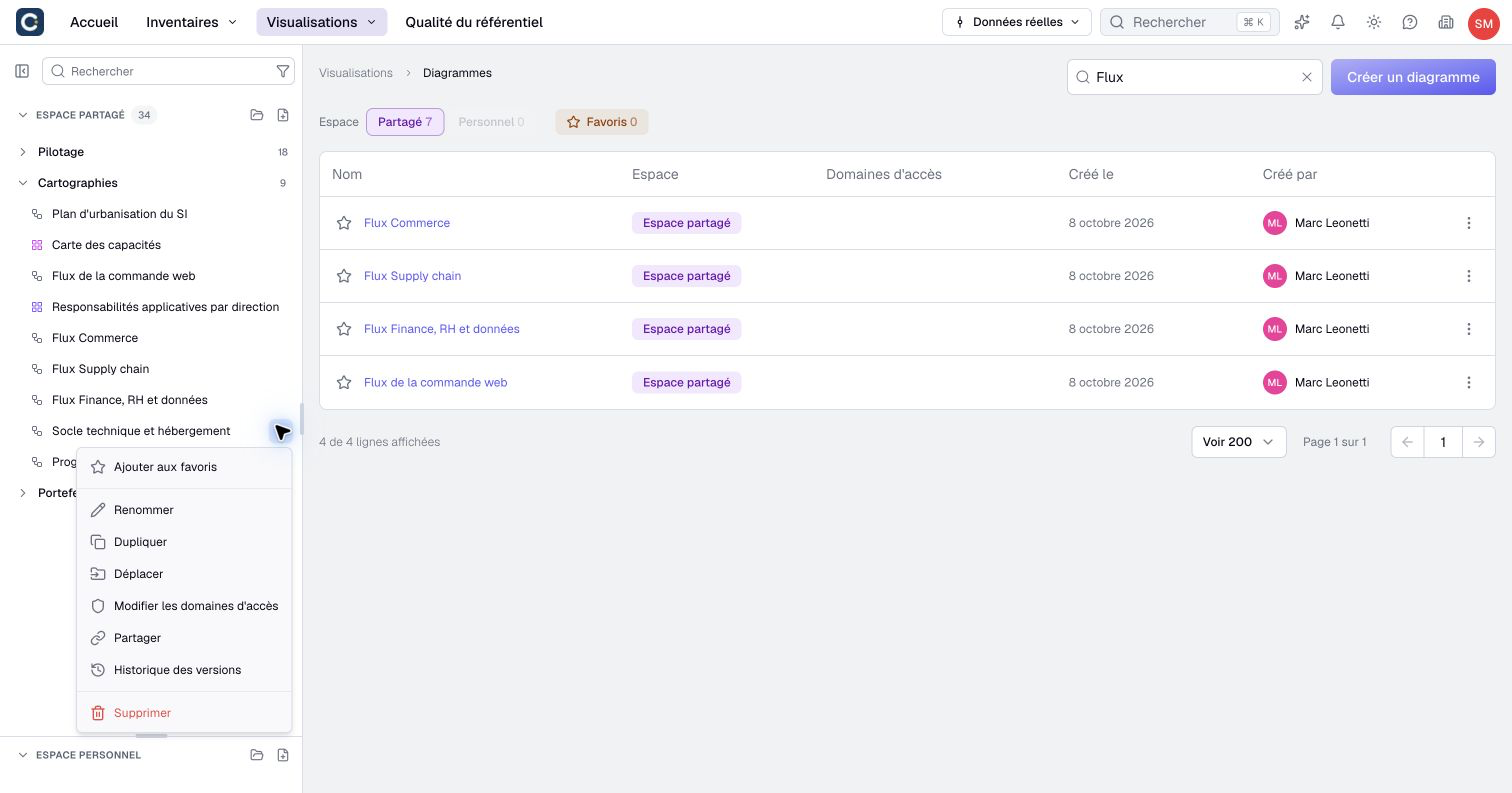
Use the row's star to add a favorite, or its menu to open Version history without opening the visualization first.
Remove a folder without removing its contents
Open the folder menu and choose Delete. The action removes the folder directly; do not expect a separate confirmation dialog.
Its children move up to the parent folder, or to the root if it had no parent. Visualizations and subfolders are preserved. Check their new location after the folder disappears.
Deleting a visualization is a different operation. Read the selected item's name and type before using its menu.
Understand folder access
In Shared, renaming, deleting and changing access domains can require different permissions. A missing command does not mean the folder is empty or damaged.
A folder and a visualization have their own access domains. The destination can prefill domains during creation, but folder placement does not establish permanent automatic inheritance. When a move reports incompatible domains, review the proposed choice before confirming.
Check both the destination and the visualization's audience when organizing content for a team. Moving a folder within the catalog is not a way to change it from Personal to Shared.