Suggest an asset for creation
A creation suggestion describes a missing asset for review before it enters the inventory. Use it when you cannot create the asset or want someone to check it first. Until accepted, it stays separate from ordinary inventory assets.
Check whether you can suggest
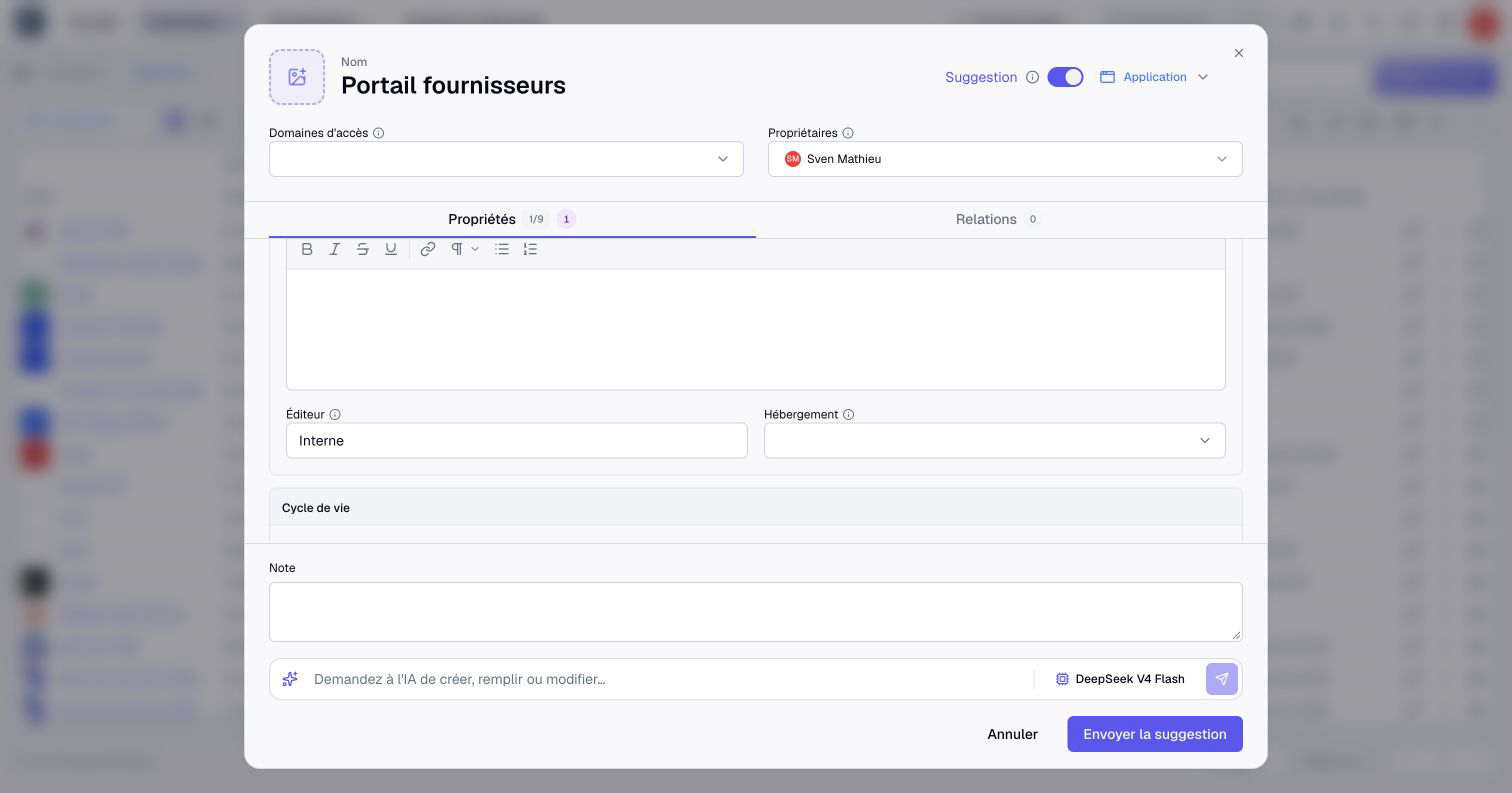
You need read access to the asset type. Without creation permission, Boldo offers Suggest an asset, including for Viewers. If you can create directly, open Create asset and enable Suggestion. Changing the type can change the available action: check the submission button before sending.
You can have up to 50 pending creation suggestions per type and context. Have earlier suggestions reviewed or withdraw those you no longer need before sending more.
Describe and send the asset
- Open the inventory and check that the asset does not already exist.
- Select Suggest an asset, or Create asset and enable Suggestion.
- Check the type, then enter its name, properties, icon, access domains and owners as appropriate.
- In Relationships, add the links and relationship properties you want reviewed with the asset.
- Add a note explaining why the asset should be created and where the information comes from.
- Select Send the suggestion.
- In the inventory, select See suggestions, then Creations, and open the suggested asset.
Only the suggested owners receive the suggestion, excluding you. The form names you as owner by default. While no other owner is named, it warns that no one will receive the suggestion: add an owner who can create the asset.
The AI input in the form can help prepare this draft. Check its fields and relationships before sending: filling the form does not create the asset.
The suggestion's page presents its author, date and note, then its properties and suggested relationships. Each relationship shows its direction, the other asset and its readable properties. A link to another suggested asset waits until that asset is created.
Correct and review a suggestion
The author or someone allowed to create the asset can use Edit the suggestion. Adjust its information, owners, domains, note or editable relationships, then Save. This updates the pending suggestion without creating the asset. Other contributors' relationship suggestions can remain outside the editing form.
Review requires an Editor account or higher and permission to create the type in the suggested domains. Being a suggested owner does not grant those permissions.
- Open See suggestions > Creations in the inventory.
- Open a suggestion and read its information, note and relationships.
- Correct anything necessary before deciding.
- Choose Create, or Refuse and confirm. A refusal can include a reason.
- Check the resulting asset and relationships, including any suggestions still pending.
Creating the asset also accepts its displayed relationship suggestions where your permissions and the other endpoints allow it. A link that cannot be accepted stays pending. If someone corrected the suggestion after you opened it, refresh and review the updated version before creating it.
Creation requires permission to edit every populated property. Boldo also checks values, owners, names, unique keys and the organization's capacity. A readable suggestion is therefore not necessarily one you can create.
The inventory list also offers Create and Refuse, including for a selection. It keeps the view's property columns and adds author, date and note. Use search, filters and sorting to review the list. Suggested assets remain read-only in the grid; open Edit the suggestion to correct one. Check the result of a collective action before retrying it.
Refusing discards the suggestion and its associated relationship suggestions. It does not archive an existing asset. Use the Archiving tab to review archive suggestions.
Withdraw your own suggestion
- Find your pending creation suggestion in See suggestions > Creations.
- Open its row menu and choose Withdraw.
- Read the confirmation and confirm the withdrawal.
- Check that it no longer appears in the list.
Withdrawal discards the suggested asset and its associated relationship suggestions. Once created, the asset follows the usual archive and restore rules.
Work in the intended context
Check real data or scenario context before submitting or reviewing a suggestion. Pending creation suggestions from the source are not copied into a new scenario. A pending suggestion made in a scenario is not transferred when applying it.
If a reviewer creates the asset within the scenario, its creation can then be included when applying the scenario's changes.