Suggest and review a change
A suggestion submits a creation, change or archiving request for review before it changes the knowledge base. Use it when someone should review your contribution or when your permissions allow suggestions rather than direct edits.
Suggest a new asset
With read access to an asset type, Suggest an asset submits a creation for review. If you can create directly, enable Suggestion in the creation form. Include the properties and relationships to review together. The suggested asset stays separate from the inventory until accepted.
Follow Suggest an asset for creation to submit, review or withdraw a creation suggestion, and understand its relationships and scenario context.
Submit a suggestion
- Open the asset and its editing form. With a Viewer account, use Suggest to open the suggestion form.
- If you can edit directly but want review, choose Suggestion.
- Change the relevant fields. Depending on the form and permissions, these can include asset attributes, properties, relationships and relationship properties.
- Check which changes are marked as suggestions and which will apply directly.
- Click Suggest when every change is a suggestion, or Validate when the submission also includes direct changes.
- Open Suggestions and check that your suggestions are pending.
A single form can mix direct edits and suggestions because permissions differ by field. Do not assume that using the form leaves every current value unchanged. The attestation workflow has its own submission buttons.
With repository quality, the recipient indication for value changes names the asset owners, excluding the author; notifications depend on their access and preferences. Without it, the form says the suggestion will be offered to the asset owners; they find it under Suggestions on Home, and those who can accept it in the daily suggestions digest. On an asset with no owner other than you, the form says no owner will handle it: the suggestion stays visible on the asset.
Suggest changes in bulk
Select several inventory assets, then open Suggest changes or the bulk editing action available to your profile. Choose the field and desired value. A Viewer only sends suggestions; an Editor can enable Suggestion.
Review the groups of assets to update, send suggestions for or keep unchanged. One operation can apply some values directly and submit others for review. For lists, owners or relationships, also check Replace or Add to existing where offered.
Select Send suggestions or Update, according to the displayed mode, then read the sent and skipped results. Check the outcome before repeating an operation that partly succeeded.
Suggest archiving
From an active asset’s page or menu, use Suggest archiving when you cannot archive it directly. Optionally enter a reason, then submit the suggestion. The asset stays active during review.
In the editing form, enabling Suggestion also makes the archive action submit a suggestion, even when you could archive directly. Review these requests in See suggestions > Archiving in the inventory. The list offers Archive or Refuse individually or for an authorized selection; read the archive confirmation before proceeding.
Resolving it requires deletion permission on the asset. Accepting archives the asset, deactivates its relationships and rejects its other pending suggestions. Read that confirmation before proceeding. Restoring it later does not reopen those suggestions; see archive and restore.
Review before deciding
Open the Suggestions section of the asset page. Compare Current and Suggested. If the value changed since the suggestion, Before helps you understand what the author originally saw.
For a relationship suggestion, review its direction, endpoints and properties as well as the suggested value. A relationship to an asset awaiting creation cannot be accepted until that asset is created.
Resolving a value-change suggestion requires Editor or higher and permission to edit the affected asset and field, or the corresponding relationship and property. Being an owner or seeing a value does not alone grant resolution rights. Hidden properties remain protected.
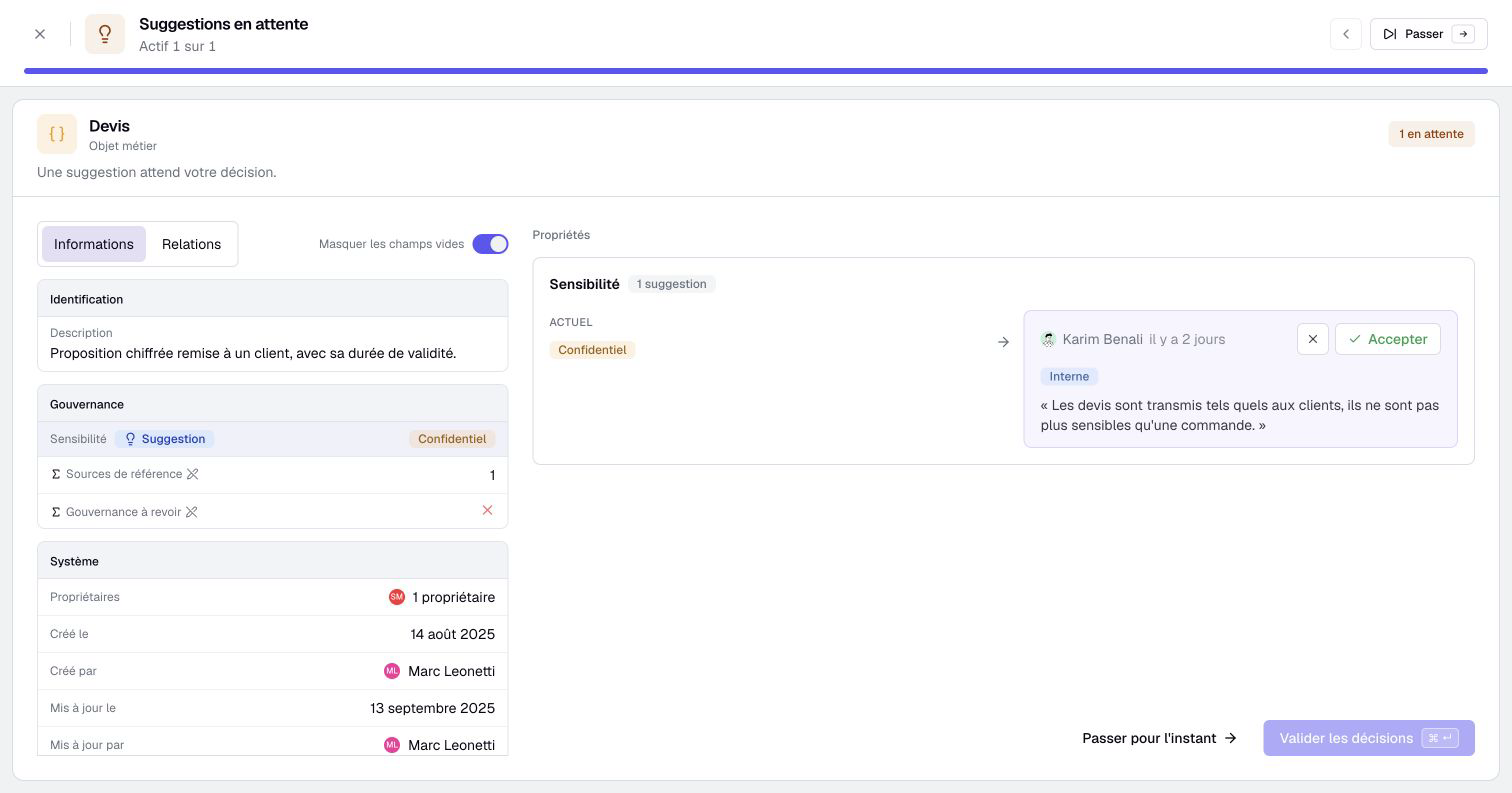
Accept or reject suggestions
- Choose Accept or Reject on the suggestions you can resolve.
- For a rejection, optionally enter a reason. It remains visible with the rejection in the resolved suggestions.
- Check competing suggestions: accepting one prepares rejection of its resolvable alternatives in the same group.
- Review warnings that acceptance will replace a value changed since the suggestion was made.
- Click Confirm N suggestions to submit the prepared acceptances and rejections. With a single suggestion to resolve, the button reads Accept the suggestion or Reject the suggestion, depending on your choice.
- Check the results and any conflicts. Open the collapsible history to inspect resolved suggestions.
Clicking Accept on a card only prepares the acceptance; the final confirmation applies it. Accept all selects resolvable suggestions without competing alternatives. Groups containing several suggestions require your explicit choice. Previously prepared rejections are preserved.
When the current value differs from the original, acceptance can overwrite that current value. Read the replacement warning before confirming. A further concurrent change can still produce a conflict and require another review.
Suggestions are processed in sequence. If a batch fails partway through, inspect the result before retrying: earlier suggestions may already have been accepted or rejected.
Withdraw your own pending suggestion
- Open your pending suggestion.
- Choose Withdraw.
- Read Withdraw suggestion and confirm if you want to remove it for everyone.
- Check that it is no longer pending.
Withdrawal does not modify the current asset value. It removes the suggestion awaiting review. Withdrawing a creation suggestion discards the suggested asset. A suggestion already resolved cannot be withdrawn as though it were still pending.
If resolution is unavailable, check current permissions and whether the target property, relationship or suggested owner is still valid. A metamodel change, or another person resolving this suggestion or a competing one first, may have made it obsolete.
Distinguish AI proposals and scenario suggestions
An AI proposal is an action prepared by the assistant in the chat. A suggestion is a contribution submitted for review. If you submit an AI proposal as a suggestion, it enters this review workflow; preparing the proposal alone does not submit it.
Inside a scenario, suggestions and their later transfer have specific rules. Complete scenario application can close accepted source suggestions, while new pending scenario suggestions are not promoted. Follow scenario application before closing that working copy.