Global search
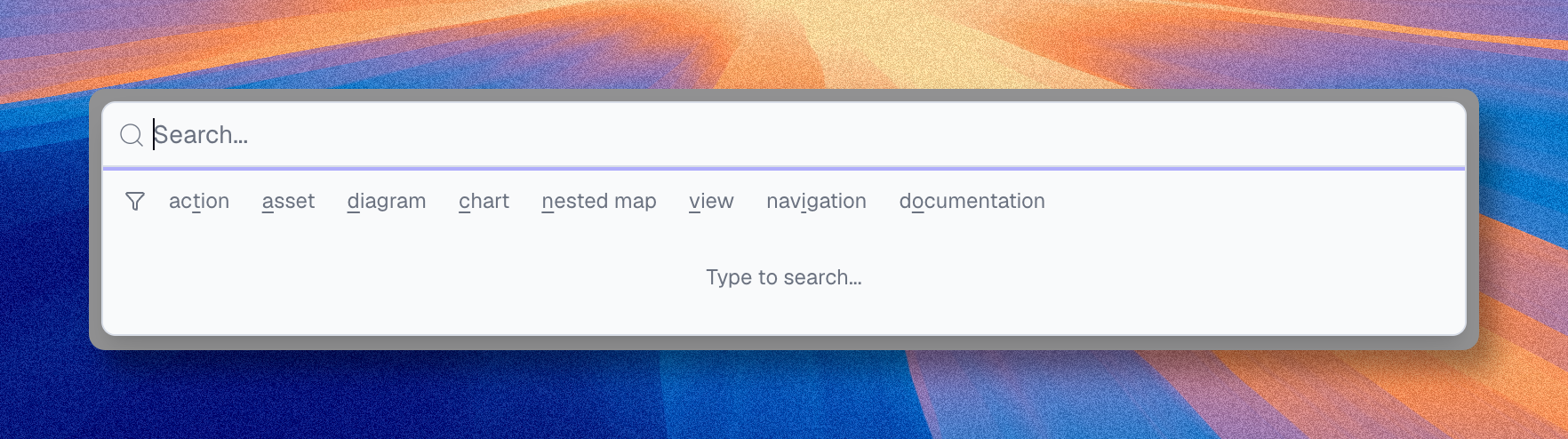
Global search is the fastest way to move through Boldo.
Use it when you want to jump directly to an asset, a saved visualization, a settings page, a documentation page, or a create action without browsing several sections first.
Open it with Cmd + K on Mac or Ctrl + K on Windows and Linux.
You can also use the search button in the top navigation.
Recent items
Open the palette without typing to see your last selected items. Up to ten entries are kept, all types combined.
Hover an entry and click the X to remove it. Recent items are stored per organization and per browser, and items you no longer have access to are pruned automatically.
What you can find
Global search covers several result types:
- assets
- diagrams
- charts
- nested maps
- views
- dashboards
- navigation pages
- documentation pages
- actions
Use a prefix when you already know the result type you want.
| Prefix | Result type |
|---|---|
/t | Actions |
/a | Assets |
/d | Diagrams |
/c | Charts |
/n | Nested maps |
/v | Views |
/b | Dashboards |
/i | Navigation |
/o | Documentation |
Press Tab or Shift + Tab to cycle through the prefix filters from the keyboard.
Prefixes vary by language setting.
For example, the French interface uses /g for charts and /c for nested maps.
Global search also supports partial matches, so you do not need to type a full name.
Quick actions
Global search is not only a shortcut to existing content. It can also start actions directly from the palette.
Depending on your user type, you can create any content type directly from the palette, including assets, views, diagrams, charts, and nested maps. You can also open account or organization pages directly when your access level allows them.
When to use search
Use global search when:
- you already know roughly what you want
- you want the fastest path to one item or one page
- you move often between the inventory, visualizations, settings, and documentation
Normal navigation is often better when:
- you are still discovering the product
- you want to compare several items in the same area
- you need to browse a section before choosing one result
Read Interface for the broader navigation model. Read Organize and Find Content if you want to work with saved content in the catalog.