Import a file
Use file import when you want to add or update many assets at once in the inventory. Boldo accepts .csv and .xlsx files.
Read Prepare your import file first if your file is not ready yet.
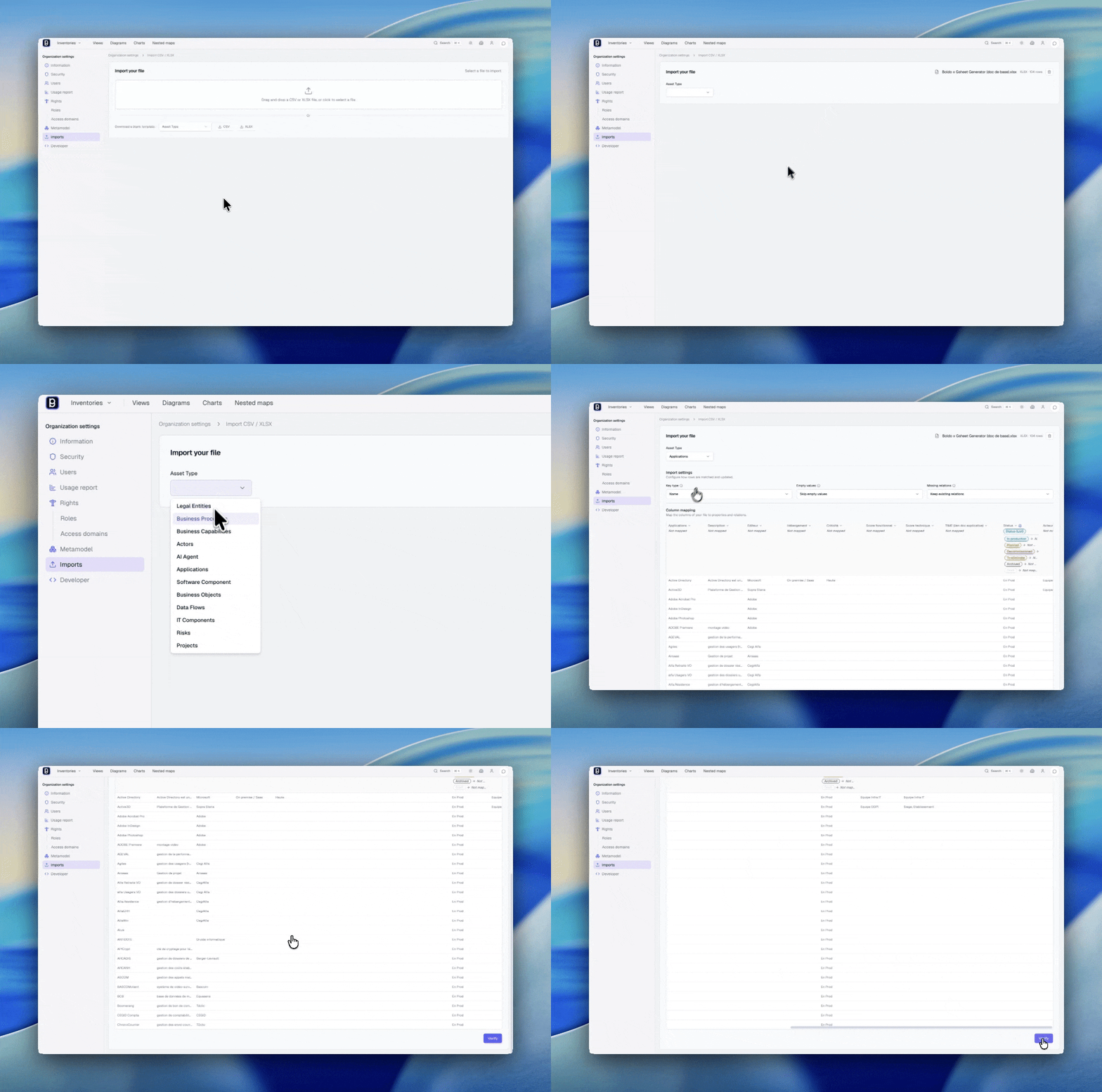
Open the import
You can start the import from:
- an inventory, with Actions → Import a file
- Organization settings → Import a file
Set up the import
- Drag the file into the drop zone or browse for it
- For CSV files, confirm the detected delimiter and encoding
- Select the asset type that each row represents
If the filename matches an asset type, Boldo can preselect it automatically.
If the preview looks wrong at this stage, stop and correct the delimiter or encoding before continuing.
Once the setup is complete, Boldo displays your data in an interactive spreadsheet.
Map columns
Each column header in the spreadsheet contains a dropdown menu. Use it to assign the column's role:
- Key column - the column used to match rows with existing assets
- Name - maps to the asset name (available when matching by Boldo ID or by a Unique key)
- Property - maps to a specific property in the metamodel
- Relation - maps to a relationship type in the metamodel
- Not mapped - the column is ignored during import
If your file uses the expected property or relationship names as column headers, Boldo prefills the mapping automatically.
As you map columns, the spreadsheet renders a typed preview of each cell. Enum values appear as colored tags, scores as stars, dates in a formatted display, and booleans as checkboxes. Unmapped columns appear in gray. This preview helps you verify the mapping before running the import.
Configure matching
A configuration bar above the spreadsheet controls how Boldo matches rows to existing assets:
- Matching column - which column from the file Boldo uses as the import key
- Key type - match by Name, by Boldo ID, or by a Unique key property
- Empty values - choose between Skip empty values (default, existing data is preserved) and Overwrite with empty (empty cells clear existing values)
- Missing relations - choose between Keep missing relations and Remove missing relations when a mapped relation column is empty or omits existing links
The key type also controls whether unmatched rows create new assets. See Choose a good import key for the full behavior of each mode.
If your file contains a column named Boldo ID, Boldo detects it automatically and sets it as the matching column with the key type set to ID. Boldo adds this column when you export from Boldo, so matching by Boldo ID is the most reliable approach for round-trip workflows.
When the asset type has a unique key property, it appears as an additional matching option. Matching by unique key is useful when assets have a stable external identifier (product code, HR reference, application ID from another system) that does not change between imports.
Map values for lists and yes/no fields
When a column is mapped to a single-choice list, multi-choice list, or yes/no field, a value mapping interface appears in the column header. Click each Boldo value and select which values from the file correspond to it.
For multi-choice lists and relationship columns, a delimiter field lets you specify the separator used in that column. The default is comma.
Resolve relationships
When a column is mapped to a relationship, a Resolve by dropdown appears. It controls how Boldo finds the related asset from the cell value:
- Name - Boldo looks for an existing asset whose name matches the cell value (default)
- Boldo ID - Boldo looks for an asset by its internal ID
- Unique key - Boldo looks for an asset by the value of one of its unique key properties (only available when the related asset type has a unique key property)
When resolving by name or unique key, you can also choose what happens when no matching asset is found: Create (Boldo creates a new asset automatically) or Error (the import fails if the related asset is missing).
Resolving by unique key is the most reliable approach when related assets have a stable external identifier. It avoids creating duplicates even when asset names vary slightly between imports.
Fix validation errors
Boldo validates every cell as you map columns. Invalid values are highlighted in red with a tooltip explaining the problem.
Common validation errors:
| Error | Meaning |
|---|---|
| Unmapped boolean value | A value is not mapped to true or false |
| Invalid date format | The date does not follow a recognized format (YYYY-MM-DD, YYYY/MM/DD, DD/MM/YYYY, or DD-MM-YYYY) |
| Invalid number | The cell contains non-numeric text in a number column |
| Value exceeds maximum / below minimum | The value is outside the allowed range |
The total error count is displayed below the spreadsheet. The Verify button stays disabled until all errors are resolved.
Review and confirm
When the mapping is ready and all errors are fixed, click Verify. Boldo runs a server-side preview before executing anything.
A confirmation dialog summarizes the impact: how many assets will be created, updated, or skipped, with a detailed breakdown of every change. Review this preview carefully before clicking Confirm import.
If a collision is detected - for example, renaming an asset to a name already used by another asset, or assigning a unique key value that another asset already holds - Boldo displays a warning and blocks the import. Fix the conflicting values in your file before retrying.
If the import would exceed your organization's asset limit, a warning is displayed and the import cannot proceed. Contact your administrator to adjust the plan if needed.
After the import
After a successful import, Boldo shows how many assets were created and how many were updated.
- Open the target inventory
- Verify a small sample of imported rows
- Confirm key properties and relationships
- Save a useful view if you want to review the imported dataset later
This last step matters: importing is not finished when the progress bar ends. It is finished when the imported data is usable in the knowledge base.