Manage assets
Assets are the core objects stored in Boldo's knowledge base. To create or edit them, you need access to an organization, rights on the relevant asset type, and a metamodel that already defines that type and its properties. If you only need to understand one asset in context, read Asset 360 page instead.
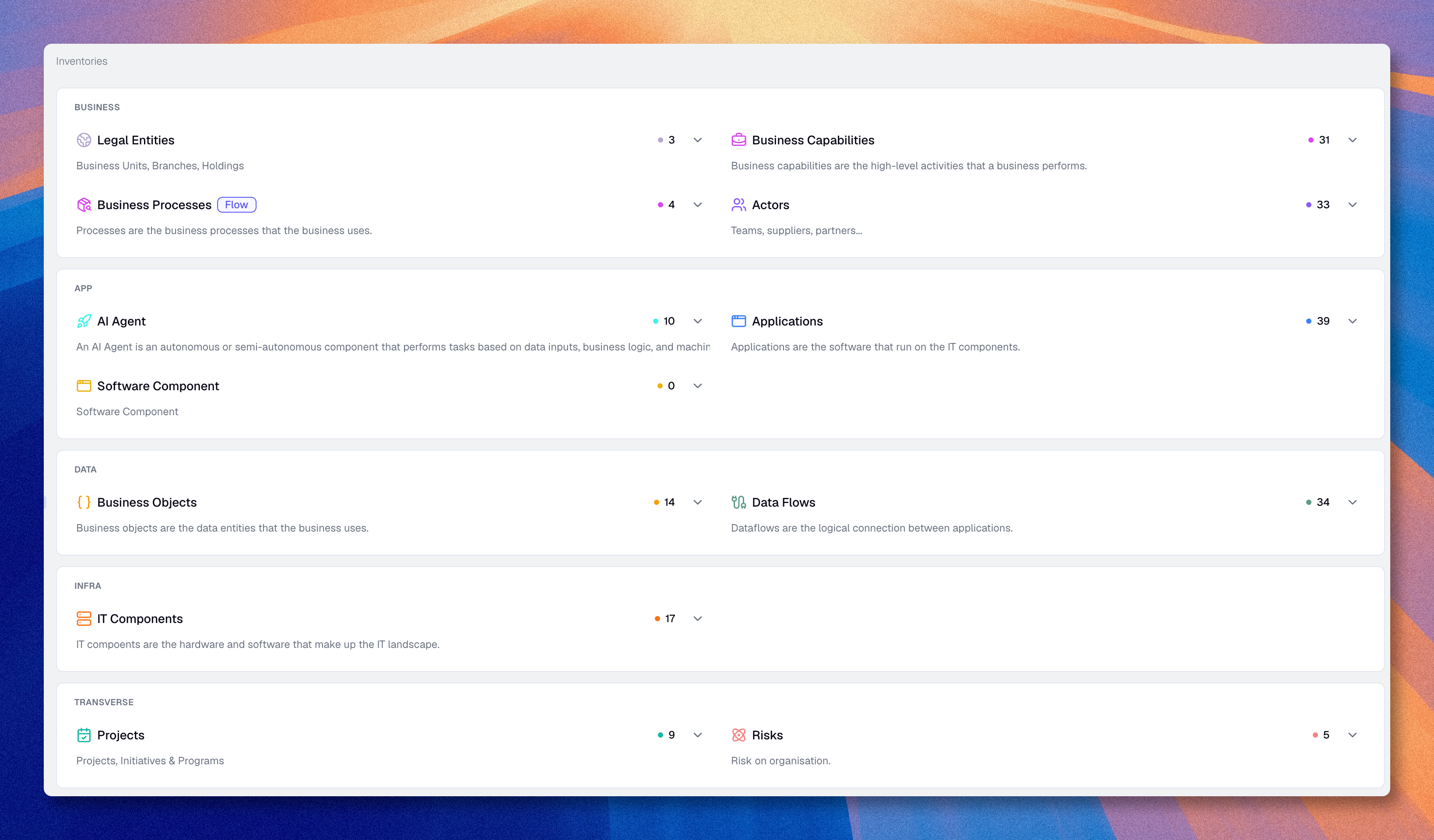
Create an asset
You can create an asset from several places. In every case, the result is the same: you add a new object to the shared knowledge base.
From the inventory
- Go to Inventories → [Asset type]
- Click Create asset
- Fill in the required fields
- Add optional properties if they are useful now
- Click Validate
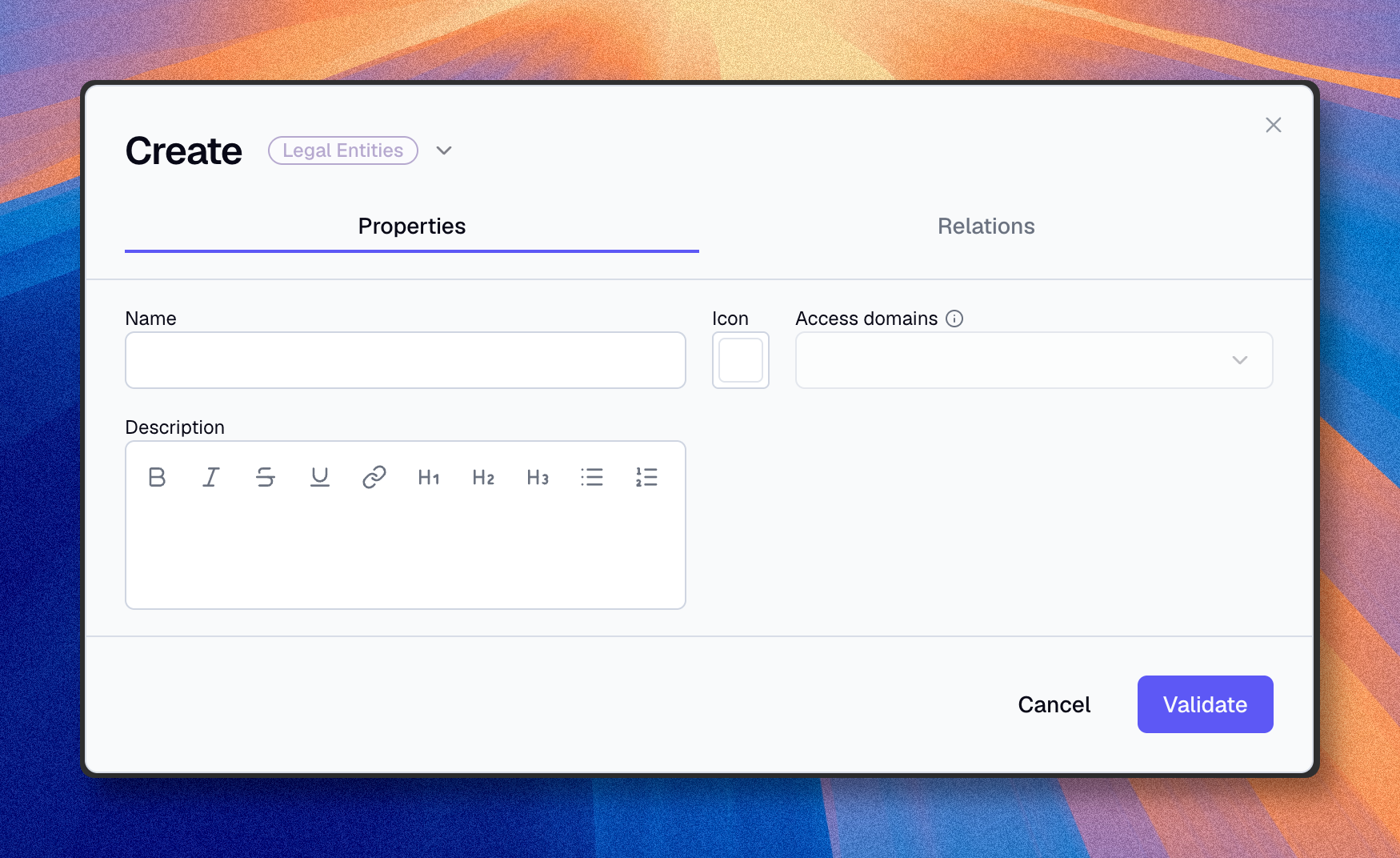
Start with the minimum useful information:
- Name
- one or two business or technical properties
That is usually better than creating a perfect but slow form that blocks the first entry.
From global search
- Press
Cmd/Ctrl + K - Search for the asset type or action you want
- Select the matching Create [asset type] action
- Fill in the required fields
- Click Validate
Use this path when you already know what type you want and do not want to browse through the inventory menu first.
From a diagram
- Open a diagram
- In the left sidebar, choose the asset type you want
- Drag it onto the canvas
- Enter a name for the draft asset
- Click Add to inventory to create the asset in the shared knowledge base
Use this path when the diagram is the starting point of a workshop. Dragging an asset type onto the canvas creates a draft node first, not a full asset. Until you add it to the inventory, the node remains a draft that exists only in the diagram. You can name it and place it visually, but it is not yet a full asset of the shared knowledge base. Once you add it to the inventory, it becomes a regular asset that you can complete and manage like the others.
When the asset type defines property groups, the form splits properties into titled cards, one per group. The first card always holds the core fields: icon, name, and access domains when property rights are enabled.
Modify an asset
You can edit assets in four main ways.
Using the edit window
- In the inventory list, click the Pencil icon (Edit) on the asset's row.
- Update the Properties tab
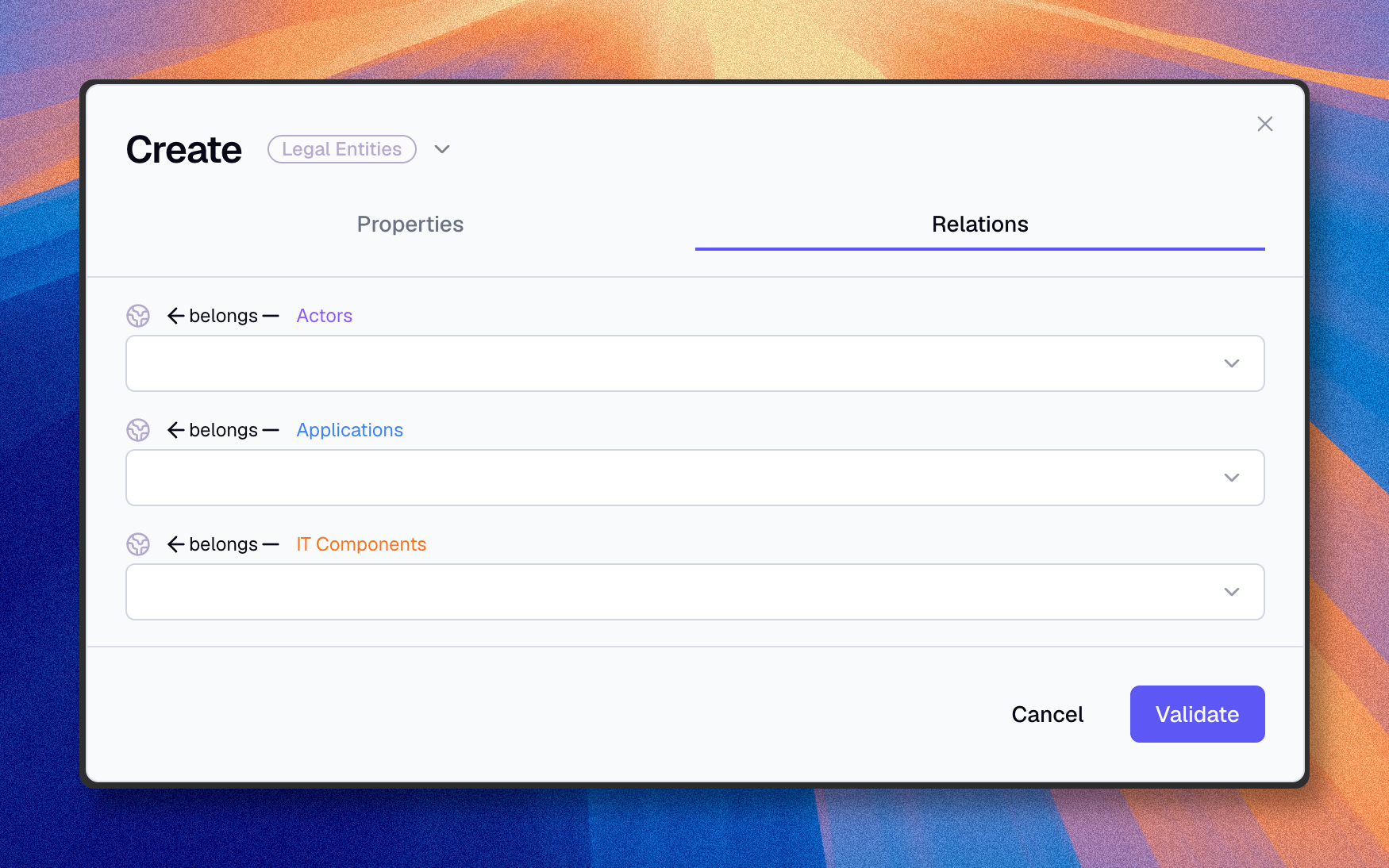
- Update the Relations tab if needed
- Click Validate to apply your changes.
This is the best method when you want to review both fields and relationships together.
Inline editing in a view
Use inline editing for quick updates directly in the inventory list:
- Press Ctrl+E or click the Cells edit mode button in the top bar.
- Click the cells you want to edit and update the values.
- When you are done, click Save. You can also use
Cmd/Ctrl + S. - Exit edit mode when finished.
Your changes are not applied until you save them. If you leave cell edit mode without saving, the unsaved changes are reset.
From the asset page
- Click the asset name in the inventory
- Open the asset detail page
- Click Edit
Use this method when you need more context before changing the asset.
From the floating detail panel in a diagram
- Open a diagram and select the asset node
- Open the floating detail panel if it is hidden
- Click Edit in the panel header
- Update the asset and save your changes
Use this method when the diagram is already your working context and you want to update the asset without leaving it.
Manage relations from the asset form
The Relations tab of the create or edit form has two display modes:
- List (default) groups relations by type, each row showing the linked targets.
- Graph shows the asset as a central node connected to its linked assets, with edges colored by the metamodel. Hover a connected asset and click the minus icon to remove the relation.
To add a relation, click Add relation, pick a relation type, then select one or more target assets. If the target does not exist yet, you can create it from the same panel.
Duplicate an asset
Duplicating is useful when you need several similar assets.
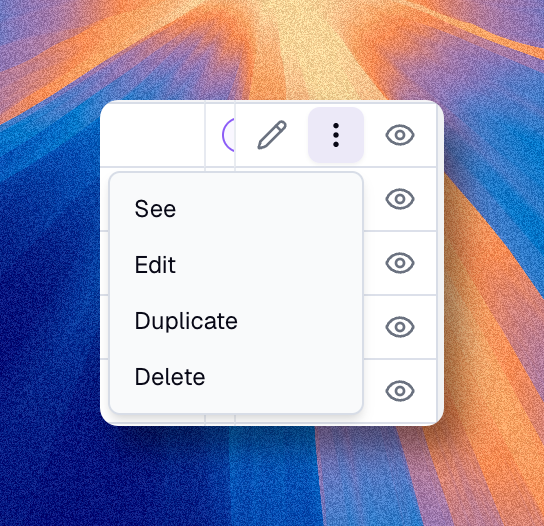
- Click the vertical ellipsis icon (⋮) (Actions) at the end of the asset's row.
- Select Duplicate.
- Enter a unique name for the duplicated asset and confirm.
The duplicate keeps the original properties, relations, icon, and domains. You should still review:
- the name
- unique identifiers
- ownership fields
- environment-specific values
Duplicate only when the two assets really share most of their structure. If the new asset is materially different, create it cleanly instead.
Work on multiple assets
Use this mode in the inventory list when you need to update or archive several assets in one pass.
- Open the inventory list in table view
- Activate multiple selection in the top bar
- Use the checkboxes to select the rows you want to work on
- In the selection bar, click Update to change a shared value, or Delete to archive the selected assets
You can also click and drag across adjacent checkboxes to select several rows faster.
This is useful when you want to:
- apply the same property change to several assets
- edit relations on several assets
- archive several assets at once
Delete (archive) an asset
The Delete action does not permanently erase an asset. It moves the asset to the archives, where you can restore it or delete it permanently later.
You can delete an asset from the inventory list or from the edit dialog.
From the inventory list
- Click the vertical ellipsis icon (⋮) (Actions) at the end of the asset's row.
- Select Delete.
- Confirm.
From the edit dialog
- Open the asset in edit mode
- Click the trash-can (Delete) icon in the dialog footer
- Confirm
Archiving removes the asset from active inventory results and inactivates its active relationships. You can restore it from the archives.
The asset keeps its properties, history, references, and access domains. Read Archive and restore assets for archive filters, rights, bulk restoration, visualization behavior, and permanent deletion.