Share content with a link
A share link gives read-only access to compatible content without a Boldo account. Anyone holding the link can use it within its permissions and validity period. It displays data served by Boldo, rather than a frozen export.
Check content and permissions
Links support assets, relationships, views, diagrams, charts, nested maps and impact analyses. Dashboards and folders do not offer this external sharing mechanism. Putting a dashboard in the Shared catalog does not make it anonymously accessible.
Your plan must include share links, the organization must enable them and your account must have Allow creating share links. You also need read access to the resource and the Real data context. Links cannot be created from a scenario.
An authorized Viewer can create a link from compatible content. The centralized Share links settings entry is available from Editor upward; these are separate access paths.
Create and check a link
- Open the resource and choose Actions > Share, or its dedicated sharing command.
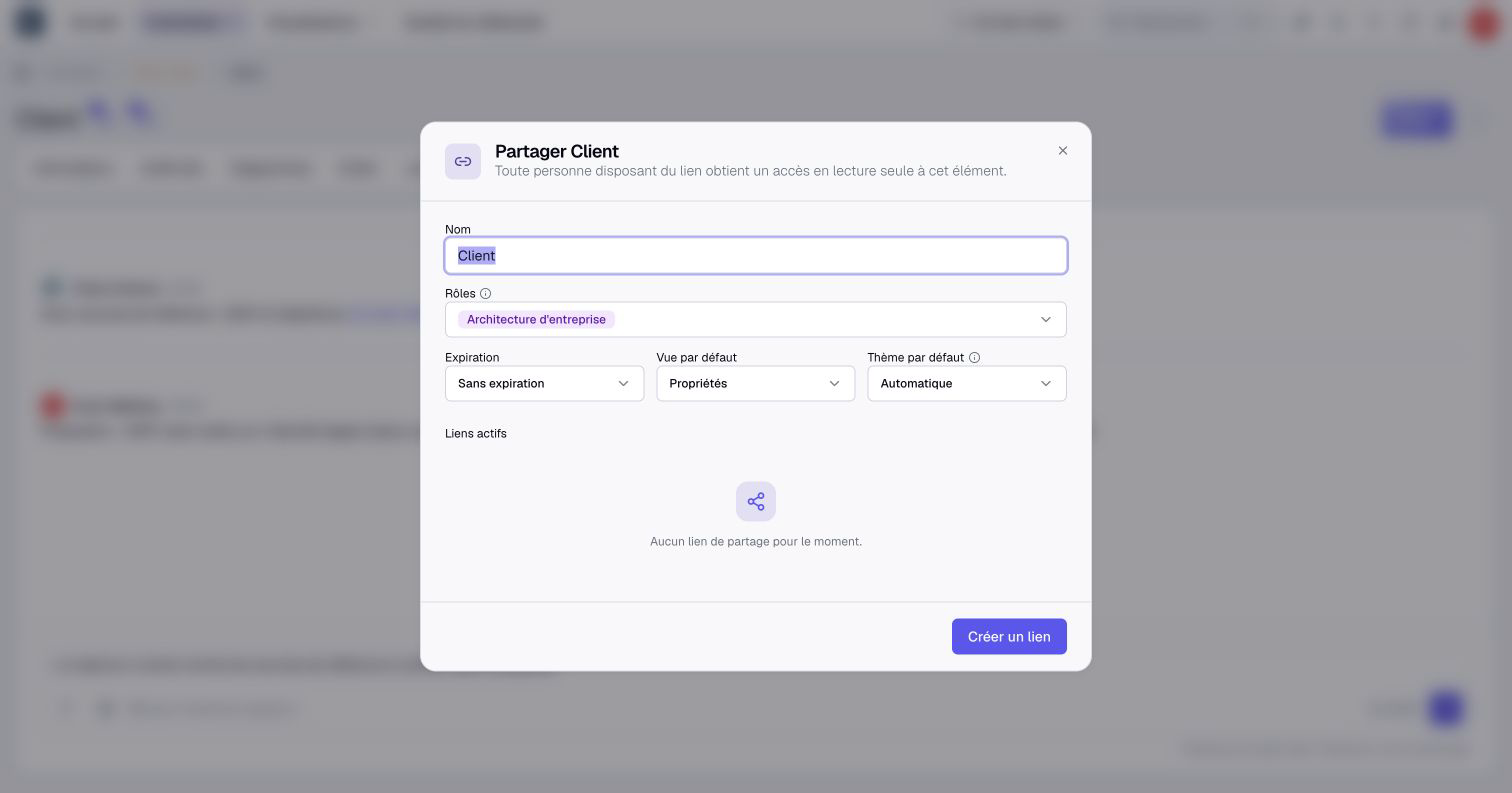
- In Share [name], give the link a recognizable name.
- Review Roles when offered. The visitor's permissions come from the link's roles; your roles are the default.
- Set Expiration: No expiration, 24 hours, 7, 30 or 90 days.
- For an asset with several presentations, choose Default view. Set Default theme to Automatic, Light or Dark if needed.
- Click Create link, then Copy link.
- Open the copied URL in a signed-out session. Check the asset, relationships and embedded content visible to the recipient before distributing it.
A non-administrator can delegate their own roles. An administrator can choose from the full role list. Roles previously assigned by an administrator can be locked when you do not hold them yourself.
There is no password or invited-email list in this sharing dialog. Choose the audience and expiration with the knowledge that the URL can be forwarded.
Understand what the recipient sees
A shared view uses its saved configuration. Recipients can search and browse pages inside that scope. They cannot widen it by supplying their own filters. Assets show authorized properties and relationships; a process asset can also offer its flow.
Access to embedded resources and underlying data remains constrained by the link's roles and resource scope. A title linking back into Boldo does not turn an anonymous visitor into an authorized organization member.
The roles stored on the link are distinct from later changes to its creator's assigned roles. Changing a role's definition can change what the link shows. Recheck recipient access after relevant permission changes.
Default-view and theme choices can be carried in the copied URL. Changing a theme in management does not rewrite URLs already pasted elsewhere. Replace distributed URLs when you need those parameters to change, and check a recopied link's initial view.
Edit or revoke a link
The sharing dialog lists your links for the resource; administrators can see all its links. Check creation, expiration and last-use information. Manage links opens centralized management when your account can access it.
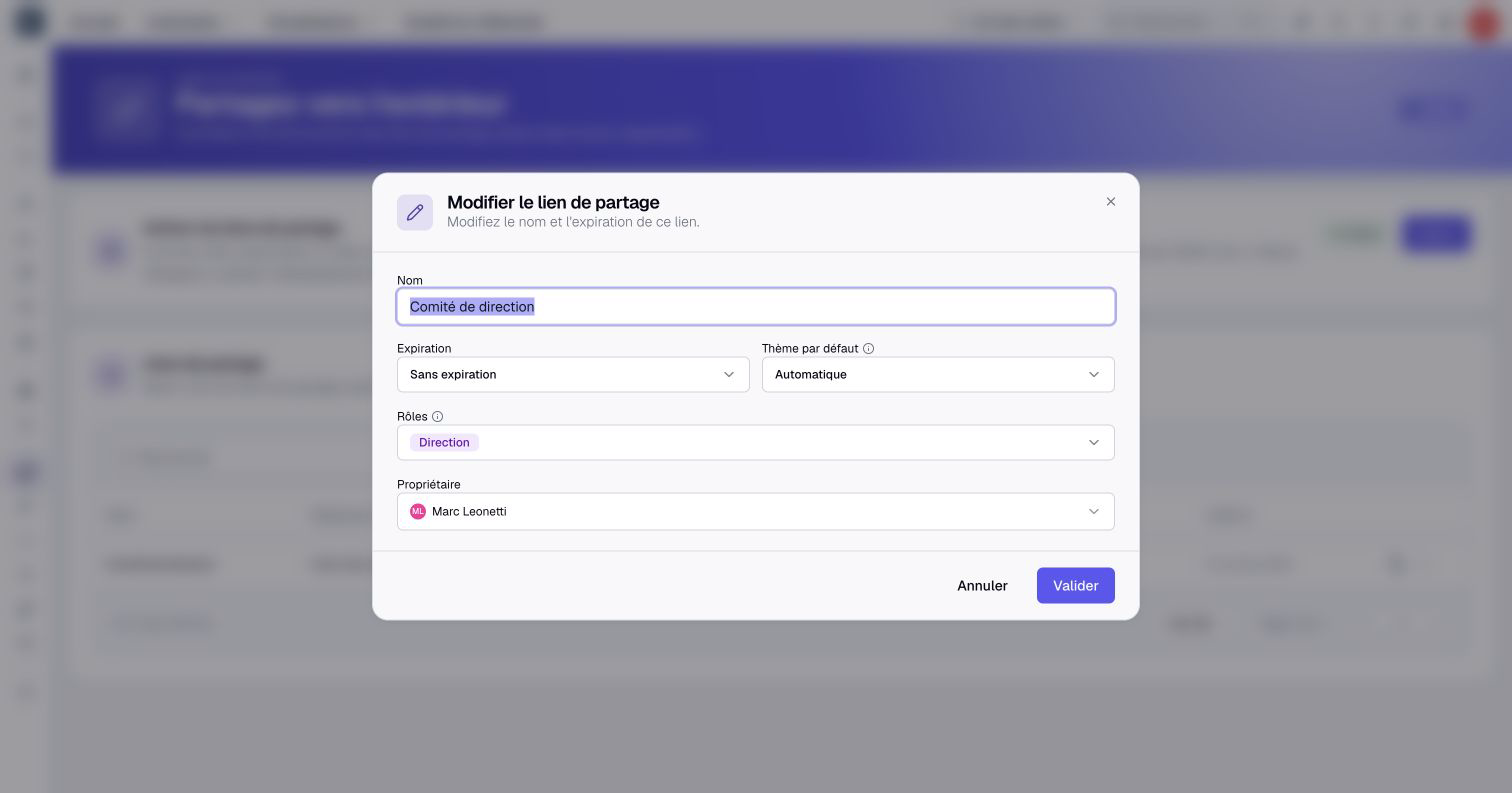
- Open Manage links, find the link and choose Actions > Edit.
- Adjust its name, roles, expiration or theme as needed.
- Click Validate, then test the resulting recipient access again.
Keep current expiration does not extend the validity period. Renaming an expired link does not reactivate it. Administrators can transfer the creator to an Editor or higher; a personal visualization requires a compatible resource owner.
To revoke a link, choose Delete, read Delete this link?, then confirm with Delete. That URL stops providing access; the Boldo resource itself remains. A revoked URL cannot be restored by renaming or recreating a link.
Disabling share links for the organization stops existing links. Removing only a member's permission to create links does not invalidate their existing URLs. Use revocation when access must end.
Diagnose a link that stopped working
This share link has expired identifies an expired link. Other failures can result from revocation, inaccessible content, an inactive creator or organization, plan availability, subscription state or a technical interruption.
Organization IP restrictions also apply unless an administrator explicitly enables Bypass IP allowlist for share links. A generic invalid-link message does not distinguish every cause. Ask the link owner or administrator to check its state and access settings before creating another link.