Export
Use export when you need to take data or visualizations out of Boldo.
The available format depends on the screen you are on.
What you can export from each screen
| Screen | Export | Format |
|---|---|---|
| Inventory table | Selected assets, current page, or all matching assets | CSV or XLSX |
| Saved view | Selected assets, current page, or all matching assets | CSV or XLSX |
| Diagram | Image of the current diagram | PNG |
| Chart | Image of the current chart | PNG |
| Nested map | Image of the current nested map | PNG |
| Process flow | Image of the current flow | PNG |
Export table data
In inventory tables and saved views, Boldo can export data to CSV or XLSX (Excel).
- Open the relevant inventory or view
- Apply the layout and filters you want
- Open Actions
- Click Export CSV / XLSX
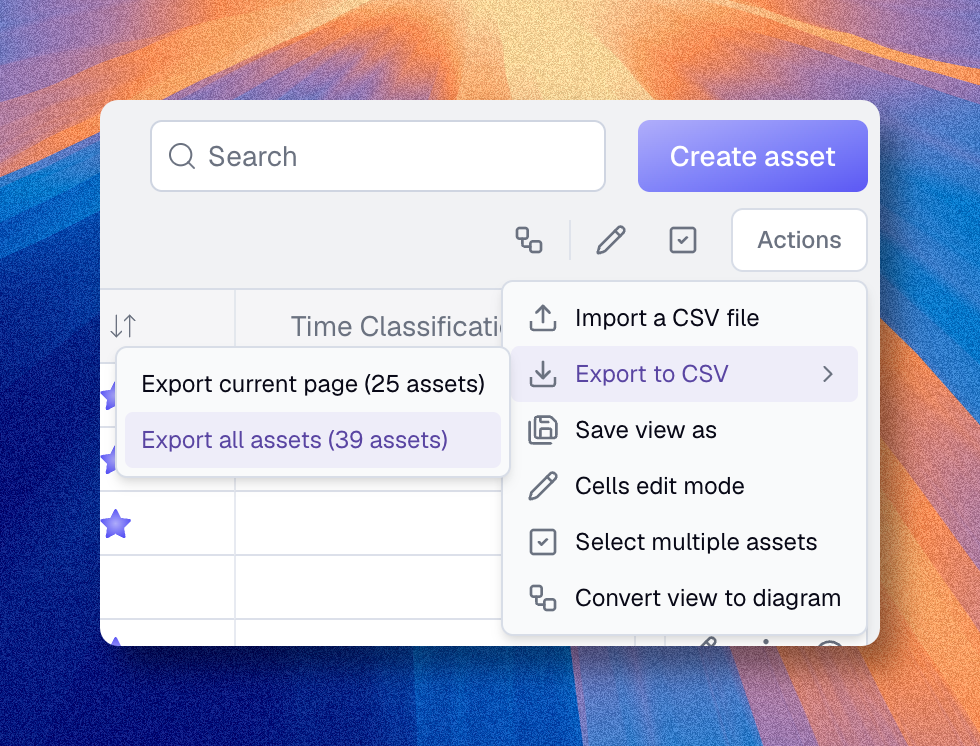
Export is available from the table actions for administrators.
Export dialog
The export dialog lets you choose the scope, format, headers, and columns for the file.
Scope controls which assets are exported:
- Export selected assets - only the assets currently selected in the table. This option is disabled until at least one asset is selected
- Export current page - only the assets currently displayed in the table
- Export all assets - every asset matching the current filters, sort, and search
Format controls the file type:
- XLSX - Excel format, suitable for spreadsheets
- CSV - plain text with comma separation
Headers controls how column headers appear in the file:
- Label - uses the display name of each property or relationship (default)
- Key - uses the technical key, useful when the file will be reimported or processed by a script
Dates format controls how date values appear in the file:
- YYYY-MM-DD - ISO format (default), recommended for sorting and round trips with Boldo
- DD-MM-YYYY - day first, more familiar in many regions
Choose columns
The dialog displays a preview of the first 10 exported rows. Each column header includes a checkbox: uncheck a column to exclude it from the file.
Three types of columns are available:
- Attributes - built-in fields such as
Boldo ID,Name,Access domains,Created at,Updated at, andCreated by - Properties - every custom property defined in the metamodel for this asset type
- Relations - each relationship defined in the metamodel, with multiple possible columns depending on the exported value
Relation value options
For relations, you can include one or more columns depending on what you want to export:
- Name - the display name of the related asset
- ID - the Boldo ID of the related asset
- Unique key - the value of a unique key property on the related asset (only available when the related asset type has a unique key property)
A unique-key-based column is especially useful for round trips. When you reimport the file, Boldo can match related assets by their unique key instead of their name, which avoids duplicates caused by name variations.
What the exported file contains
- rich text fields are exported as Markdown, preserving headings, bold, italic, and lists
- list properties are exported using their display label
- date properties use the format selected in the export dialog (default
YYYY-MM-DD) - when a cell contains multiple related assets, they are separated by commas
The Boldo ID column is useful when you plan to edit the file and reimport it. Boldo can match rows by Boldo ID instead of by name, which avoids duplicates caused by name changes. See Import a file for details.
Export visualizations as PNG
Diagrams, charts, nested maps, and process flows can all be exported as PNG images.
- Open the visualization
- Click the export image action
- Boldo downloads a
.pngfile
In diagrams, the main export action downloads the whole diagram. If you use cameras, you can also export a PNG from one camera to capture only that part of the diagram.
In process flows, the export action downloads the current flow as an image.
When to use the API instead
Use the API if you need recurring extraction, integration with another system, or programmatic access to the knowledge base.
Use UI export if you need a one-time file or image from the current screen.
Read API for the developer flow.