Inventory views
Inventory views help you explore the same knowledge base in different ways without changing its structure.
They are one of the main ways to move from raw inventory data to useful working perspectives. Open a view from Inventories, select an asset type, then use the default view or a saved view. You can also open saved views from the catalog.
Think of a view as a reusable lens on the inventory: it chooses what to show without changing the data itself. A good view should make one question easier to answer. If it becomes too broad or too generic, it is probably not specific enough to save.
When to use a view
Use a view when you want to:
- focus on a subset of assets
- show only the fields you need
- sort or group data for analysis
- save a reusable working perspective
- prepare a selection for bulk actions or diagrams
Use a view before building a diagram or chart when you need a controlled subset of the inventory.
Do not use a view when the main goal is storytelling or freeform explanation. For that, use a diagram.
Display modes
Table
The table view is best for detailed analysis and data entry.
Use it when you need to:
- compare assets row by row
- show many properties at once
- edit directly in cells
- sort on one or more fields
Card
The card view gives a lighter summary of each asset.
Use it when you want:
- a quicker portfolio overview
- fewer details at once
Customize the view
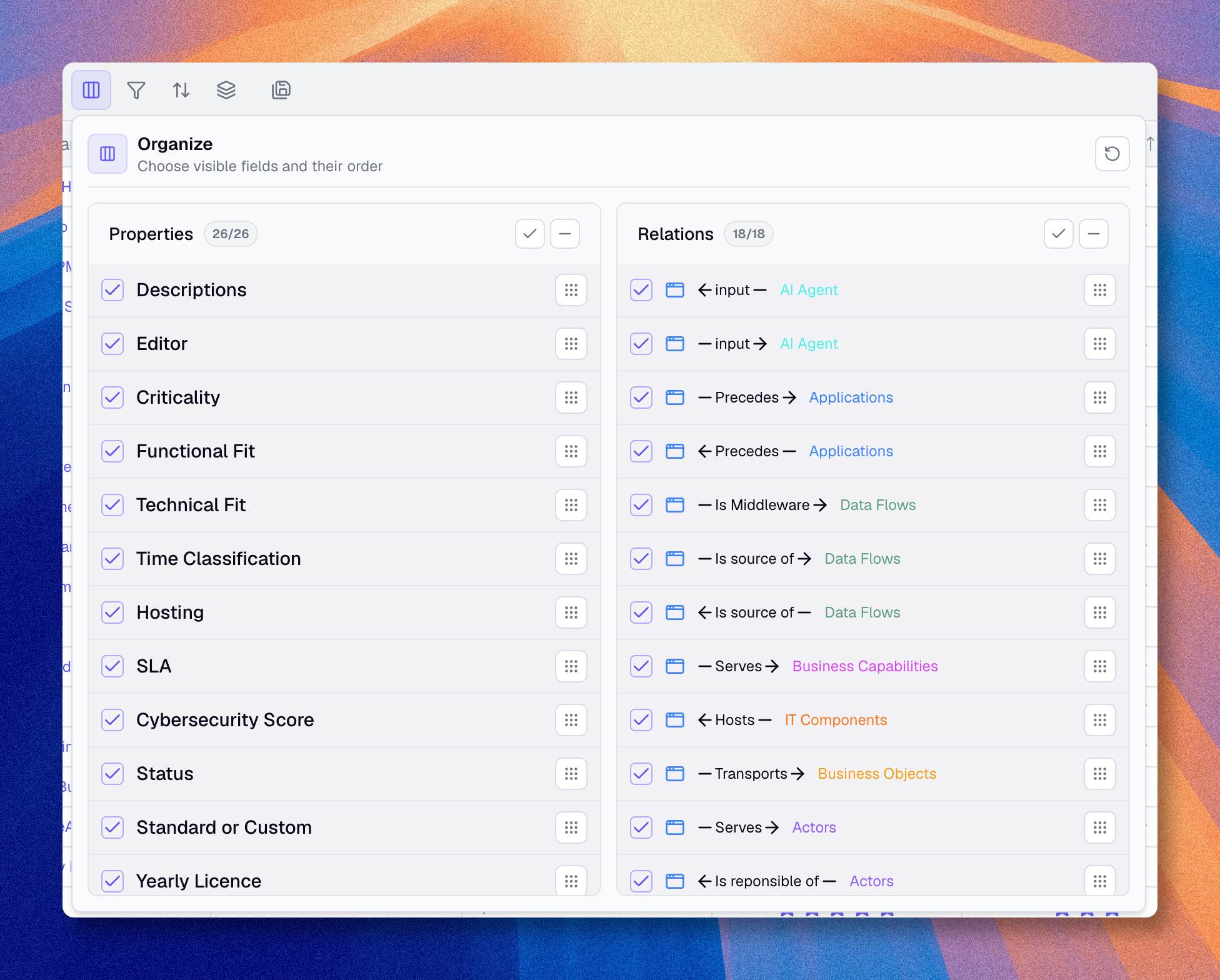
Organize
Use Organize to reorder columns and hide fields you do not need in the current view.
- Click Organize in the toolbar.
- Check/uncheck properties to show or hide them.
- Drag properties to reorder the columns.
- Changes are applied immediately.
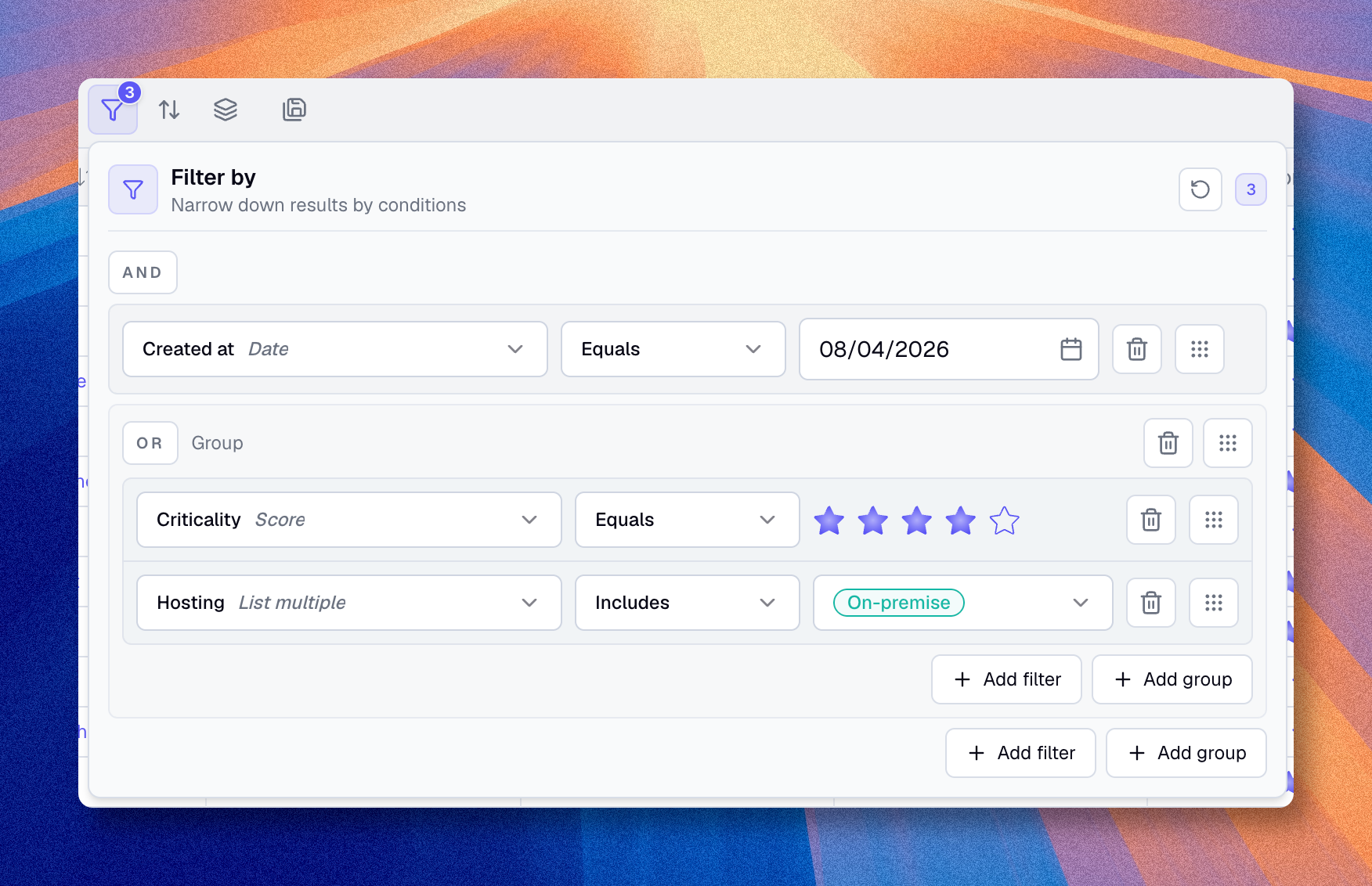
Filter assets
Use filters to isolate a meaningful subset of the knowledge base -- for example, applications without owners, processes with high criticality, or assets updated after a given date.
See Filters for the full list of operators, filter targets, and how to combine conditions with groups.
Sort results
- Click Sort by.
- Select the property you want to sort by.
- Choose the order: Ascending or Descending.
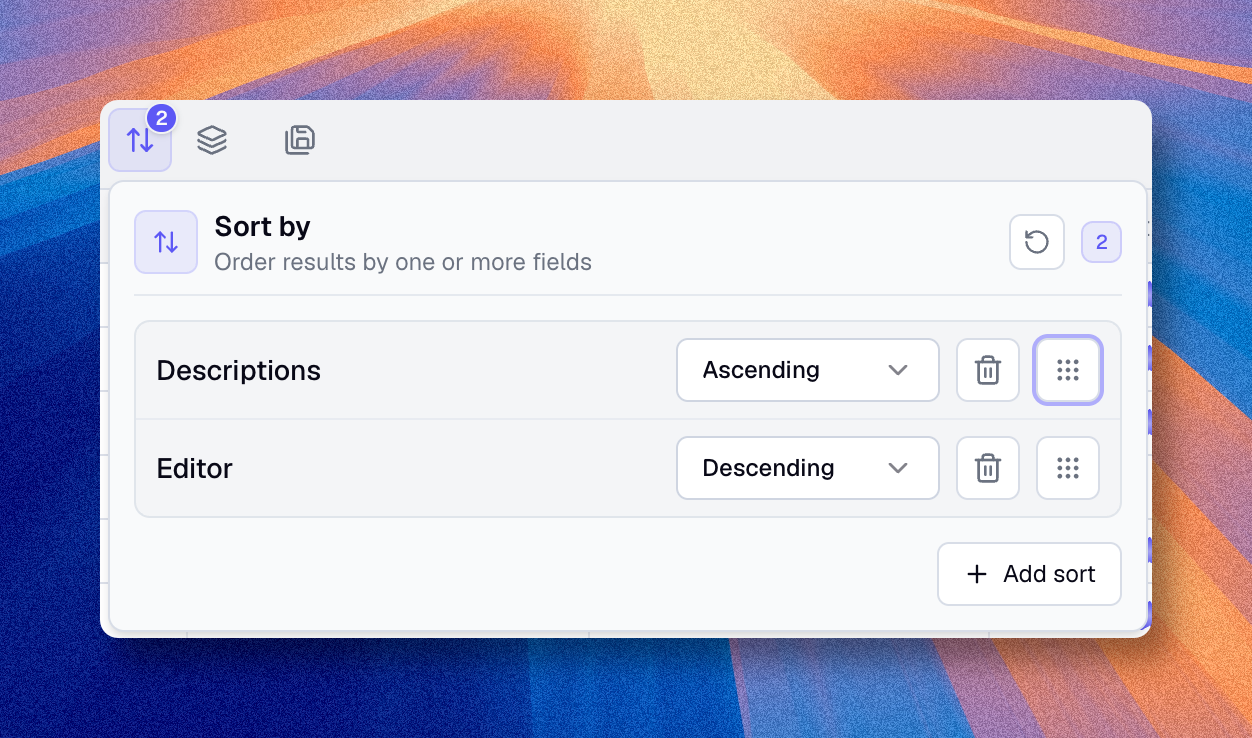
In table views, you can also sort directly from the column headers.
Group by property
- Click Group by.
- Select a property (e.g., Status or Domain).
- The table will instantly group your assets by the values of that property.
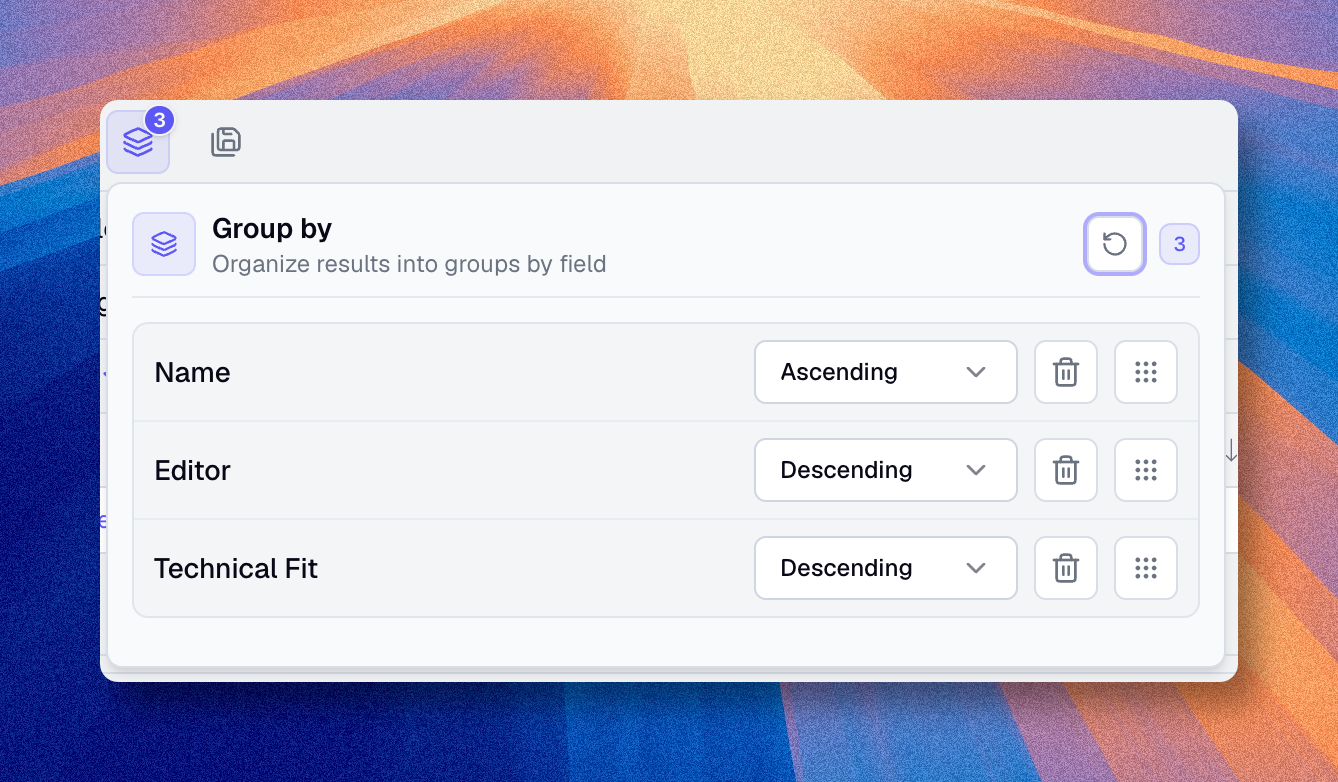
Grouping helps you read the structure of the inventory quickly without exporting data.
Common view patterns
| Need | Suggested setup |
|---|---|
| Review critical applications | Filter on Criticality = High |
| Find missing owners | Filter on an owner field with Is empty |
| Prepare a workshop selection | Filter, then save the view |
| Follow a rollout calendar | Show only date and status fields, then sort by date |
| Analyze by department and status | Use grouping on the relevant property |
Save and manage views
Use Save view as when you want to turn the current configuration into a new saved view.
- Click Save view as.
- Give the view a clear name.
- Choose the scope or destination folder if needed.
- Confirm.
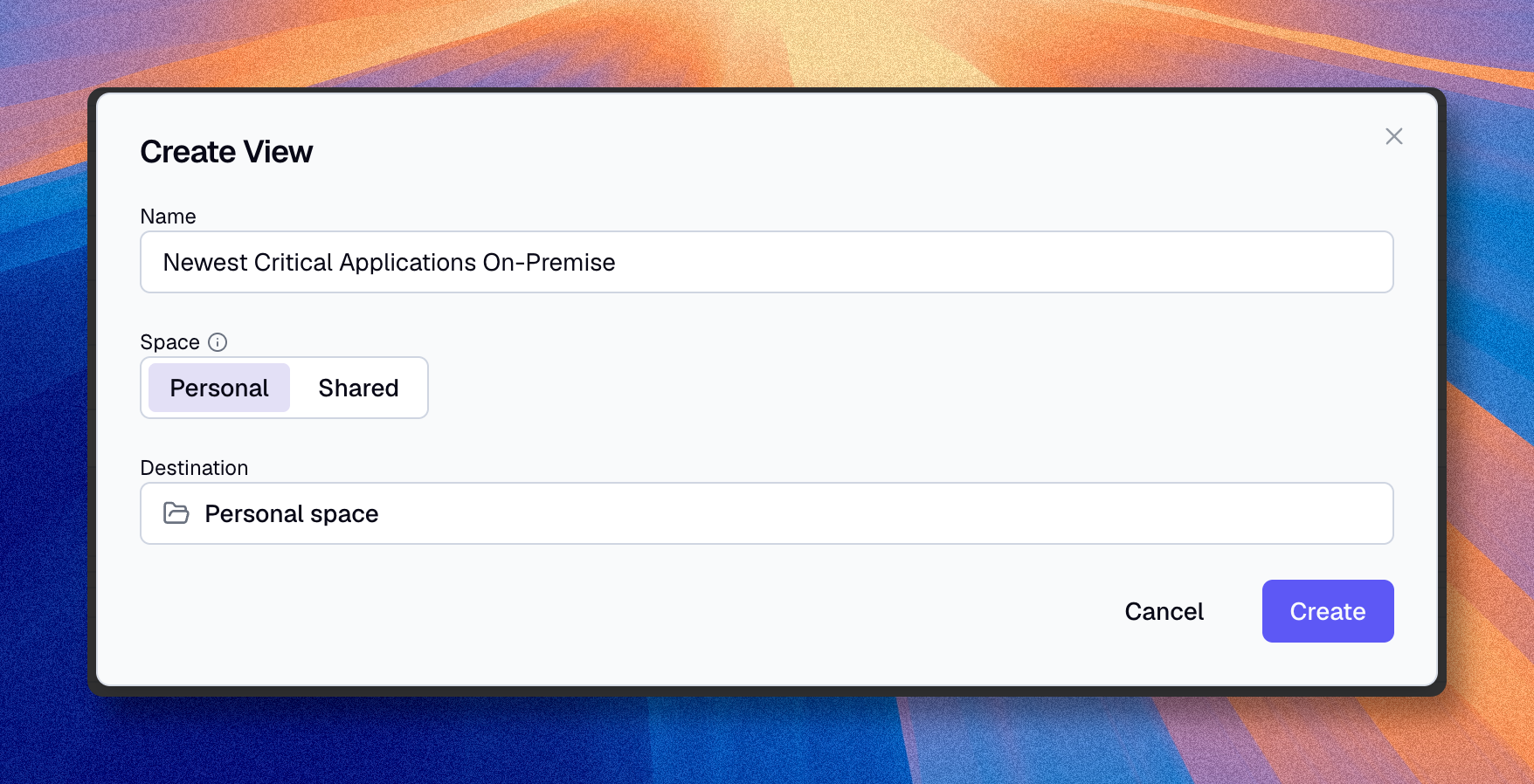
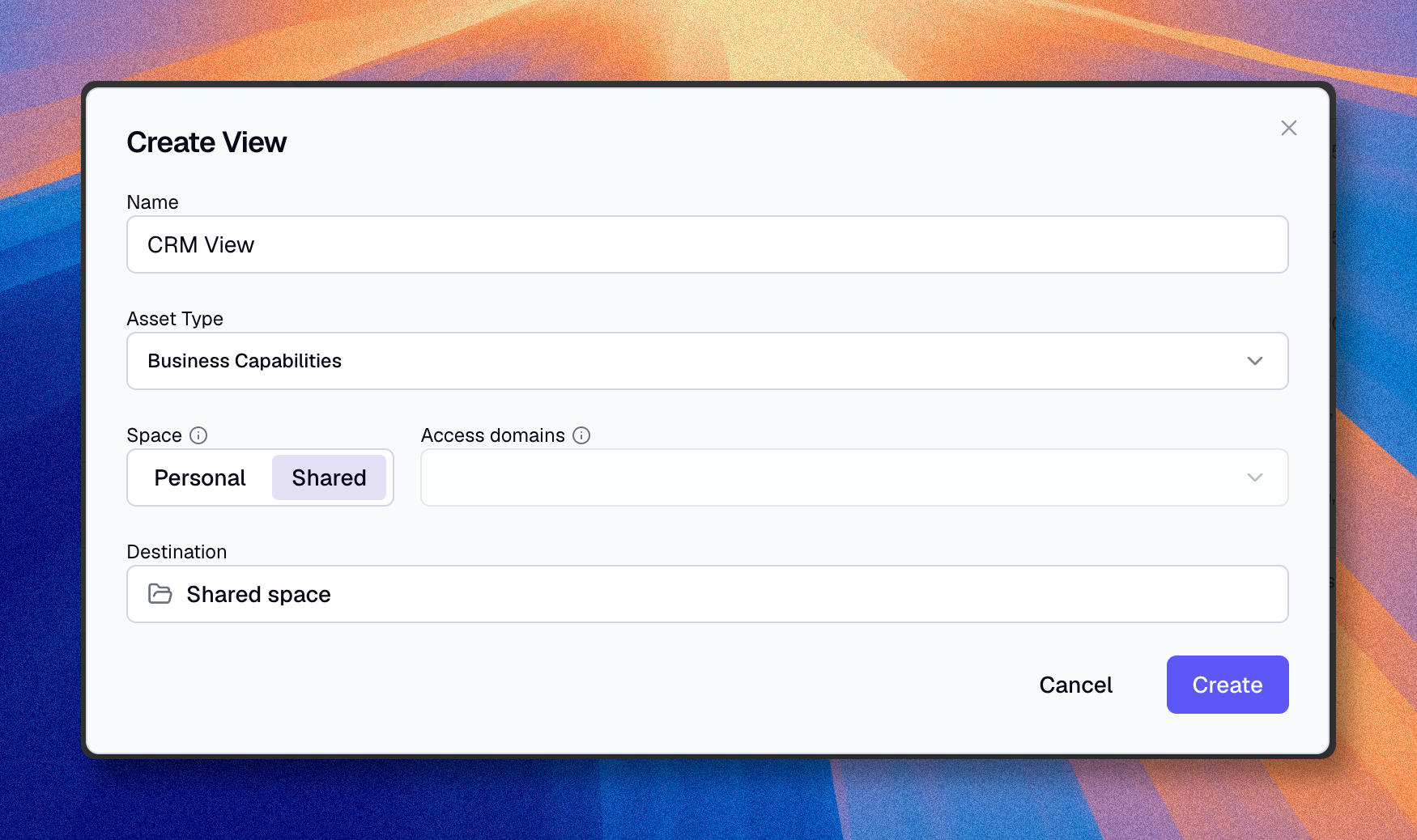
Use clear names based on purpose, for example:
Critical applicationsServers without an ownerFinance capabilities
For an existing saved view:
- Open the view.
- Change the filters, fields, sorting, or grouping.
- Click Save view to update it.
If the new setup serves a different purpose, use Save view as instead of overwriting the existing view.
Saved views can be reopened from the catalog. From the catalog context menu, you can also rename, move, or delete a saved view.
Deleting a view does not delete the assets it displays.
Edit directly from a view
Inline editing
Edit assets directly in the view without opening the asset page:
- Click Cells edit mode (or press
Ctrl+E/Cmd+E). - Click a cell once to focus it, then click it again to edit its value
- Press Enter to confirm or Escape to cancel
- Once you have finished your edits, click Save. You can also use
Cmd/Ctrl + S. - Then click Cells edit mode again to exit
Bulk editing
Perform actions on multiple assets at once:
- Activate multiple selection (or press
Ctrl+B/Cmd+B). - Check the assets you want to modify
- Use the action bar that appears:
- Update: Modify a property for all selected assets
- Delete: Move all eligible selected assets to the archives
- Exit multiple selection when you are done
This is one of the fastest ways to improve the quality of the knowledge base on a focused subset of assets. Use View archives in the table toolbar to search, filter, group, restore, or permanently delete archived assets. Read Archive and restore assets for the complete workflow.
Keyboard shortcuts
| Shortcut | Action |
|---|---|
Ctrl+S / Cmd+S | Save current edits in cell edit mode, or save the current view when cell edit mode is off |
Ctrl+Shift+S / Cmd+Shift+S | Save as new view |
Ctrl+E / Cmd+E | Toggle edit mode |
Ctrl+B / Cmd+B | Toggle bulk edit mode |