Adapt the metamodel
Your teams want to record the vendor contact of each application, or a new family of items such as contracts. Before anyone can fill them in, Boldo needs to know they exist. You describe them once in the metamodel: the structure of your data, meaning the kinds of assets, their fields and their links.
This guide takes ten minutes. It is an administration guide.
Before you start
- You need to be an administrator of the organization.
- The metamodel is shared by the whole organization. A change applies to everyone at once, including existing scenarios.
- Deleting a kind of asset or a property deletes the values recorded on it. Export the data you want to keep first.
1. Open the metamodel
Open Organization settings, the building icon at the top right, then Metamodel.
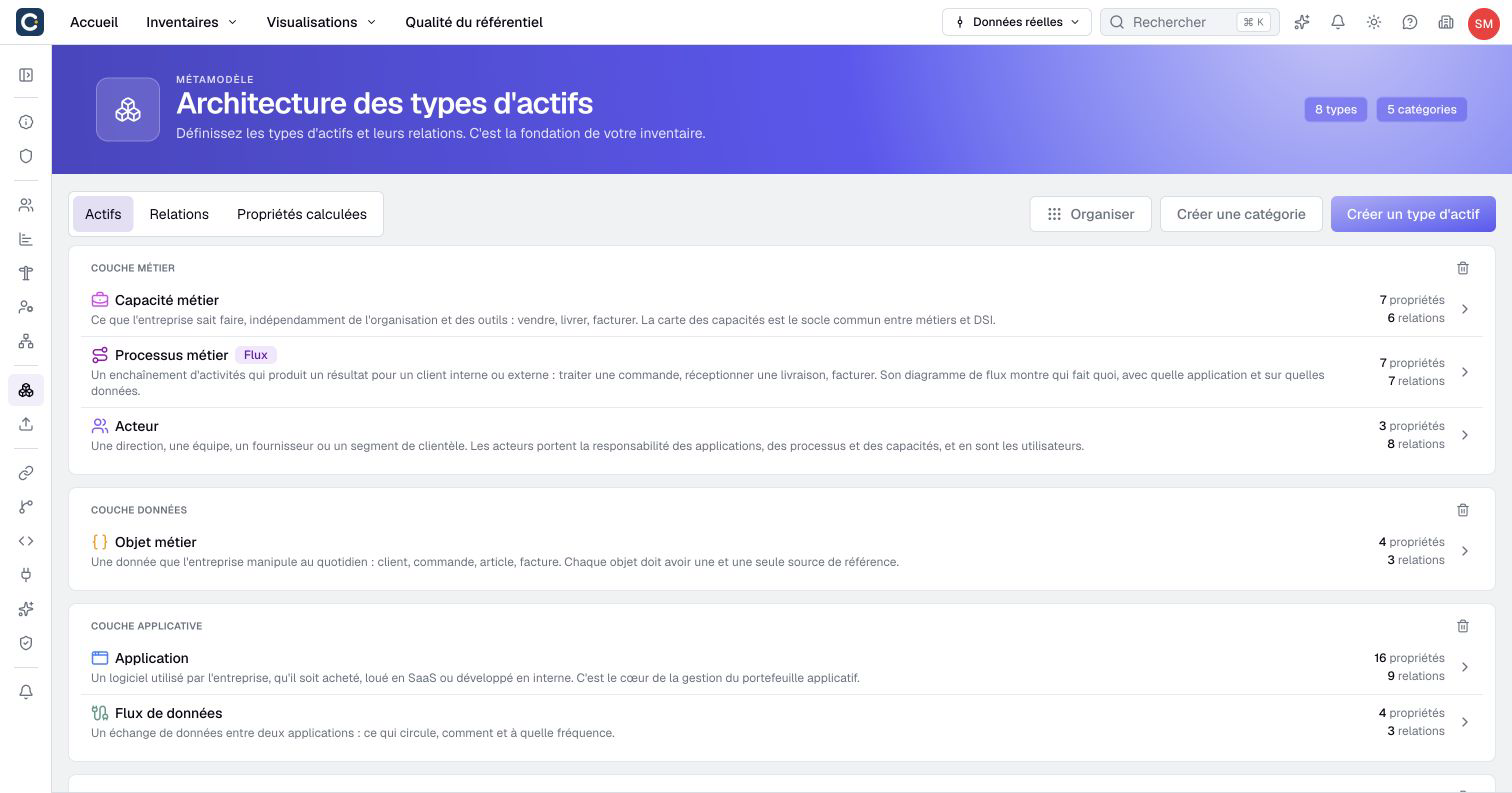
Each row is an asset type, a family of assets such as applications or teams. Categories only organize the page. The Relationships tab lists the links allowed between types.
Check the existing types before creating one: a field on an existing type is often enough. To rearrange types and their categories, open Organize, drag the entries, then click Apply.
2. Create an asset type, if you need one
Click Create asset type. Enter its Name, choose an icon and a color, and write a Description that says which items belong to it. The description is required: contributors read it to choose the right type.
For a type that describes processes, turn on Enable flow. Its assets can then have a process flow, drawn step by step.
Click Create. The type is ready, but it has no assets yet: you create them in its inventory.
3. Add a property
Open the type, then Properties, and click Add a property. A property is a piece of information to collect on each asset, such as a cost or a status.
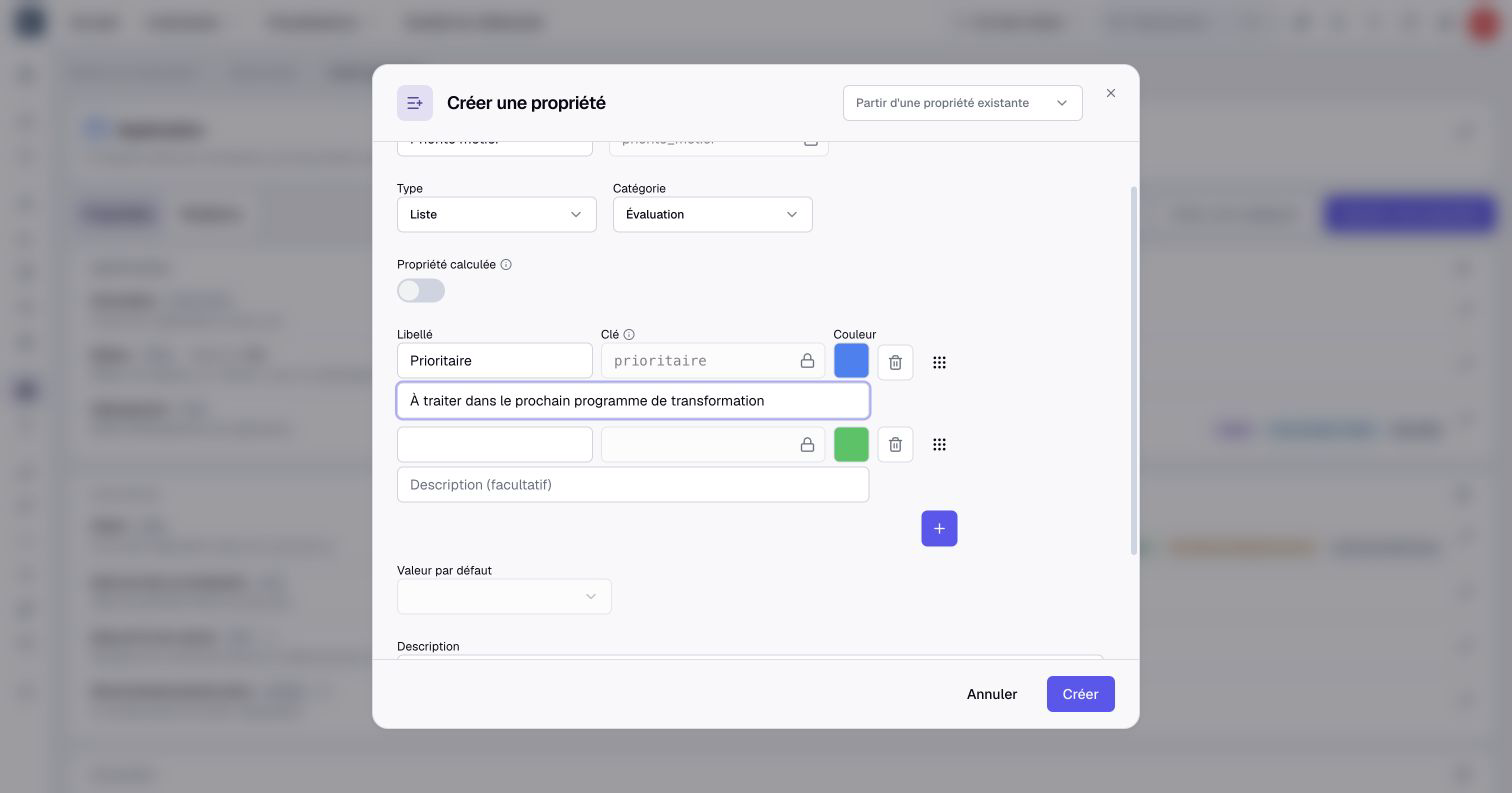
Enter the Name. Boldo generates the Key from it, a stable identifier used by imports and formulas. Check it now: changing it later affects your import files.
Choose the Type: text, list, number, currency, date and so on. A list keeps values consistent, where free text lets everyone write differently. Then set the options:
- Default value prefills new assets only. Existing assets keep their value.
- Optional turned off means an empty value counts as missing in the completeness score.
To reuse settings from this type or another, choose Start from an existing property at the top of the dialog. Properties found on several types appear first under Common properties. Check the filled settings before creating an independent property; existing values are not copied.
For a list, describe each choice when contributors need help deciding. Its optional description appears during selection and in the value's tooltip.
Click Create, then open an asset of this type to see the new field.
4. Sort the properties into categories
When a type has many properties, sort them into categories by theme, such as costs or support. On the Properties tab, click Create category and name it. Then open Organize, drag each property into its category and click Apply.
Categories organize the asset page. They change neither the values nor the rights.
5. Allow a new link
On the metamodel's Relationships tab, click Create relationship type. Choose the From type and the To type, for example from an application to a team. Enter the name as it reads from the source, such as "is maintained by".
Use Swap source and destination if needed, then click Create. The relationship type's page opens. If the link carries information such as a team's allocation, click Add property on this page. Adding the first property also permits several links between the same two assets. Contributors can now connect the two kinds of assets.
6. Turn a text field into a list
A field entered as free text quickly ends up with variants: "Microsoft", "MS", "microsoft". To clean it up, open the property with its pencil and choose List as the type.
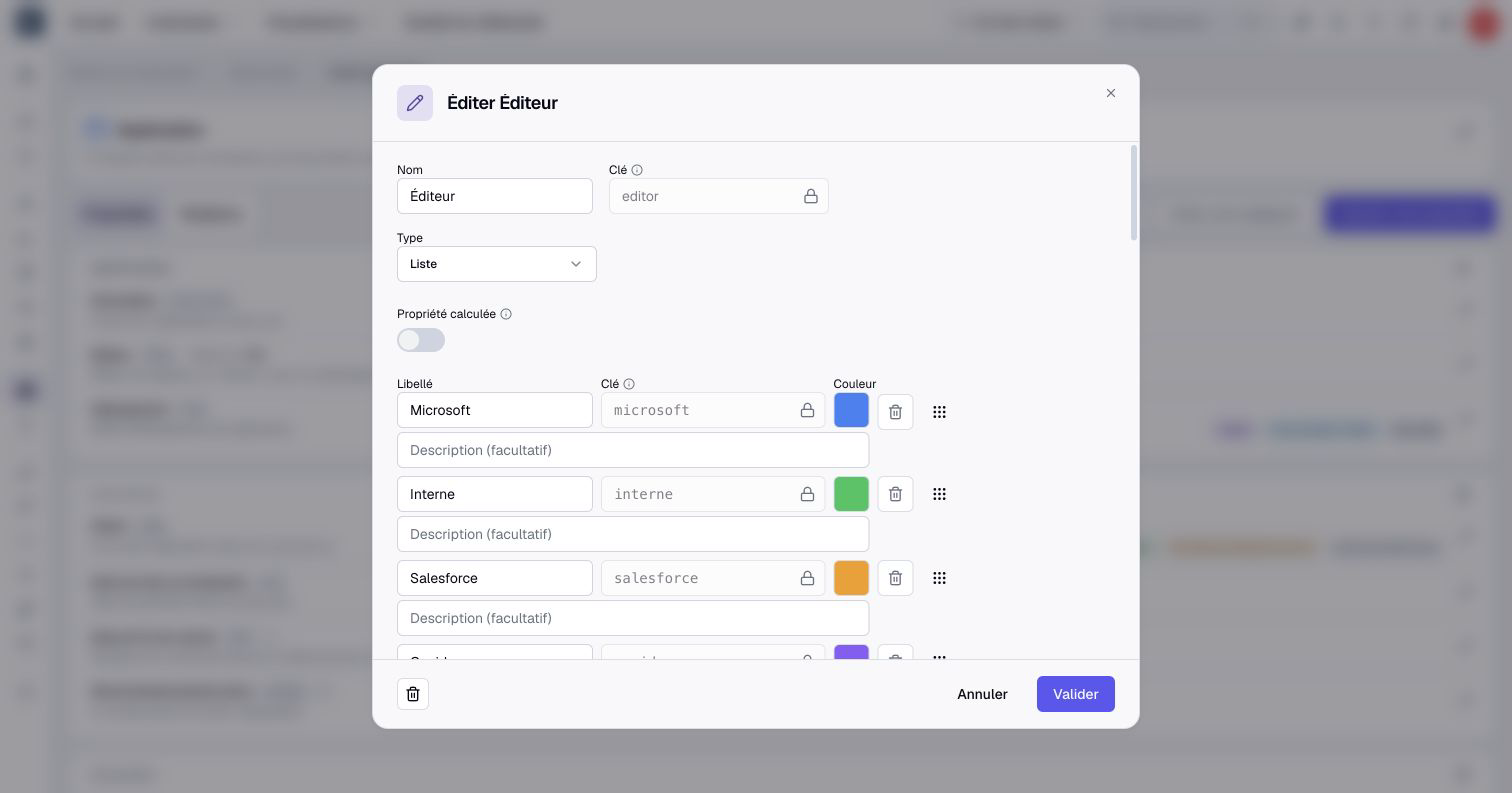
Boldo proposes the values already entered as choices. Rename them, or remove the variants you do not want to keep as choices. Click Validate.
The Convert existing values window then shows what will happen to each stored value. Match each old value to a choice, so that "MS" becomes "Microsoft", or choose Clear the value. Create missing options adds the values you want to keep as new choices. Read the losses announced, then click Convert and change type.
Check a few assets afterwards. If an import file or another tool uses this field, update it too.
Key points
- Look at the existing types first: a property often does the job of a new type.
- Check the key of each property when you create it.
- To change the type of a property, read the conversion preview before confirming.
Go further
- Create a computed property: to have Boldo calculate a total or a classification.
- Bulk import from CSV or Excel: to fill in your new fields from a file.
- Build your first repository: to see the metamodel in the order of a first setup.