Assess the impact of a decommissioning or an outage
You plan to retire an old application. Or a server goes down, and management asks what stops. In both cases the question is the same: what depends on it, directly or not? An impact analysis answers it from your repository. You say where to start and which links to follow, and Boldo lists everything that is reached, level by level.
In the examples, the historic ERP runs on a single server and is due to be replaced.
Before you start
- Reading an analysis only requires being able to view Boldo. To create one, you need to be allowed to create visualizations: ask an administrator if the button is missing.
- The result only shows the assets you are allowed to see. If a branch seems to stop too early, an asset along the way may be hidden from you.
1. Ask the question
Open Visualizations, then Impact analyses, and open an analysis or create one. In the example, the analysis asks what the ERP retirement affects.
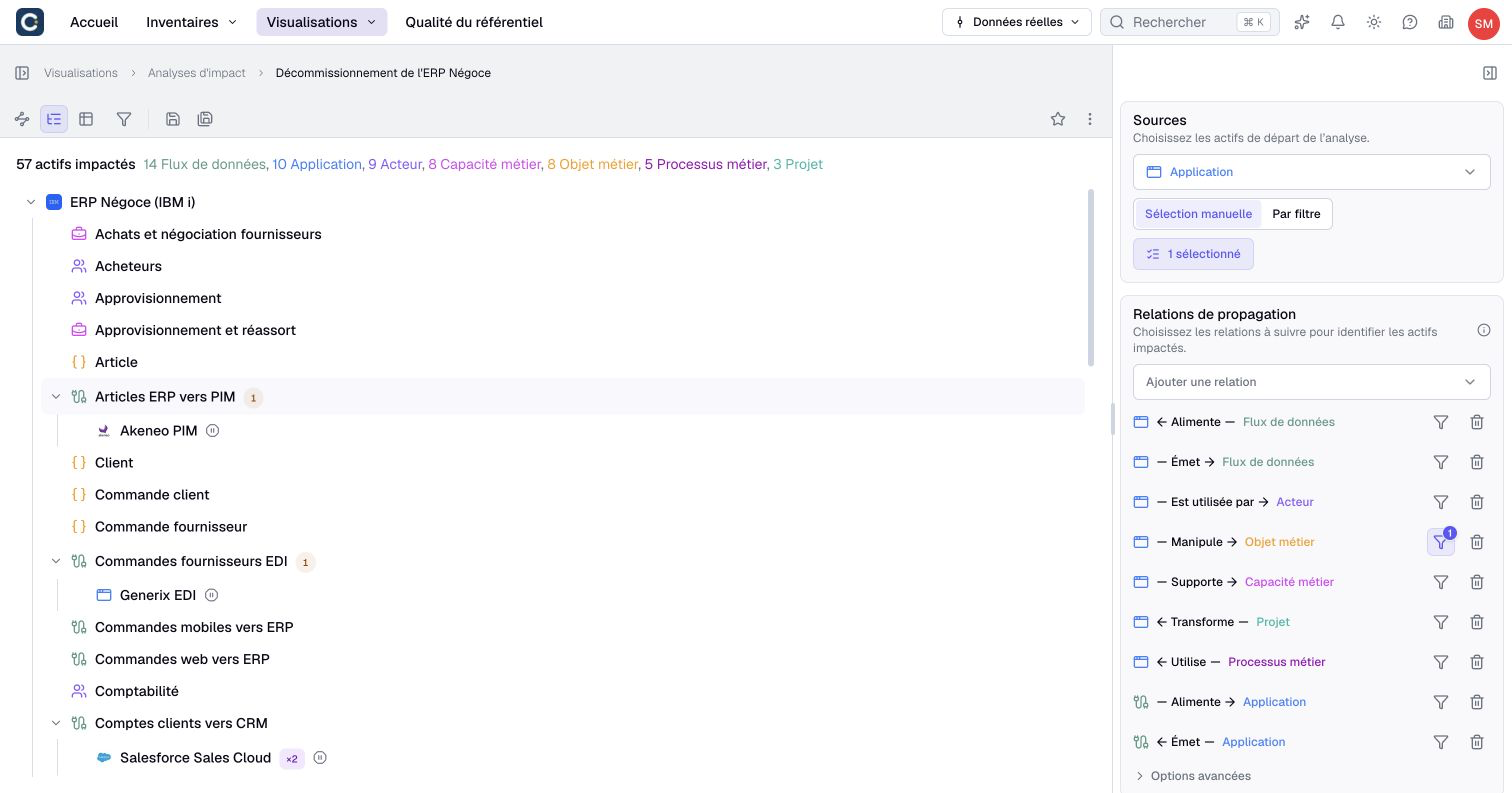
The panel on the right holds the question:
- Sources are the assets you start from, here the ERP.
- Propagating relations are the links Boldo follows from one asset to the next: the teams that use the ERP, the business capabilities it supports, the data flows it sends and receives, the processes that rely on it.
The summary at the top counts the impacted assets by type: 14 data flows, 10 applications, 9 teams, 8 business capabilities and more.
2. Mind the direction of each link
A link reads one way. "The ERP sends a data flow" does not mean the same as "a data flow feeds the ERP". Next to each relation, the arrow shows which way Boldo follows it. Follow a link the wrong way and you miss half of the impact, or you count assets that do not depend on your source at all.
Add only the links that carry the impact you care about. Following every link in the repository quickly reaches everything, and the answer stops being useful.
3. Switch to the table
The buttons above the result switch between the tree, the graph and the table. The table is the easiest to sort and filter.
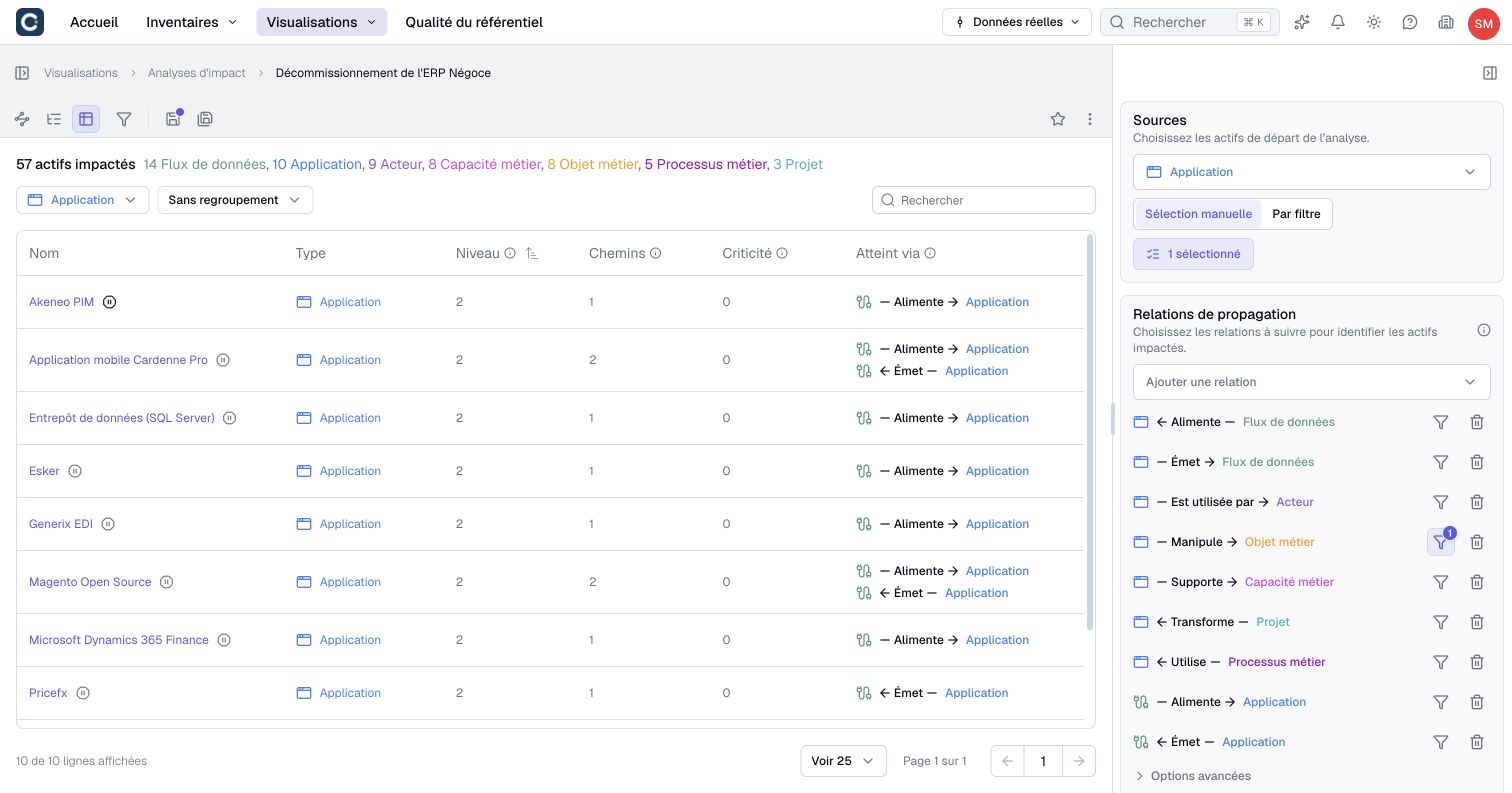
The Level column tells you how far an asset is from the source: level 1 is directly linked, level 2 is one step further. Here, several applications are not linked to the ERP directly, but they receive or send its data. Their owners are the people to warn before the ERP goes away. Reached via shows the link that led to each asset.
4. Simulate a server outage
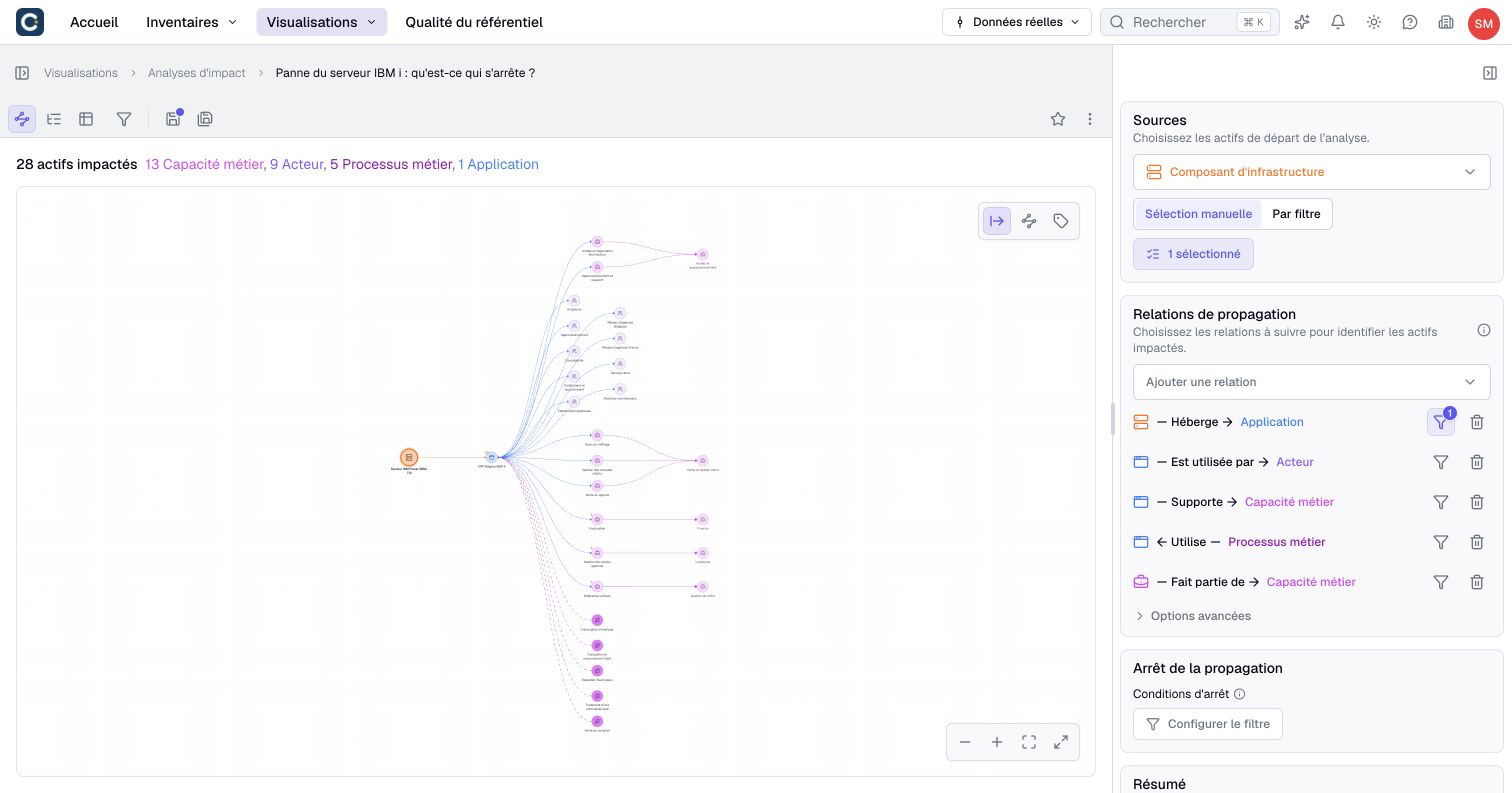
The same approach works for infrastructure. In the example, the outage analysis starts from the server that runs the ERP.
The source is now an infrastructure component. Boldo follows the applications it hosts, then the teams that use them, the capabilities they support and the processes that rely on them.
The Utilise (uses) link points the other way: a process uses the ERP. That is why its arrow points back toward the ERP.
5. Spot the single point of failure
Every impacted asset has a Criticality score: the number of other assets that would no longer be reached if it disappeared. A high score points to a single point of failure.
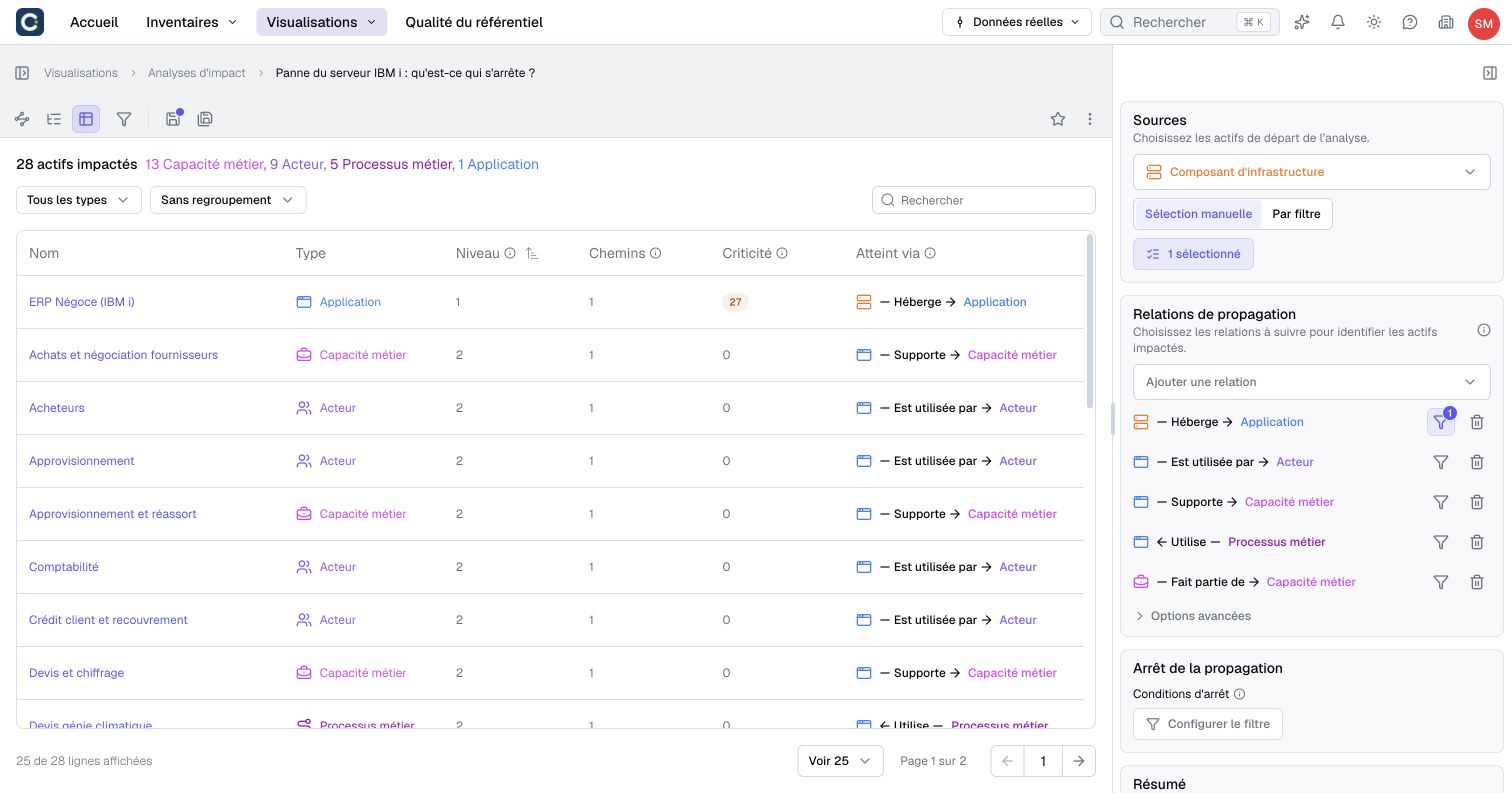
In the example, the answer is clear: the ERP is the only application reached through the server, and everything else depends on the ERP. This score describes the analysis you built, not a property of the asset. It changes when you change the sources or the links.
6. Share the result
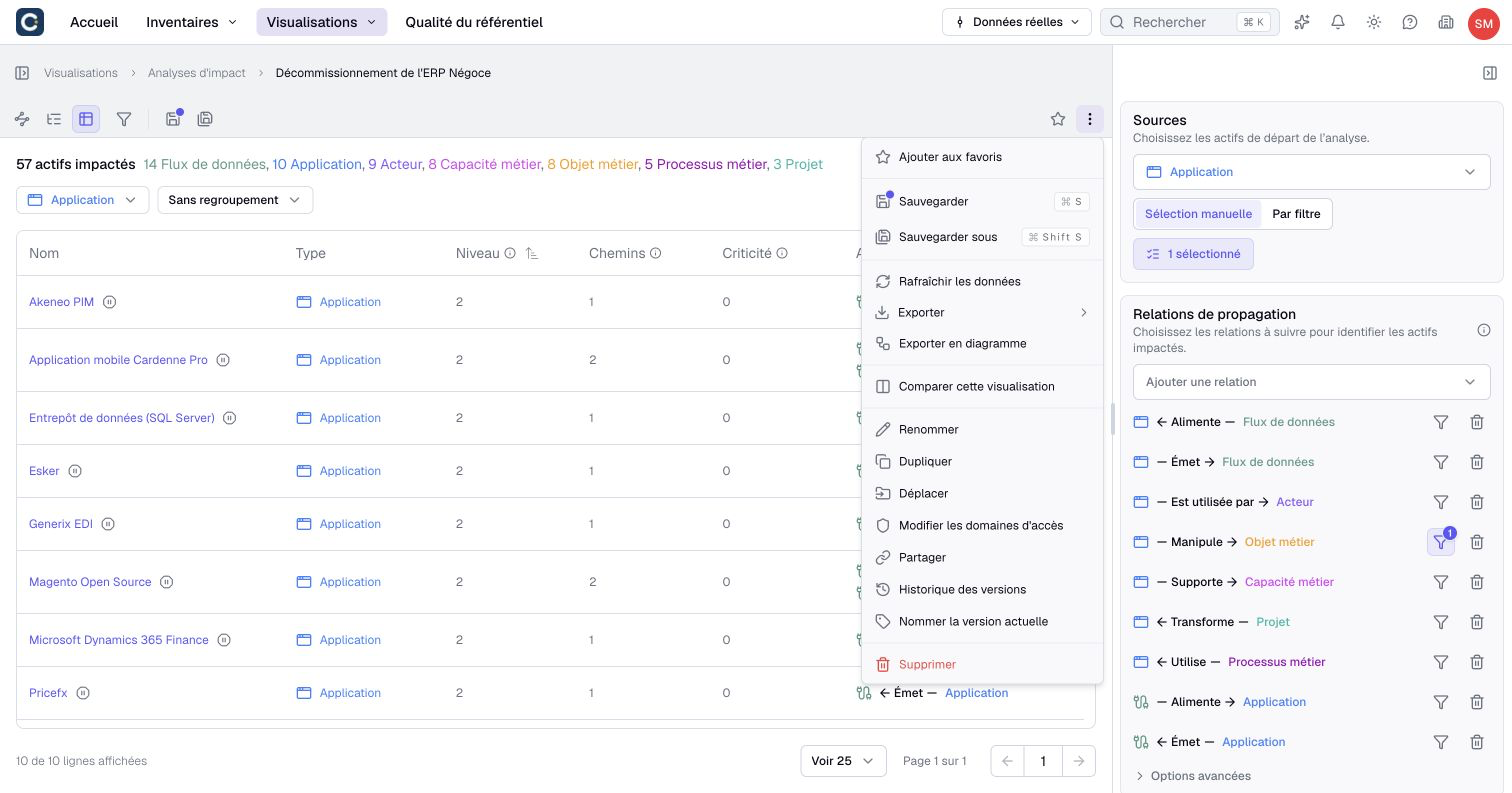
Open the actions menu at the top right:
- Export downloads the table as a spreadsheet, or the detailed paths.
- Convert to diagram creates a diagram of the result that you can annotate and present.
- Export > Image downloads the graph.
- Share creates a read-only link to the analysis.
The analysis is always computed from the current data. Open it again next month and it takes the latest changes into account.
Key points
- An impact analysis starts from sources and follows the links you choose.
- The direction of each link matters: check the arrows.
- The table sorts by level and criticality. A high criticality flags a single point of failure.
Go further
- Work in a scenario: measure the impact of a change before making it.
- Rationalize your application portfolio: decide which applications to retire, then check their impact.
- Track technical obsolescence: find the servers out of support and the people to warn.