The page of an asset
Before a meeting, you want to know everything about an application: what it is for, what it exchanges with, who changed it recently and what your colleagues say about it. The page of the asset gathers all of this.
This guide takes five minutes.
Before you start
- Being able to view the asset is enough.
- Some tabs, such as Activity log or Comments, only show if your plan includes them.
1. Open the page
In an inventory, click the name of an asset. You can also search for it with Ctrl+K (Cmd+K on Mac).
The page opens on Information by default, including for a process. The other tabs are at the top: Related assets, Rights, Activity log, Comments and Suggestions. A process also offers Flow editor. Open that tab to find the available flow actions in the page’s ⋮ menu.
Beside the name, Used in lists diagrams, dashboards and process flows that directly use the asset, and impact analyses that start from it. Hover over it, then select a listed item to open it. Inaccessible items are counted without being named. The icon is absent when no recorded use exists.
2. Read the information
On the left, the information of the asset is grouped by theme: identification, lifecycle, evaluation, costs.
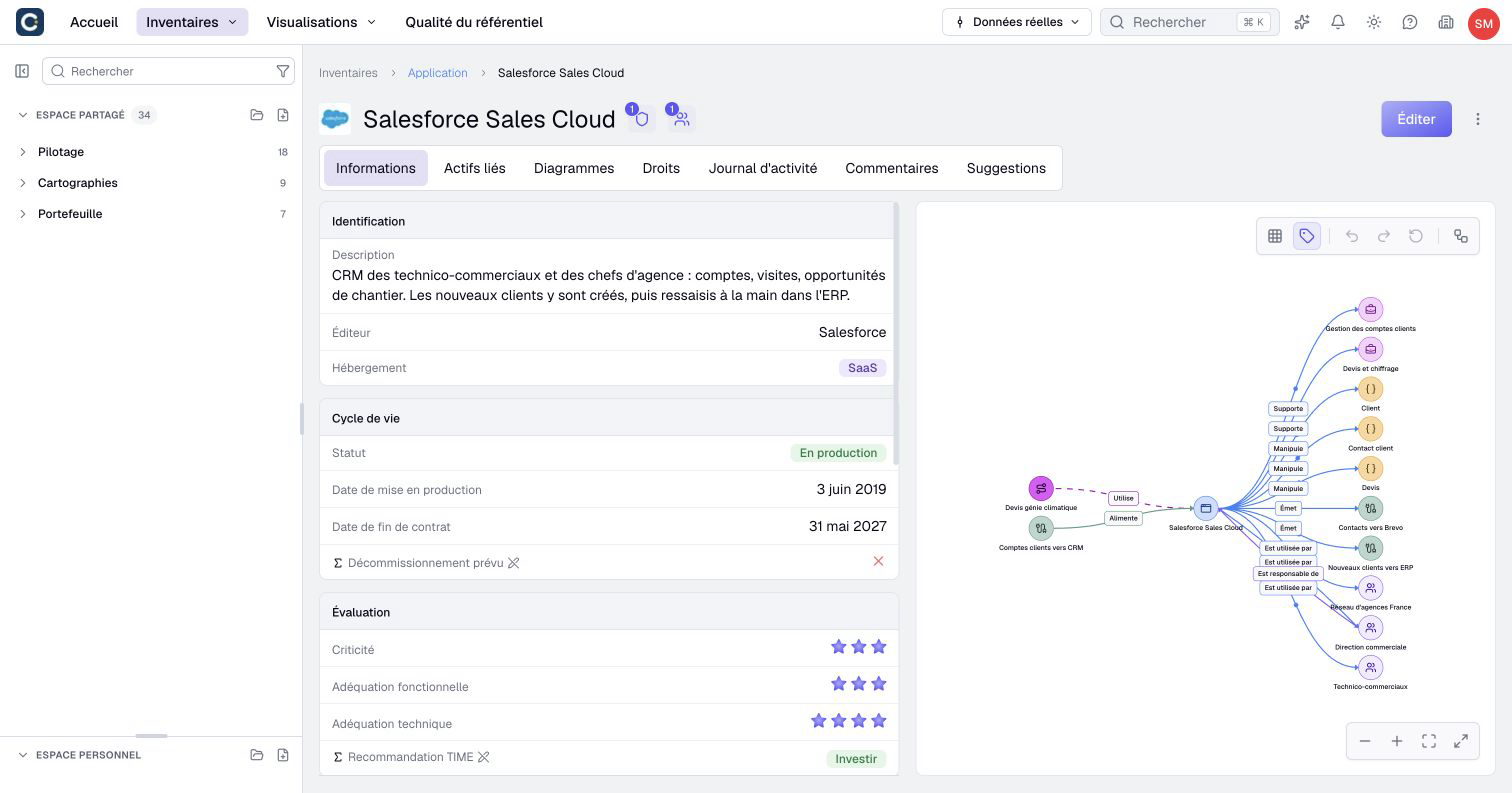
API, MCP or AI beside a value shows how that property was last changed. Hover over it to see the date and author.
Information marked Σ is computed by Boldo from other information. If it looks out of date and you have editing permission, click Recompute at the top of the column. Otherwise, ask an authorized Editor.
To change a value, click Edit at the top right. If the button does not show, you cannot edit this asset: click Suggest in the header instead. Read Suggest a change for the suggestion form.
3. Explore what the asset is connected to
On the right, the graph shows the relationships of the asset: the teams that use it, the data it handles, the flows it sends or receives.
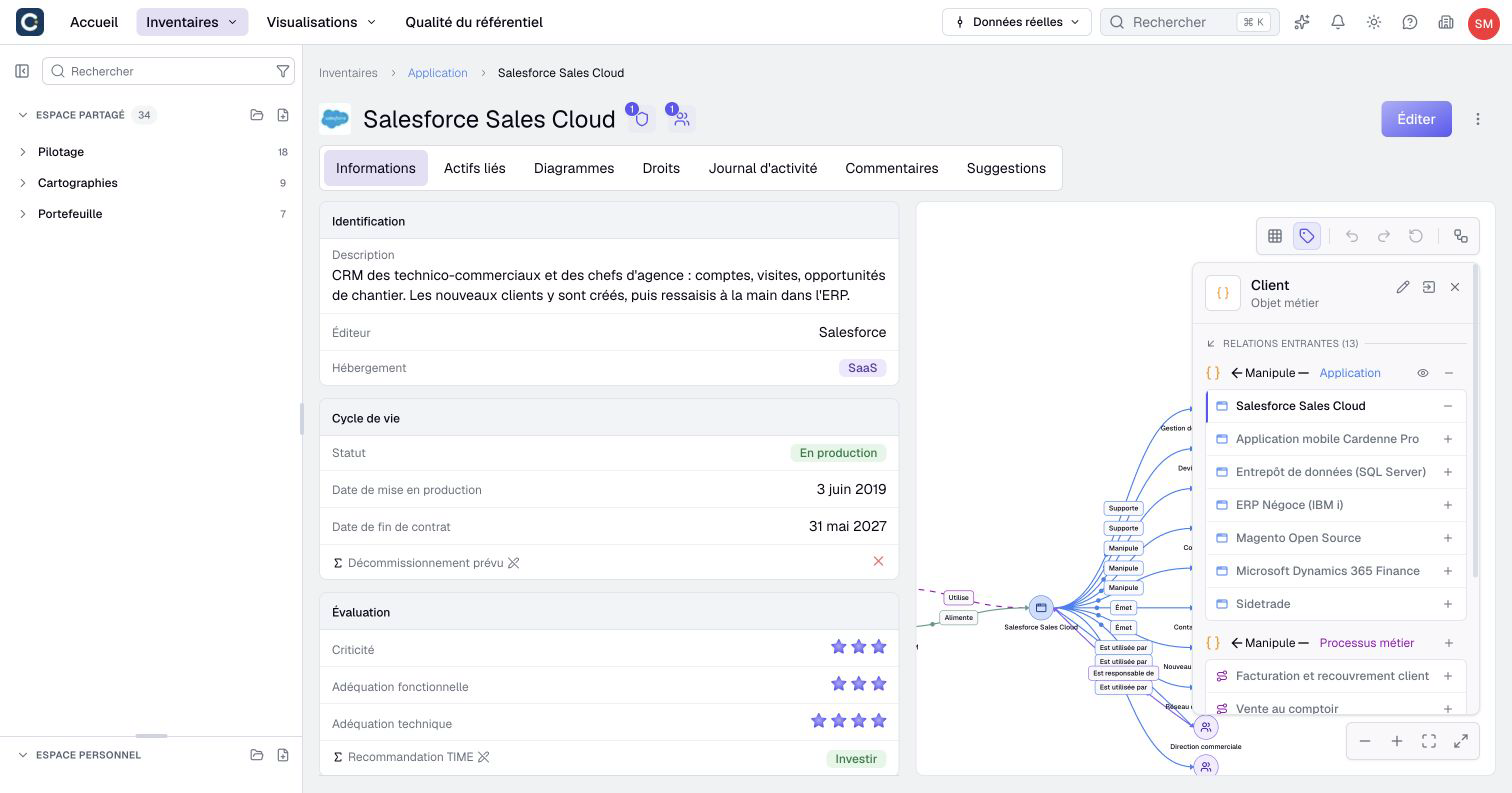
Click an item in the graph. A panel lists its own relationships. The + button adds an item to the graph: you follow the links step by step.
With the pointer over the graph, use Ctrl+Z to undo exploration and Ctrl+Shift+Z to redo it; use Cmd on Mac. Back to the initial relationships starts again. These commands do not change inventory relationships.
For a list rather than a graph, open the Related assets tab: the connected assets are grouped by kind.
4. See what changed
Open Activity log. With the date sort, changes saved together appear under one row with their date and author. Expand it to compare old and new values. For an accepted suggestion, the log also identifies who suggested it and who accepted it.
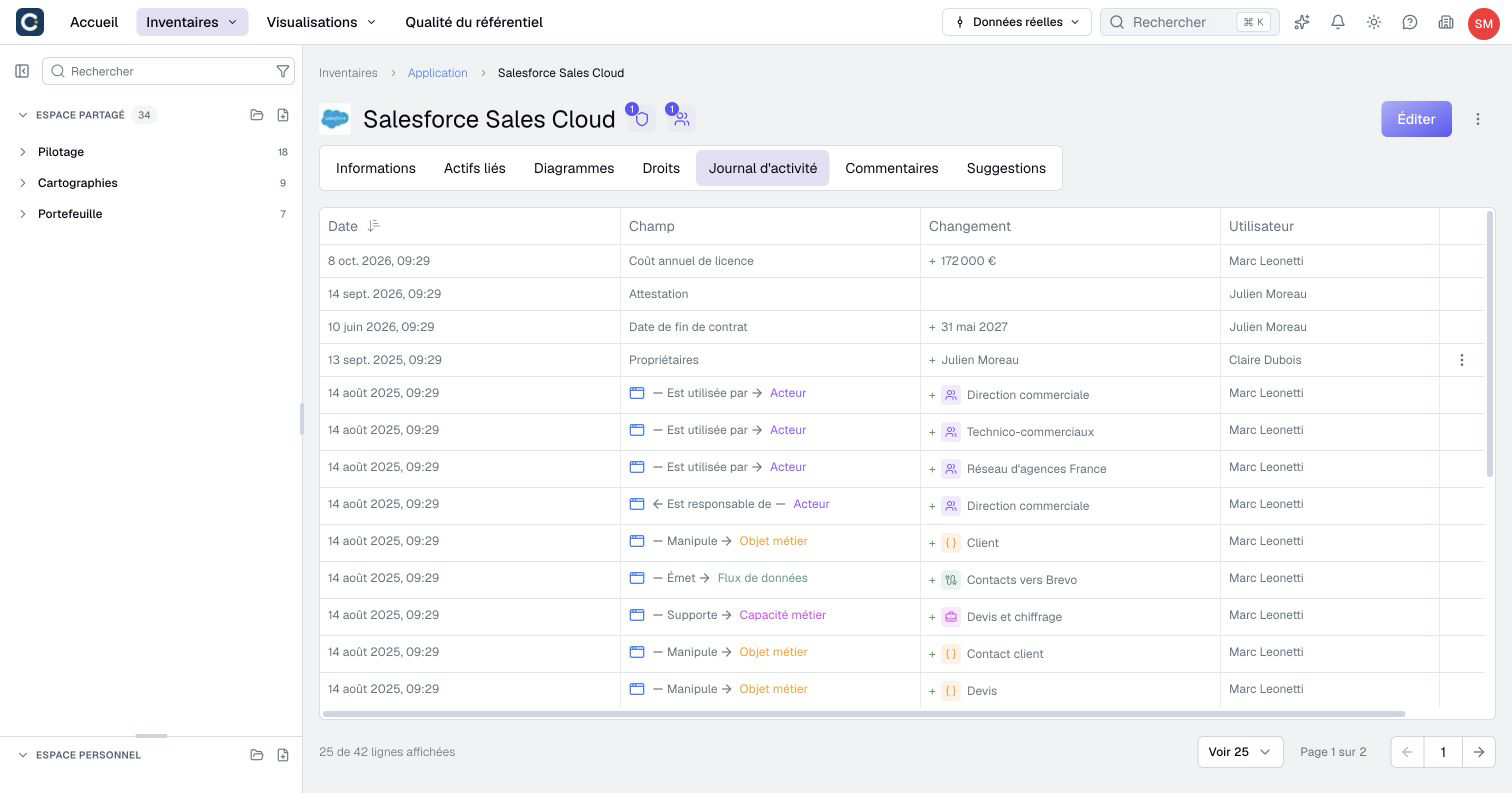
This is the tab to open when a value surprises you: you know right away whom to ask.
5. Talk with your colleagues
In Real data, open the Comments tab to ask a question or share information about the active asset.
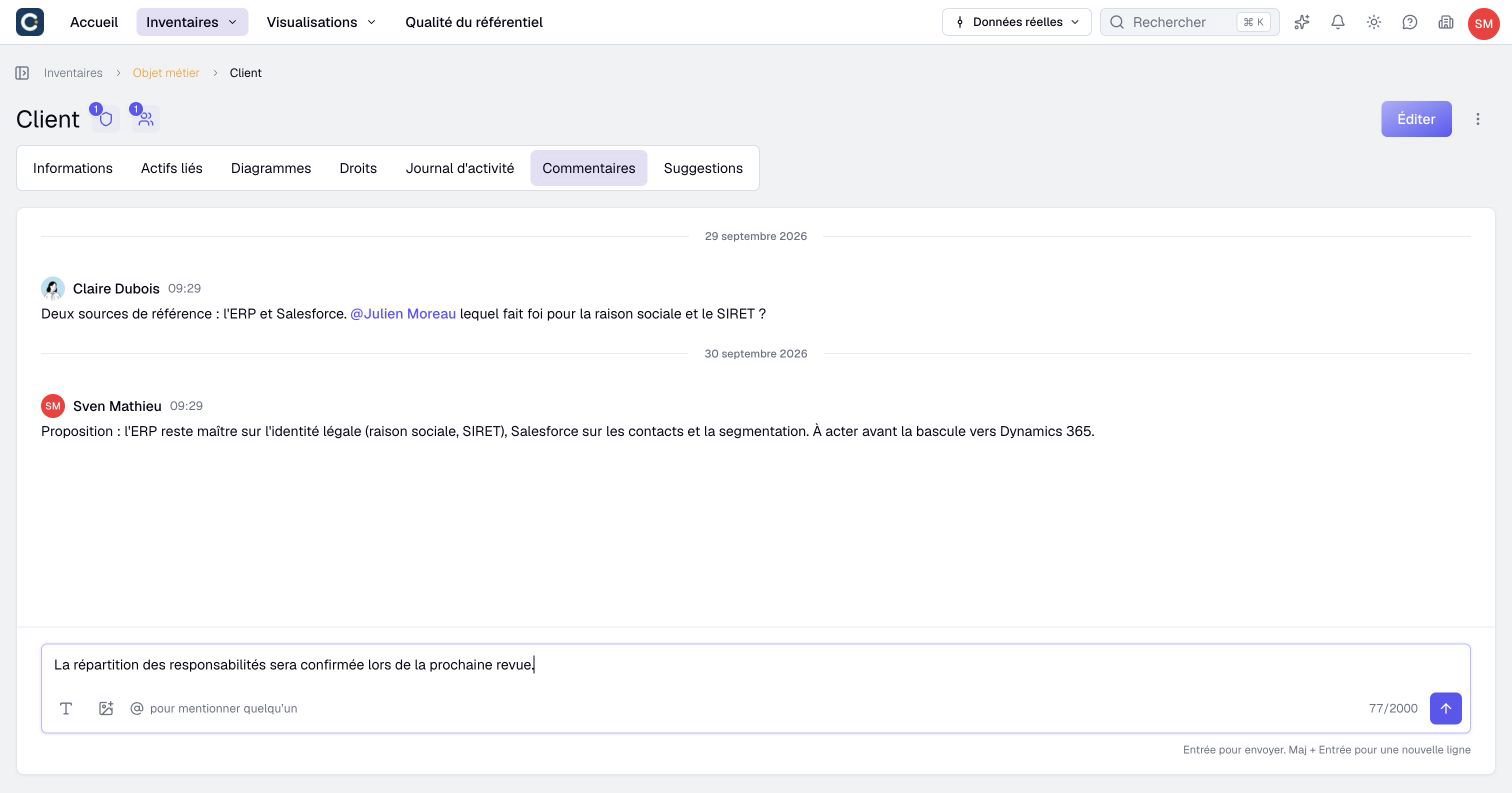
Type @ followed by a name to mention a colleague and bring them into the discussion. Press Enter to send, or Shift+Enter for a new line.
6. Take a look without leaving the list
In an inventory, the eye at the end of each row opens a Preview of the asset, in a panel on the right.
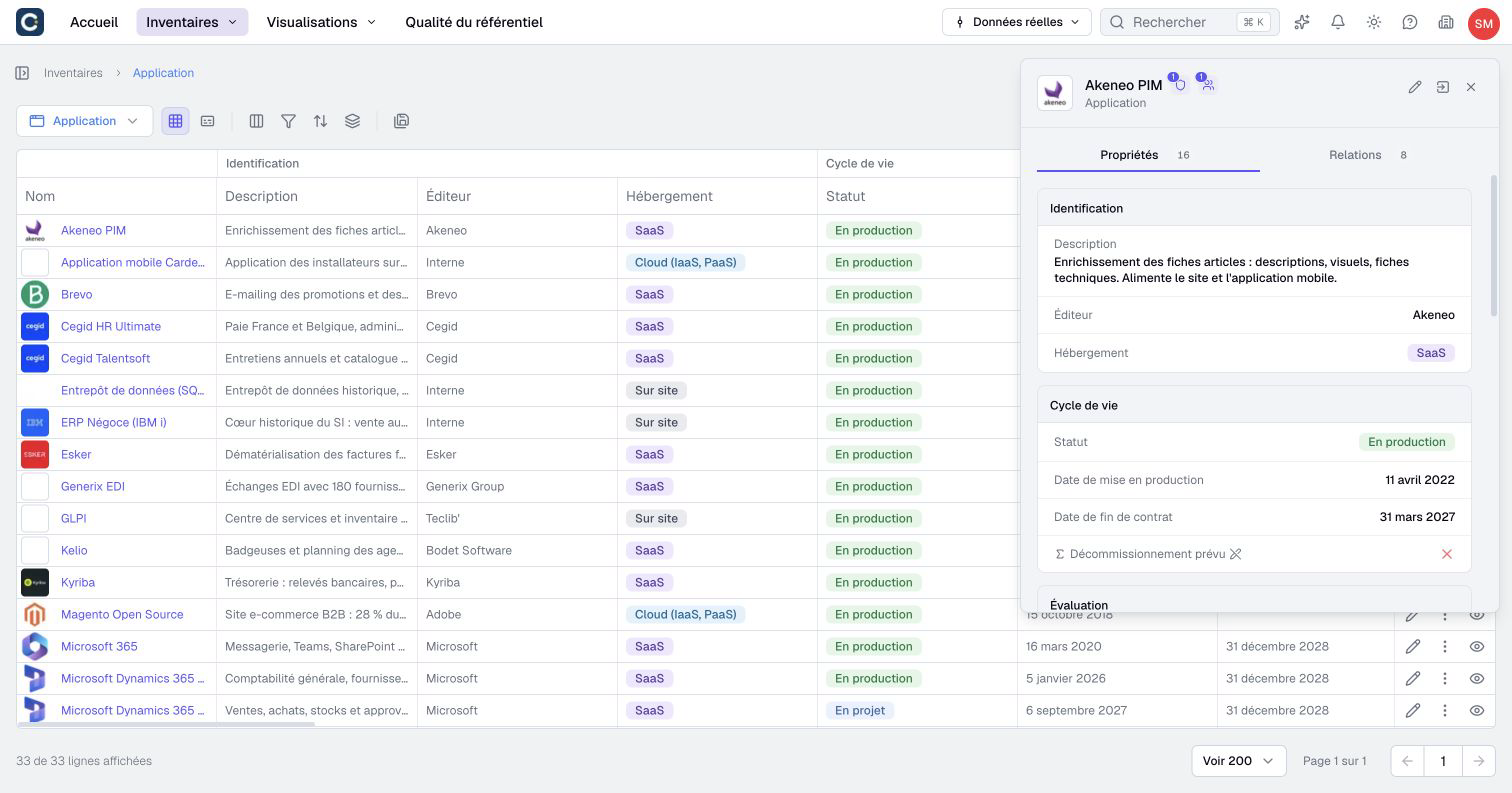
The preview shows the Properties and Relationships tabs. It is enough to check a value. To go further, open the full page from the panel.
Key points
- The page of an asset tells you what it is, what it is connected to, what changed and what people say about it.
- Information marked Σ is computed by Boldo.
- The eye on a row opens a preview without leaving the list.
Go further
- Edit several assets in the table: to correct several assets quickly.
- Your home page, day to day: to follow the assets you are in charge of.