Build a dashboard
Every month you present the state of the application portfolio to management: costs, applications to retire, ongoing projects. Rather than opening five screens, put everything on one page. A dashboard brings together several widgets, blocks that each show a figure, a chart, a view or some text. They all read the data live.
This guide takes five minutes.
Before you start
- You need to be able to create visualizations. If you cannot, ask an administrator.
- Prepare the charts and views you want to show first. Read Create a view and filter and Build your first chart.
1. Create the dashboard
Open Visualizations, then Dashboards, and click Create dashboard. Name it, choose the Personal or Shared space, then the folder.
2. Switch to edit mode
A new empty dashboard opens unlocked, ready for widgets. A populated dashboard opens locked to prevent accidental moves. If it is locked, click Unlock, the padlock in the toolbar, or press Ctrl+L (Cmd+L on Mac).
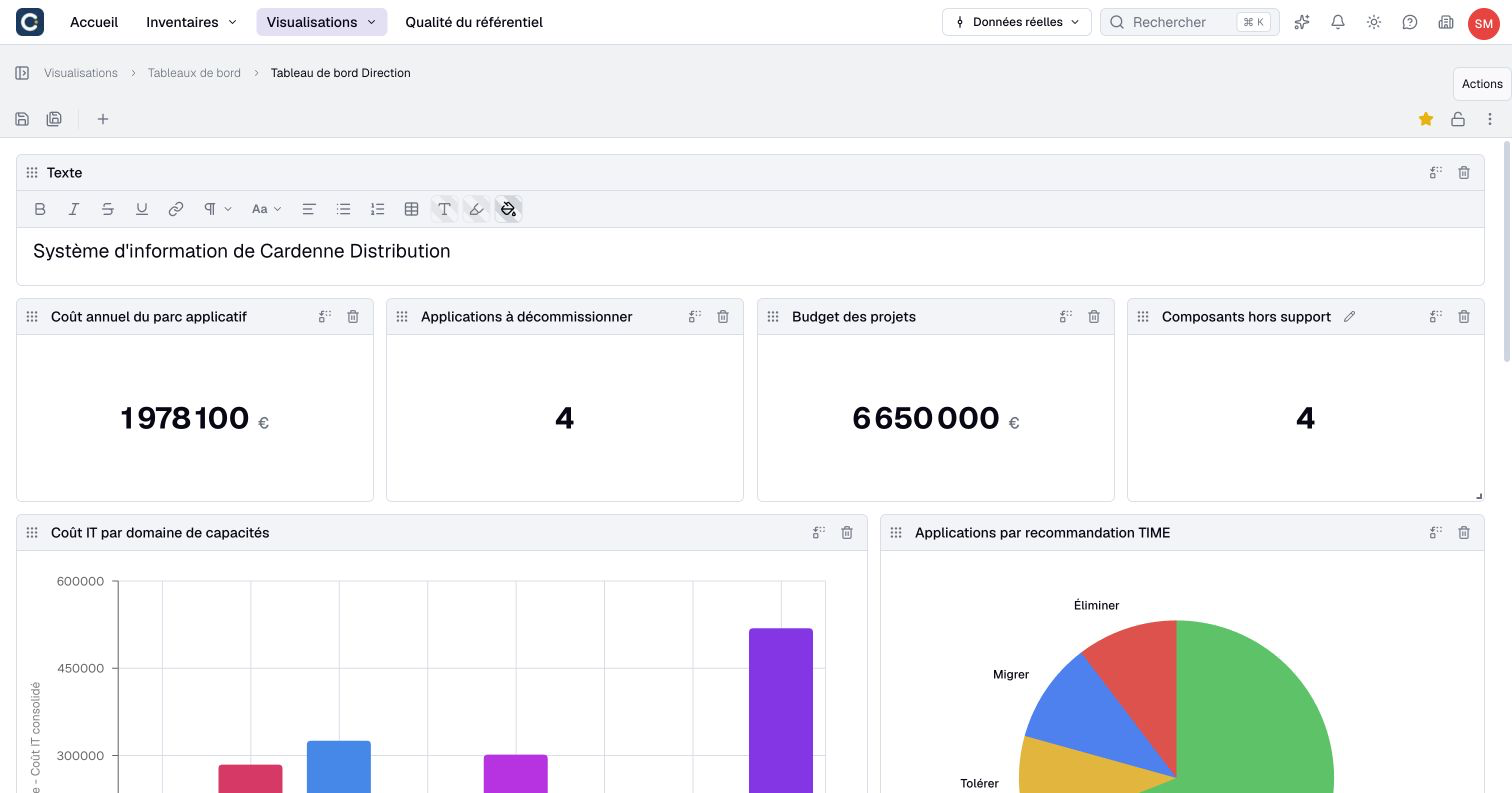
In edit mode, each widget has a handle next to its title to move it, a corner to resize it, and two buttons to replace or remove it.
3. Add widgets
Click + in the toolbar. An empty widget appears at the bottom of the page. Click Choose what to display.
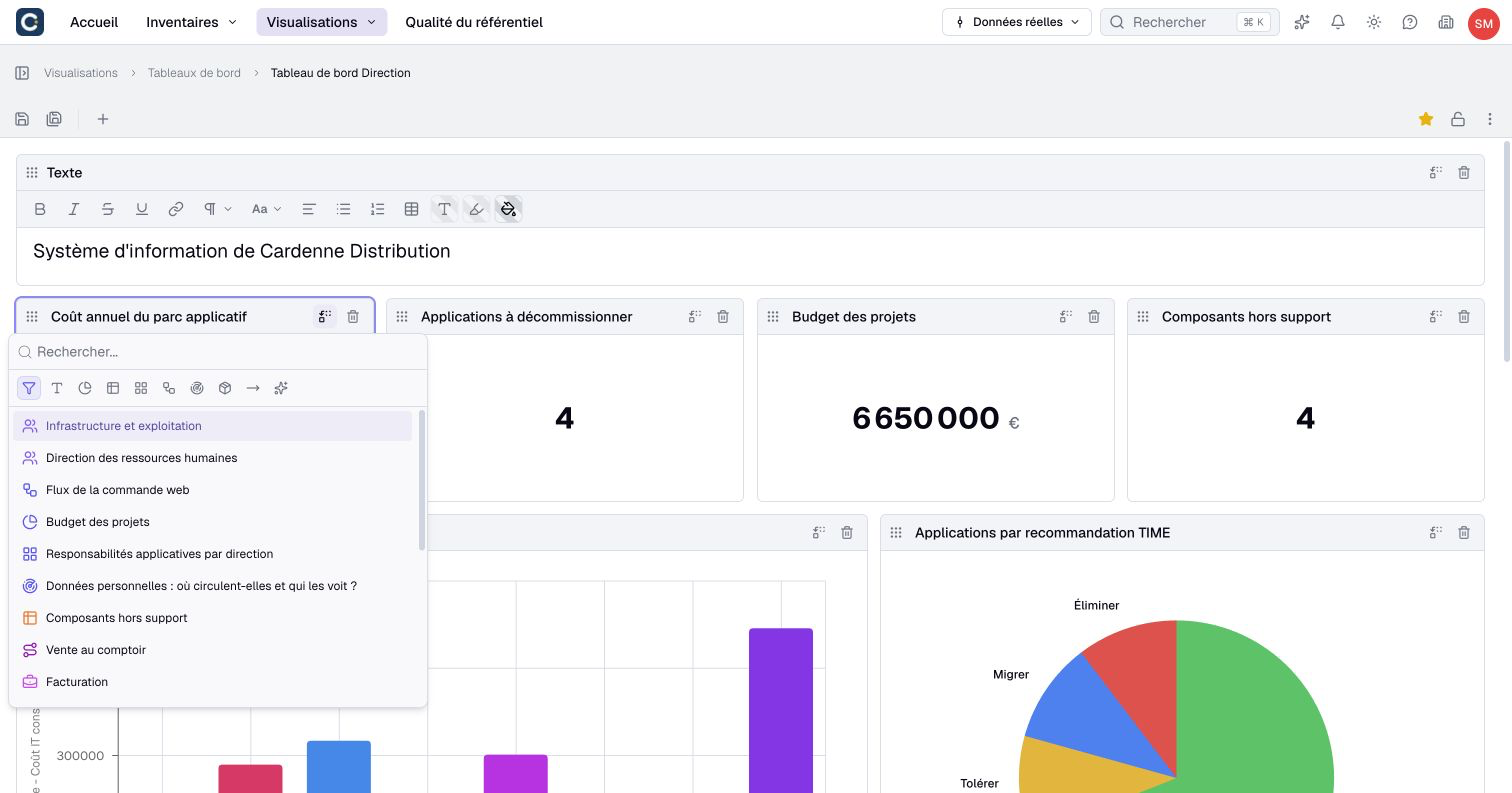
Type a name, or use the icons at the top to see only one kind of content: text, chart, view, nested map, diagram, impact analysis, asset or relationship. Click the item you want: the widget shows it.
For a title or an explanation, choose a Text widget. You format it like a document: bold, lists, headings, tables.
4. Arrange the page
Drag the widgets by their handle to place them, and pull their corner to enlarge them. Put first what your audience must see first, for example a row of key figures, then the charts that explain them.
5. Save and lock again
Click the save icon in the toolbar. A dot on this icon means there are unsaved changes. Then lock the dashboard again with the padlock: it goes back to reading.
If you leave the page without saving, Boldo asks whether you want to keep or drop your changes.
Key points
- A widget is a block of the dashboard: a figure, a chart, a view, some text.
- The dashboard is unlocked to edit it, and locked again to read it.
- All widgets read the data live.
Go further
- Build your first chart: to prepare the charts of the dashboard.
- Create a view and filter: to prepare the lists to show.