Build a nested map
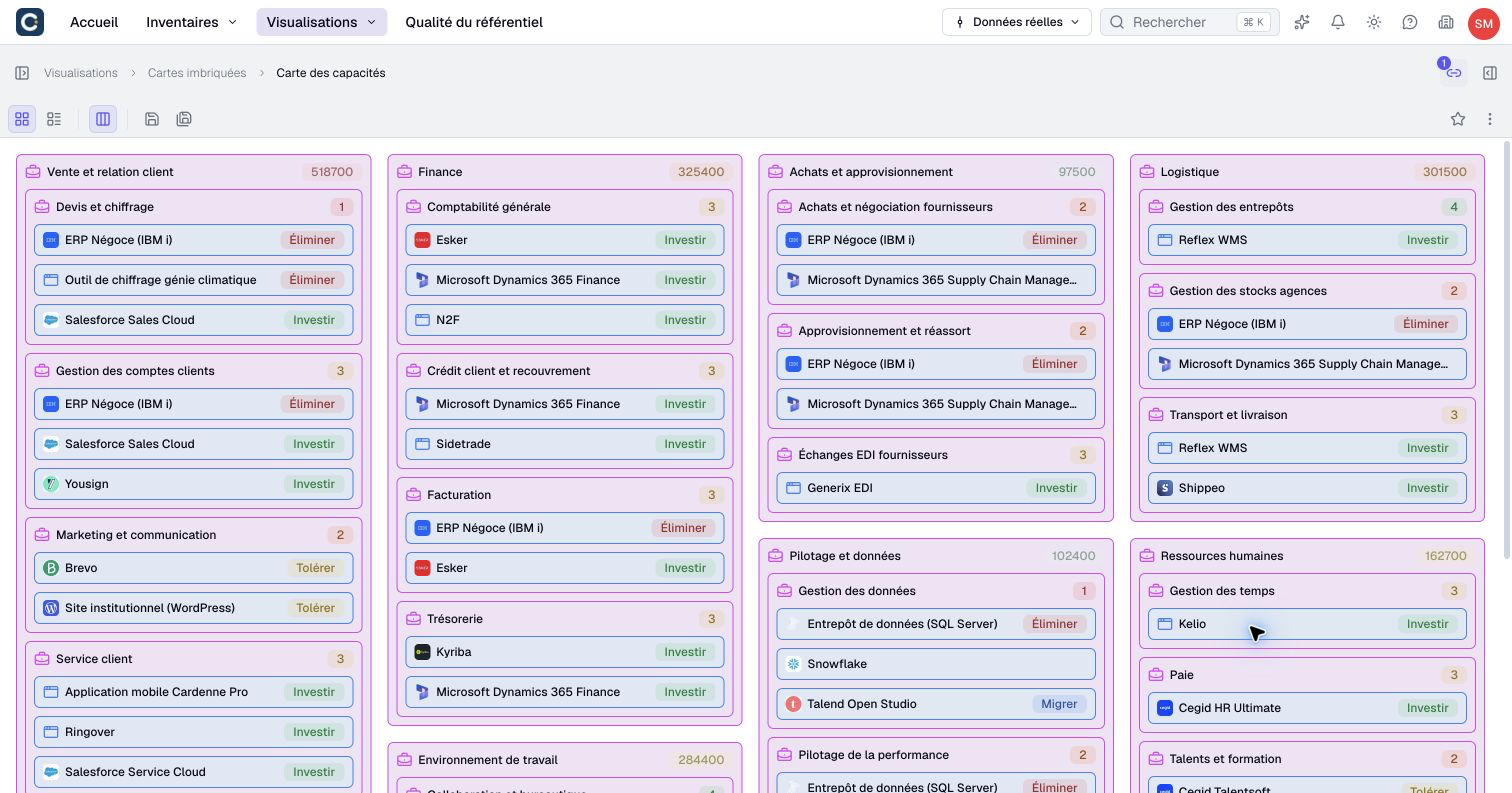
You want to show, on one page, which applications support each activity of the company, or which team is in charge of what. A nested map places assets inside one another, following their relationships. You describe the path once, and Boldo draws the map from the data. When a relationship changes, the map follows.
This guide takes five minutes.
Before you start
- You need to be able to create visualizations. If you cannot, ask an administrator.
- The assets must already be linked in the inventory: the map only shows relationships that exist.
1. Create the map
Open Visualizations, then Nested maps, and click Create nested map. Name it, choose the space, then the folder.
2. Describe the levels
The Configuration panel, on the right, describes the map from top to bottom. First choose the kind of asset of the first level, for example business capabilities. Then click Add relationship and follow the relationship that leads to the next level, for example the applications that support each capability.
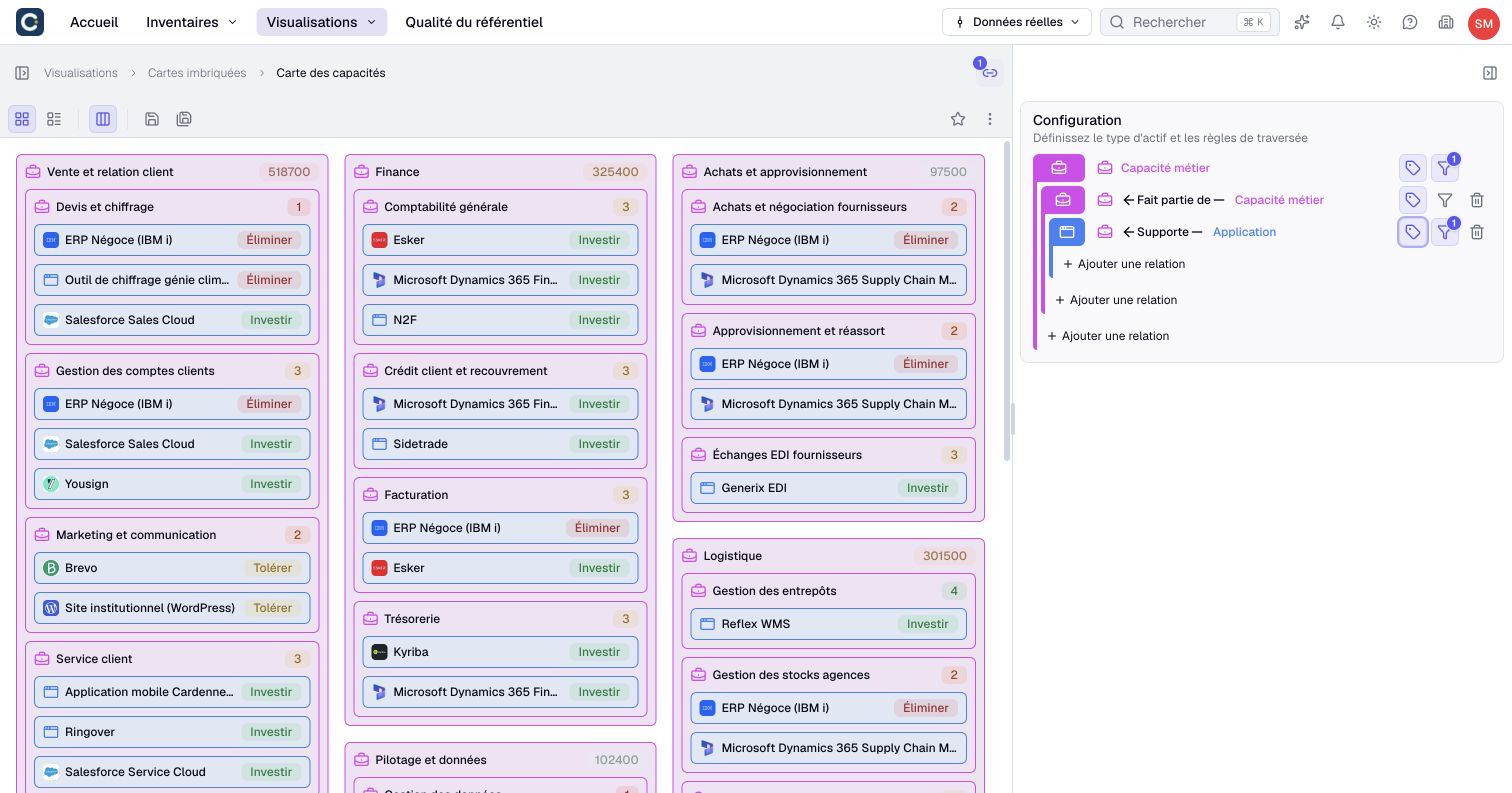
Each level can have its own filter, with the funnel on its row. You can also add several relationships to the same level to show two branches side by side.
3. Color by a piece of information
Click the tag of a level to open Tag by. Choose a piece of information, for example the recommendation or the status.
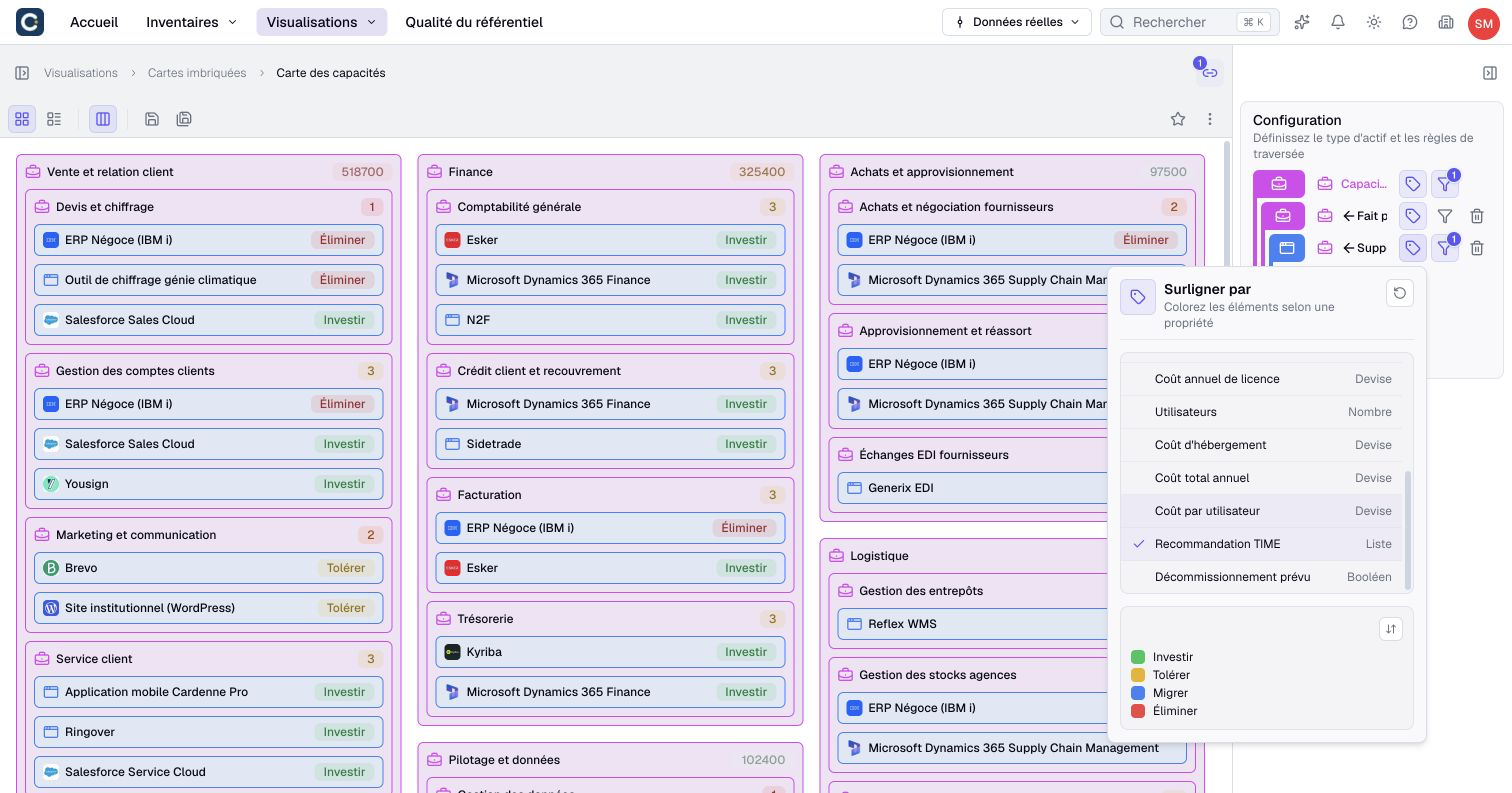
Each block takes the color of its value, and the legend shows at the bottom of the panel. Reset removes the color.
4. Read the map
Each frame holds the assets of the next level. A click on a block opens the preview of the asset.
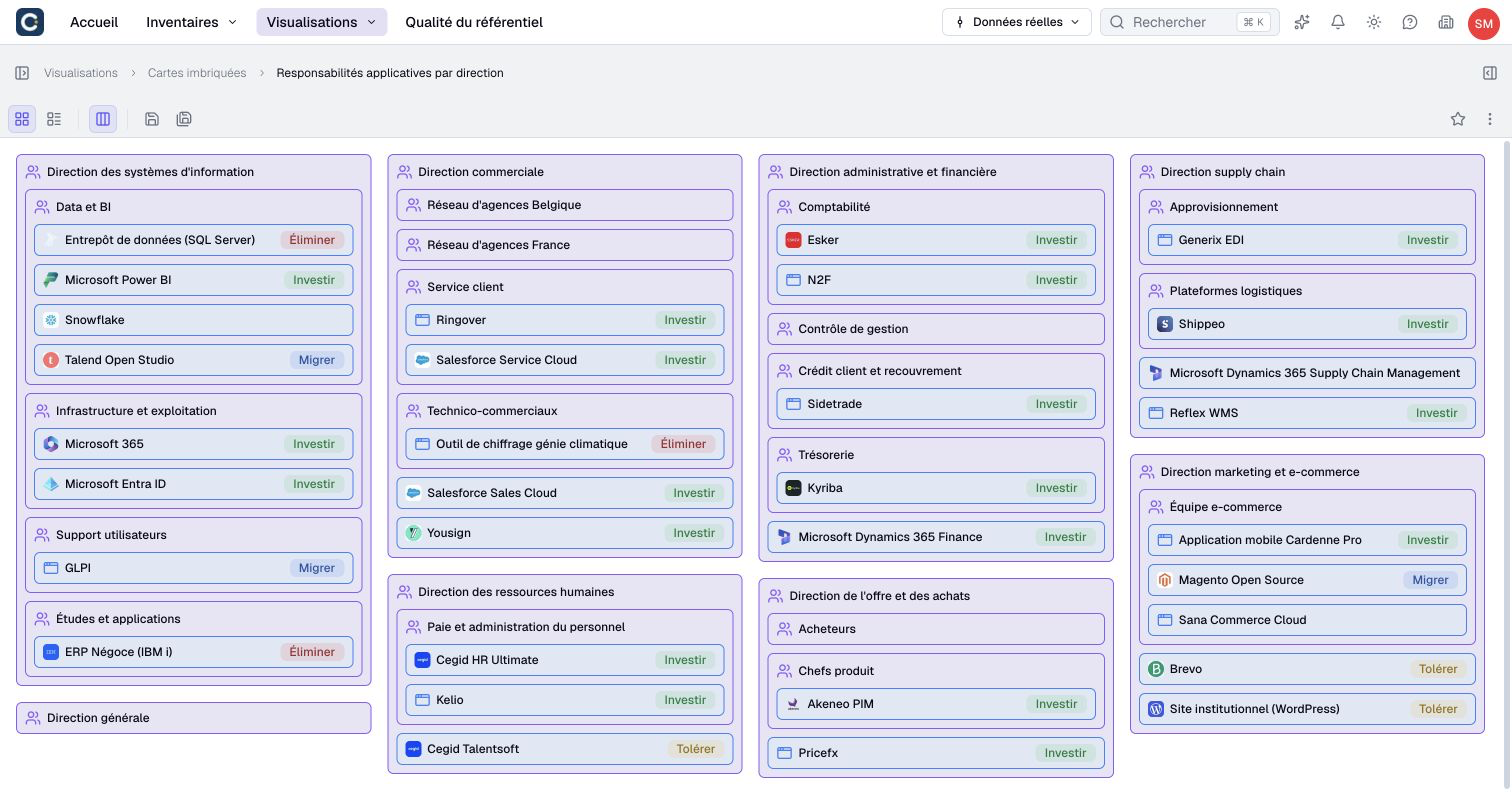
The buttons at the top left switch from the block view to an indented list, more compact when the map is large. Save the map with the save icon.
Key points
- A nested map is computed from the relationships: it follows the data.
- Add relationship creates the next level.
- Tag by colors the blocks by a piece of information.
Go further
- Draw a diagram: when you want to place the items yourself.
- Rationalize your application portfolio: a use case built on a capability map.