Build your first repository
Your organization was just created and you want to prepare it for your team. This journey takes you from an empty organization to described and connected applications, with views, diagrams, charts, a dashboard and well-set access.
Each step has a short explanation, a Try it now exercise and links to the detailed documentation. The exercises follow one example: a small sales team with a CRM and an ERP. Plan for 30 to 45 minutes if you do every exercise.
You need to be an administrator of the organization: you are one if you created it. The screenshots show an example organization, in the French interface. To find your way around the screen first, read First steps in Boldo.
1. Set up your account and your team
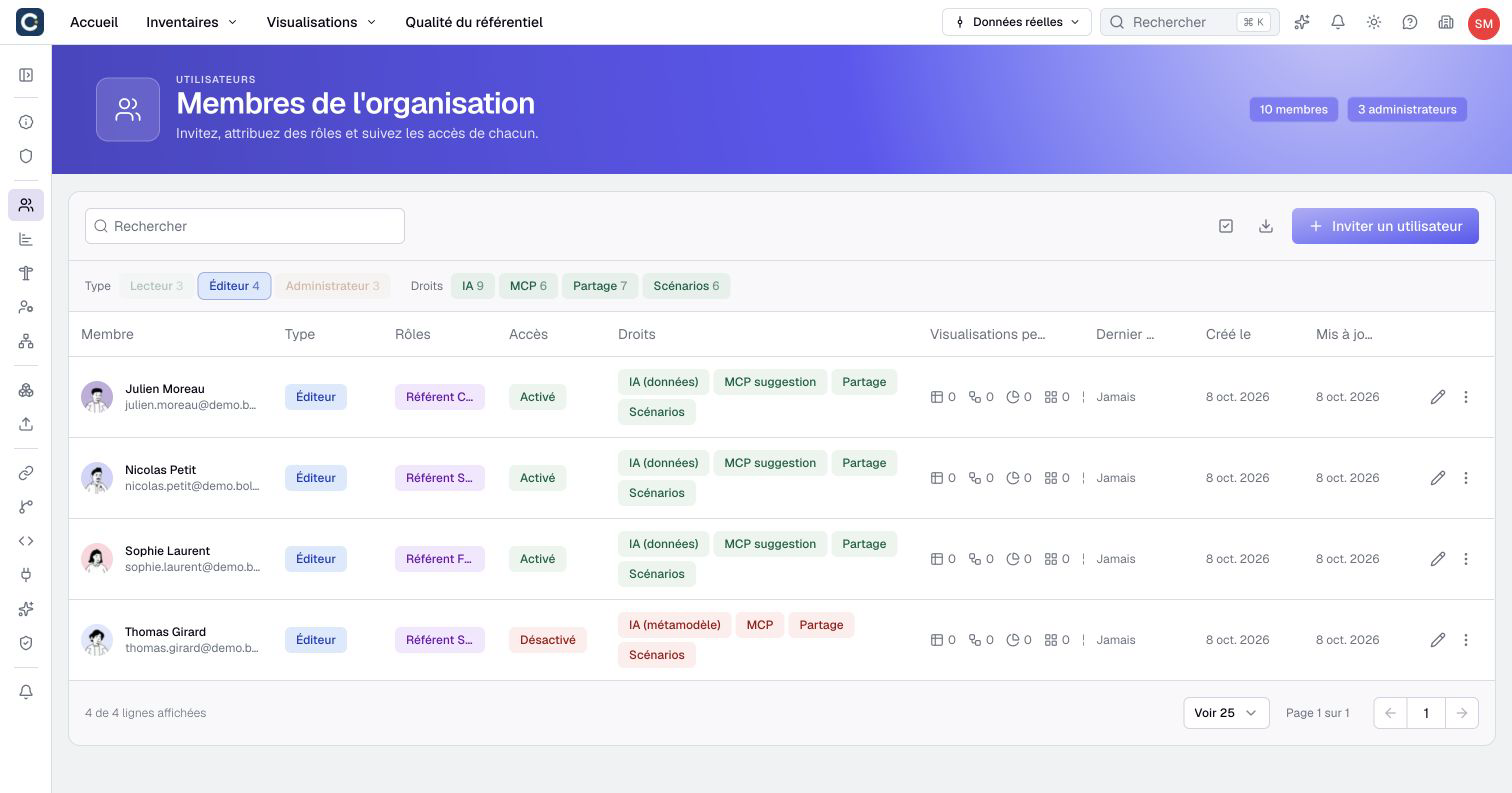
Boldo separates your account from your organization, so the same email address can belong to several organizations. Once your organization exists, invite the people who will work with you.
Try it now
- Create your account and confirm your email.
- Create or join an organization. If you create it, you are its first administrator.
- Open Organization settings, the building icon at the top right, then Users.
- Click Invite User. Enter the email and choose what the person will be able to do, their user type: Viewer reads, Editor edits, Administrator also manages the organization. Leave roles empty for now, they come in step 14.
2. Shape your metamodel
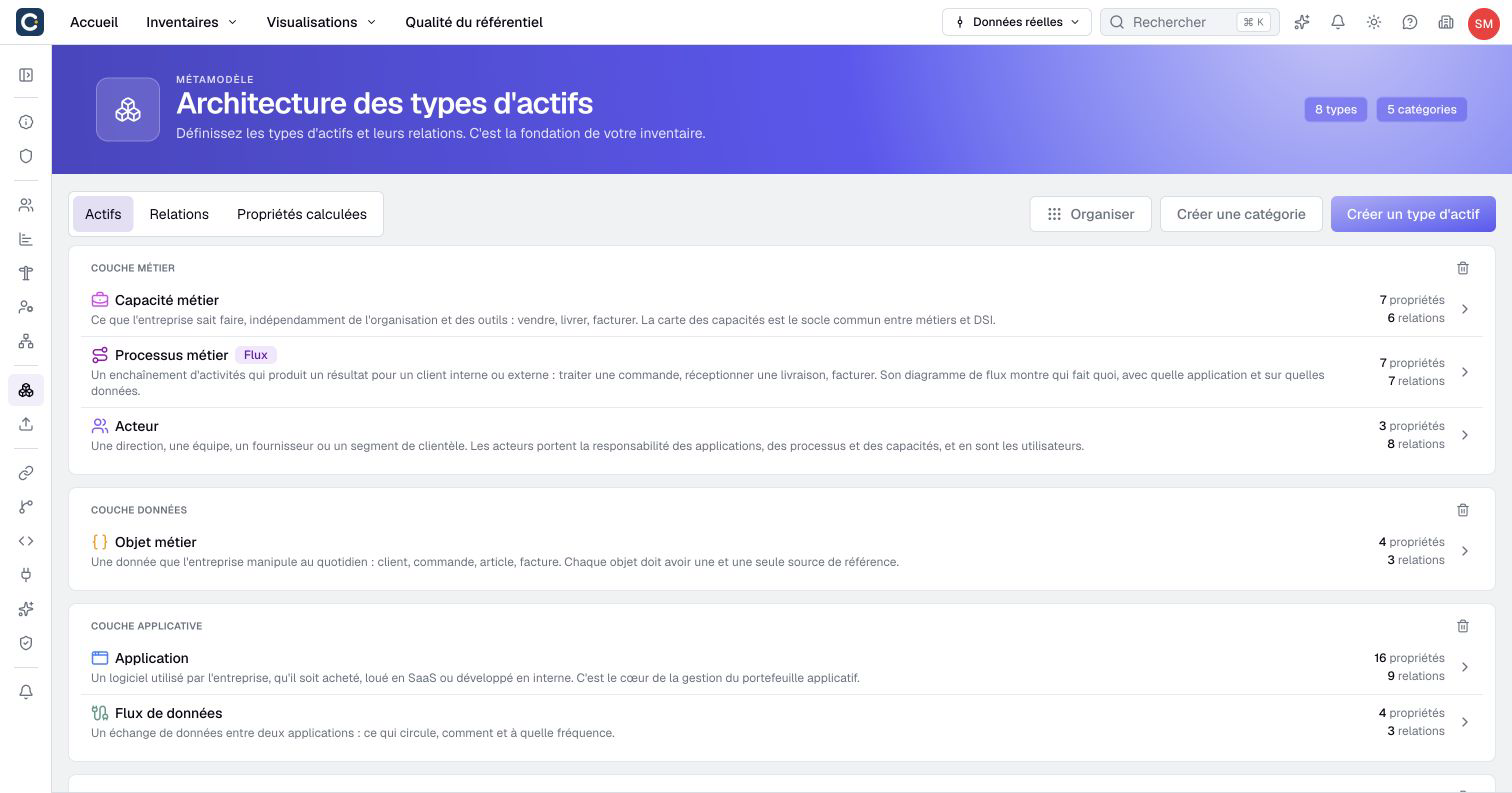
The metamodel is the structure of your data. It defines the kinds of assets, called asset types (applications, processes, teams), the properties that describe each type (status, hosting, cost) and the relationships allowed between types ("a team is responsible for an application").
A new organization starts with a default metamodel of twelve types. You can rename them, add your own types, and adjust their properties and relationships.
Try it now
- Open Organization settings, then Metamodel. The Assets tab lists the types by family, the Relationships tab lists the possible links between them.
- Click Application to open the type.
- Click Add a property and add one that fits your context, for example Vendor contact.
- Open the Relationships tab of the type to check which links are allowed.
3. Create your first assets
Create a few assets by hand to understand how the pieces fit together. In this example you create three applications, the sales team that owns them, and a data flow between the CRM and the ERP.
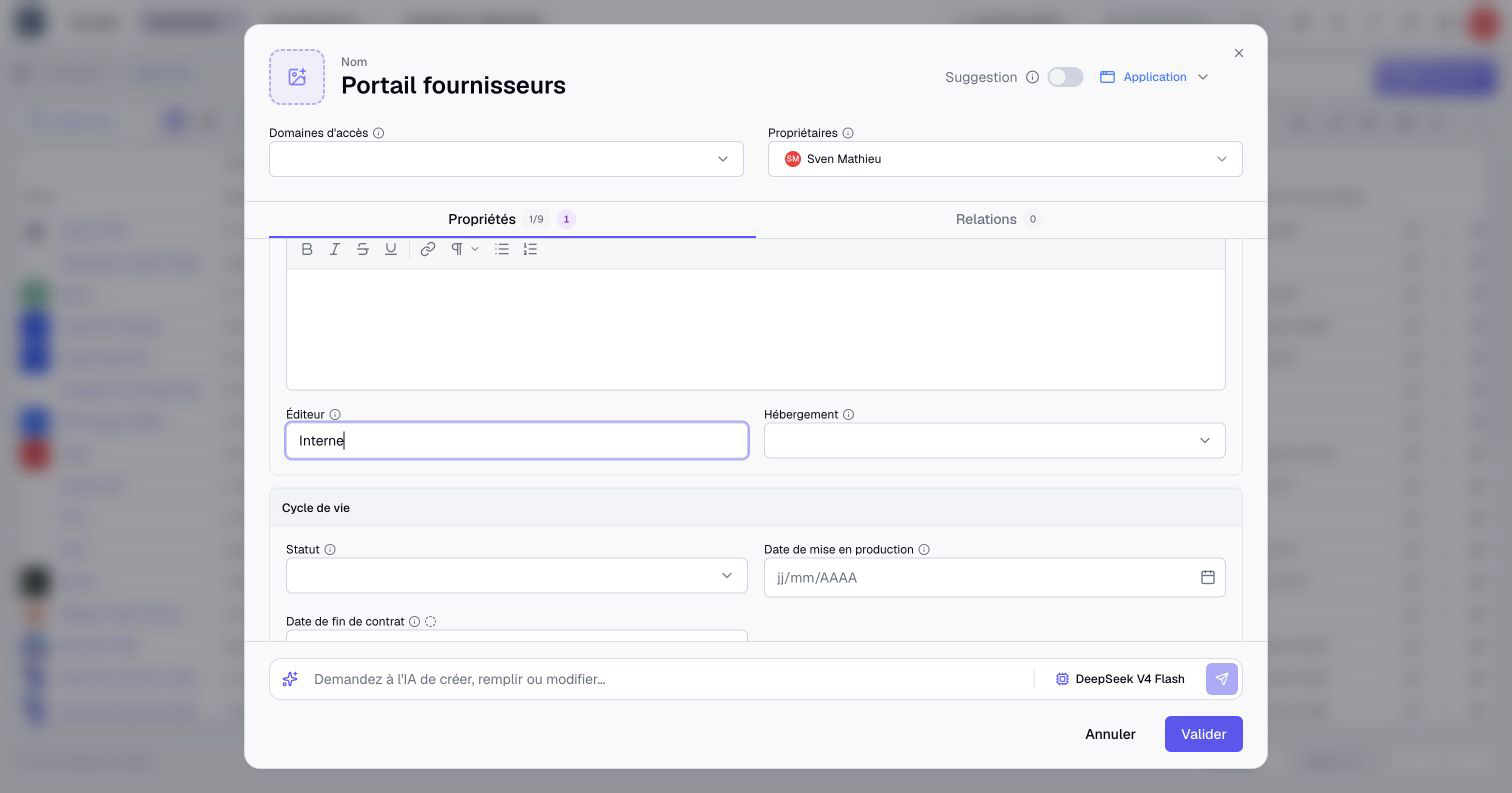
The form has two tabs. Properties holds the fields of the type. Relationships lists every relationship allowed by the metamodel, each with a + button to link another asset. You can save with only a name and complete the rest later.
Try it now
- Open Inventories, then Application. Click Create asset.
- Name it Sales CRM, fill in a few properties, then open the Relationships tab.
- Link a team named Sales team. In the default metamodel, teams are assets of the Actor type. If it does not exist yet, create it from the same place. Click Validate.
- Repeat for ERP and Customer portal, owned by the same team.
- Open the data flow inventory and create Sales CRM to ERP, linked to both applications.
4. Bulk-load your inventory from a file
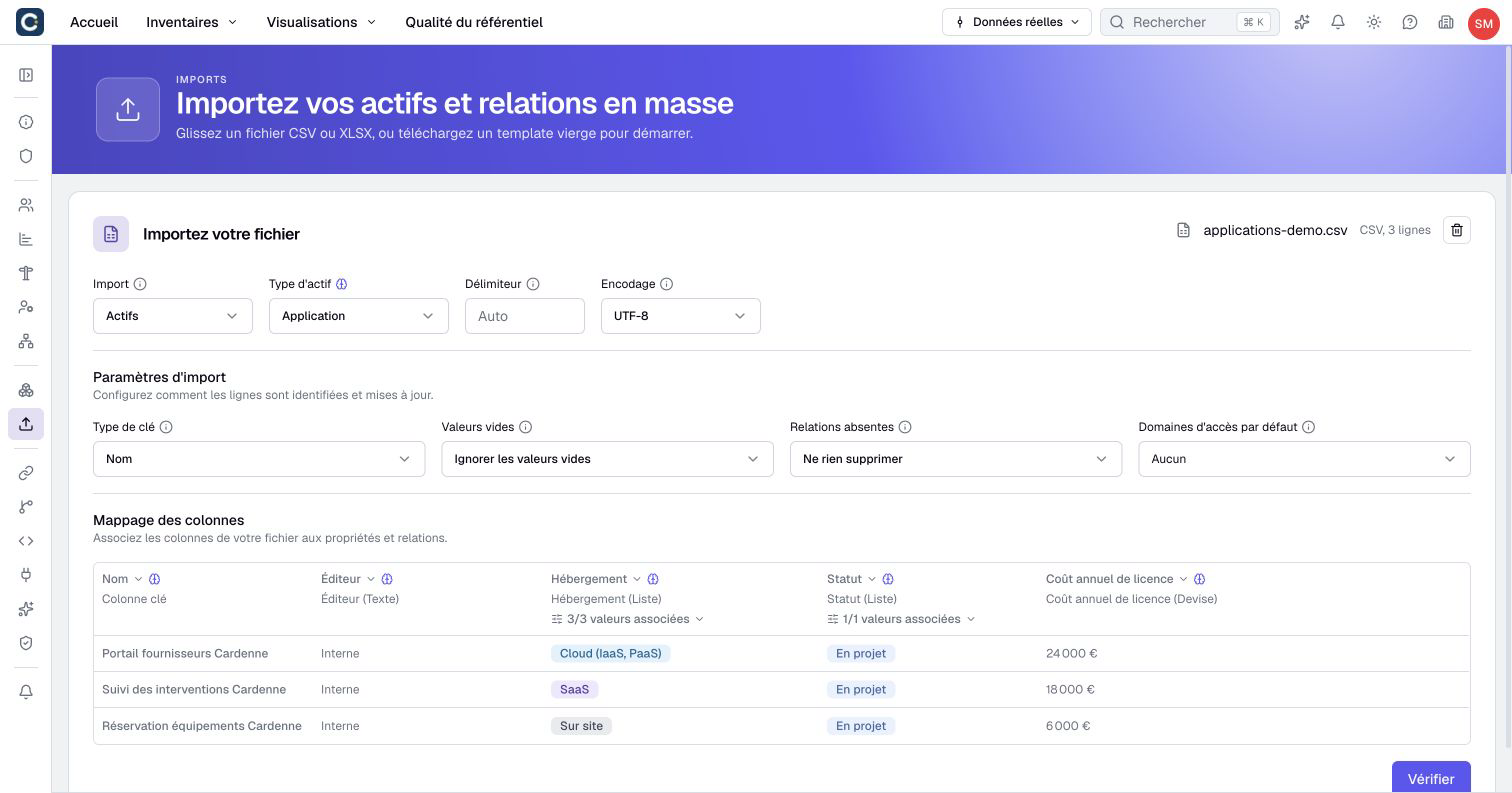
Creating assets one by one is fine to learn. To fill a real inventory, import a CSV or Excel file. Boldo matches your columns with the properties and shows what will change before anything is written.
Try it now
- Open Organization settings, then Imports.
- No file yet? Choose a type next to Download a blank template, then CSV or XLSX.
- Drop your file. Choose what you import (Assets or relationships) and the Asset type.
- Check the Column mapping. The Key type, usually Name, tells Boldo how to recognize an asset that already exists.
- Click Verify, read the summary of what will be created or updated, then Confirm import.
Guide: Bulk import from CSV or Excel. Documentation: Prepare your import file, Import a file and Import relationships.
5. Explore an asset page
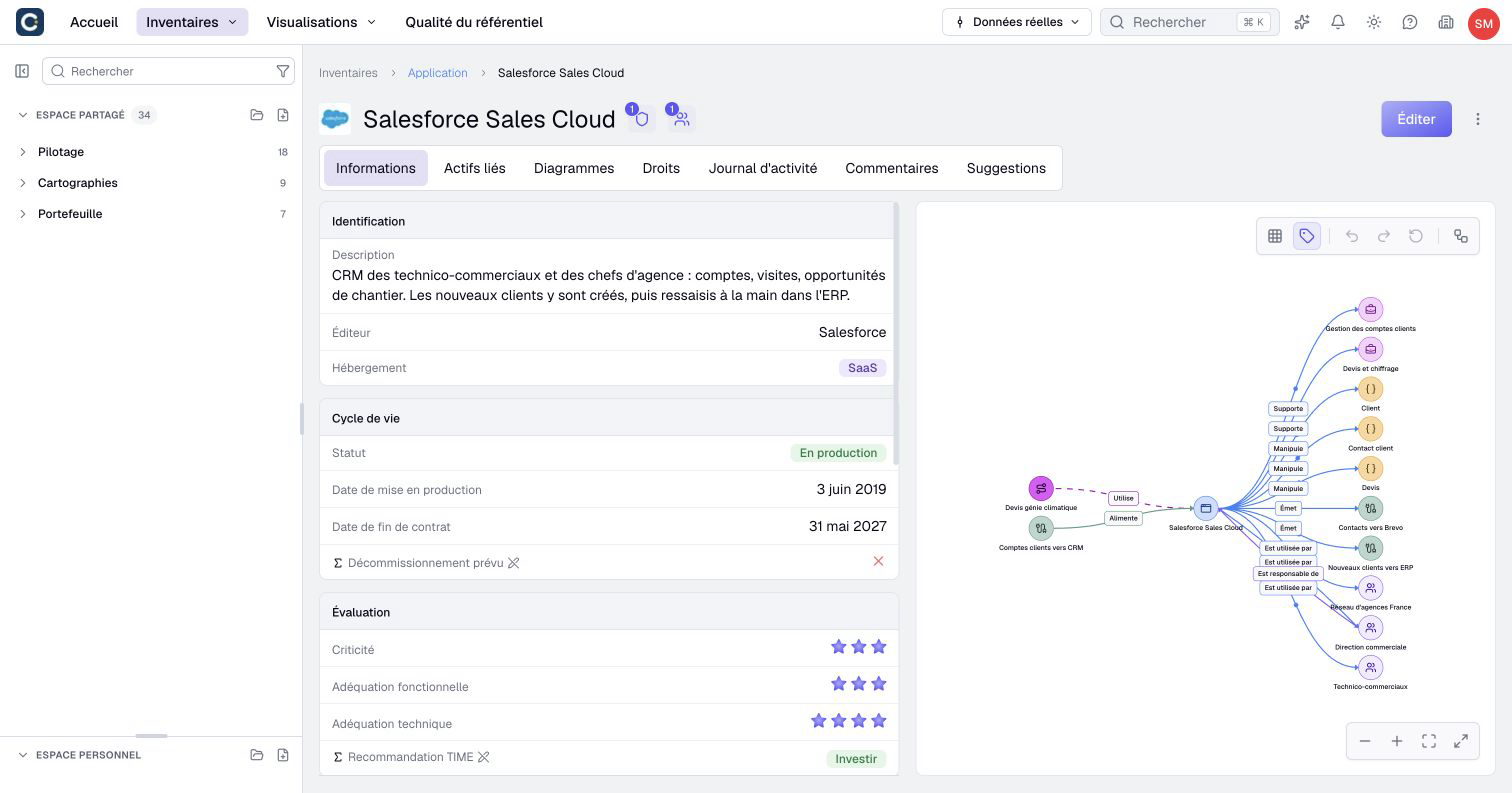
Click the name of an asset to open its page. It gathers everything about one asset: its information, its relationships, the diagrams where it appears, its history and the comments.
Try it now
- Open Sales CRM from the Application inventory.
- Read its information, then explore the relationship map. Click the ERP to follow the data flow.
- Open the Related assets tab, then Activity log to see who changed what.
- Click Edit to change a property. Add a comment in the Comments tab to share context with your team.
6. Edit many assets at once
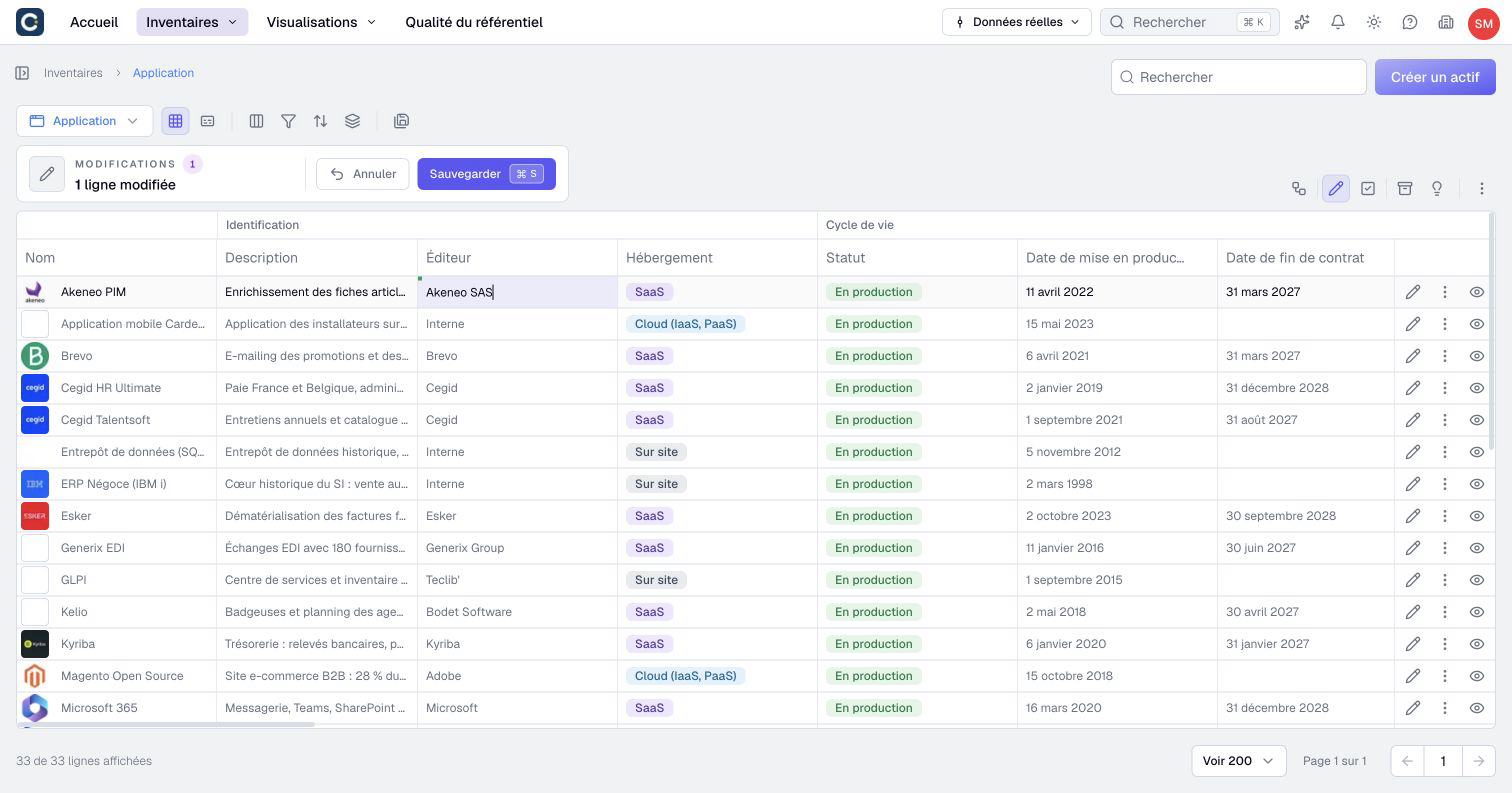
You do not need to open each asset to update the inventory. Cells edit mode turns the table into a spreadsheet. Select multiple assets applies the same change to several rows.
Try it now
- Open the Application inventory.
- Press Ctrl+E (Cmd+E on Mac), or click Cells edit mode in the toolbar. Click a cell to change it, and move with Tab and the arrow keys.
- The Pending changes counter shows what is waiting. Click Save (Ctrl+S, Cmd+S on Mac), or Cancel to drop everything.
- Press Ctrl+Shift+E (Cmd+Shift+E on Mac) to Select multiple assets. Tick a few rows, then click Update in the selection bar to change a value on all of them.
7. Slice your inventory with views
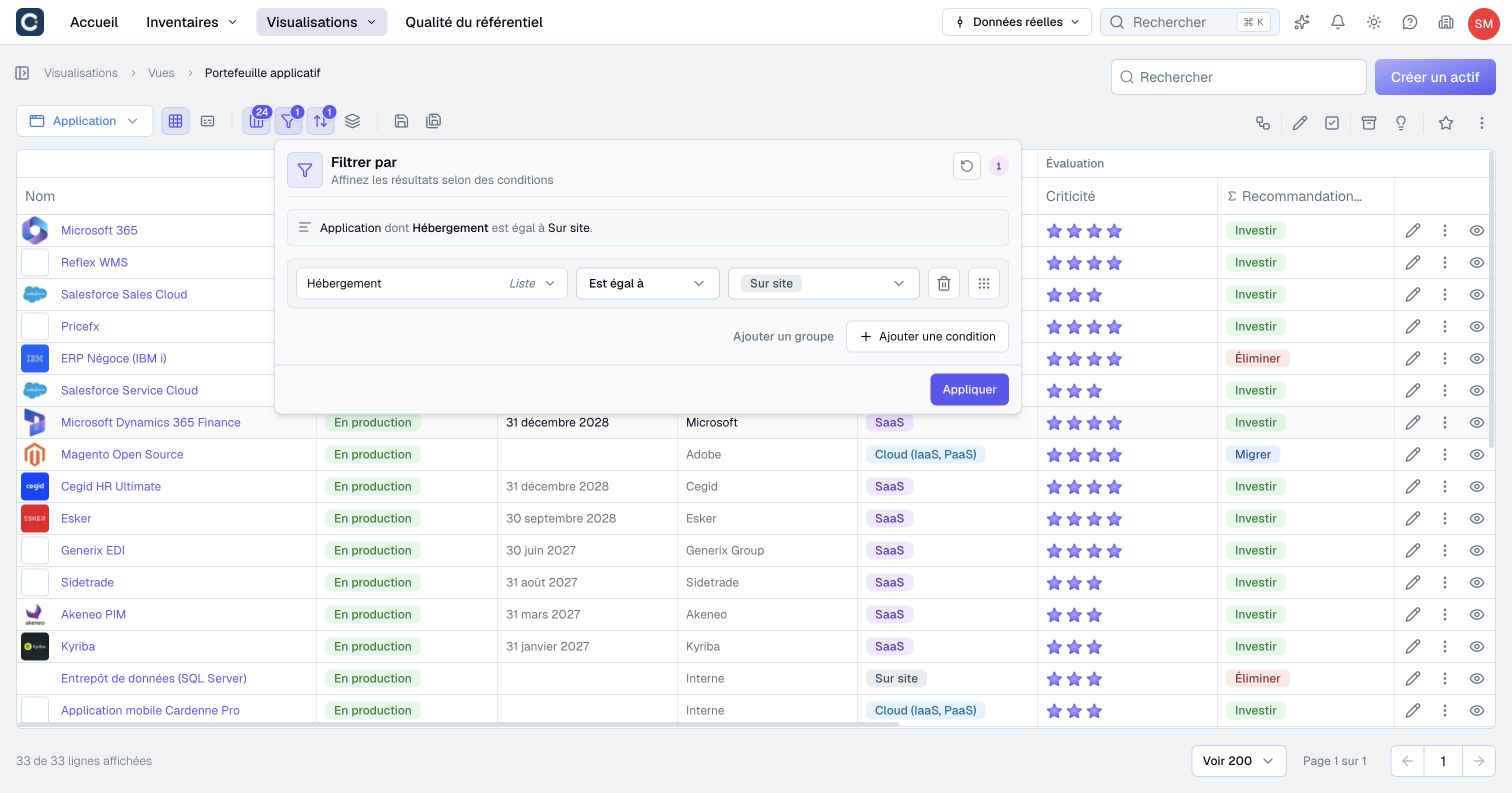
A view is a saved way of looking at an inventory: filters, groupings, sorting and visible columns. It changes nothing in the data. Save one view per audience or per question.
Try it now
- Open the Application inventory.
- Click Filter by, then Add a condition. Choose a property and a value, then click Apply.
- Use Group by, Sort by and Organize to arrange the table.
- Click Save as. Name the view Critical applications, choose the Personal or Shared space and the folder, then click Create.
A visualization saved in the Shared space is accessible to members authorized by its access rights. The Personal space is only for you. The inventory itself is always shared.
8. Tell a story with a diagram
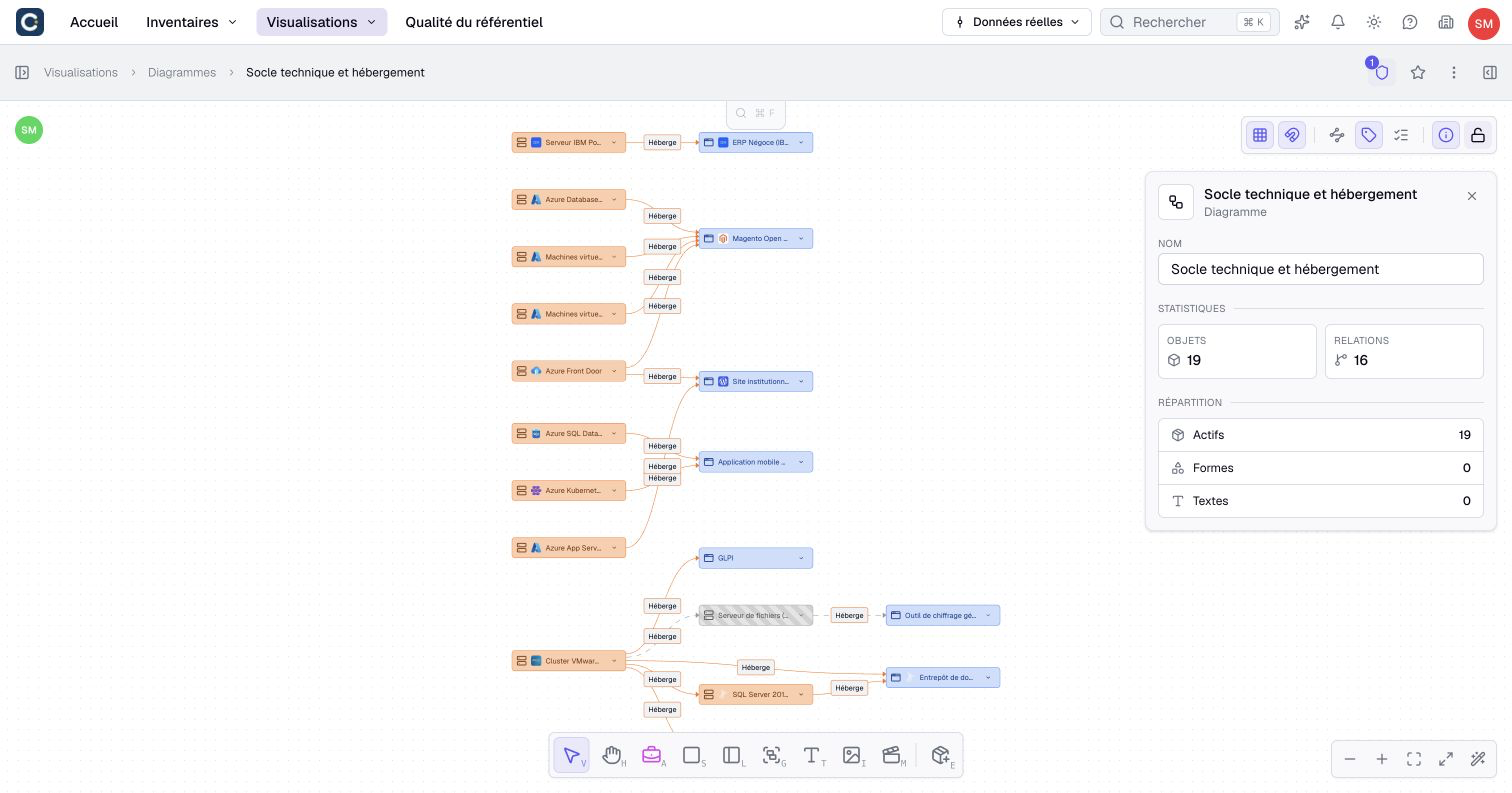
A diagram turns a part of the inventory into a map. Every block is a real asset, and links can be real relationships or free arrows. Several people can edit the same diagram at the same time.
Try it now
- Open your Critical applications view.
- Click Convert to diagram in the toolbar, name the diagram and confirm.
- A saved diagram opens locked. Click Unlock (Ctrl+L, Cmd+L on Mac) to edit it.
- Add the Sales team and link it to the applications. Choose a relationship type to create a real relationship, or keep a free arrow.
- Find it again later in Visualizations, then Diagrams.
9. Count and compare with a chart
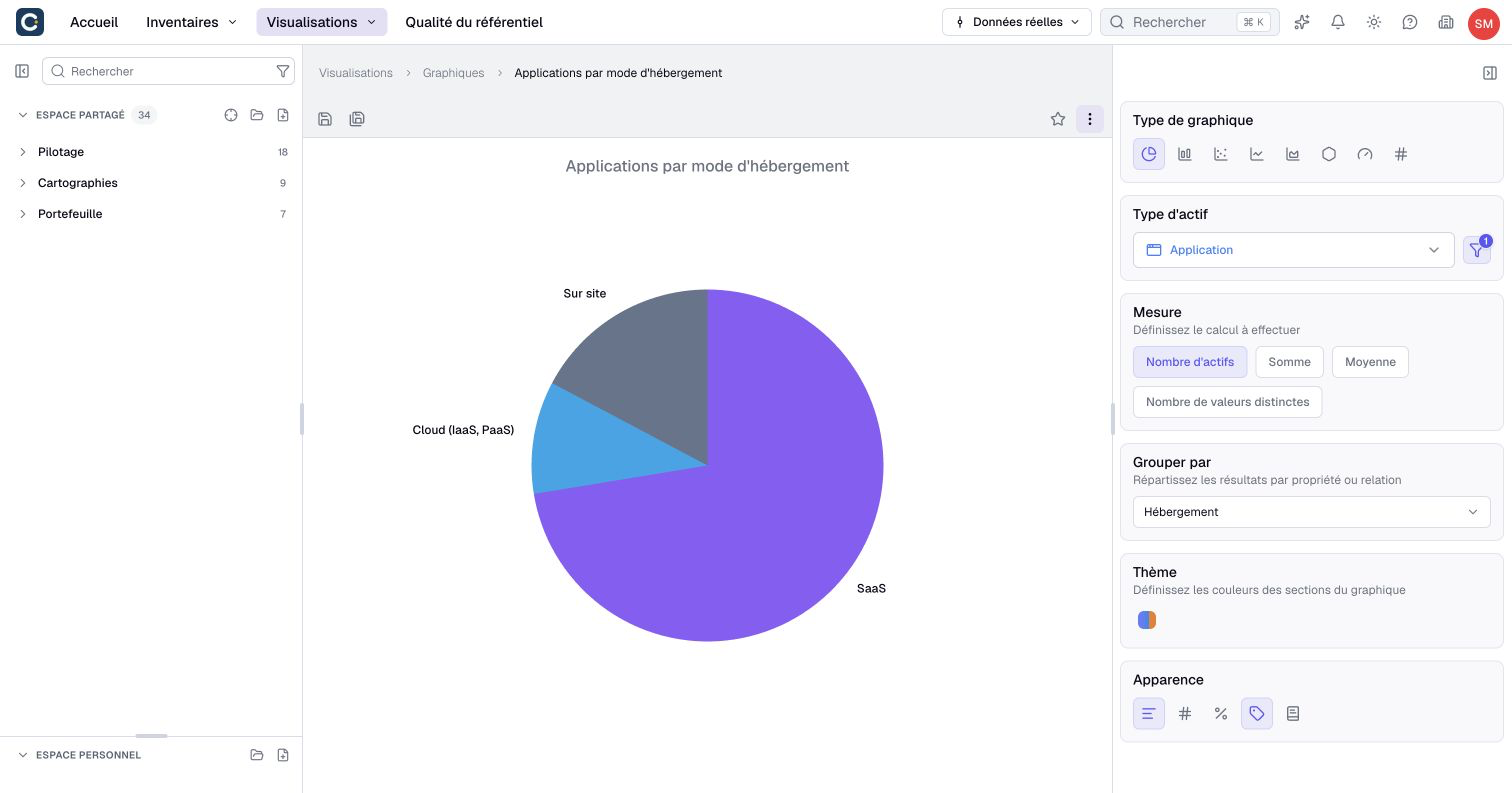
A chart computes figures from the inventory: a distribution, a total, an average. Click a part of the chart to see the assets behind it.
Try it now
- Open Visualizations, then Charts. Click Create chart, name it and choose its space.
- In the panel on the right, choose Application as the Asset Type.
- Keep Assets count as the Measure, and choose a property in Group by, for example the hosting.
- Change the Chart type. Click a slice or a bar to see the applications behind it.
Guide: Build your first chart. Documentation: Charts.
10. Map a hierarchy with a nested map
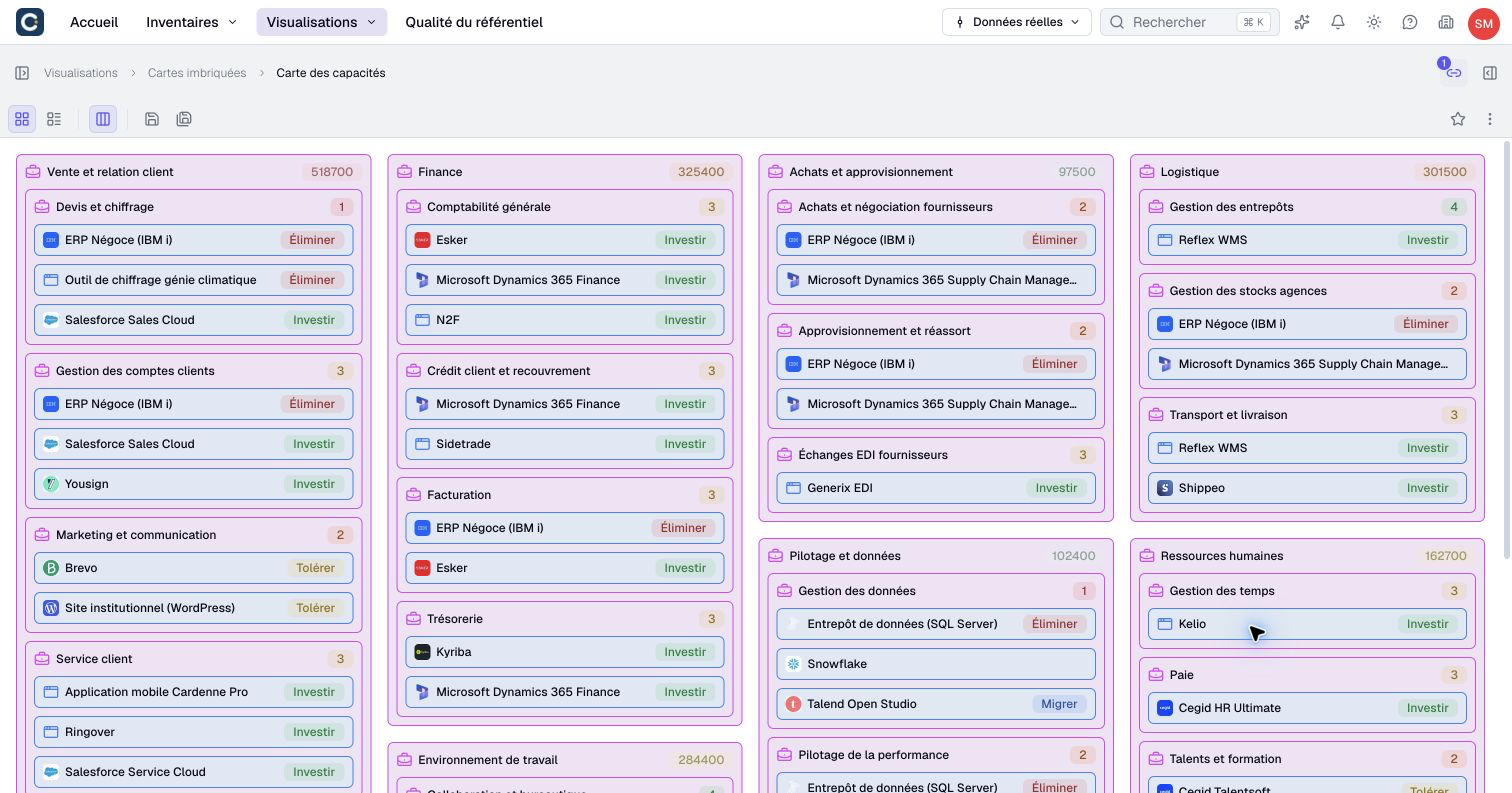
A nested map draws a hierarchy from your relationships, for example the main activities of the company, called capabilities, and the applications that support them. You describe the path once, and the map follows the data.
Try it now
- Open Visualizations, then Nested maps. Click Create nested map.
- In the Configuration panel, choose the capability type as the root.
- Click Add relationship and follow the relationship to Application.
- Add a filter or a highlight on a property, then click a block to open the asset.
11. Compose a dashboard
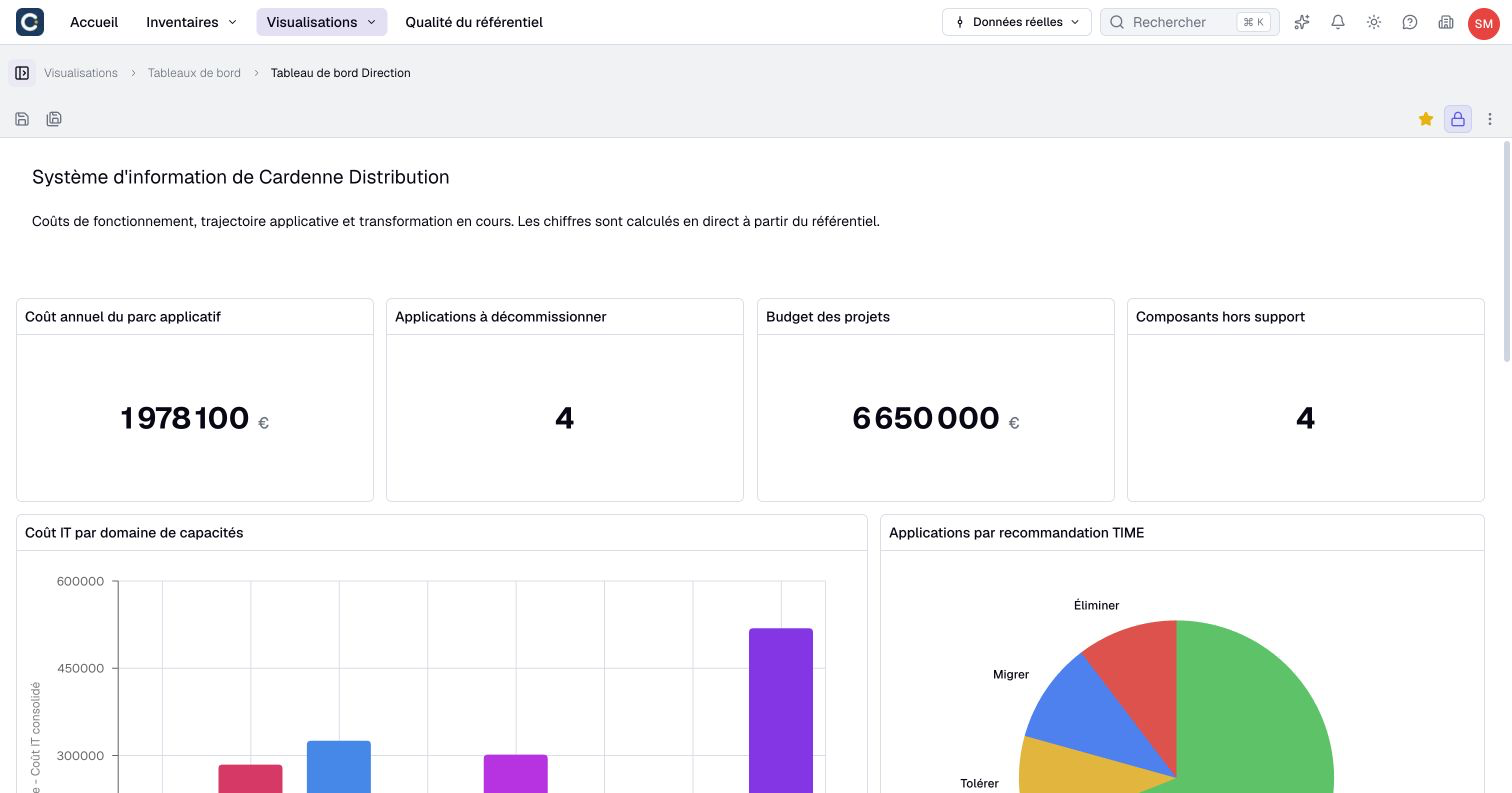
A dashboard gathers several visualizations on one page: charts, views, diagrams, nested maps, assets and text. Every widget reads the live inventory.
Try it now
- Open Visualizations, then Dashboards. Click Create dashboard.
- Click the lock in the toolbar to switch to edit mode.
- Add four widgets: your chart, your view, your diagram and a text block for the title.
- Resize and move the widgets, save, then lock the dashboard again for reading.
12. Model a process
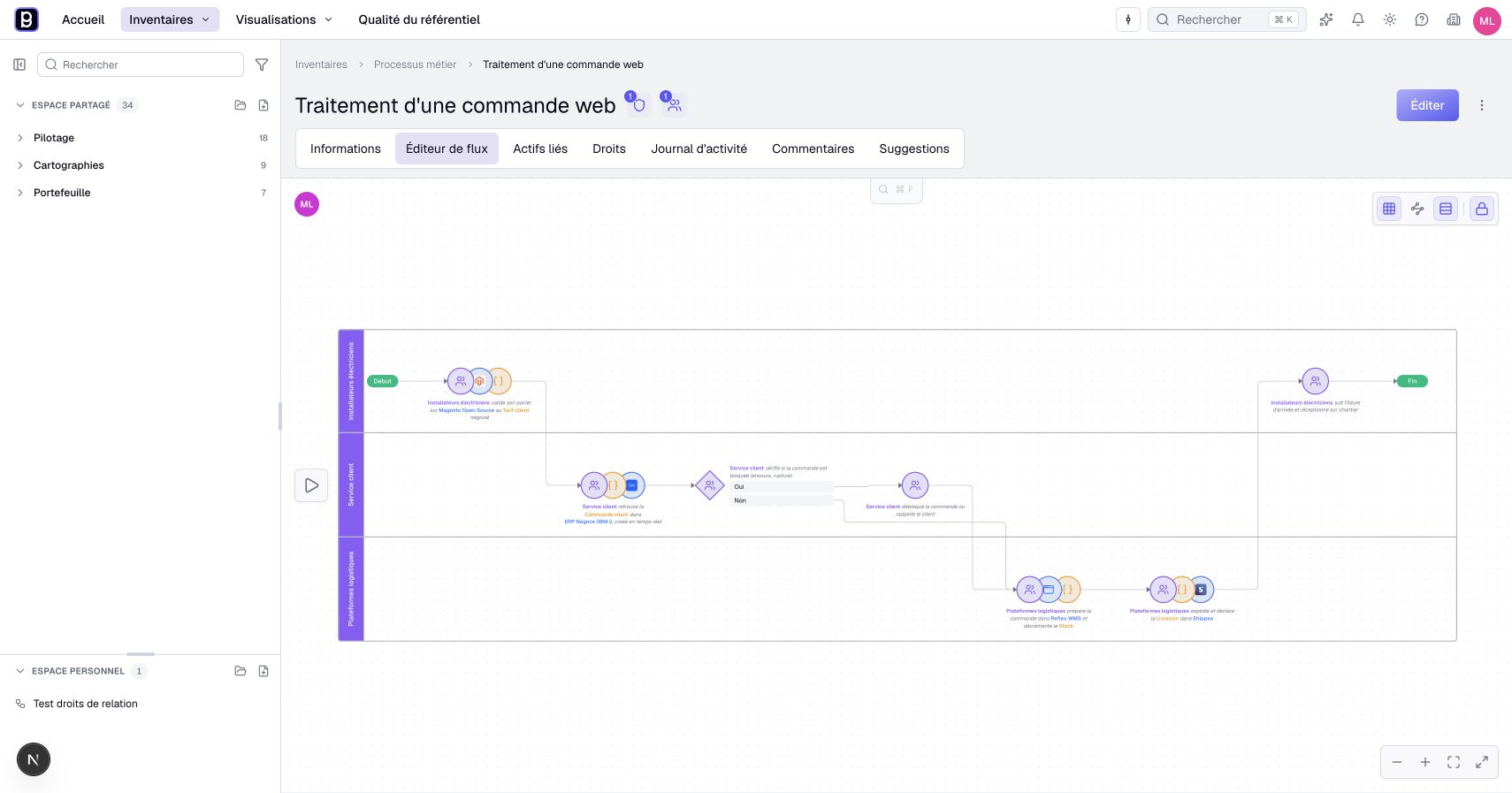
Some asset types, usually processes, have a Flow editor. You draw the steps, and each step can mention the applications, teams and data involved. It links the business process to the information system.
Try it now
- Open the process inventory and create Customer onboarding.
- Open its page, then the Flow editor tab. If the tab is missing, ask an administrator to turn on the flow option on the type.
- The flow opens locked. Click Unlock (Ctrl+L, Cmd+L on Mac).
- Add a step Create the customer in the CRM and mention Sales CRM in its text. Add Send to the ERP and connect the two steps.
- Click the play button on the left to walk through the flow in Exploration mode.
13. Find anything in a few keystrokes
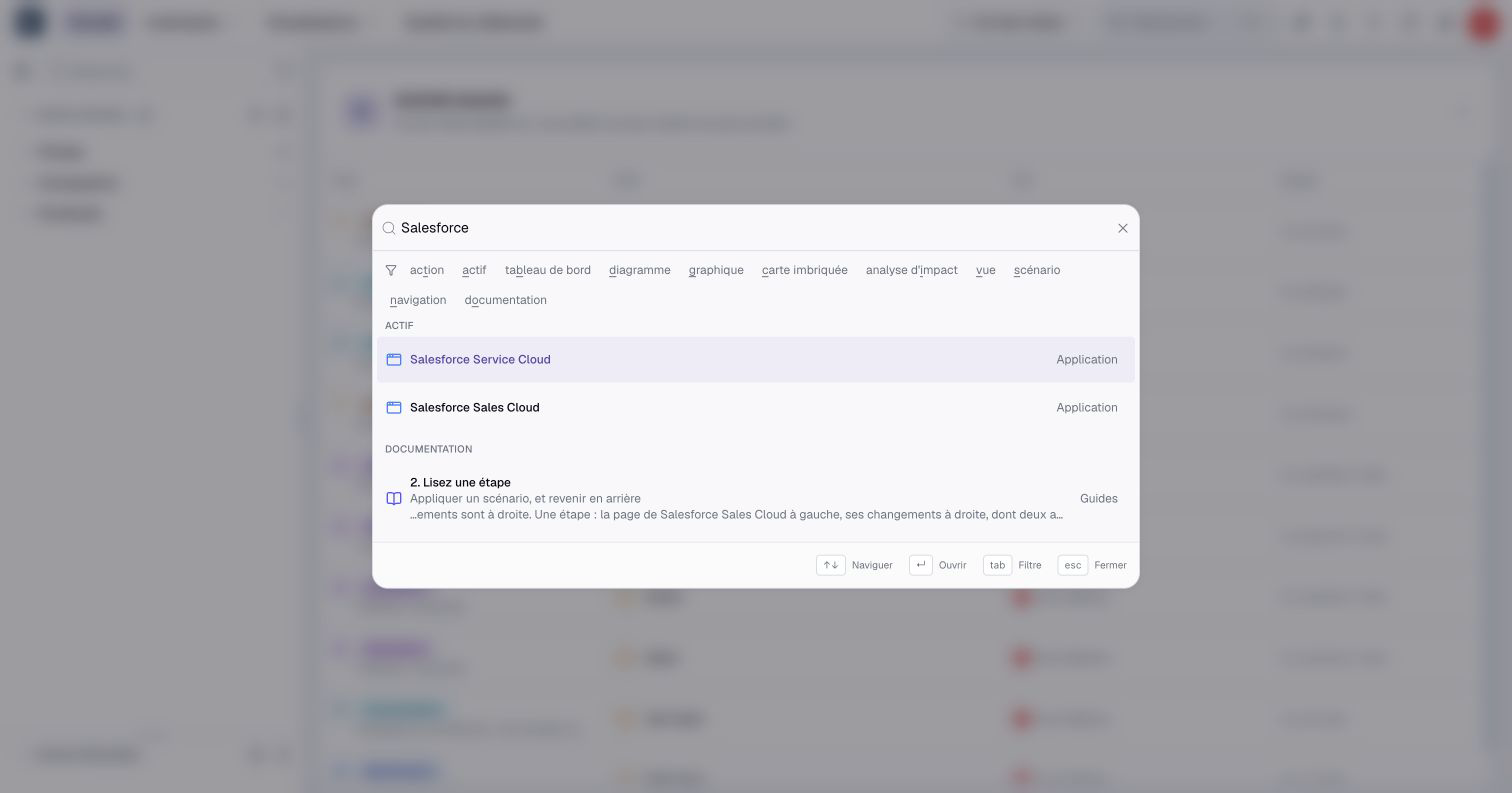
As the repository grows, search saves time. Press Ctrl+K (Cmd+K on Mac) from any page to find an asset, a visualization or a settings page.
Try it now
- Press Ctrl+K (Cmd+K on Mac) and type CRM. Press Enter to open Sales CRM.
- Open the search again and use the filters at the top to look only for diagrams or charts.
14. Set up governance for your team
Roles and access domains require a plan with property rights. If your plan does not include them, use user types to set access and go directly to the security settings below.
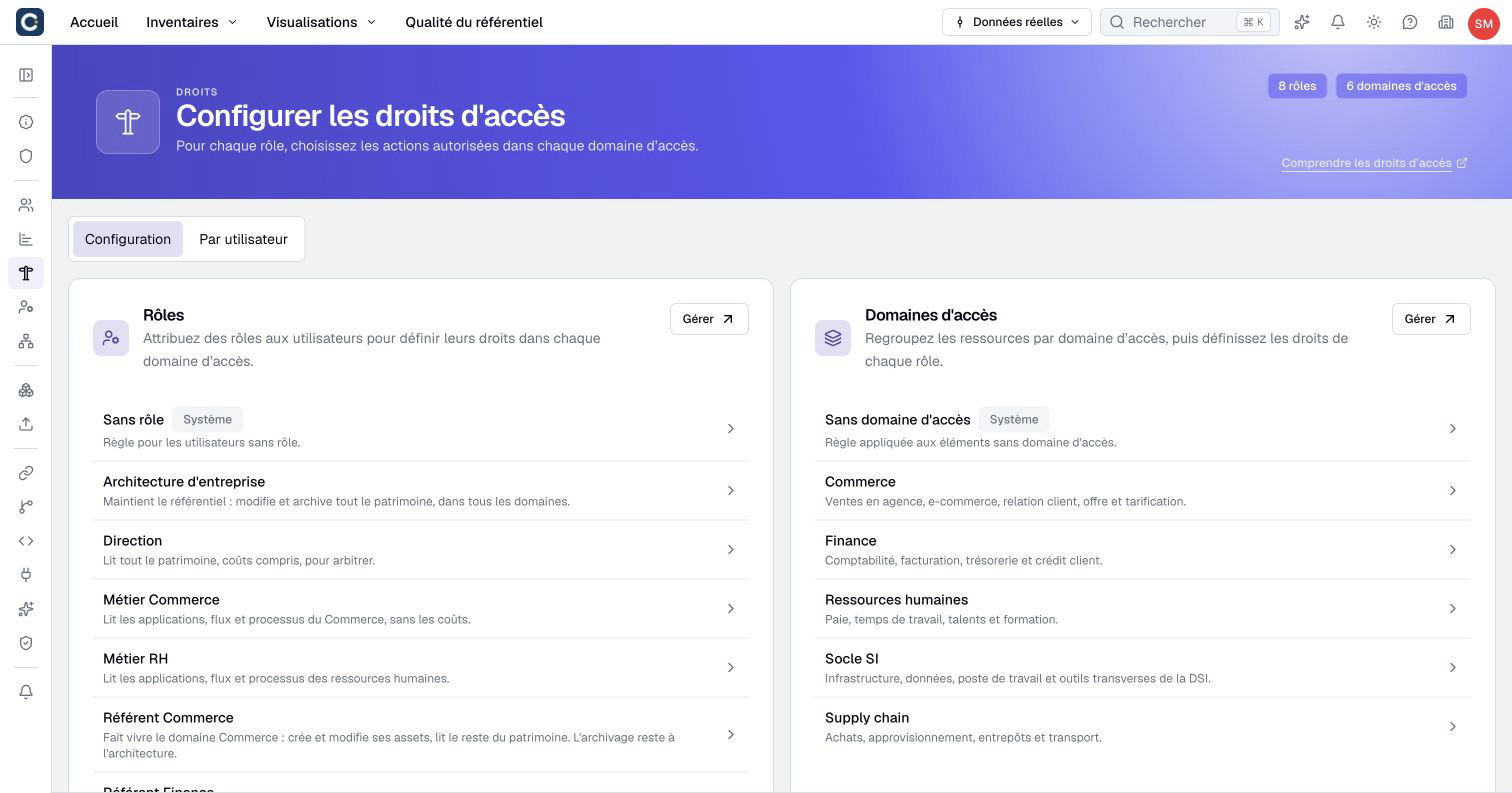
When several people share the repository, decide who can do what, and where. The user type sets the general level. Roles say what someone can do, for example edit applications without seeing costs. Access domains say where, for example only the finance assets. A permission is always the pair of the two.
Try it now
- Open Organization settings, then Rights.
- Next to Roles, click Manage and create a first role, for example Architect.
- Next to Access domains, click Manage and create a domain, for example Finance. Set the rights of the role on this domain.
- In Users, edit a teammate and give them the role.
- In Security > Two-factor authentication > Manage, turn on Enforce 2FA, then click Validate. Enable two-factor authentication on your own account first, or use an SSO session.
Guide: Set up your first role. Documentation: Rights in 2 minutes, Users and Security.
You're set up
Your organization now has:
- a metamodel with at least one property of your own
- three applications, a team and a data flow created by hand
- possibly a larger inventory loaded from a file
- a view of critical applications, and a diagram of these applications with their team
- a chart, a nested map and a dashboard that gathers them
- a process described in the flow editor
- a role and an access domain given to a teammate
Go further
- Get help from the AI assistant: ask how to do something, or let it fill in an asset.
- Your home page, day to day: keep your assets up to date.
- Set up repository governance: owners, attestation and quality.