Connect Boldo to your other tools
Your repository is up to date, but other tools also know part of the reality: the infrastructure tool knows which servers run, the service management tool knows which applications are in production. This guide shows what you can connect to Boldo, how to keep control over what each tool is allowed to do, and how to start the project with your technical team. It requires no technical skills.
Before you start
- An Editor or higher can create an API key within their delegation limits. Viewing the organization’s connected assistants requires an administrator; ask one if you cannot access that page.
- Identify the tool to connect and the person in the technical team who will take care of it.
1. Choose what you want to connect
Three uses come up often:
- Keep the inventory up to date from another tool. In the example, the infrastructure tool adds new servers to Boldo every night.
- Feed another tool with Boldo. For example, the service management tool retrieves the list of applications and their owners.
- Ask Boldo questions from an AI assistant, such as Claude, about the repository in everyday language.
The first two go through the API page, the third through the MCP page. Both are in Organization settings, the building icon at the top right.
2. Give each tool a key
On the API page, the API Keys list shows existing keys. Click Create API Key to give a new one to a tool.
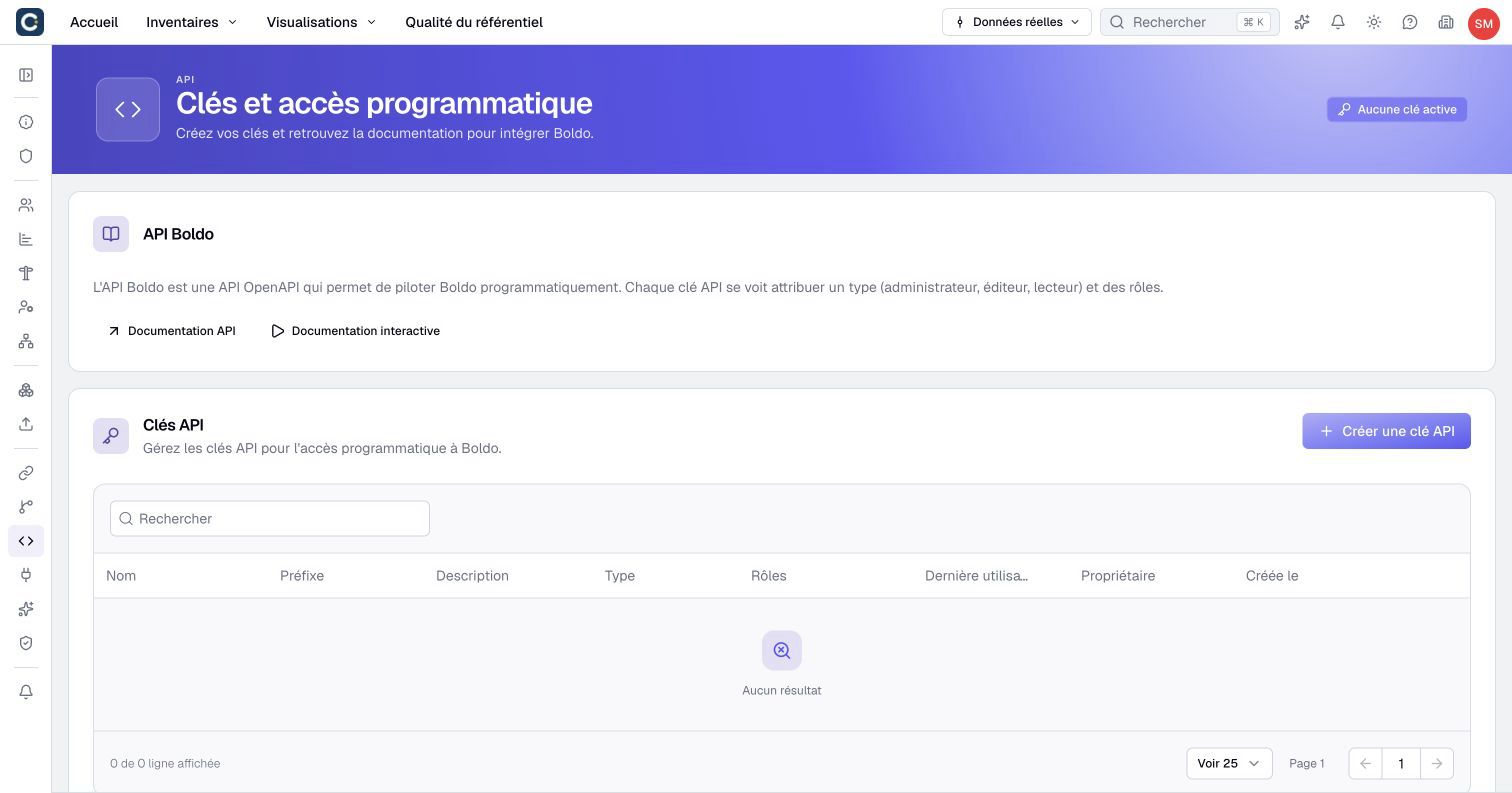
Each key has a type, like a team member, and roles. It can only do what its rights allow. A tool that only needs to read gets a read-only key, never more. Create one key per tool: you can remove one without cutting off the others.
3. Authorize an AI assistant
On the MCP page, you see the Connected agents. A compatible assistant acts within the rights of the person who authorized it. Their MCP level allows reading, suggestions or direct writes.
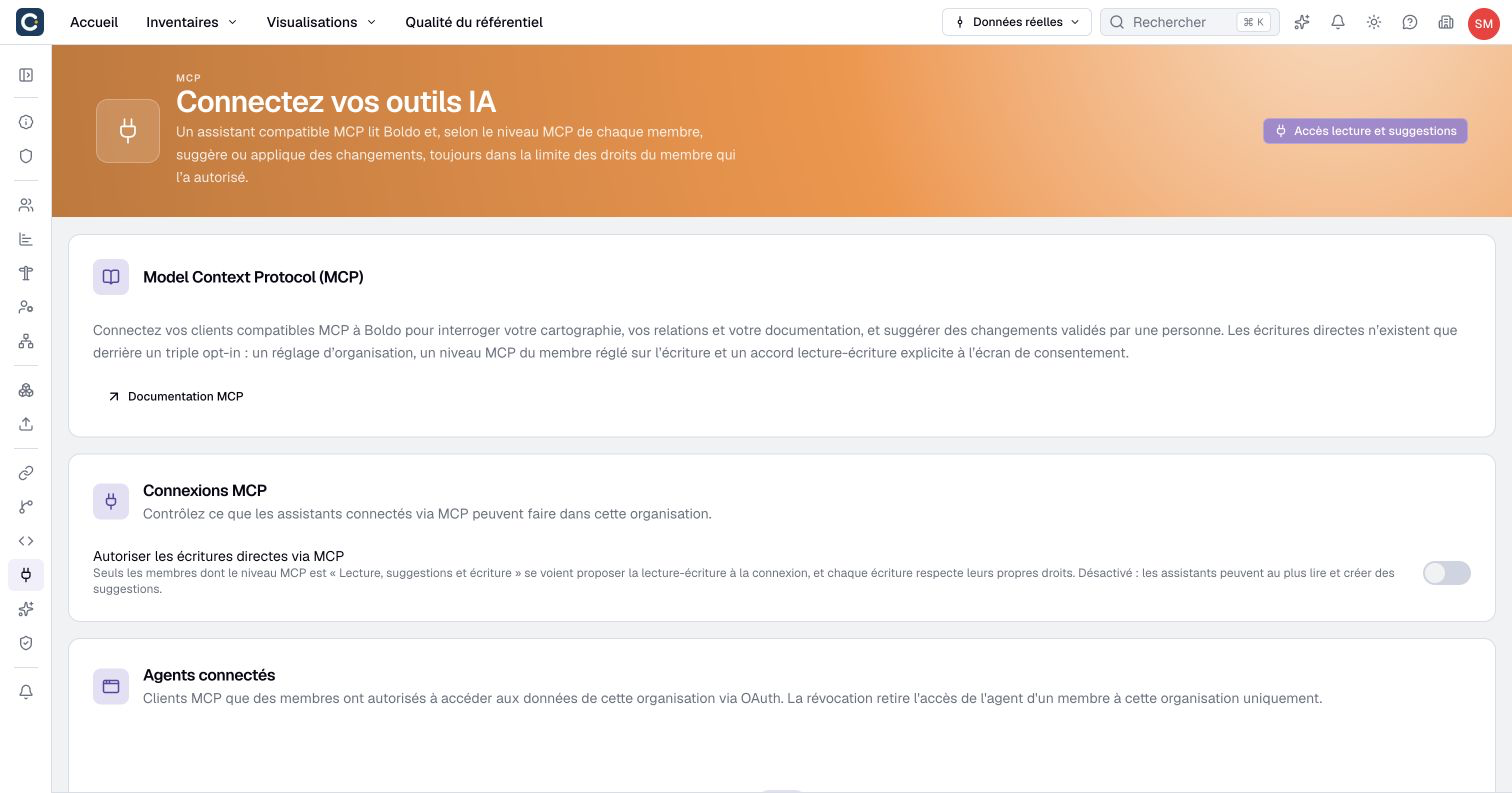
An assistant never sees more than the person using it. Suggestions await review in Boldo. Direct writes additionally require the organization setting and write consent at connection; they do not create a suggestion awaiting review in Boldo. See MCP authorizations. If access is no longer needed, click Revoke.
4. Review before applying
An update coming from another tool can go through a scenario instead of writing directly in the repository. You then review each change before applying it, as for a scenario prepared by hand.
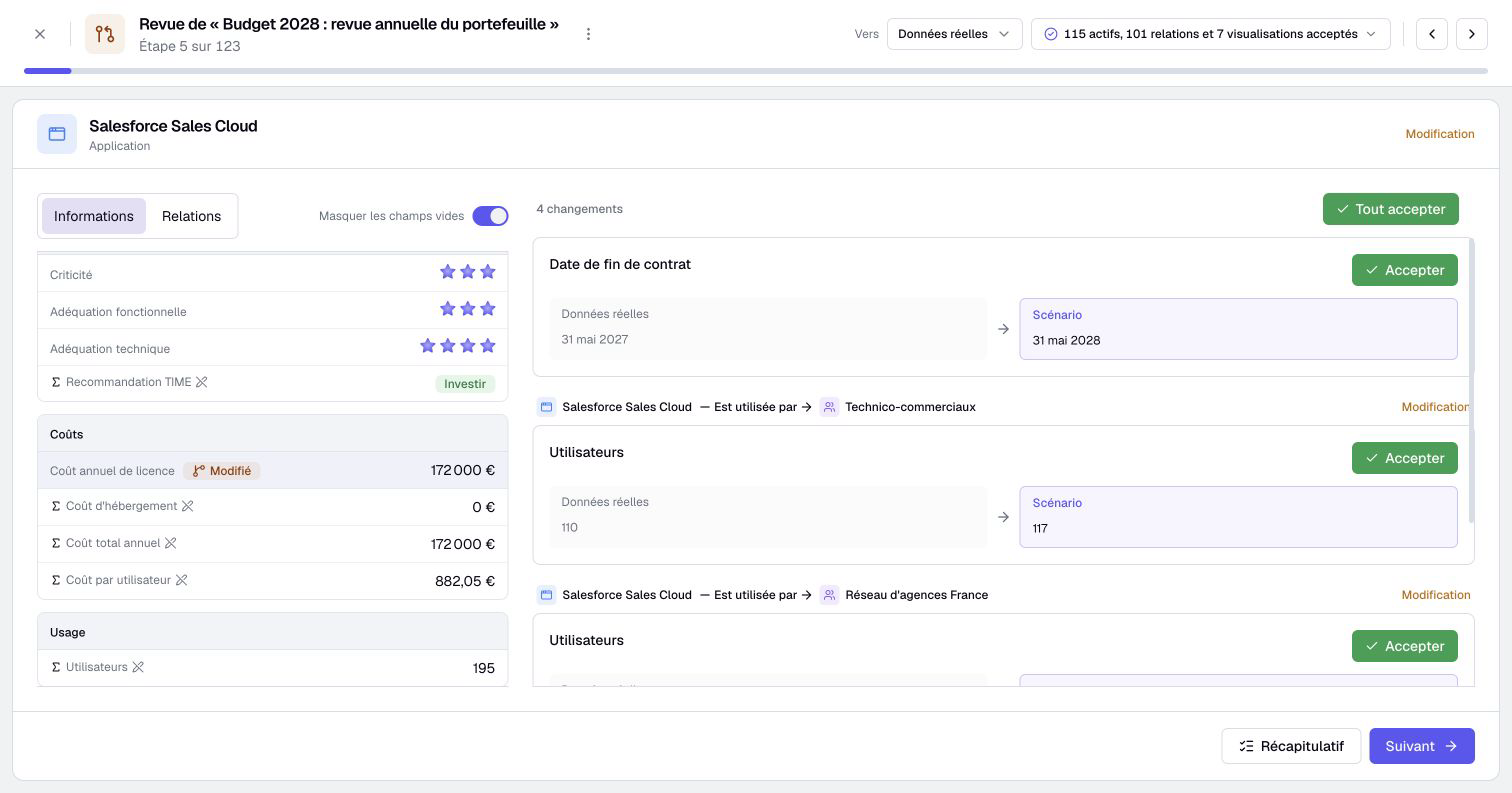
This is the right approach for a first connection, while you check that the tool sends accurate data.
5. Follow what tools have changed
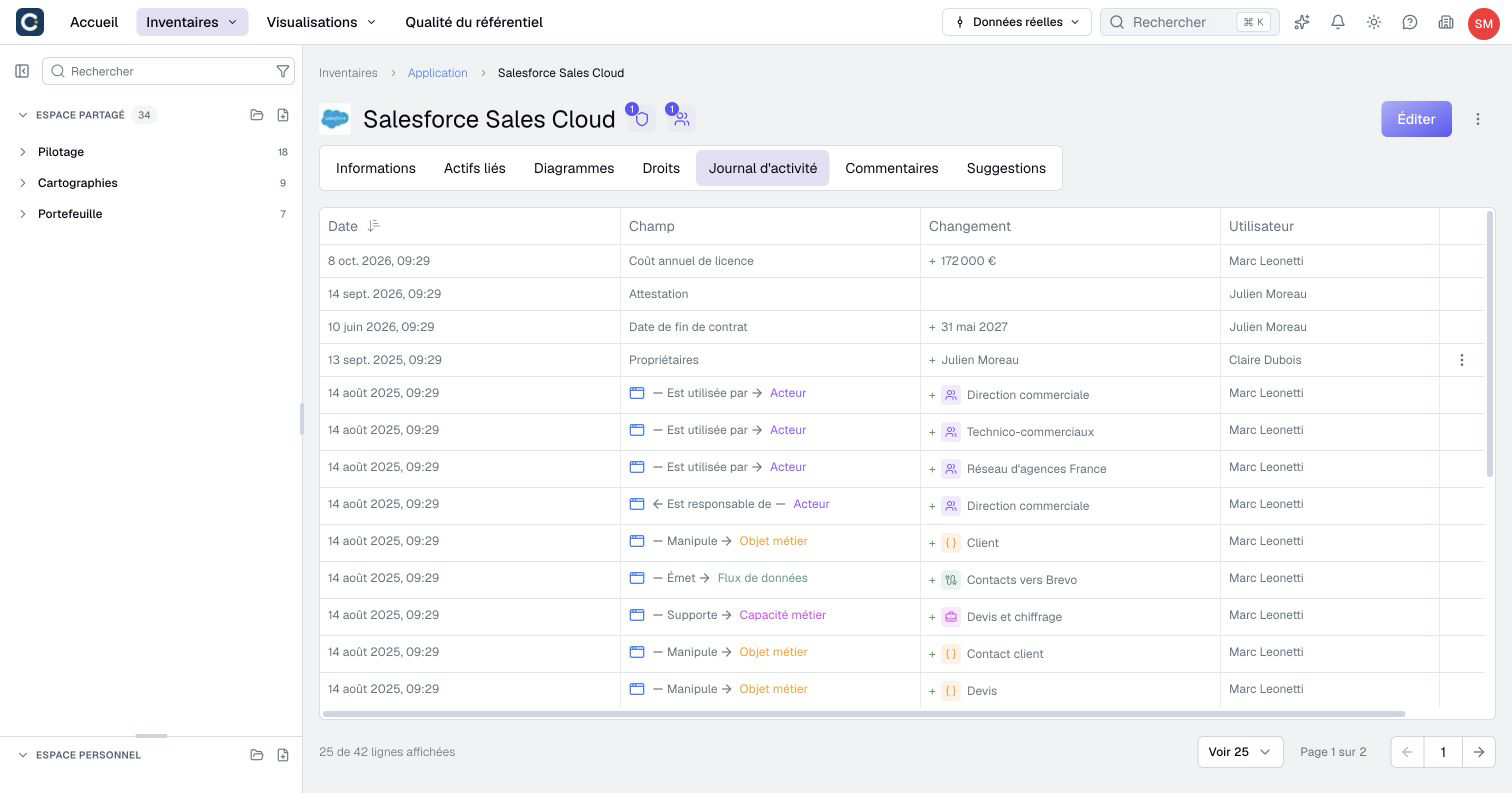
The Activity log of an asset shows each change, with its author. An API change appears under the name of its key. A direct MCP change is attributed to the connected member and marked via MCP.
6. Hand over to your technical team
Give your technical team the tool to connect, what it must read or write, and the planned key type. They will find all the details in the developer documentation:
- Choose an integration: to pick the right approach for the need.
- API keys: to create and use a key.
- MCP: to connect an AI assistant.
Key points
- One key per tool, with as few rights as possible: you can remove one at any time.
- Set an AI assistant’s allowed actions explicitly: read, suggest or write, always within the member’s permissions.
- For a first connection, send updates through a scenario and review them.
Go further
- Work in a scenario: to understand where the updates to review arrive.
- Apply a scenario, and undo if needed: to apply an update, or cancel it.
- Set up your first role: to prepare the roles you will give to keys.