Create a computed property
You want the total annual cost of each application, or the number of applications behind each business capability. Nobody should have to type these figures by hand, and they must stay right when a source changes. A computed property does exactly that: Boldo calculates its value from other information.
This guide takes eight minutes. It is an administration guide.
Before you start
- You need to be an administrator of the organization, and your plan must include computed properties.
- The information used in the calculation must already exist as properties or relationships. To add them, read Adapt the metamodel.
- A computed value cannot be edited by hand, neither in the table nor through an import. To change it, change its sources or its formula.
1. Create the property
Open Organization settings, the building icon at the top right, then Metamodel. Open the type that should carry the result, then Properties, and click Add a property.
Enter the Name, for example "Total annual cost". Choose the Type of the result first: Currency for a cost, Number for a count, List for a classification. Then turn on Computed property.
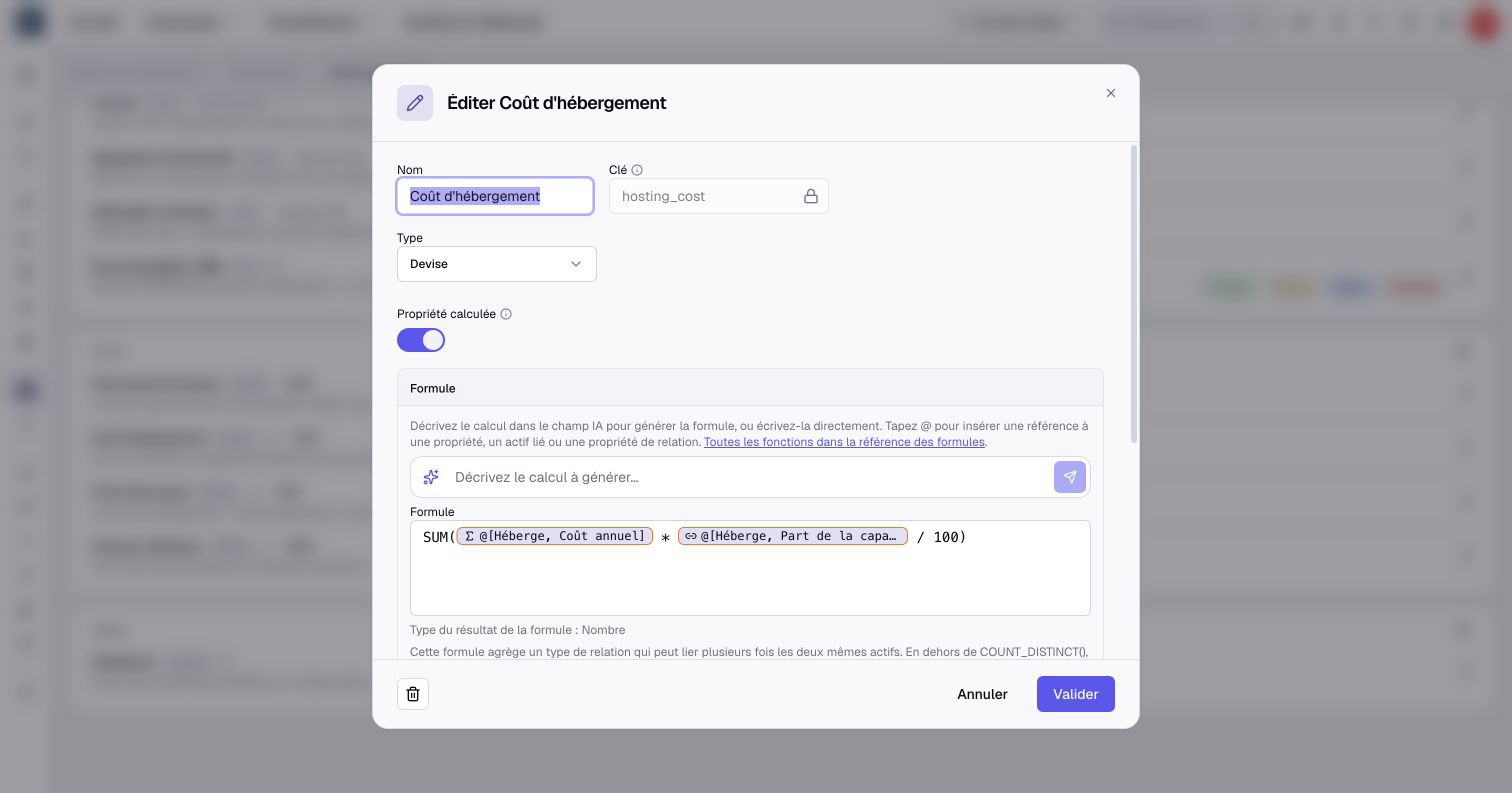
The Formula block appears. The default value and the input bounds disappear: the result comes from the calculation.
2. Write the formula, or describe it
You have two ways to get the formula.
- Describe it to the AI, if available. The organization must enable the AI assistant and give your account AI access. In Describe the calculation to generate…, write for example "annual licence cost plus hosting cost". Click Generate formula, then read the proposed formula.
- Write it yourself. In Formula, type the calculation. Each time you need a piece of information, type @ and choose it from the list.
For a total cost, the formula reads @Annual licence cost + @Hosting cost. The references appear as labels in the editor. Always choose them with @ rather than typing their name.
A generated formula answers what you wrote, not always what you meant. Read it before saving, and check how it handles missing values.
3. Count or add up linked assets
A computed property can use the assets linked to the current one. On a business capability, for example, you can count the applications that support it or add up their costs.
Type @, choose the relationship, then the property of the linked assets. Wrap the result in a function that turns the list into a single value, such as SUM(...) for a total. To count links, choose Number of relations: Boldo inserts COUNT(...) for you.
Watch out for duplicates. When two links connect the same assets, COUNT counts two and SUM adds the cost twice. Use COUNT_DISTINCT to count each linked asset once.
4. Check and save
Wait for the validation under the formula. Boldo shows the type of the result and underlines any error. Click Create. When the calculation affects many assets, confirm with Save and recalculate.
If your plan includes fine-grained permissions, the new property starts hidden from every role, including yours. Open Organization settings > Rights to grant access before checking its value. The result can reveal information from sources the reader cannot access. Check those sources before granting access; Boldo does not check them for you. Changing the formula later does not change these permissions.
Open an asset whose result you can calculate yourself, then an asset with missing information. An empty result is not always an error: when a source is empty, the result often is too.
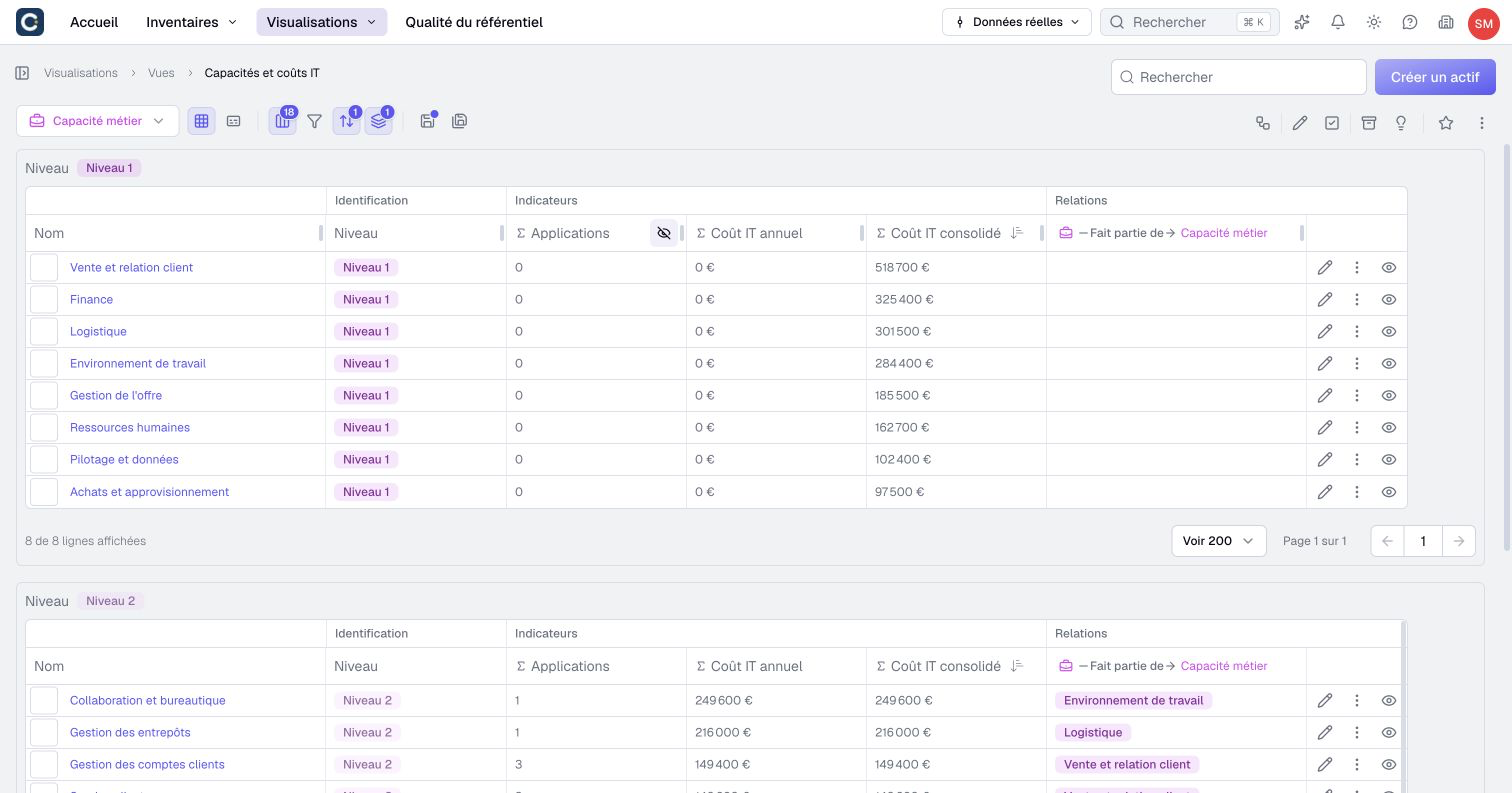
In inventories and views, the Σ symbol marks computed columns. They sort, filter and feed charts like any other property.
5. Hide an intermediate calculation
Sometimes a calculation only serves another one, such as a cost per user used in a total. Turn on Hide in the interface: the property keeps its value and stays usable in other formulas, but it no longer appears in ordinary forms and views.
Hiding is not a right. To keep a value confidential, restrict access to it through roles.
6. Follow the calculation chain
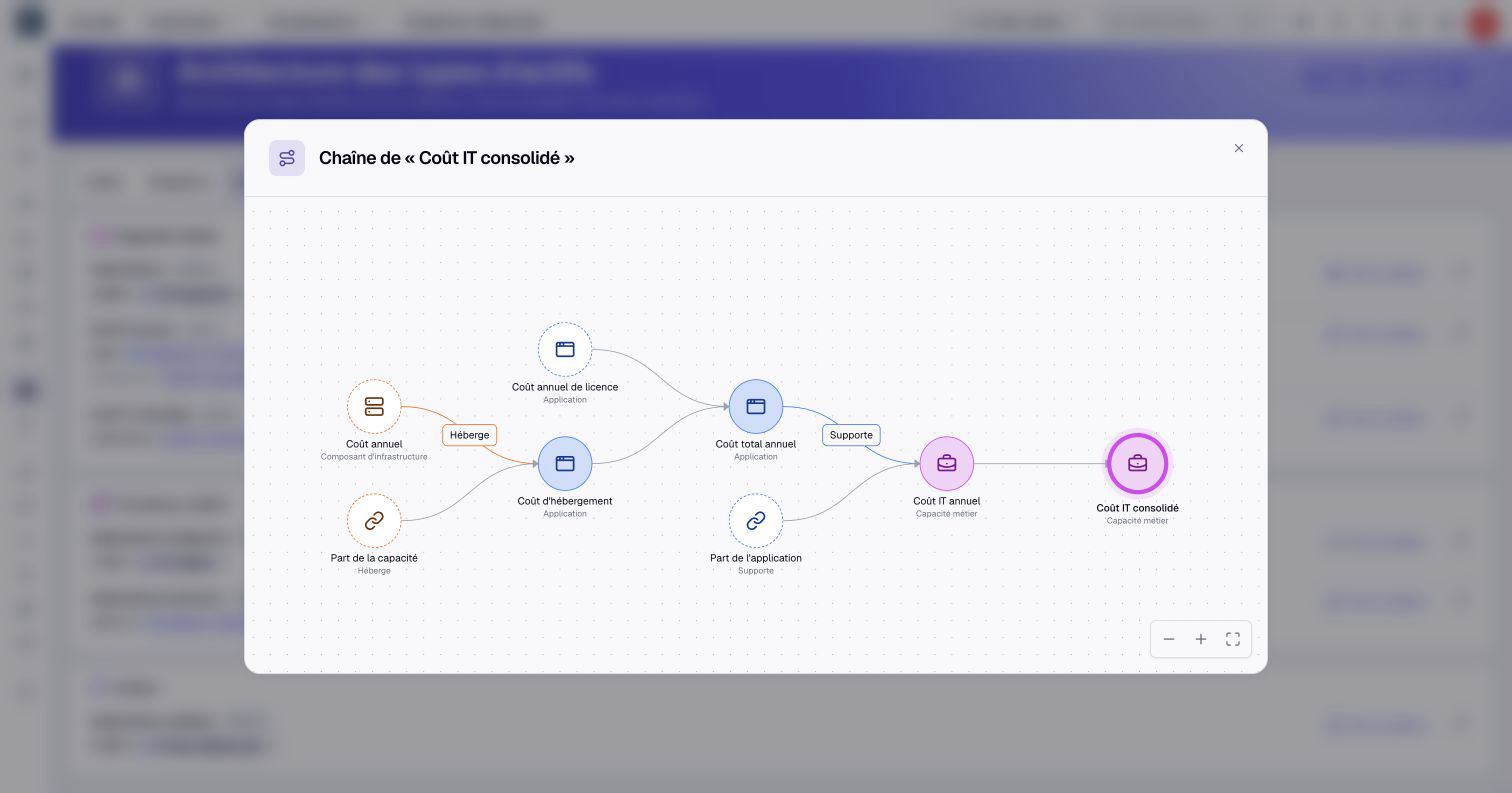
Open the metamodel's Computed properties tab to find the formulas configured on asset and relationship types. Used by shows the calculations that directly depend on each one. Click See the chain to see its sources, intermediate calculations and dependent results.
Select a calculated node to return to its row, then use its pencil to open the definition. Trace this chain when a result surprises you or before changing one of its sources.
Key points
- Choose the type of the result before writing the formula.
- Insert each piece of information with @, and wrap linked values in a function such as
SUMorCOUNT. - Check the result on an asset you can calculate by hand.
Go further
- Adapt the metamodel: to add the properties and relationships the calculation needs.
- Map business capabilities and their coverage: a use case that reads computed counts and costs.
- Formula and function reference: the full list of functions, with examples.