Create a view and filter
Every month you look at the same applications: the ones whose contract ends soon, or the ones a department uses. Setting the filters again each time takes a while. A view keeps your list the way you set it: columns, filters, sorting and groups. It follows the data: when an asset changes, the view updates.
This guide takes five minutes.
Before you start
- Being able to view the inventory is enough to filter it. Saving a view, including a personal view, requires an Editor account or above.
- To save a view in the Shared space, you also need permission to create it in the chosen access domains. If you cannot, ask an administrator.
1. Choose the columns
Open an inventory, for example Inventories, then Application. Click Organize in the toolbar.
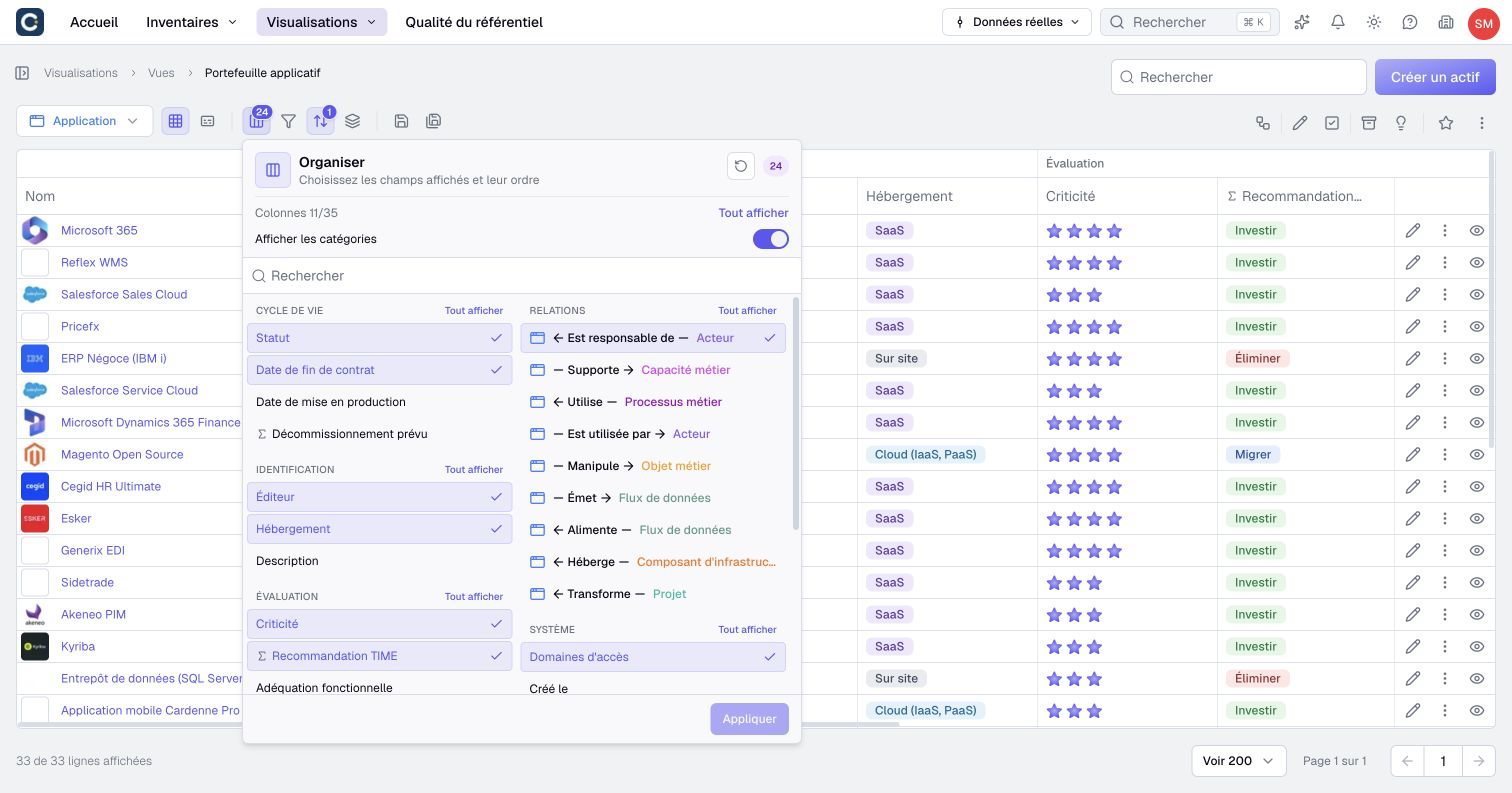
The menu lists information and relationships in a common column order. Search for a column, then tick it to show or hide it. Drag rows to change their order. If the asset type has property categories, you can show them with Show categories and move a whole category. Click Apply to update the table, then save the view to keep the changes.
To change several matching columns together, search first, then use Show all or Hide all. Other columns keep their visibility. Clear the search to act on all columns.
2. Filter
Click Filter by, then Add a condition. Choose a piece of information, a comparison and a value, then click Apply.
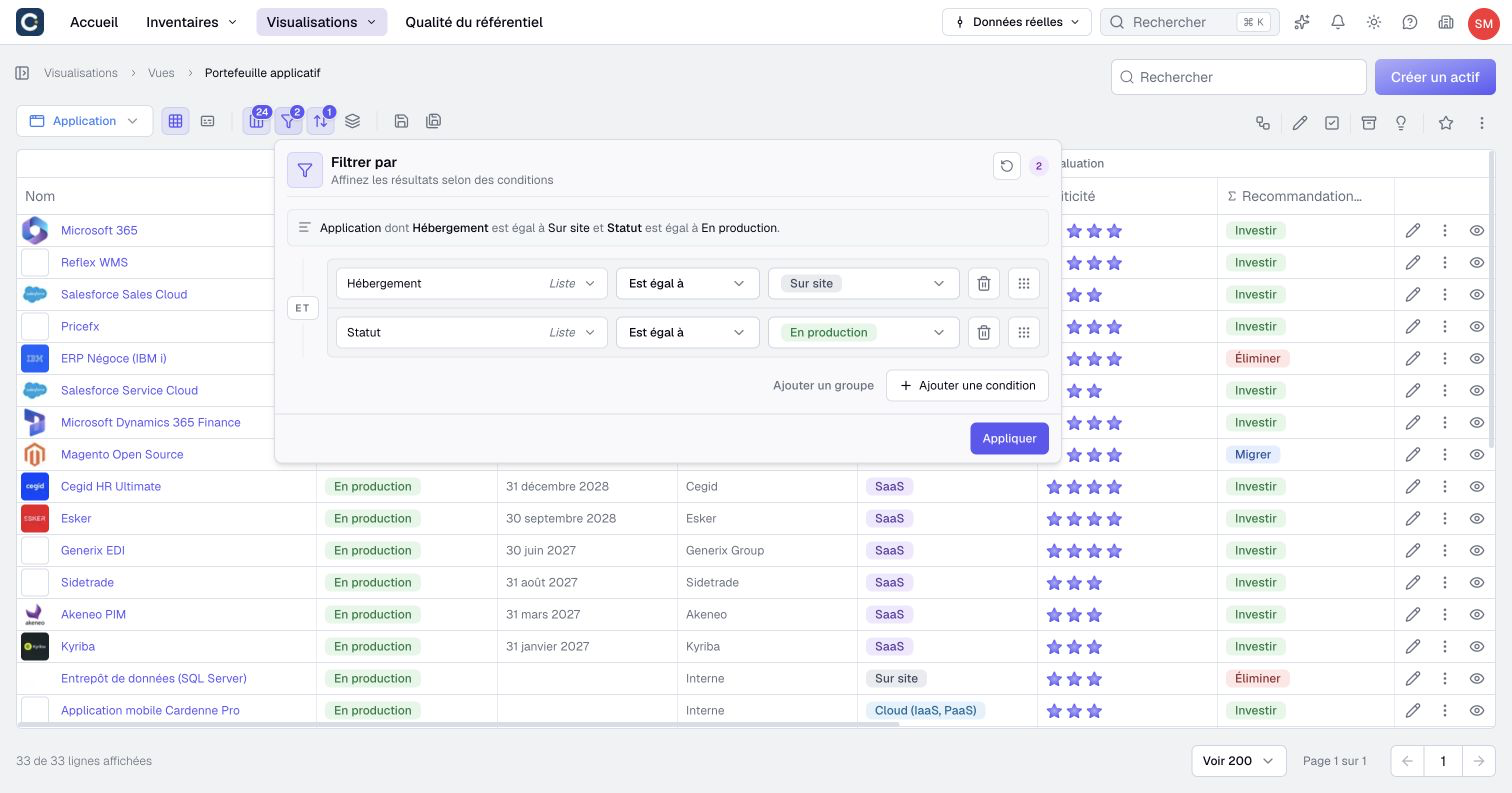
Above the conditions, a sentence sums up the filter: "Application whose hosting is On premises and whose status is In production". Read it as a question: if the sentence says what you are looking for, the filter is right.
The conditions of a group are joined by AND (all must be true) or by OR (one is enough). To mix both, use Add group.
3. Filter on a relationship
You can also filter on what the asset is connected to, for example the applications used by a given team. In the list of information, scroll down to Relationships, choose the relationship, then the information of the connected asset.
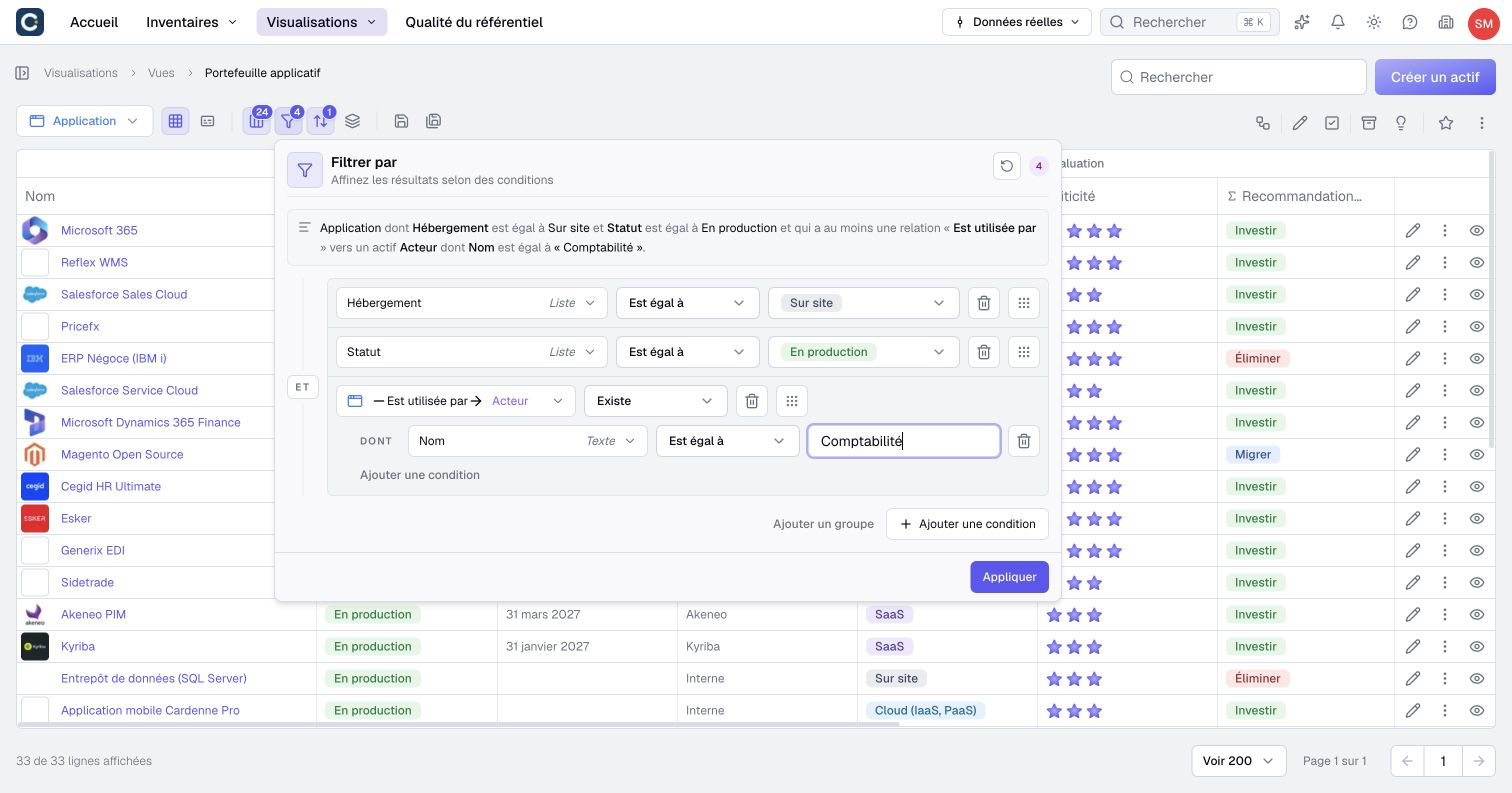
The sentence grows: "that has at least one 'used by' relationship to an Actor asset whose name is 'Accounting'".
4. Group and sort
For the next example, remove the relationship condition and keep the hosting and status conditions. Click Group by, then Add group, and choose a piece of information. The table splits into blocks, one per value.
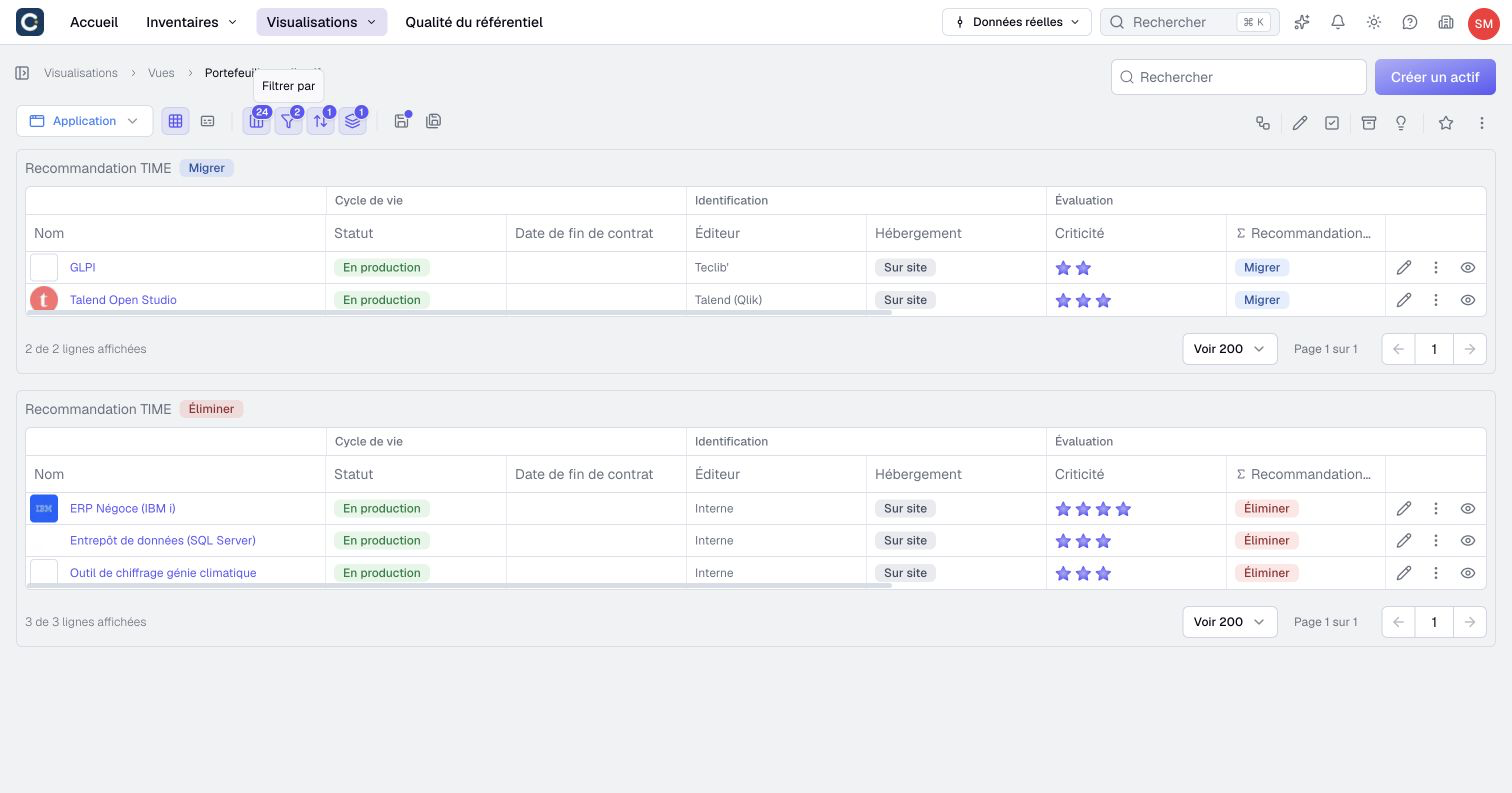
Sort by orders the rows, for example from the nearest contract end date to the furthest. Sorting applies within each group. For a person such as an owner or creator, the order follows the displayed name. On the toolbar buttons, a badge shows how many settings are active.
5. Save the view
Click Save as. Name the view, choose the space, then the folder.
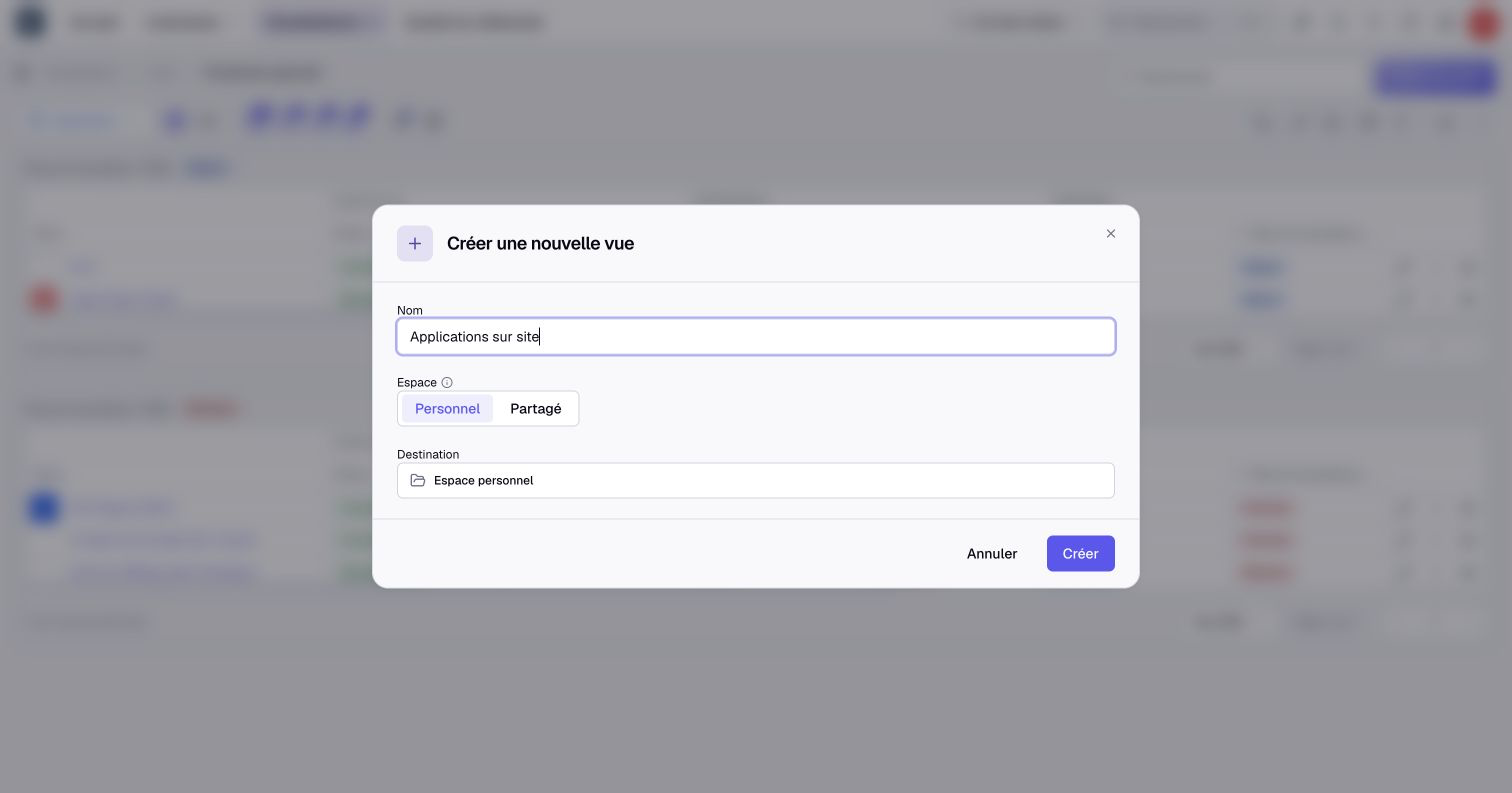
- The Personal space is only visible to you. It is the right place for a draft.
- The Shared space belongs to the organization. Members can open the view according to its access domains and their content rights.
Click Create. The view joins the catalog, the panel on the left, and the Visualizations menu, then Views.
When you change a view that is already saved, a dot appears on the save button. Save to keep your settings, or leave the page: Boldo then asks whether you want to drop them.
Key points
- A view keeps the columns, filters, sorting and groups. The data itself stays up to date.
- The filter sentence reads like a question: if it says what you are looking for, the filter is right.
- Personal for you only, Shared for authorized members of the organization.
Go further
- Build a dashboard: to gather several views and charts on one page.
- Draw a diagram: to turn a view into a diagram.