Describe a process flow
You want to explain how an order is handled, from the customer's click to the delivery: who does what, in which application, and what happens when a check fails. A process flow tells this sequence inside the process itself. Each step can mention real assets, such as a team or an application. The explanation stays linked to your inventory, and the process page lists the assets it uses.
This guide takes seven minutes.
Before you start
- A process flow is not a diagram. A diagram is a free drawing where you place the items yourself. A process flow follows a sequence of steps and places them for you. It is also different from a data flow, which is an asset describing an exchange between two applications.
- The asset type and plan must support processes. Reading the flow requires its own permission, separate from access to the asset properties. To change it, you need to be able to edit its flow. If you cannot, ask an administrator.
1. Open the flow of a process
Open the page of a process, for example from the business processes inventory. The page opens on Information by default. Select Flow editor to see its flow.
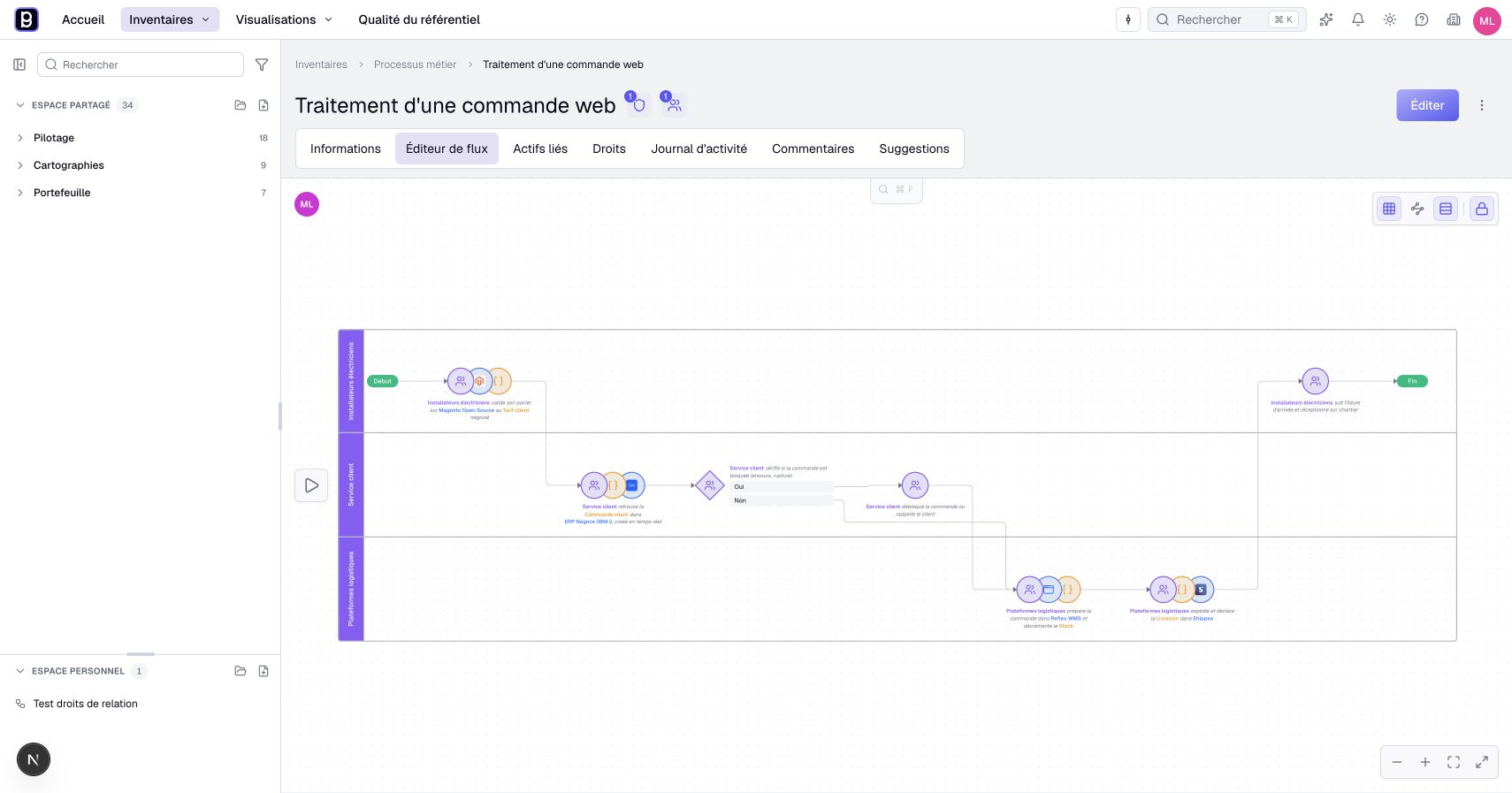
The flow reads from left to right. Each step shows the assets it mentions as small round icons, and its text below. A diamond marks a choice: the path splits into several branches, each with its label.
If the saved flow cannot load, use Retry or, when offered, Version history. Preview a usable version before restoring it with the required permissions. Do not rebuild a flow on the assumption that an error means it is empty.
2. Unlock and add steps
The flow opens locked, so that nobody changes it by mistake. Click the padlock at the top right, or press Ctrl+L (Cmd+L on Mac). The flow is unlocked for you, and your initials show at the top left, next to those of the colleagues working on it at the same time.
To add a step, hover over the step it follows and click its +. Then click the highlighted + to create the next step. Positions are calculated automatically. To change the sequence, drag an available movement handle onto an offered connection or branch end. On a touchscreen, tap the step to reveal its actions, then drag the handle with your finger.
3. Describe a step and mention the assets
Click a step. The panel on the right opens: this is where you describe it.
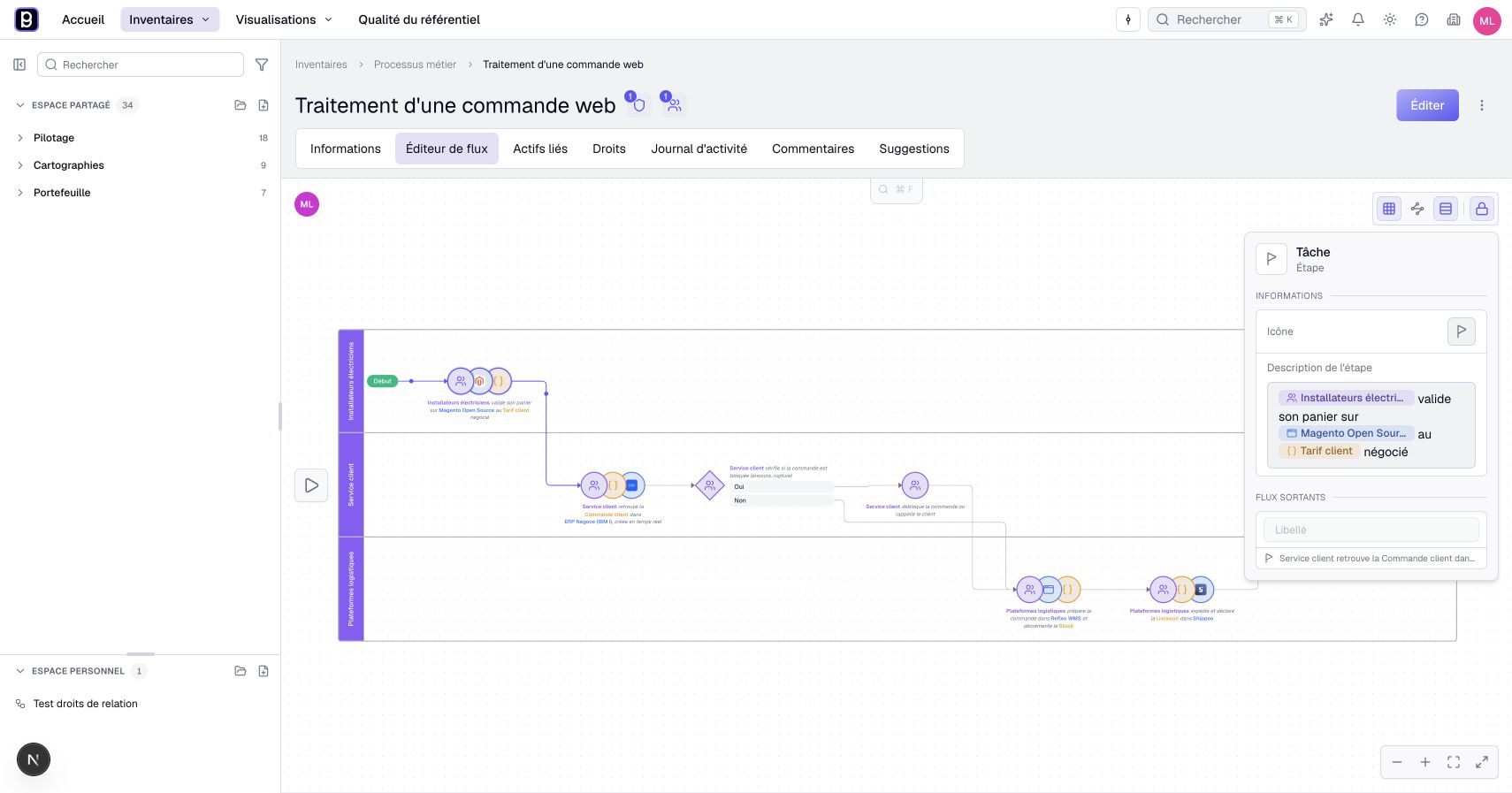
In Step description, write what happens. Type @ to mention an asset, for example the team that acts or the application it uses, then choose it in the list. The mention becomes a tag: a click on it opens the asset's preview, and Ctrl+click (Cmd+click on Mac) or the middle mouse button opens its page in a new tab. A typed name without @ stays plain text.
Convert to choice turns the step into a branching point. Under Outgoing flows, give each branch a Label, for example Yes and No: this is the text readers choose from.
The flow saves on its own. Each mentioned asset is then linked to the process, and the asset shows up in the Related assets tab of the process.
4. Sort the steps into lanes
Lanes show who is responsible for each step. In the toolbar at the top right, open Lanes and choose the kind of asset that sets them, for example actors. Each step goes into the lane of the actor it mentions. A step that mentions none goes into Unassigned.
5. Walk through the flow in a meeting
Click the play button on the left, Explore. Boldo follows the path from the start and stops at each choice.
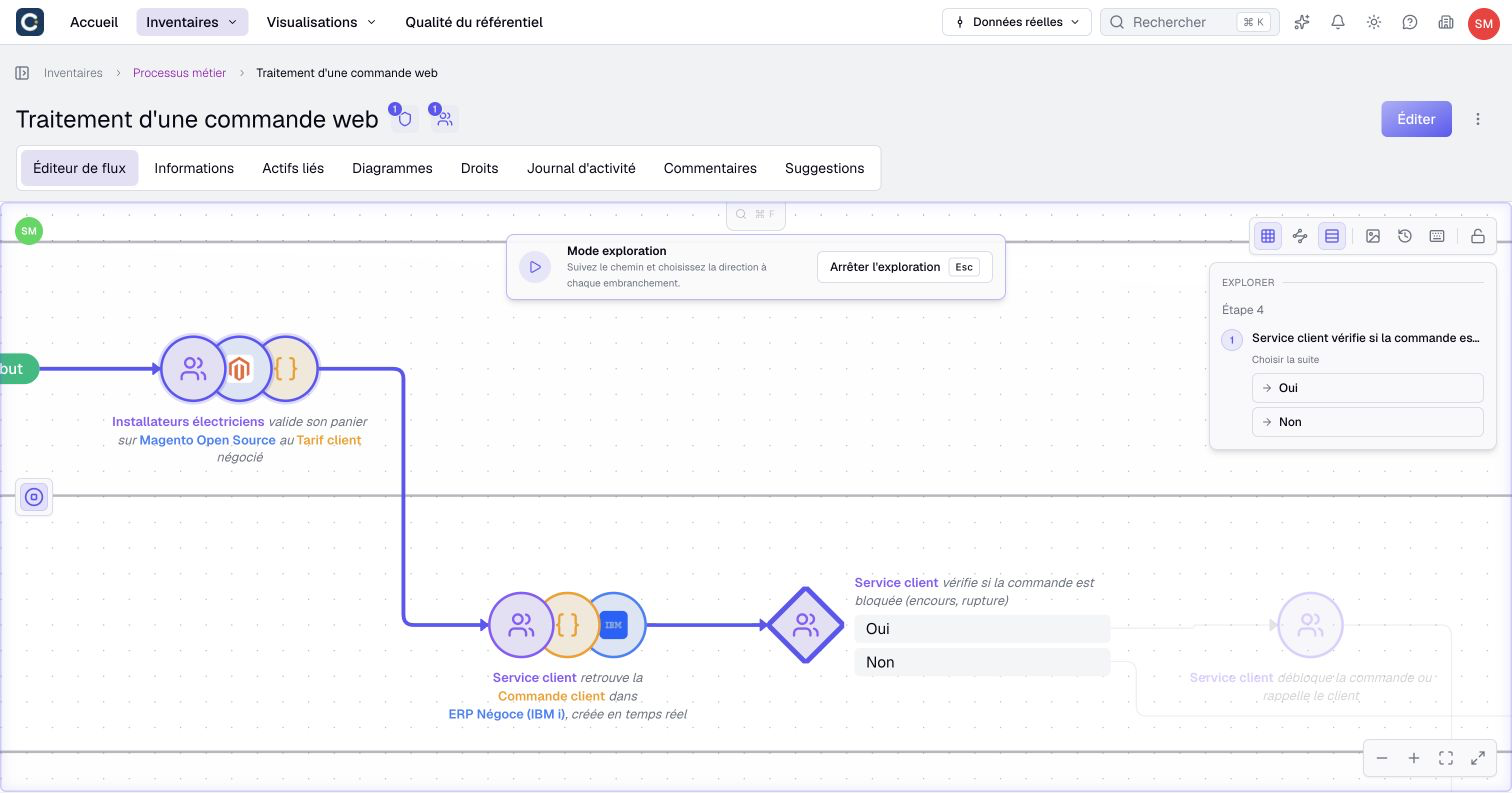
Under Choose the next step, pick a branch, for example No. The path continues on that side and the rest of the flow fades out. Exploration changes nothing in the flow: it is a way to tell the story. Click Stop exploration to go back to the normal view.
Key points
- A process flow tells a sequence of steps. It is neither a diagram nor a data flow.
- @ in a step mentions a real asset and links it to the process.
- Explore walks through the flow branch by branch, without changing it.
Go further
- Draw a diagram: when you want to place the items yourself.
- Go back to an earlier version: name a version before you redesign the flow.
- Work together: comments, mentions and notifications: edit a flow with colleagues at the same time.