Document a relationship
An application is used by three departments, but not to the same extent: sixteen people in one, two hundred in another. This figure belongs neither to the application nor to the department: it belongs to the link between them. A relationship links two assets according to a type defined by your organization, and it can carry its own information.
This guide takes five minutes.
Before you start
- Direct changes require an Editor account or above and permission to edit the relationship type on its source's access domains. Its properties have separate permissions. Otherwise, you can suggest the relationship: read Suggest a change.
- The possible relationship types and their information are set by an administrator. If a link is missing, ask them.
1. Open the relationships of the asset
Open the page of the asset, click Edit, then the Relationships tab of the form.
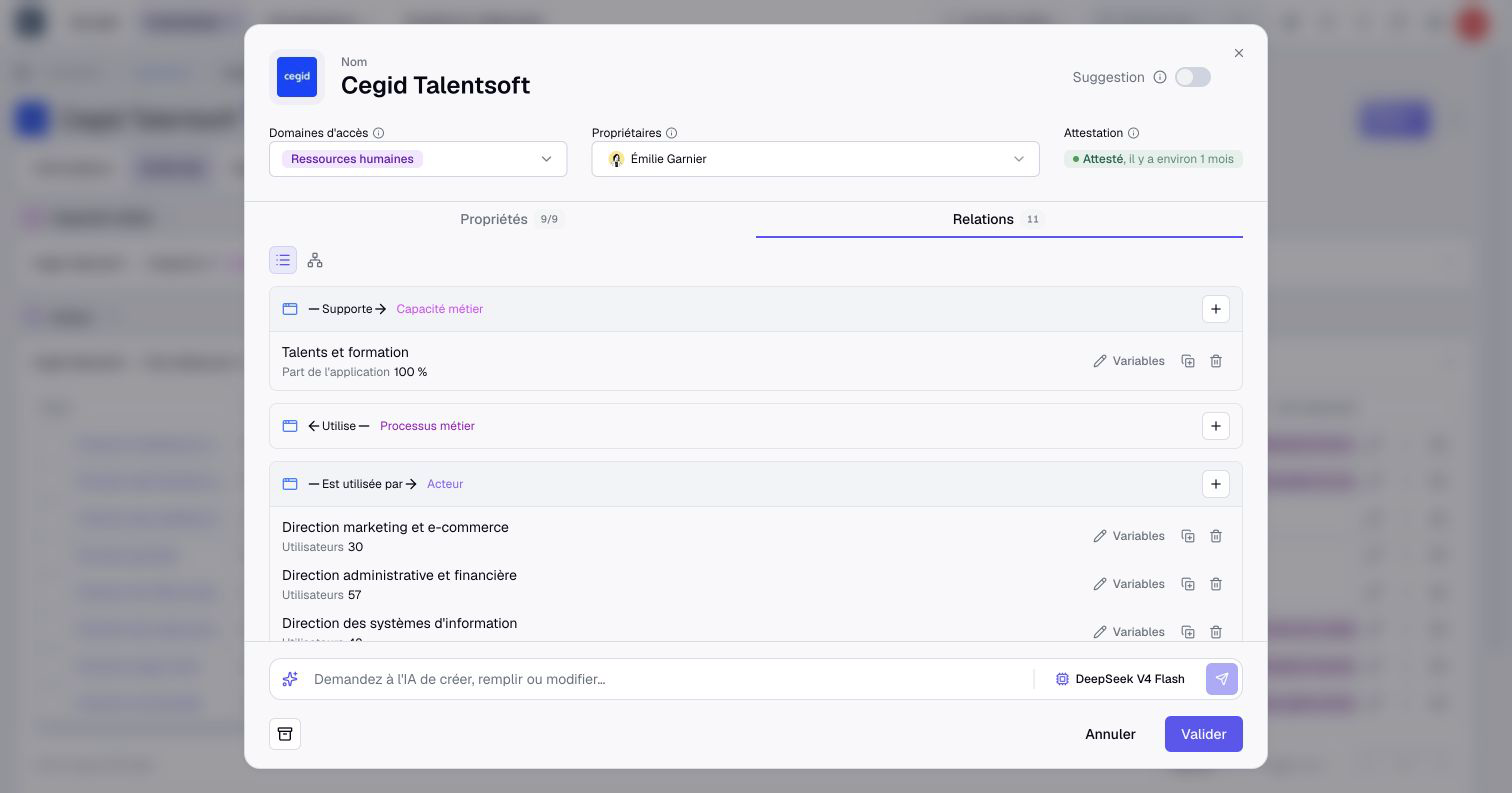
Relationships are grouped by type, for example "Supports → Business capability" or "Used by → Actor". Under each type, one row per linked asset, with the information that belongs to the relationship.
2. Link an asset
Click the + of the relationship type you want. Search for the asset to link, or pick it from the list.
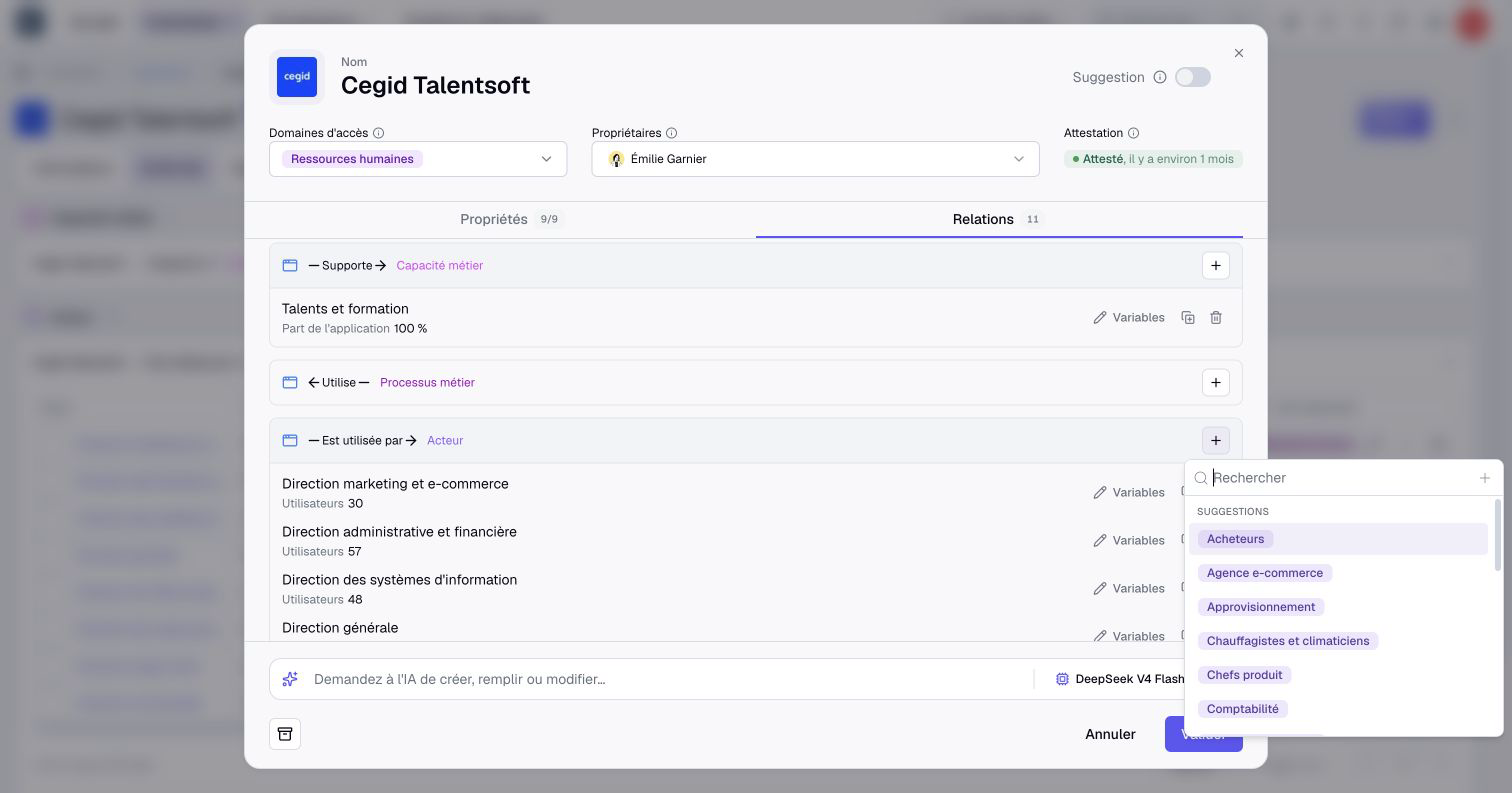
Only assets of the right kind are offered. An application is "used by" an actor, for example: the list only shows actors.
3. Fill in the information of the relationship
On the row of the relationship, click Variables. Fill in the information of the link, for example the number of users, then click Apply.
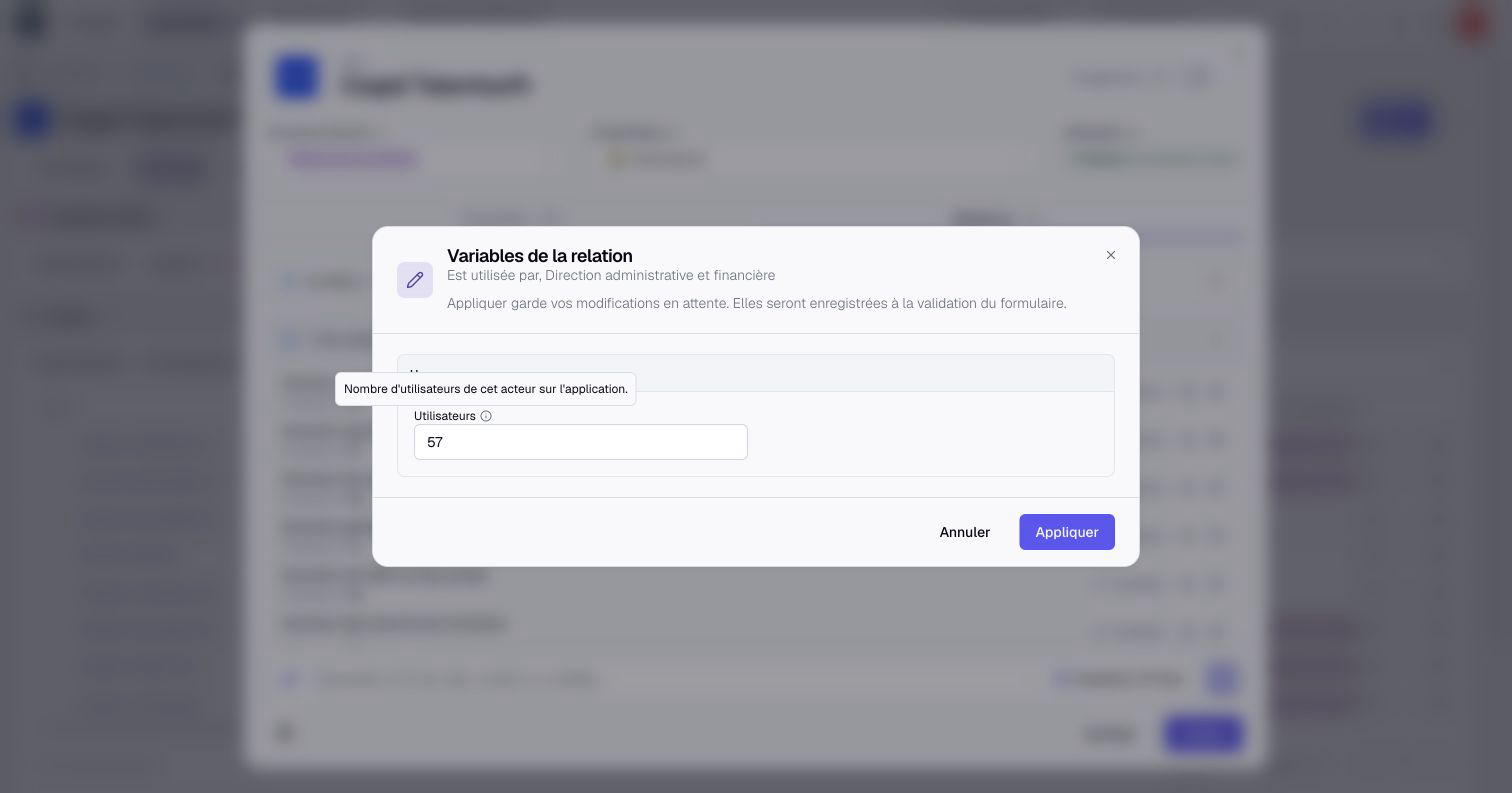
Apply keeps the value in the form, without saving it yet. Click Validate at the bottom of the form to save everything at once.
When properties are enabled for the relationship type, two assets can have several relationships of that type, each with its own values: these are parallel relationships. To add one, use the Add another relationship to this asset icon on the existing row. The trash icon removes a relationship: both assets stay in place.
4. Open the page of the relationship
Each relationship has its own page, with its source, its destination and its information. Open it from the relationship inventory.
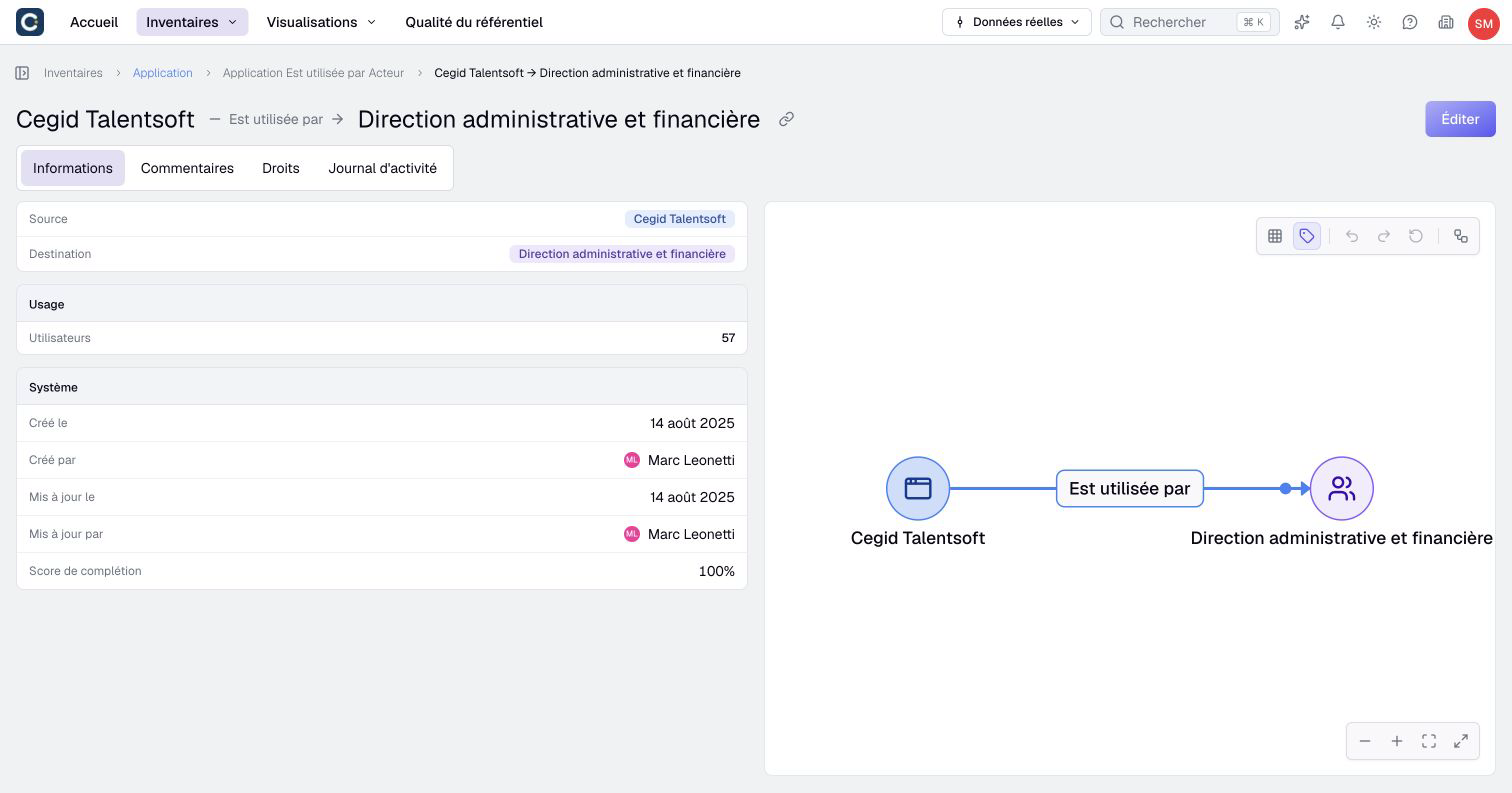
Its Comments, Rights and Activity log tabs work like those of an asset. Seen from the other asset, the same relationship shows in the other direction: it is not a second relationship.
Key points
- A relationship links two assets, and it can carry its own information.
- Apply keeps the value in the form, Validate saves everything.
- Removing a relationship deletes neither of the two assets.
Go further
- The relationship inventory: to see and correct all the relationships of one type.
- Draw a diagram: to show relationships in a diagram.