Document with the AI assistant
You have a contract, meeting notes or a spreadsheet that describes applications, and you need to record them in Boldo. Or several asset pages are half empty and you want to complete them quickly. The assistant does the preparation work. You review what it proposes, and nothing is saved until you decide.
This guide takes eight minutes. It assumes you already know how to open the assistant and ask it a question.
Before you start
- An administrator must give you access to the assistant and allow it to read your data. Otherwise, it only knows how Boldo works. The last section of this guide is for administrators.
- To create or change an asset, you need to be able to edit it. If you cannot, the assistant prepares suggestions instead, for a member with the appropriate permissions to review.
- New to the assistant? Start with Get help from the AI assistant.
1. Open the assistant where you work
Open the inventory or the asset page you want to document. Click AI Assistant, the sparkles icon in the top bar. The panel opens on the right, over the page.
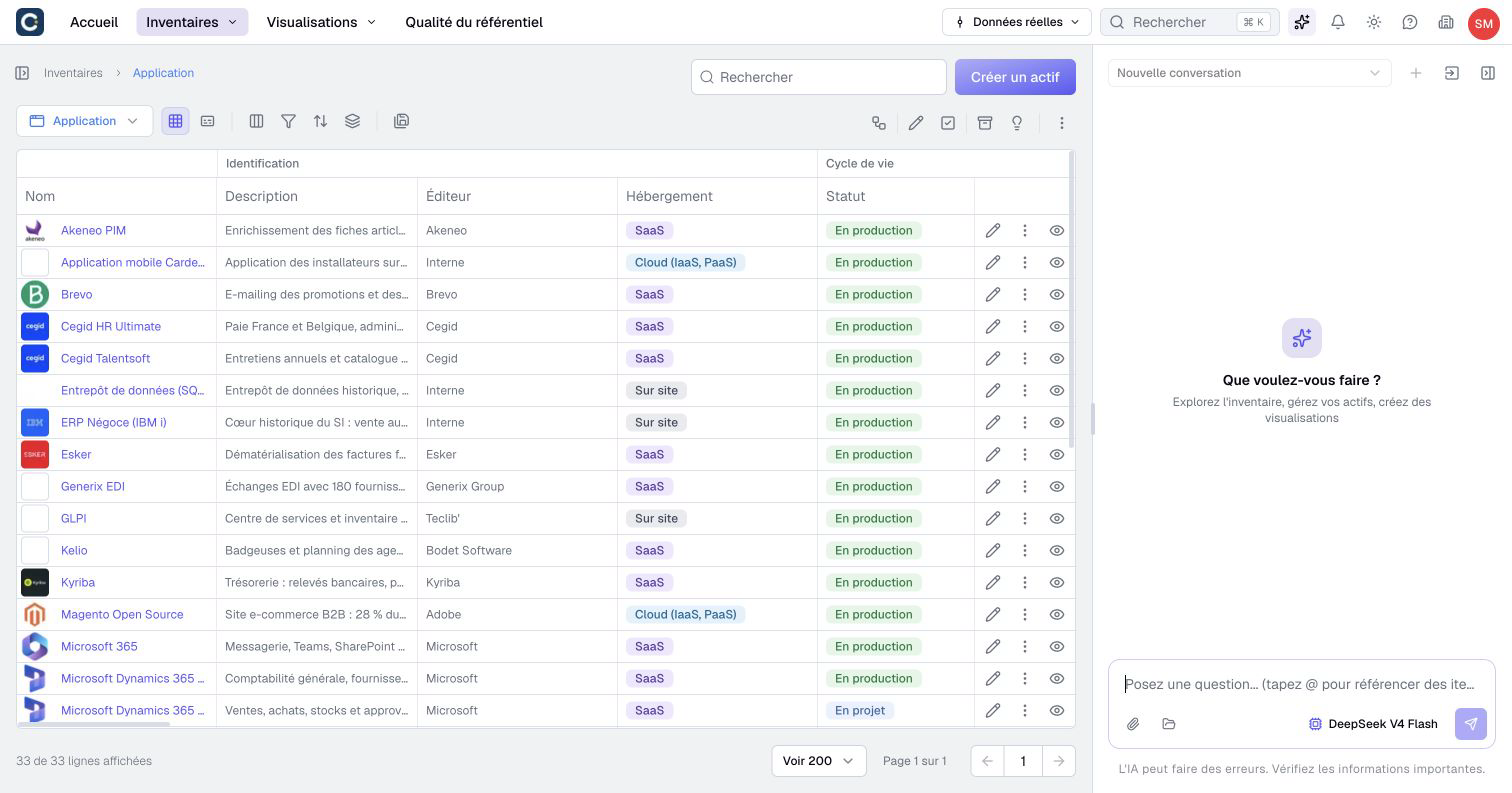
The assistant knows what is on your screen. Start a New conversation for each topic: the assistant then keeps the right context from one message to the next.
2. Give it your source
Paste your notes into the message, or click the paperclip to attach a file. A PDF, a Word document, a spreadsheet or a text file works, up to three files per message.
Later in the same conversation, ask the assistant to reread an attached document by naming it. You do not need to attach it again. It uses the retained extracted text; to inspect an image again, attach it again. See formats and extraction limits.
Then say what you expect, as precisely as possible:
- "From this contract, prepare the applications it covers, with their vendor, hosting and annual cost."
- "Here are the notes from the finance workshop. List the business capabilities mentioned and link each one to the applications that support it."
Type @ followed by a name to point at an existing asset. The assistant then links to that exact asset rather than creating a duplicate.
An attached spreadsheet is not an import. The assistant reads it to prepare proposals. To load a large file line by line, read Bulk import from CSV or Excel.
3. Review each proposal
The assistant answers with proposals: an asset to create, values to change, a relationship to add. Each proposal shows its target and the proposed values. Nothing is saved yet.
For each proposal, choose:
- Create, Update or Apply changes when the proposal is right.
- Edit in form to correct a value before saving.
- Dismiss proposal when you do not want it.
You can also ask the assistant to correct a proposal. If the new proposal replaces an earlier pending card, that old card can no longer be applied. Review the latest version. A replacement does not undo a change already saved.
After applying, open the asset page to check the result. If an asset changed since the proposal, Boldo refuses the old proposal: ask the assistant for a new one.
4. Complete a page from its form
To fill in a single asset, open its page and click Edit. At the bottom of the form, a bar reads Ask AI to create, fill, or modify….
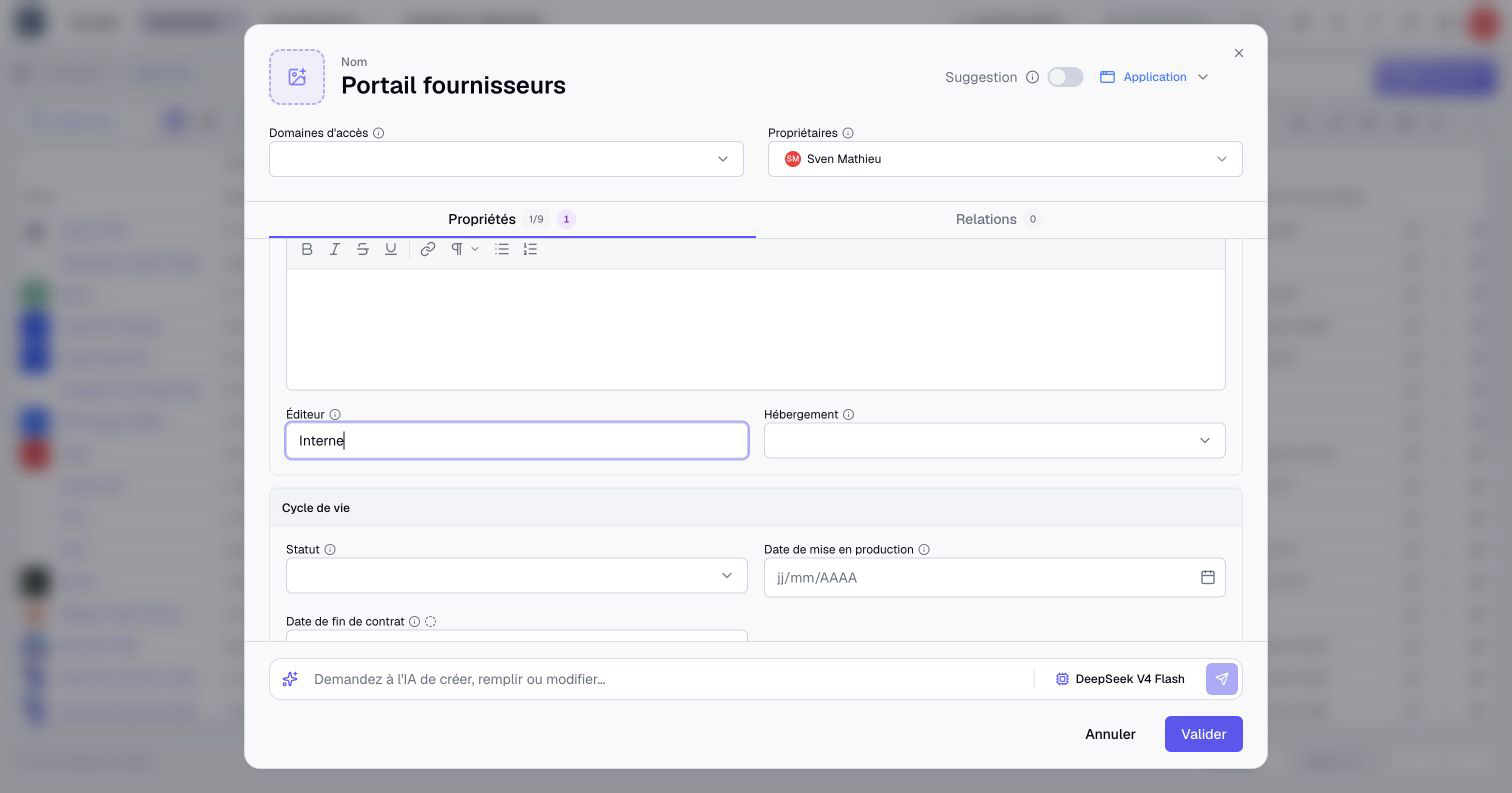
Write your request, for example "Write a description and link this application to the @Sales capability". The assistant fills in the fields and the Relationships tab. Read what it wrote and correct it if needed.
Undo AI changes cancels its last request. Validate saves the form, Cancel abandons it.
The assistant does not fill in the information carried by a relationship, such as a share or a number of users. Open the relationship's Variables and complete them yourself. Read Document a relationship for this step.
5. For administrators: open the assistant
If the assistant icon does not appear, an administrator checks two settings. In Organization settings, the building icon at the top right, the AI Assistant page turns the assistant on for the organization.
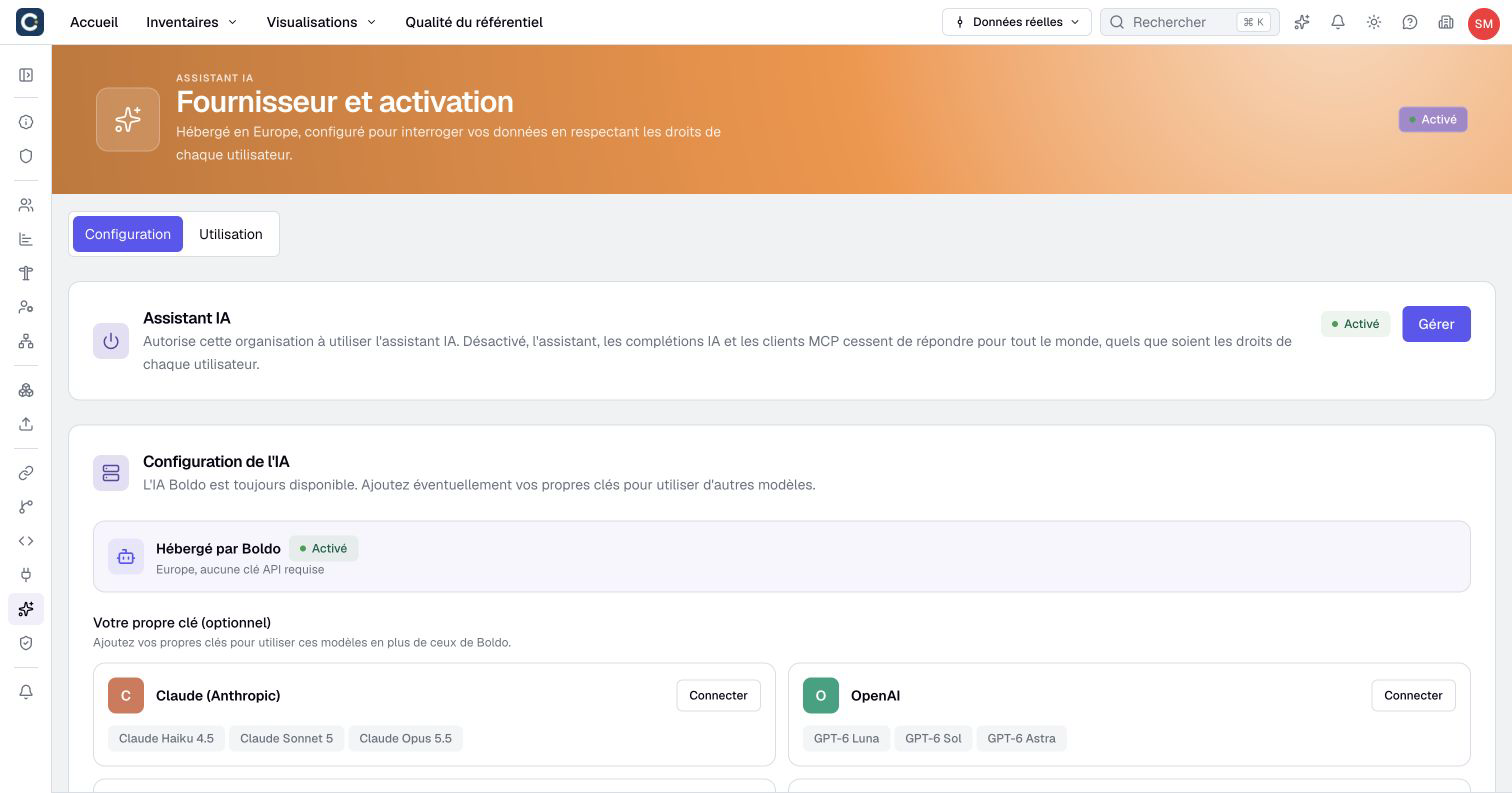
Then, in Users, each person needs AI access. Their AI access level decides whether the assistant can read the data or only knows how Boldo works. The assistant never reads more than the person could open themselves.
Key points
- Give the assistant a source and say what you expect in return.
- Each proposal waits for your decision: create, edit in the form or dismiss.
- In a form, the AI bar prepares the fields, and you validate.
Go further
- Boldo AI agents: have the assistant build a chart or a map, and all the AI settings for administrators.
- Use Boldo from Claude: ask your questions about Boldo from another assistant.
- Suggest a change: what happens to a suggestion when you cannot edit an asset.