Draw a diagram
To prepare a migration, you want to show which servers your applications run on. A diagram combines inventory assets and their relationships with explanatory shapes, text and images. Asset information follows the inventory, while you control the composition and which links appear.
This guide takes ten minutes. You need permission to create or edit a diagram. For a prepared asset selection, you can also convert a view into a diagram, up to 500 assets.
Create the diagram
- Open Visualizations → Diagrams → Create a diagram.
- Enter a name and choose its space and destination, then create it.
- If the canvas is locked, select Unlock to edit, or press Ctrl+L (Cmd+L on Mac).
An empty new diagram starts unlocked. A populated diagram opens locked to prevent accidental movements in your session. This does not stop other collaborators from editing.
The creation toolbar is at the bottom. Selecting an object opens a contextual toolbar; selecting several opens a panel on the left. You can also dock the contextual toolbar on the left.
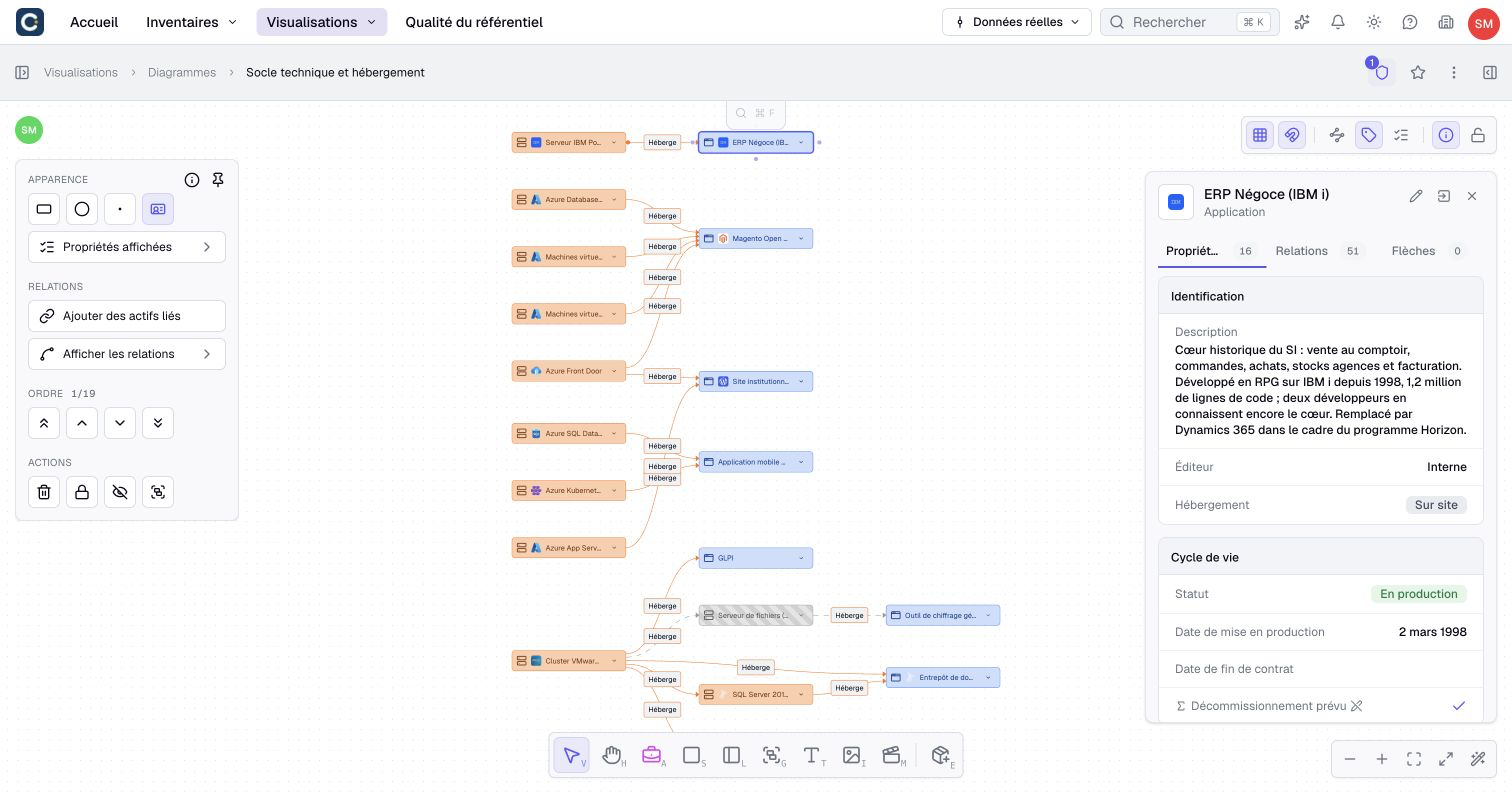
Add existing assets
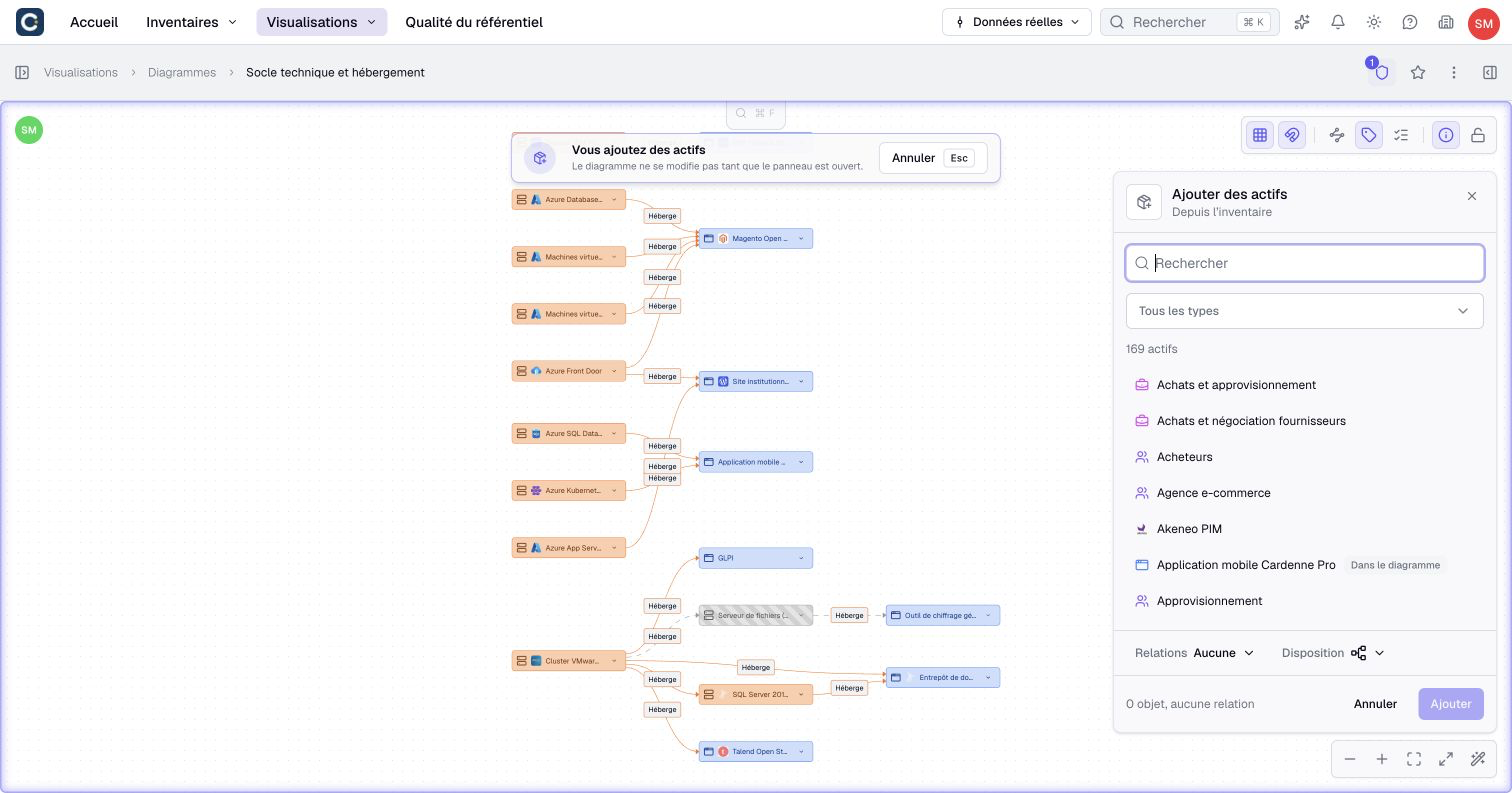
- Click Add assets in the bottom toolbar, or press E outside text entry.
- In the right-hand panel, search for an application and filter by type if needed.
- Add the applications to show. Use the quantity controls if an asset needs several appearances.
- Assets arrive without links by default. Choose With the diagram to include links to existing assets, or Between them for links among additions.
- Choose a layout and inspect the temporary objects and links on the canvas, then confirm with the addition button or Enter.
The preview appears near the center of the visible canvas. To choose another starting point, open Add assets by right-clicking there. Editing pauses while the panel is open, but you can still pan and zoom. Cancel or Escape removes the preview and restores the original framing and selection.
One addition accepts up to 50 objects, copies included. Copies point to the same inventory asset; their relationships use the first appearance, preferring one already on the canvas.
The Assets tool provides another route: place an asset type, then select an inventory result. A name entered without a selected result remains a draft. It becomes an inventory asset only through Add to inventory, subject to creation rights.
Add neighbors and links
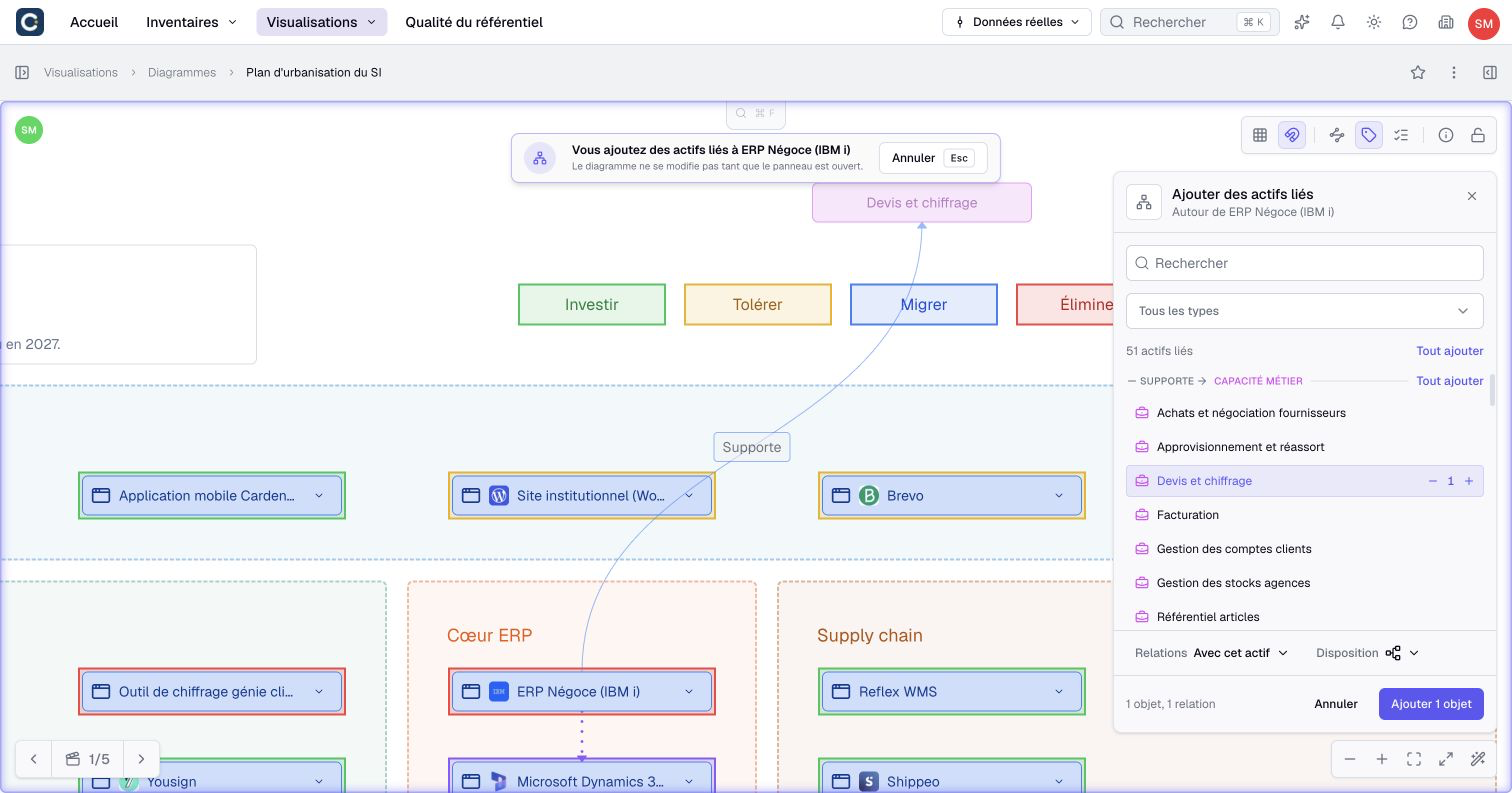
- Select an application and choose Add related assets.
- In the right-hand panel, add the servers you need. Add all selects the whole list or one relationship group.
- Choose With this asset for links to the application only, or With the diagram for wider connections.
- Check the temporary additions around the application on the canvas and confirm. The application keeps its position.
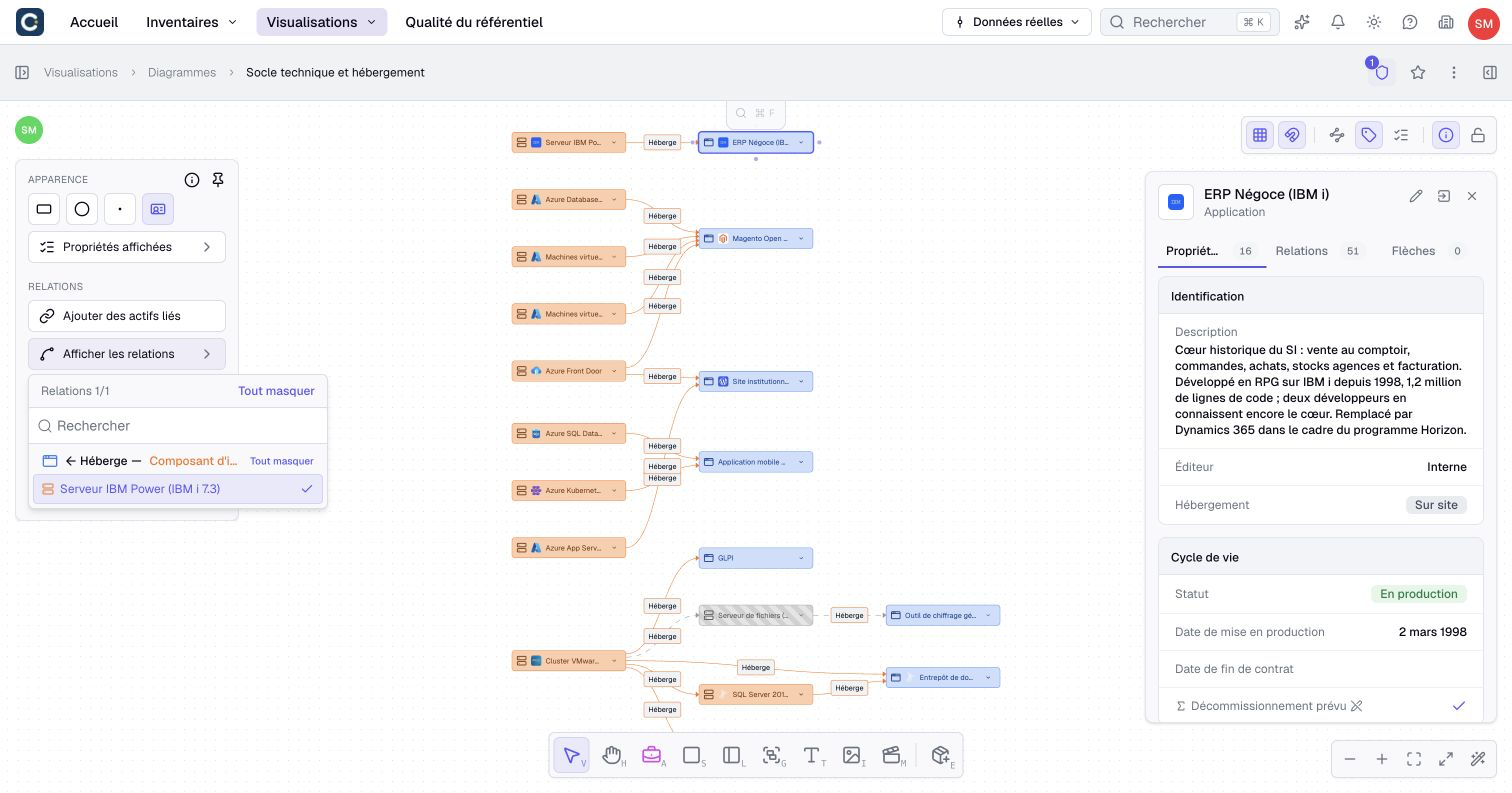
For assets already present, use Display relationships to choose the links to show. Relationships are grouped under headings by type and direction. Search or select a whole group. This menu does not add missing assets. Check individual instances when several relationships connect the same pair of assets.
A line drawn manually starts as a graphical arrow. Selecting a compatible relationship type can reuse or immediately create an inventory relationship, if allowed. Check the endpoints and result before proceeding. The diagram reference explains this distinction and the permissions involved.
Explain and arrange
Add Shapes, Text, Images, Groups or Lanes from the bottom toolbar. Click for a default size, or drag to draw at the desired size. Select several objects to Align, Distribute or give them the Same size.
Open Display and search for a type or property, including types not yet on the canvas. Choose labels and visible properties, using Show all or Hide all for a category. Select a card or relationship to customize its Displayed properties. For example, show an application’s lifecycle status on its card and a relationship’s percentage beneath its name.
Select a link and drag its path or control points to avoid overlap. Reset path removes manual adjustments. In the element list, switch to Layers to reorder objects and move them into groups.
Hiding an object is shared with everyone and also excludes it from image exports. Use it to simplify the composition, not to restrict access to information.
Present and share
Use the diagram’s menu to Export to image, Share or open Version history. Changes to the diagram save automatically. Use the canvas’s lock control when you finish arranging it.
For a guided presentation, create cameras and use Page Up/Page Down to move between them. Press K for a temporary collaborative laser pointer, then Escape to leave it. Follow Arrange and present a diagram for framing, layers and export details.
Removing an appearance does not archive its inventory asset. A diagram also contains drafts and purely graphical objects. Choose a nested map instead when you need a hierarchy computed from your inventory.
Follow Configure a diagram’s display for labels, property categories and individual card settings.