Edit several assets in the table
You need to update the status of ten applications, or fix contract end dates. Opening each page one by one would take time. The table of an inventory works like a spreadsheet: you change the cells, then save everything at once.
This guide takes five minutes.
Before you start
- You need to be able to edit the assets of the inventory. If the Cells edit mode button does not show, ask an administrator.
1. Switch to edit mode
Open an inventory, for example Inventories, then Application. Click Cells edit mode, the pencil in the toolbar, or press Ctrl+E (Cmd+E on Mac).
A Pending changes bar appears above the table. It counts the rows you changed and have not saved yet.
2. Change cells
Click a cell once to select it, then a second time to edit it. Press Enter or Esc to close a simple editor. The changed value stays in the table draft. Use the change review to undo it, or Cancel to discard all pending changes.
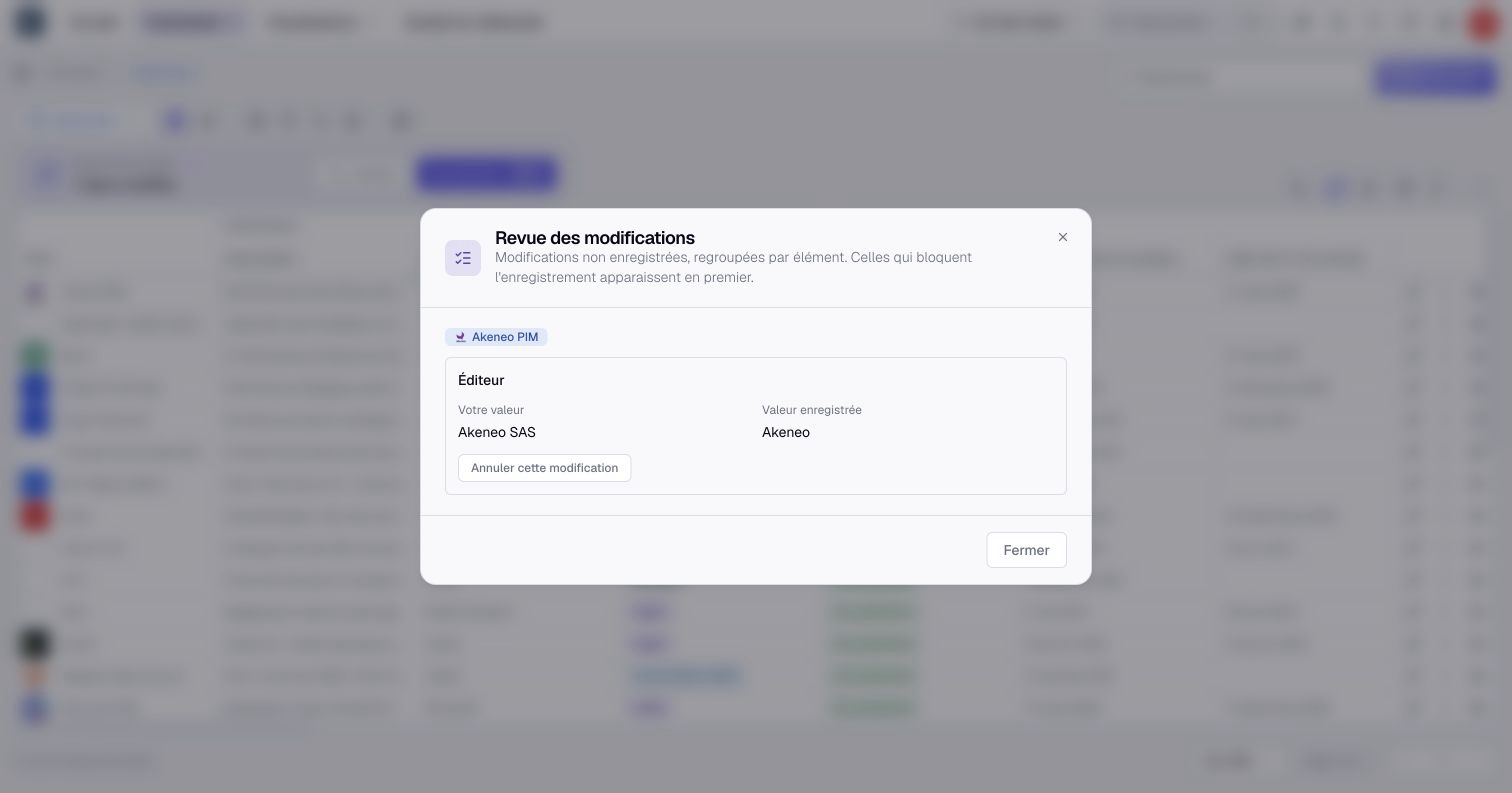
Each kind of cell fills in its own way: a list offers its values, a date is typed or picked in a calendar, a rating is given in stars. Until you save, nothing changes for your colleagues.
3. Link assets without leaving the table
The relationship columns appear in the order chosen with Organize. Their title names the link and the kind of asset at the other end.
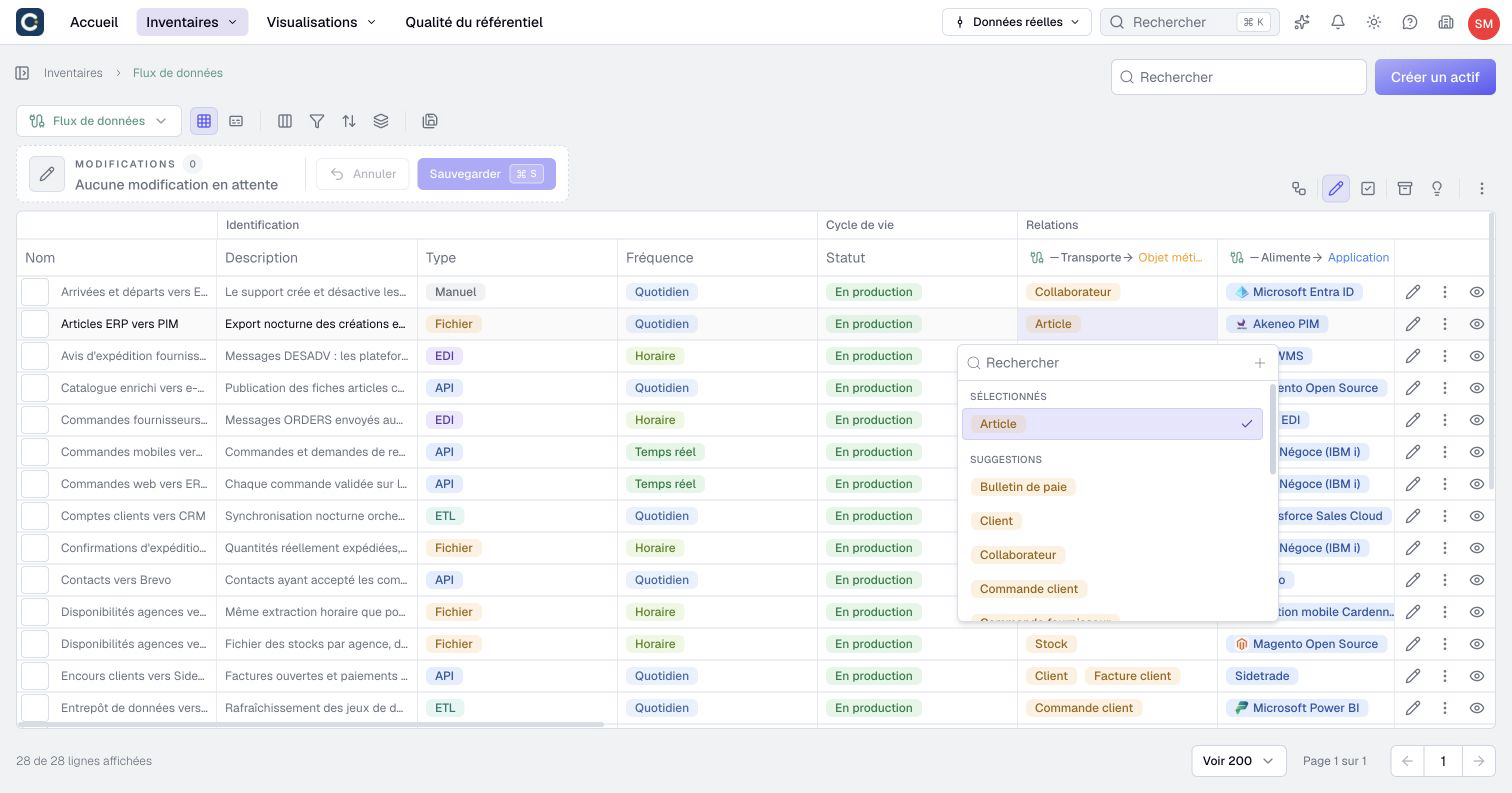
Click the cell twice, then type a few letters or pick an asset from the list.
4. Spot the computed columns
Some columns carry the Σ sign and their values are greyed out. Boldo computes them from other information, for example a recommendation derived from two ratings.
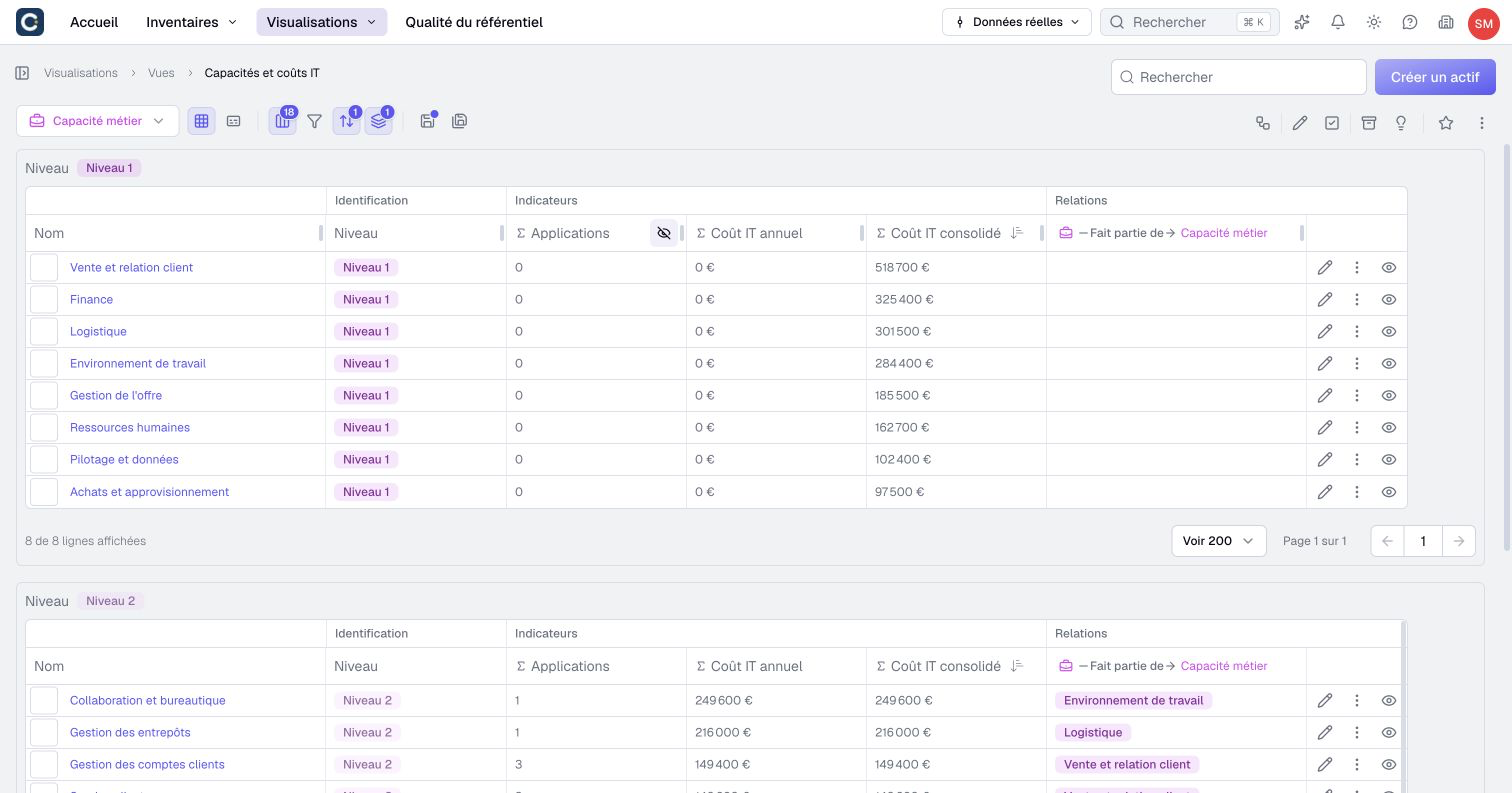
You cannot edit them. Change the information they depend on instead: the result follows.
5. Save, or cancel
When you are done, click Save in the Pending changes bar, or press Ctrl+S (Cmd+S on Mac). All your changes are saved at once.
Changed your mind? Cancel puts every cell back as it was. Then click Cells edit mode again to go back to reading.
6. Do not lose your work
If you leave the page with pending changes, Boldo stops you.
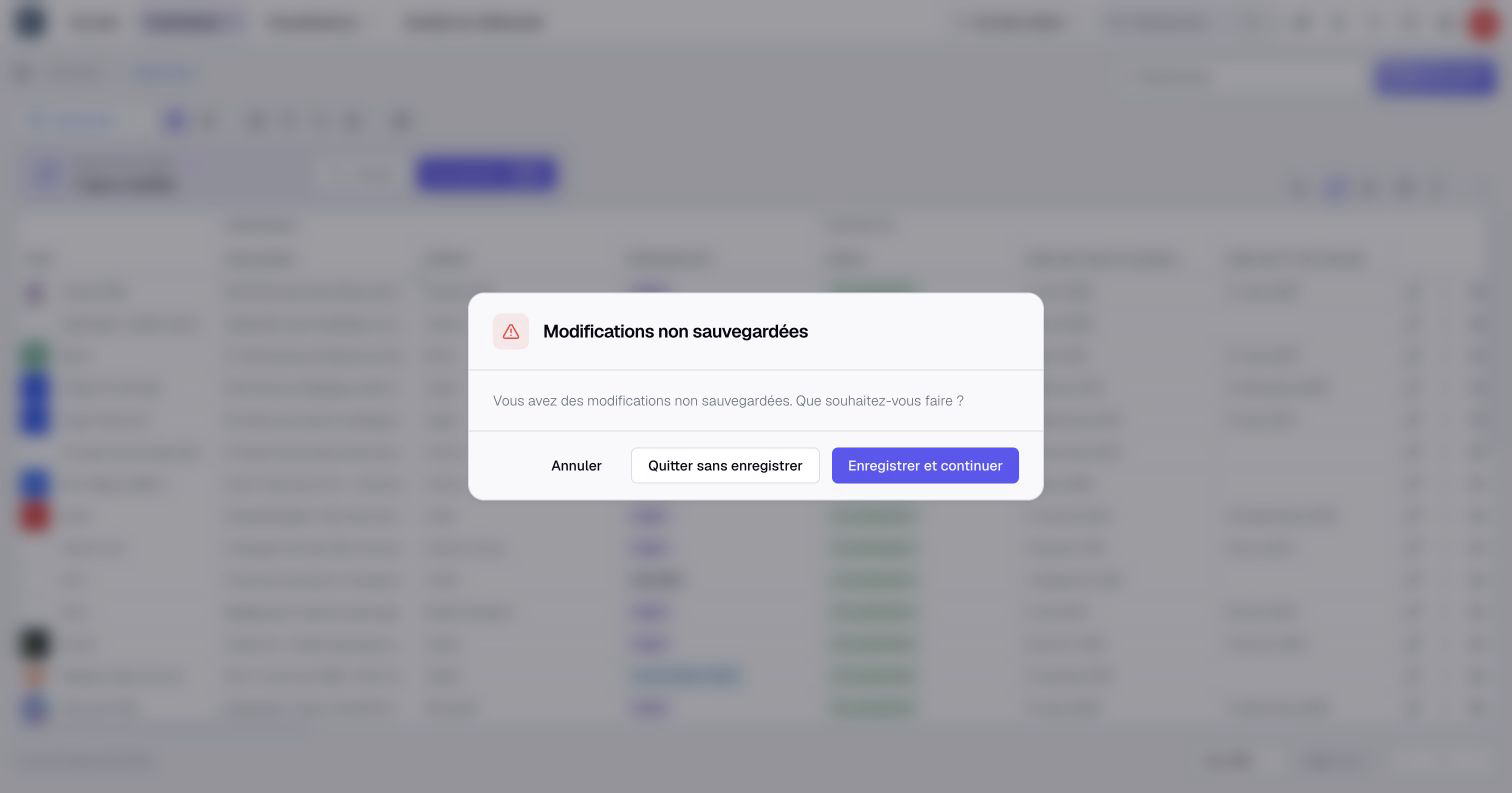
- Cancel takes you back to the table, without losing anything.
- Discard changes drops your changes.
- Save and continue saves, then opens the page you asked for.
To give the same status to twenty applications, use Select multiple assets instead (Ctrl+Shift+E, Cmd+Shift+E on Mac). Tick the rows, then click Update in the selection bar.
Key points
- Ctrl+E (Cmd+E on Mac) switches the table to editing, Ctrl+S (Cmd+S) saves everything.
- Nothing changes for your colleagues until you save.
- Columns marked Σ are computed: change the information they depend on.
Go further
- The page of an asset: to see everything about an asset before you change it.
- Build your first repository: to fill an inventory from scratch.