Export, and manage share links
You are preparing a presentation and need the chart as an image. Or a colleague wants the list of applications in a spreadsheet. Boldo exports visualizations as images and lists as CSV or Excel. If you administer the organization, you also keep control of every share link.
This guide takes five minutes.
Before you start
- Being able to view what you export is enough. An export only holds what you are allowed to see.
- The part on share links is for administrators.
1. Export a visualization as an image
Open a chart, a diagram or a nested map. Click the ⋮ menu at the top right, then Export to image.
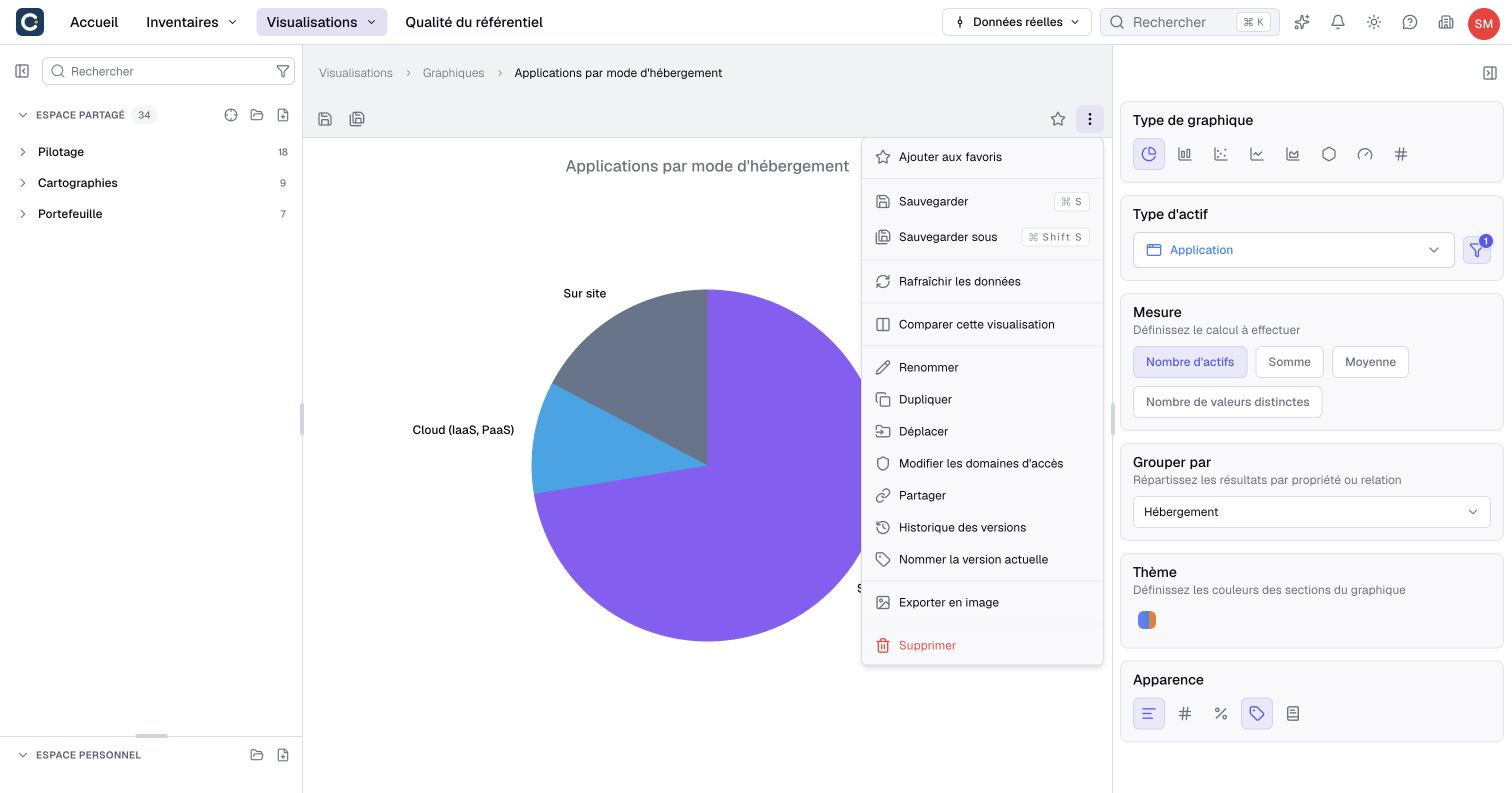
Set the filters before exporting. For a diagram, this menu frames all objects that are not hidden, regardless of your current zoom. To export a specific frame, use a camera's export command: read Arrange and present a diagram.
A dashboard has no general image-export command. Export the source visualizations you need instead. For a process, open Flow editor, then choose Export to image in the page's ⋮ menu.
2. Export a list as CSV or Excel
Open an inventory or a view. In the toolbar, click the ⋮ menu on the right, then Export CSV / XLSX.
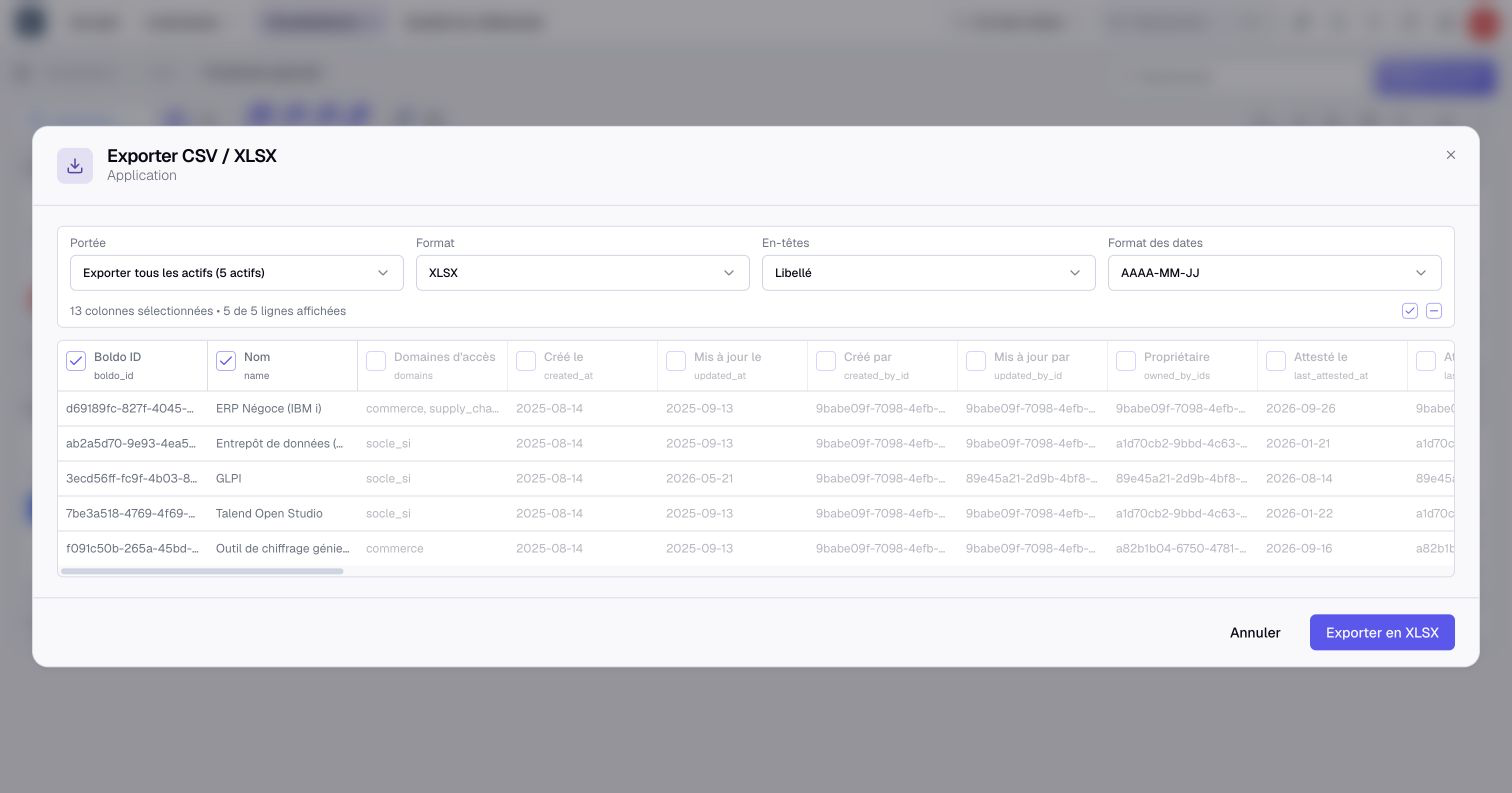
- Scope: selected assets, the current page or all current results. All is the default and respects your filters and search.
- Format: CSV or XLSX.
- Headers: readable labels, or the technical names of the columns.
- Dates format: for example YYYY-MM-DD.
Tick the columns to keep, check the preview, then click Export to XLSX or to CSV. Administrators and Owners can also use Import CSV / XLSX to open the import page.
An impact analysis can be exported too: its table as CSV or Excel, and its paths with Paths (CSV).
3. Find every share link
If you are an administrator, open Organization settings, the building icon at the top right, then Share links.
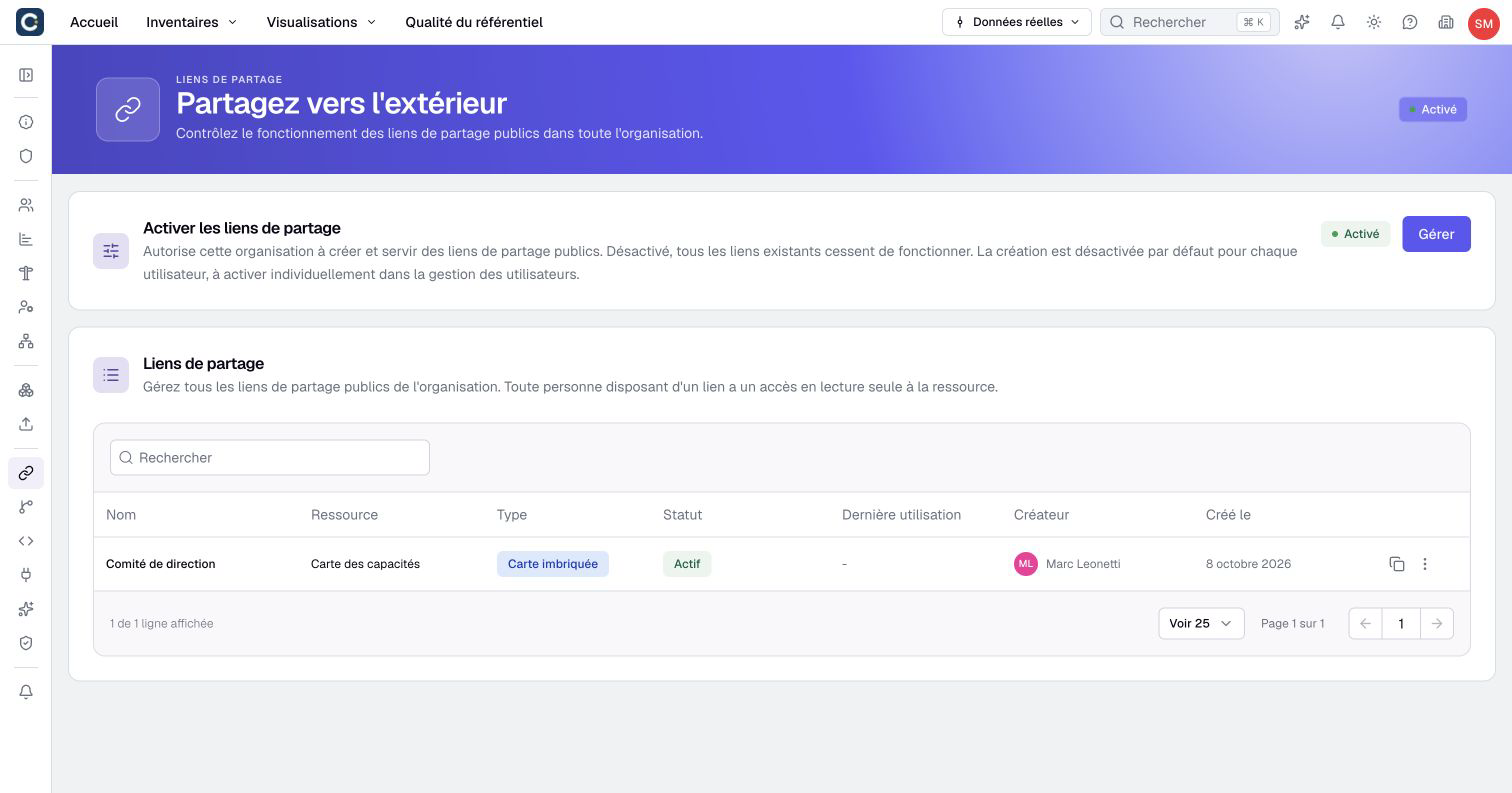
The list shows each link: its name, the shared item, its type, its status, its last use and the person who created it. The ⋮ menu of a link offers Edit and Delete.
4. Decide who can share
The Enable share links block allows links or not for the whole organization. If you turn it off, every existing link stops working.
Link creation is then granted person by person. In Users, edit a member and turn on Allow creating share links.
Key points
- Export to image for a presentation, Export CSV / XLSX for a spreadsheet.
- An export only holds what you are allowed to see.
- The Share links page lets you review everything, and cut everything at once.
Go further
- Share with a link: to create a link from a visualization.
- Invite your team: to allow a member to create links.
- Export data or a visualization and Administer sharing links: the reference pages.