Your first impact analysis
You are asked where the company's personal data travels, or what stops if a server goes down. Following the links one by one takes time, and you miss some. An impact analysis starts from the assets you choose, follows the relationships you point to, and lists everything it reaches. It updates with the data.
This guide takes ten minutes.
Before you start
- Being able to view Boldo is enough to open a saved analysis.
- To create or save an analysis, you need to be able to create visualizations. If you cannot, ask an administrator.
- The analysis only follows relationships already recorded in the inventory.
1. Create the analysis
Open Visualizations, then Impact analyses, and click Create impact analysis. Name it, choose the space and the folder, then click Create.
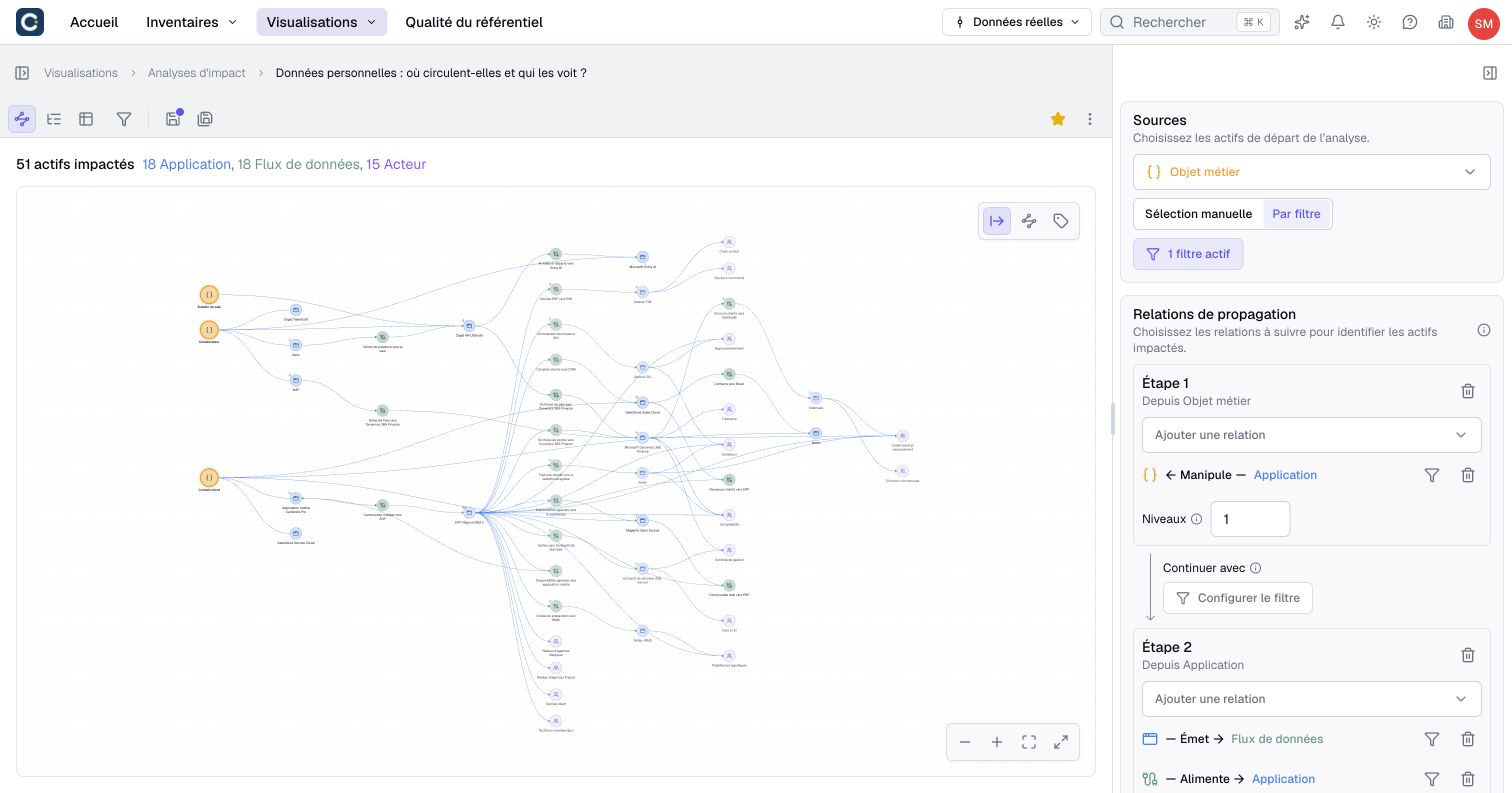
The analysis opens with the configuration panel on the right. It reads from top to bottom: where you start, then which links you follow.
2. Choose the sources
In Sources, choose the kind of asset you start from, for example a business object. There are two ways to pick the assets:
- Manual selection: you tick one or several specific assets;
- By filter: you describe the starting assets, for example the business objects that hold personal data.
3. Choose the relationships to follow
In Propagating relations, click Add a relationship and choose the link to follow, for example the applications that handle this data. Levels sets how far the propagation goes: 1 for direct neighbors, more to go further.
There is no button to run the calculation. The result appears and updates as soon as the configuration is complete. At the top, a counter gives the number of impacted assets, by kind.
4. Read the result
Three views are offered, with the buttons at the top left.
- Graph shows the sources, the assets reached and the links between them.
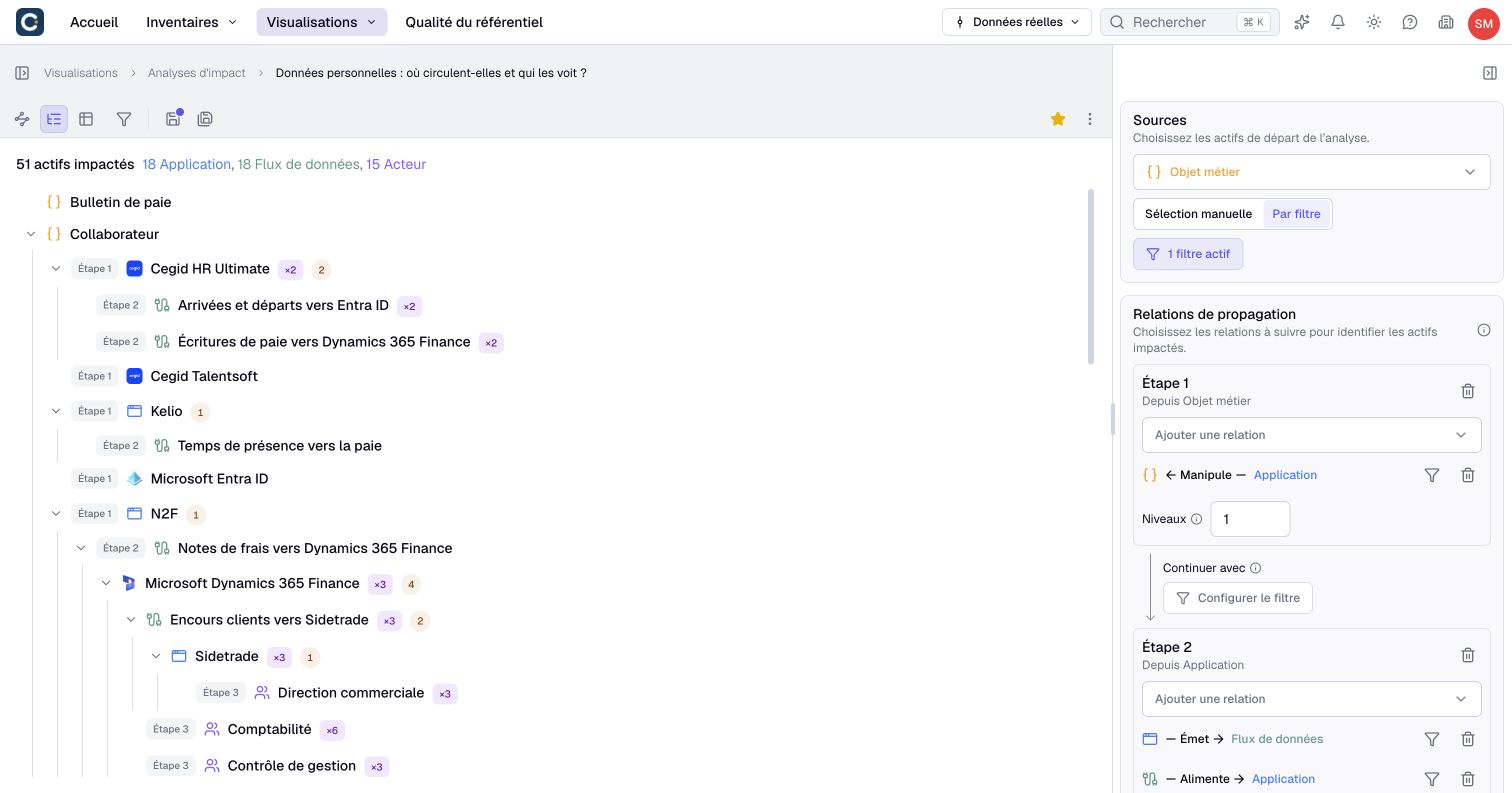
- Tree arranges reached assets as branches, stage by stage. Each asset appears once per stage, even when several paths reach it. It can appear again in another stage.
- Table lists each impacted asset once, with its level, stage, paths, criticality and the relationship through which it is reached.
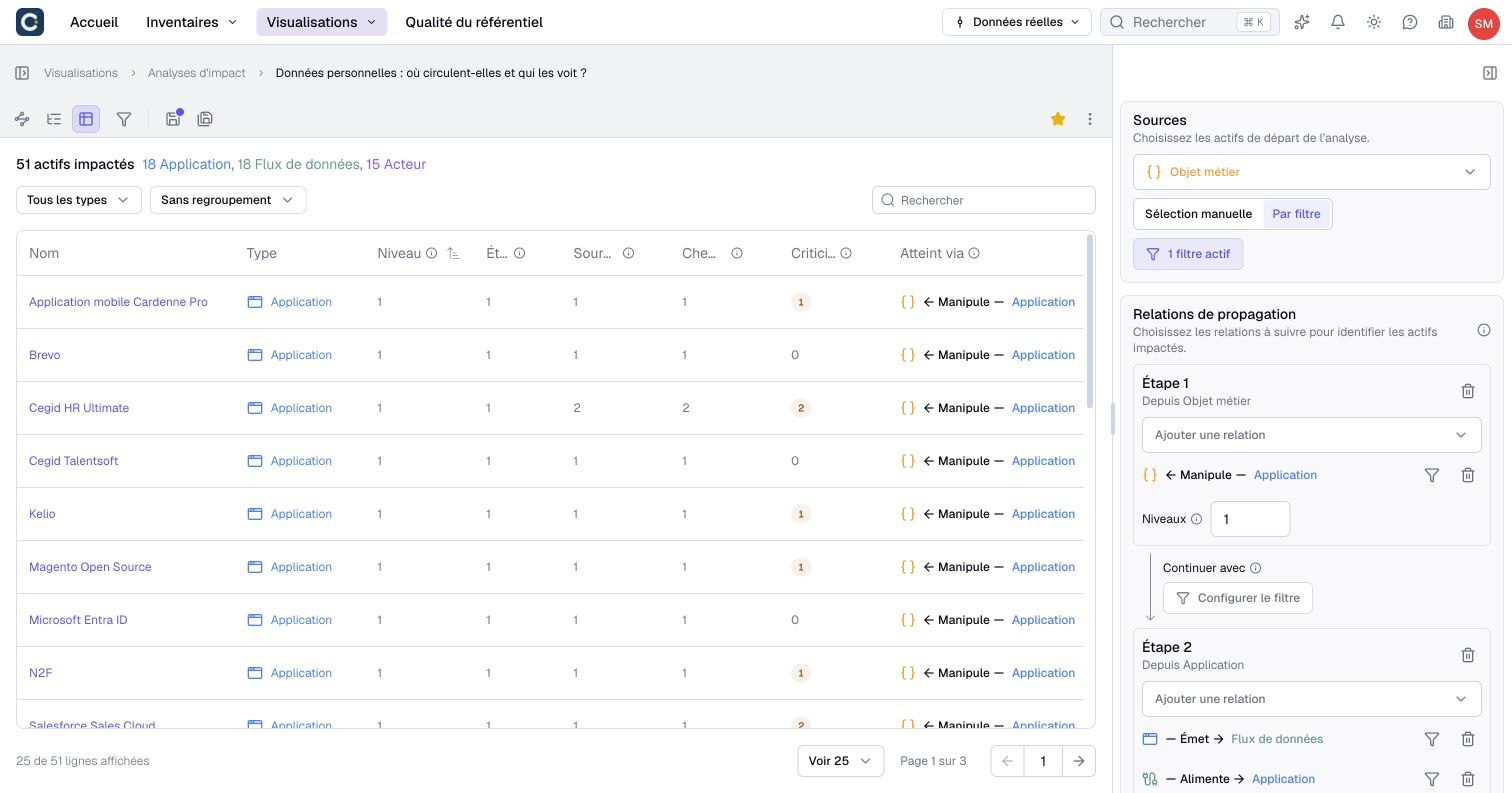
Two columns need a word of explanation:
- Level is the shortest distance from the source. It is neither a duration nor a cost.
- Criticality counts the other assets you can only reach by going through this one. The higher it is, the more this asset is a mandatory passage.
Lay out from the sources, left to right, in the graph controls, arranges the result from its starting points. The arrows keep their business direction. This layout is saved with the analysis and used when converting it to a diagram.
5. Save and share
Click the save icon to keep the analysis, or use Save as to create a variant. The table exports to a file. Convert to diagram turns the result into a diagram, up to 500 assets.
6. Go further: stages and filters
For a sharper question, split the path into stages. In the example, stage 1 goes from personal data to applications, then stage 2 from applications to the flows they send. Open Advanced options, then Split into stages.
Several filters refine the path:
- Filter propagation limits what can be crossed;
- Continue with, between two stages, chooses which assets reached start the next stage;
- Stop conditions keep an asset in the result, but stop the propagation after it;
- Displayed assets hides results without changing the path.
With Auto, the depth is limited to 30 levels for the whole analysis.
Key points
- An impact analysis starts from sources and follows relationships: it only sees the recorded links.
- The result updates on its own, as a graph, a tree or a table.
- The level is a distance, the criticality points out mandatory passages.
Go further
- Assess the impact of a decommissioning or an outage: a full case, from the question to the shared answer.
- Document a relationship: so that the analysis finds the right links.
- Analyze the impact of a change: the reference page, with every filter and export.