First steps in Boldo
You have just arrived in Boldo and you want to know which applications your company uses, what they rely on and who looks after them. Boldo keeps this information in one place. Each team keeps its own part up to date, and everyone reads the same thing.
This guide takes ten minutes. You will find an application, read its page, open a dashboard and learn how to find anything.
Before you start
- You need a Boldo account. If you received an invitation by email, you have one.
- Being able to view Boldo is enough. You do not change anything in this guide.
- Your organization was just created? It is still empty, and the screens in this guide will be empty for you too. Read the last part first.
1. Find your applications
Click Inventories in the top bar. An inventory is a list: one for applications, one for servers, one for teams, and so on.
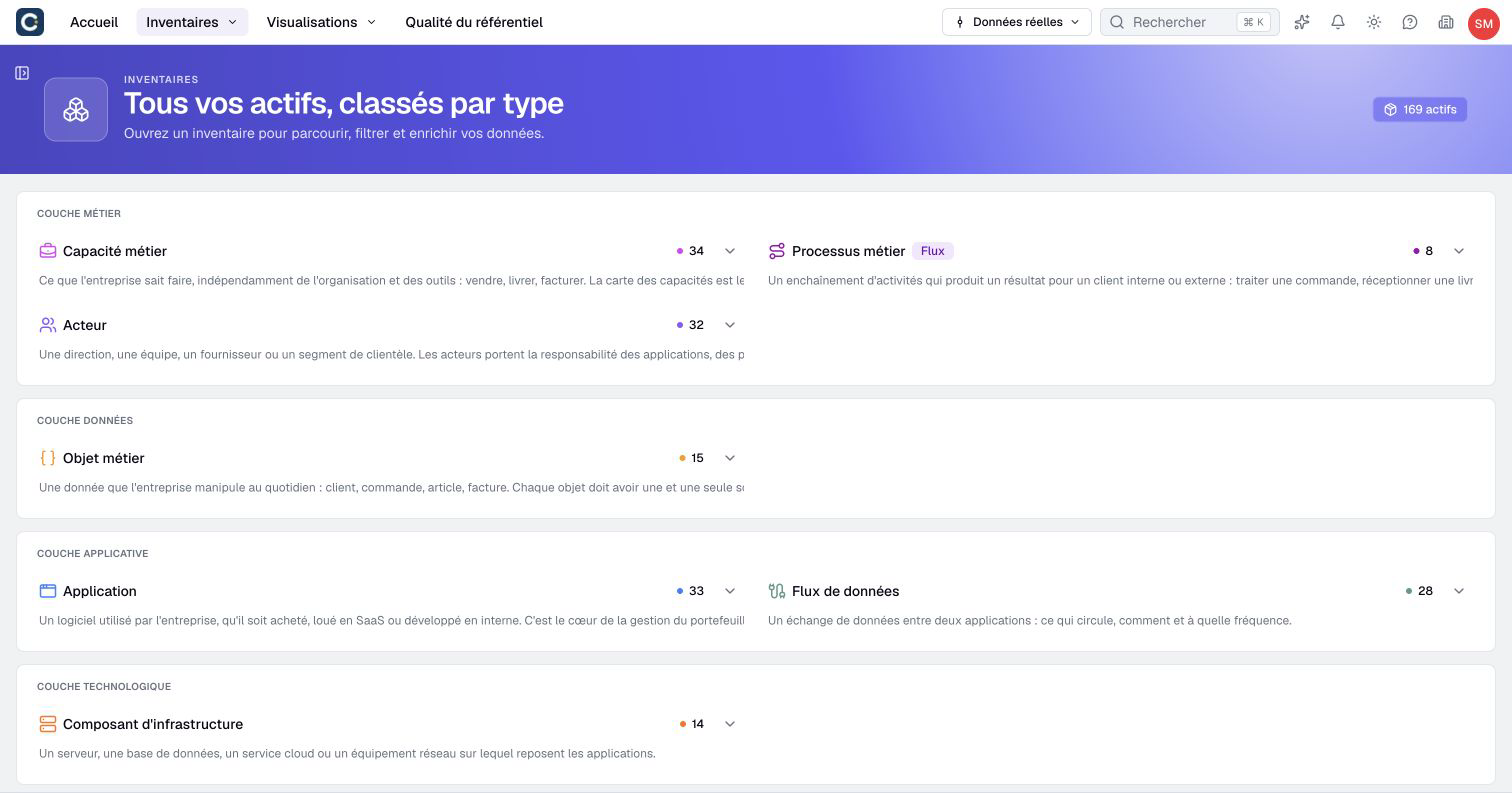
Click Application. The list opens as a table, with one row per application.
Boldo calls each item in these lists an asset: an application, a server, a team, a project. You will see this word everywhere, for example on the Create asset button. The glossary lists all of Boldo's words.
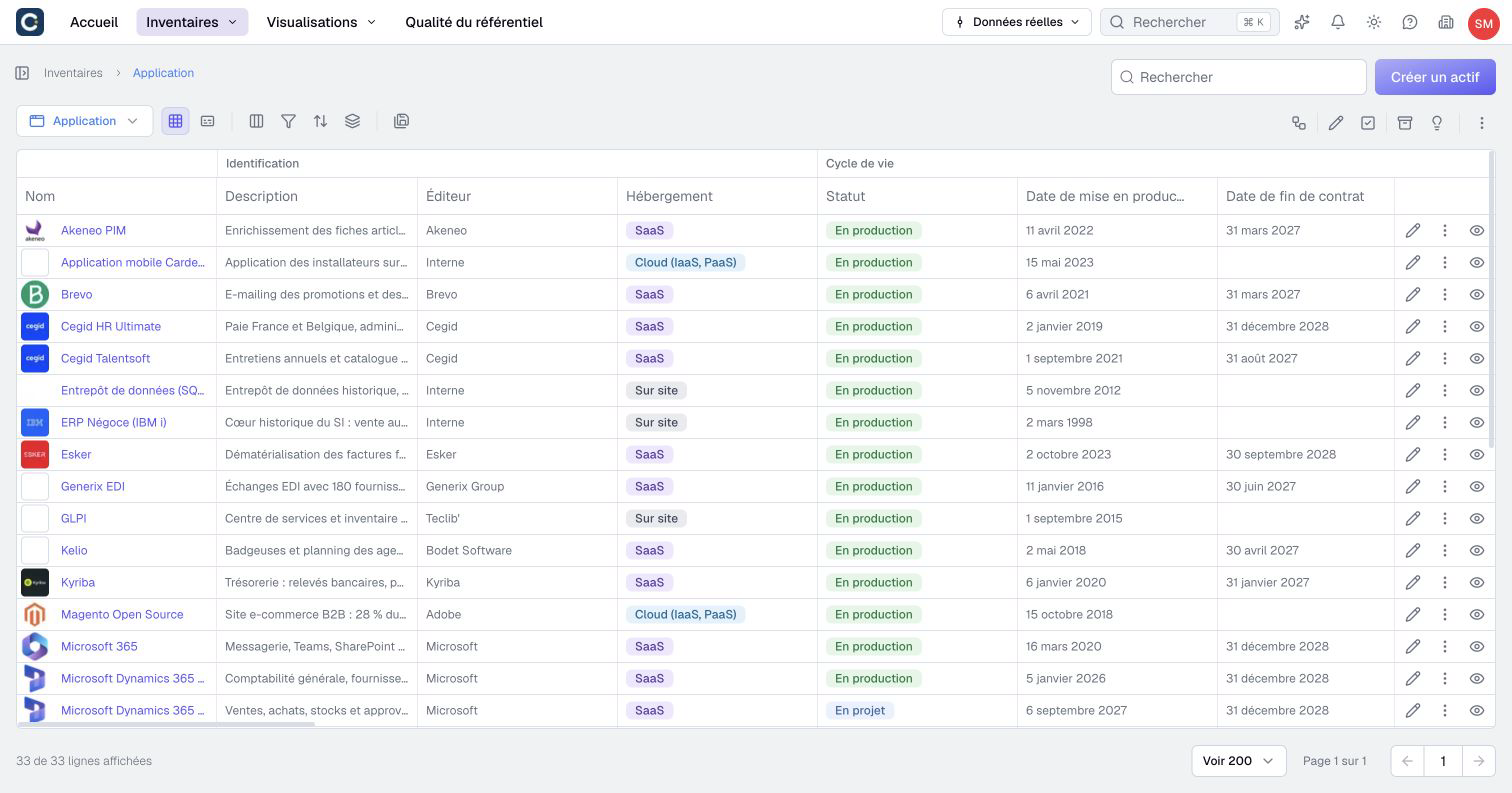
2. Read the page of an application
Click the name of an application to open its page.
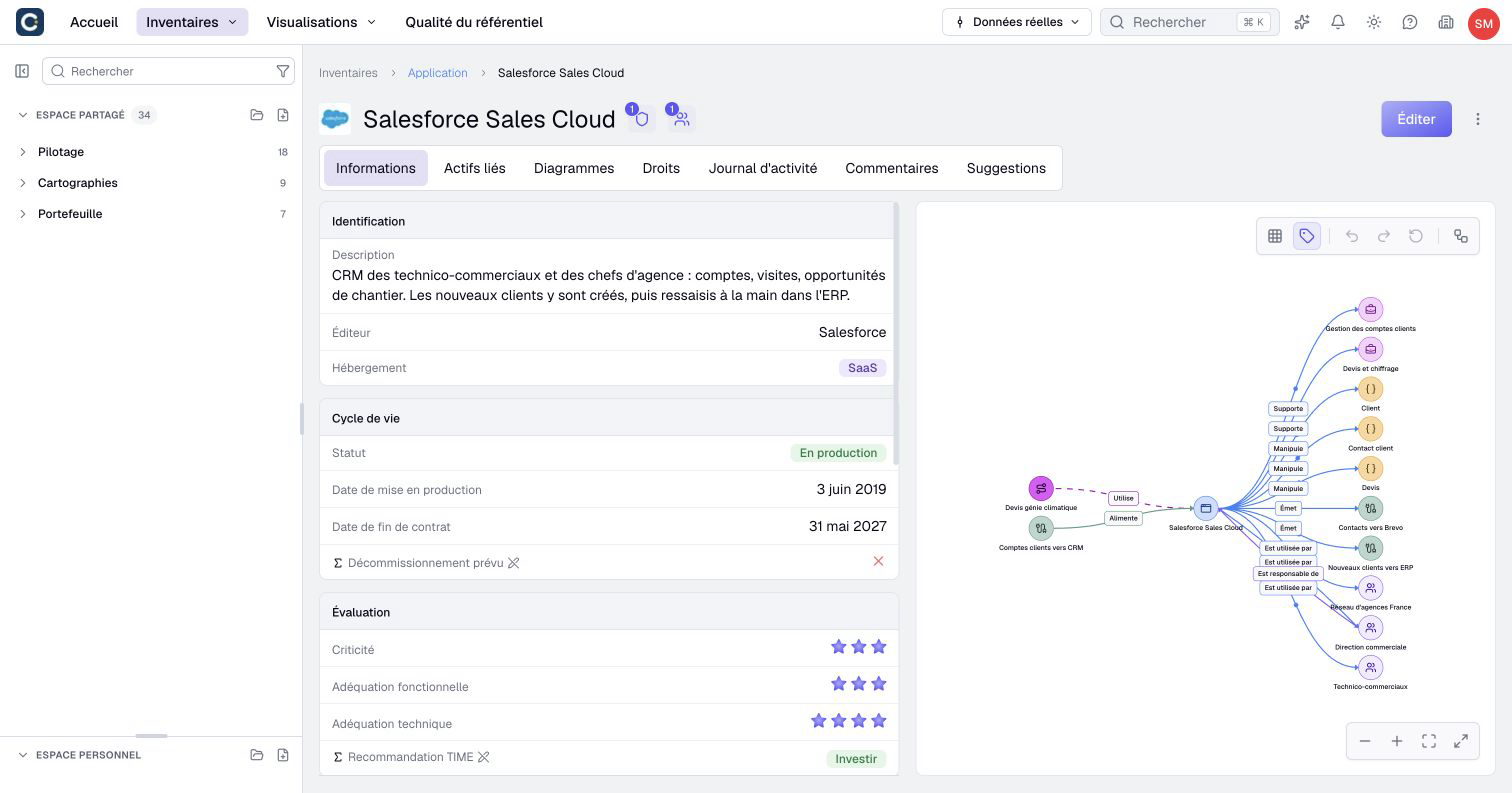
The page answers two questions:
- What is it? On the left: its description, status, dates and costs.
- What is it connected to? On the right: the server that hosts it, the teams that use it, the data it exchanges, the projects that change it.
The tabs at the top tell you more. Activity log shows who changed what. Comments is where you talk with your colleagues.
You spot a mistake but cannot edit the asset? Open the Suggestions tab, click Suggest and describe the correction. Someone with the required permissions can review and apply the suggestion. Owning the asset does not grant those permissions.
3. Open a dashboard
Inventories are for looking things up. Visualizations are for showing them: filtered tables, charts, diagrams, dashboards. Click Visualizations in the top bar, then Dashboards, and open one.
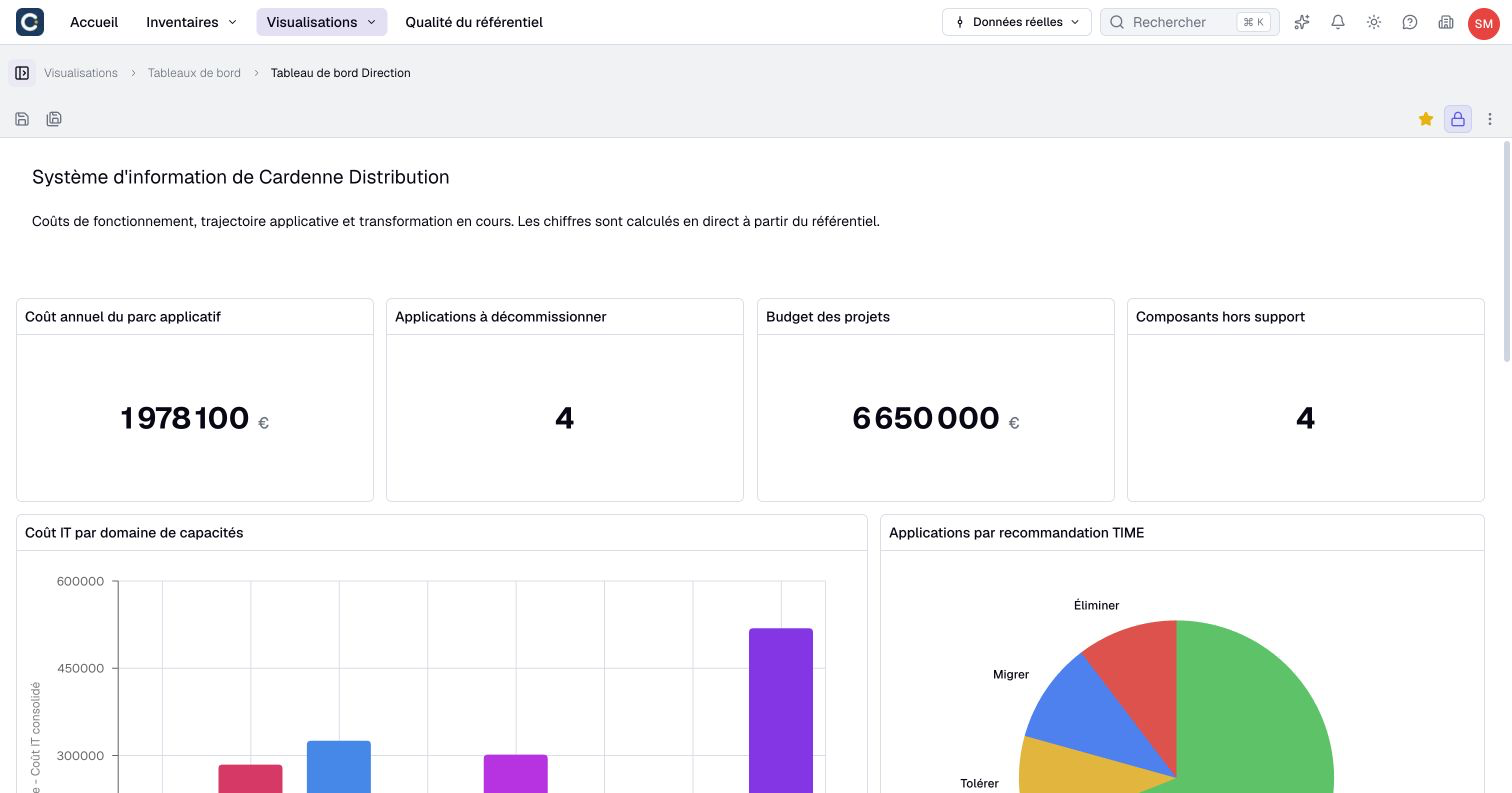
The figures are computed from the assets. When someone corrects an application, the dashboard changes too.
To find a dashboard again later, click the star next to its title: it joins your favorites, on the Home page. Visualizations are also stored in folders, in the panel on the left.
4. Find anything
Press Ctrl+K (Cmd+K on Mac), or click Search in the top bar. Type a few letters: Boldo searches assets, visualizations and settings pages. You do not need the full name.
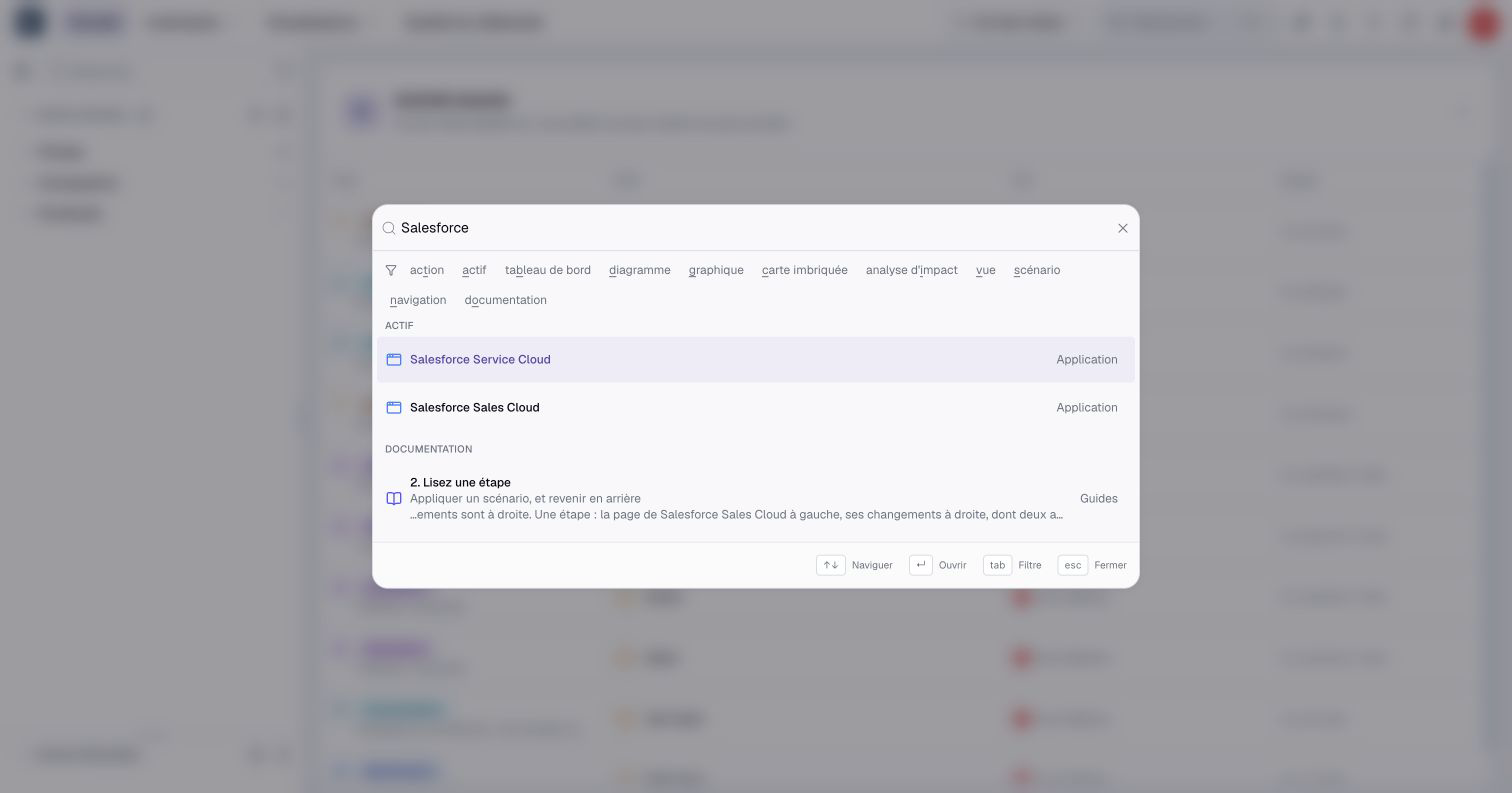
Move with the arrow keys and open a result with Enter. Opened without typing, the search shows what you looked at recently.
If your organization is still empty
A new organization has no application, no dashboard and no activity yet. The Activity tab of the home page says No recent activity, and each inventory shows 0 assets. Pick your starting point:
- You already have a list in Excel. Import it: each row becomes an asset. Read Bulk import from CSV or Excel.
- You want to try with a few items. Create two applications, link them and draw a first diagram, in five minutes. Read the Quick start.
- You are setting up Boldo for your whole team. Invite your colleagues, describe your first applications and organize who can see what, step by step. Read Build your first repository.
- You do not know where to begin. Ask the assistant, for example "How should I start documenting our applications?". Read Get help from the AI assistant.
Key points
- Lists are in Inventories, dashboards and diagrams in Visualizations.
- The page of an asset tells you what it is and what it is connected to.
- Ctrl+K (Cmd+K on Mac) finds anything, from any page.
Go further
- Your home page, day to day: what is waiting for you each day.
- Get help from the AI assistant: ask your questions in plain words.