Your home page, day to day
You keep a handful of applications or servers up to date. Colleagues suggest corrections, some information gets old, a field was never filled in. The Home page gathers all of this in one place, and walks you through it one asset at a time. A few minutes a week are enough for your colleagues to trust what they read.
Before you start
- Suggestions lists the suggestions on the assets you own and the creation suggestions naming you as an owner, with or without quality tracking. Those you cannot process stay listed, waiting for another member.
- With quality tracking on, To attest and Incomplete add the work on the assets you own. Owning an asset lets you attest it. Applying corrections or accepting suggestions also requires Editor access and the relevant rights.
- Quality tracking must be included in your plan and turned on by an administrator. Without it, the page still lists the suggestions you can review, the suggestions you sent, the activity and your favorites.
Home and its guided reviews follow the selected context. In a scenario, you can handle suggestions and complete assets. Attestation remains available only in real data.
1. Read the summary
Click Home in the top bar. With quality tracking, the banner shows how many assets you own and their quality score. The To do and My suggestions tabs show the counts of work you can handle and pending suggestions you sent.
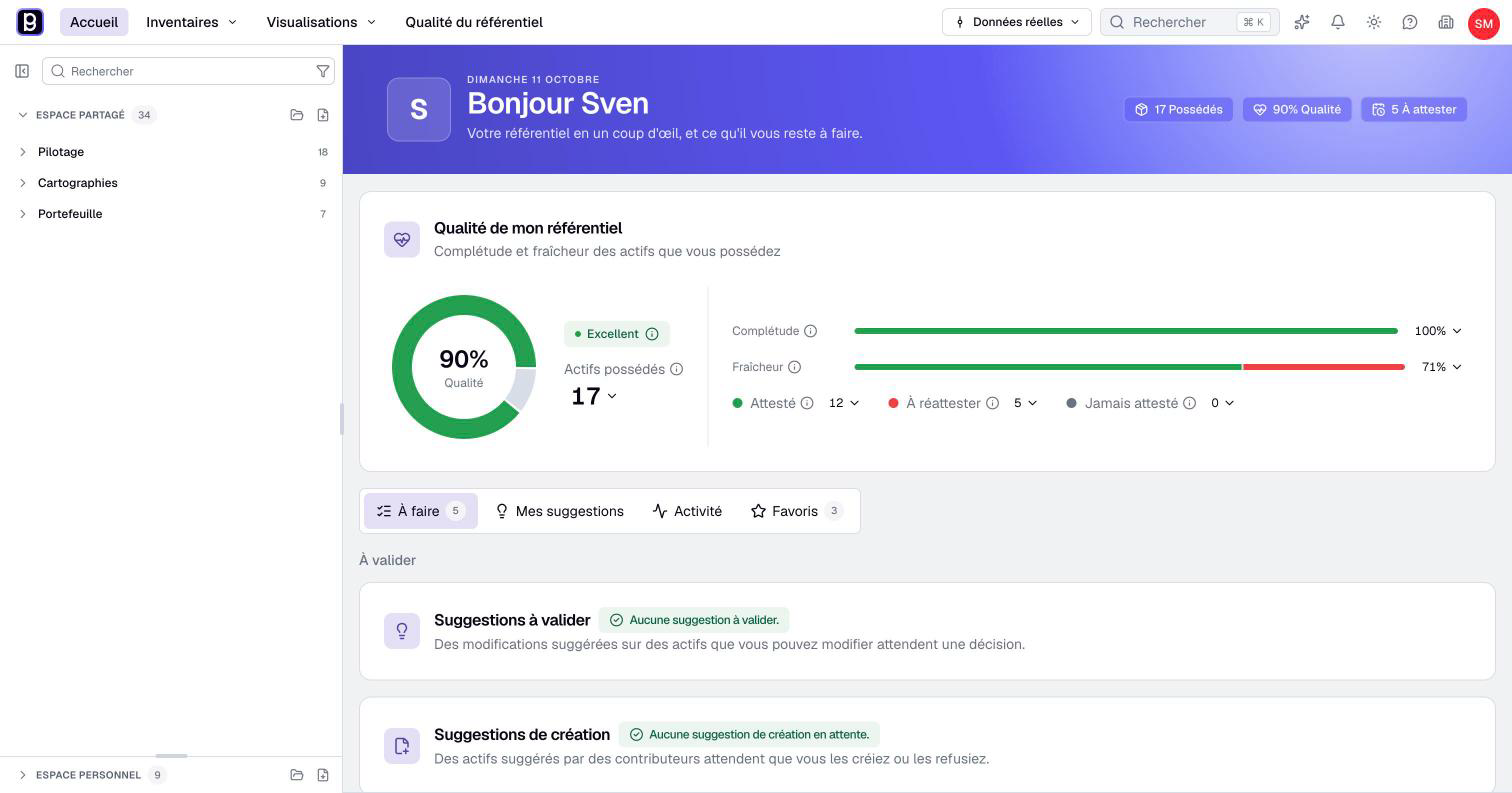
With quality tracking, My repository quality sums up the state of your assets. It only covers the assets you own, not those of others.
- Completeness tells you how much of the expected information is filled in.
- Freshness tells you how many of your assets are confirmed and still valid. An asset whose last confirmation is too old, or for which someone requested a new one, is To re-attest. An asset nobody ever confirmed is Never attested. Together they make up your To attest list.
In a scenario, freshness and To attest are hidden. The quality score still includes the freshness inherited from real data. See how combined scores work.
2. See your to-do list
The To do tab lists Suggestions: the changes suggested on your assets and the assets suggested with you as an owner. With quality tracking, To attest and Incomplete follow for the assets you own. Open a category to see its assets, or click Review all to go through them one by one.
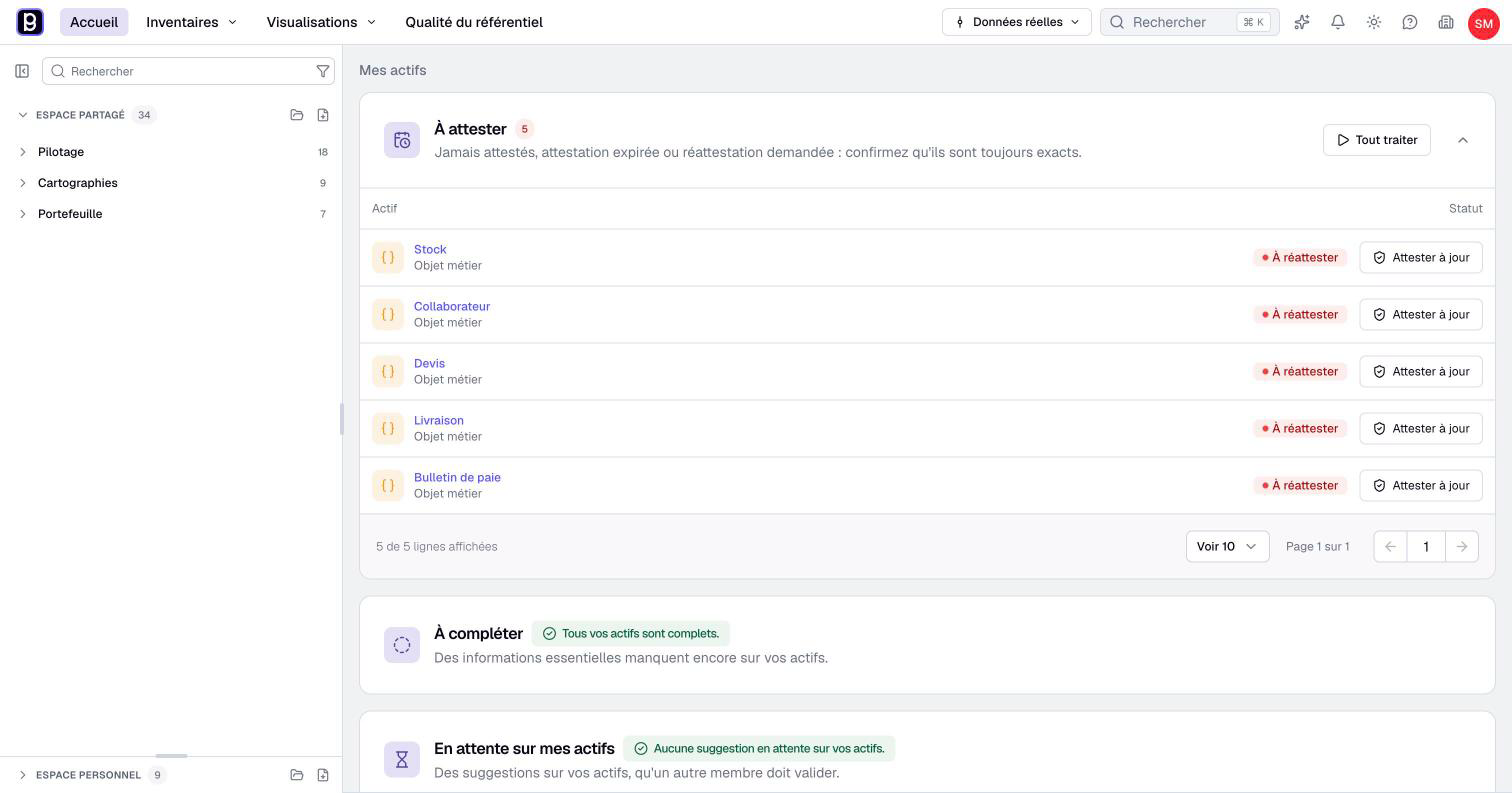
The same asset can appear in several categories. Handle it in each one.
3. Handle suggestions
A colleague who cannot edit one of your assets can suggest a change: this is a suggestion. You decide. Click Review all in Suggestions. A suggestion you cannot process, because you cannot edit the asset, stays listed, marked Waiting on another member, with its Review action disabled: hover it to see who can accept it.
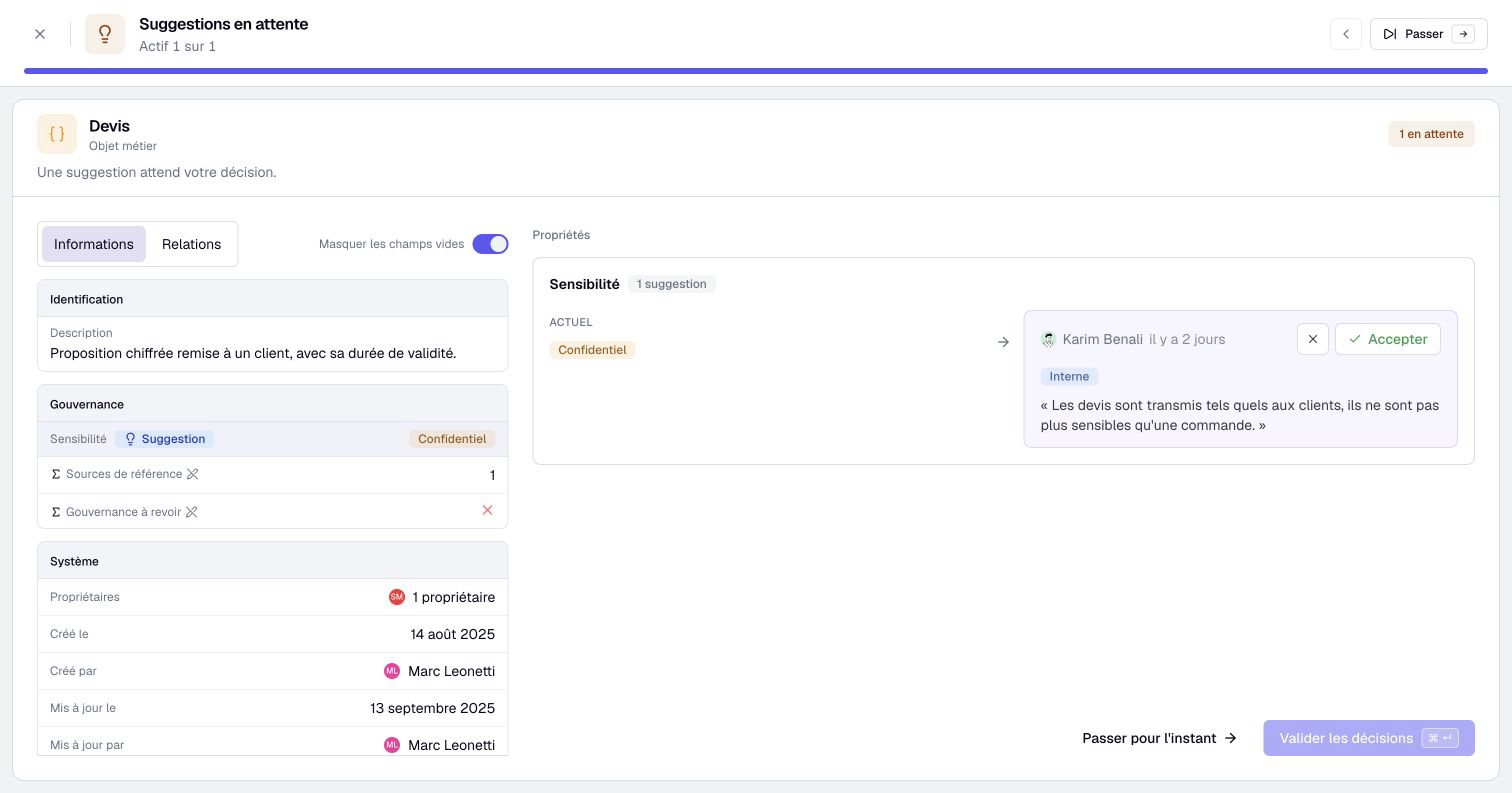
Each review card shows the Current value beside the Suggested values, their authors and notes. Choose Accept or Reject, then Confirm N suggestions to apply your choices. With a single suggestion, that button reads Accept the suggestion or Reject the suggestion. Accept all prepares uncontested suggestions you can accept; competing alternatives require a choice. Prepared rejections remain in place.
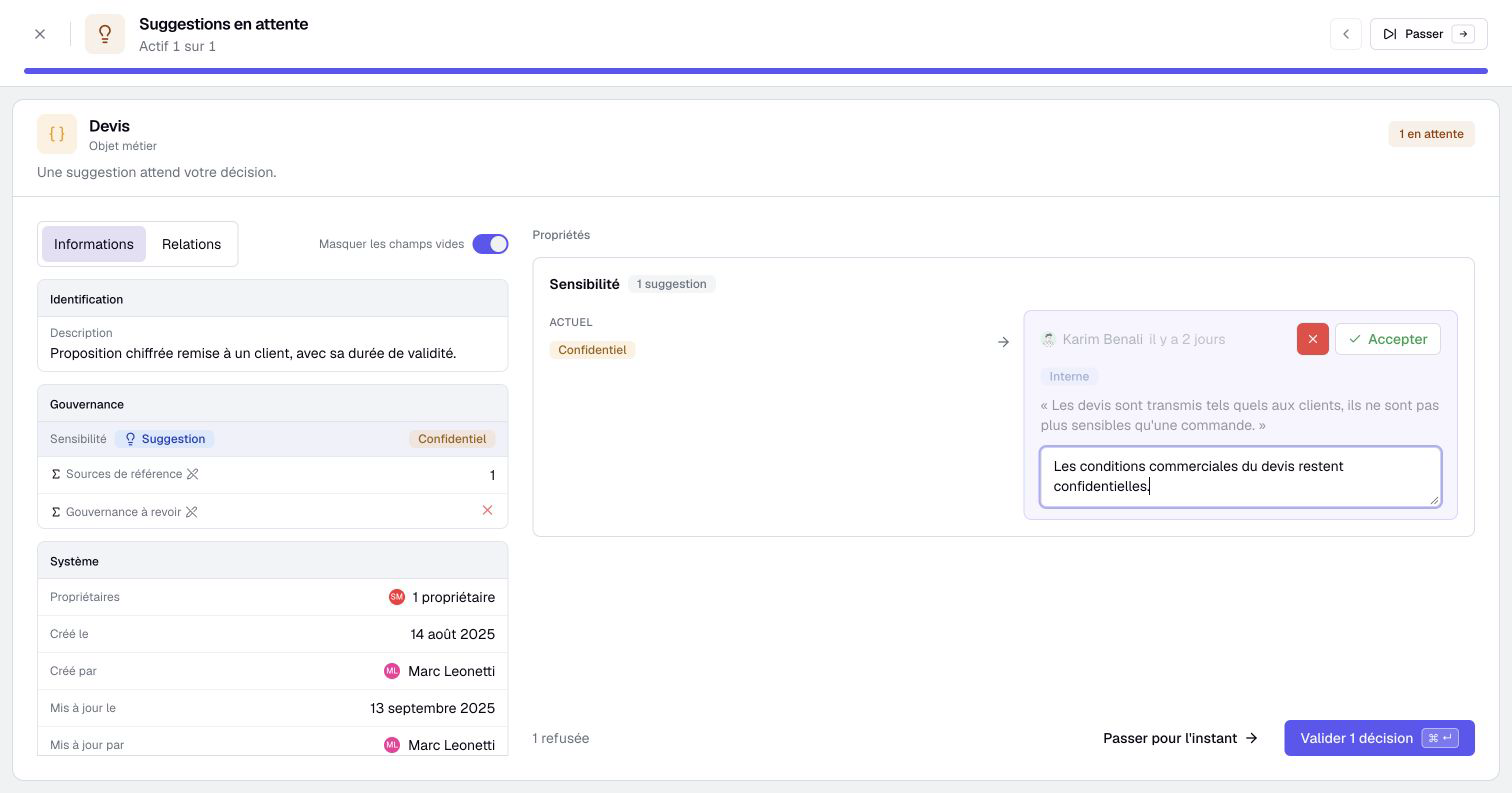
When you reject a suggestion, explain why in the box that appears. The reason stays in the resolved suggestion. An individual refusal can also include it in the author’s in-app notification; notifications for suggestions resolved together omit individual reasons.
Not sure yet? Click Skip for now. The asset stays in your list for next time.
For a creation suggestion, inspect the properties and suggested relationships together. Create adds the asset and accepts eligible relationships. The others remain pending. The author or an authorized creator can correct the suggestion first. Refuse discards it.
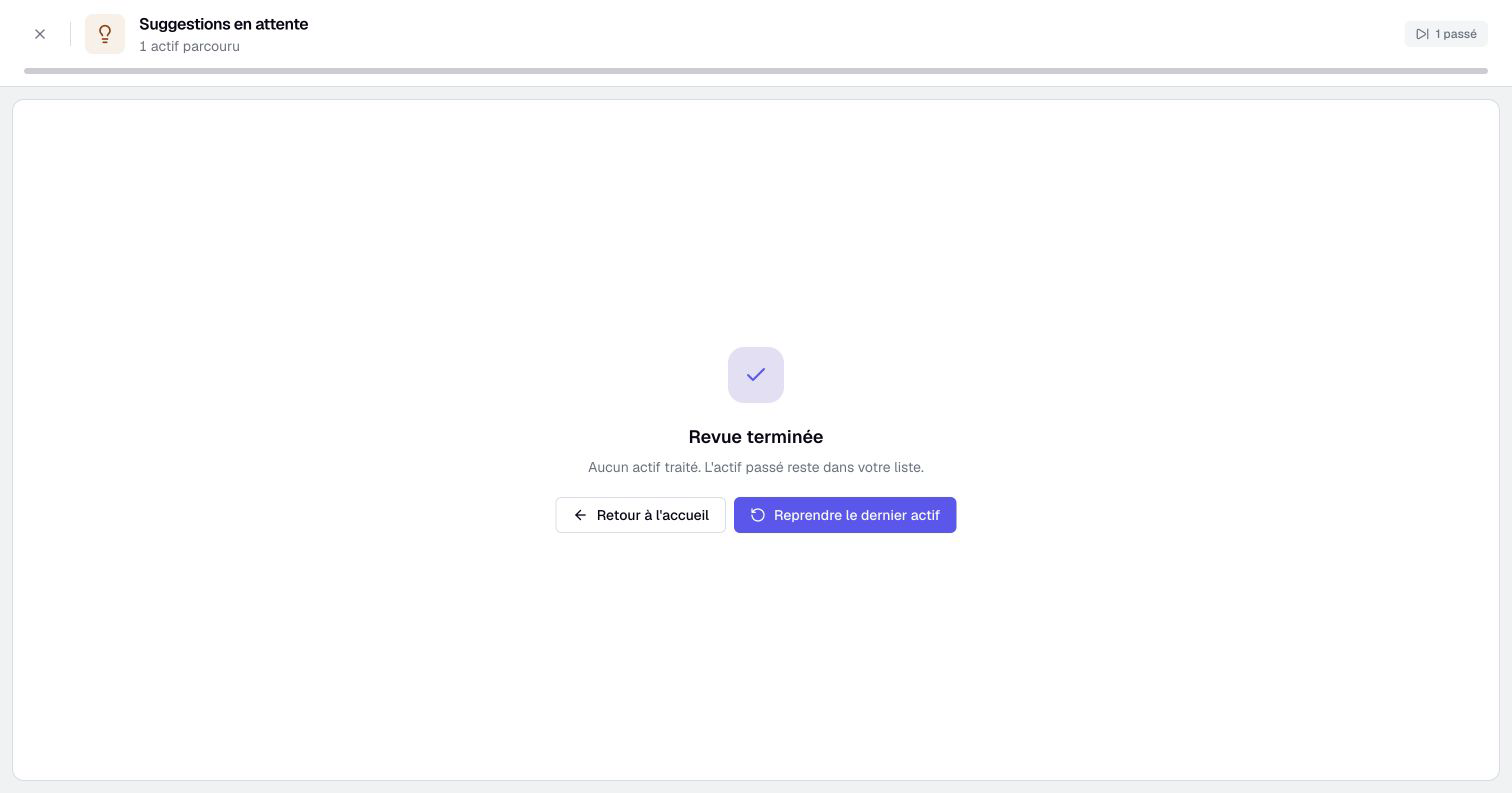
At the end, Boldo tells you how many assets you handled and how many you skipped. The resume button brings you back to the skipped assets.
4. Confirm that your assets are up to date
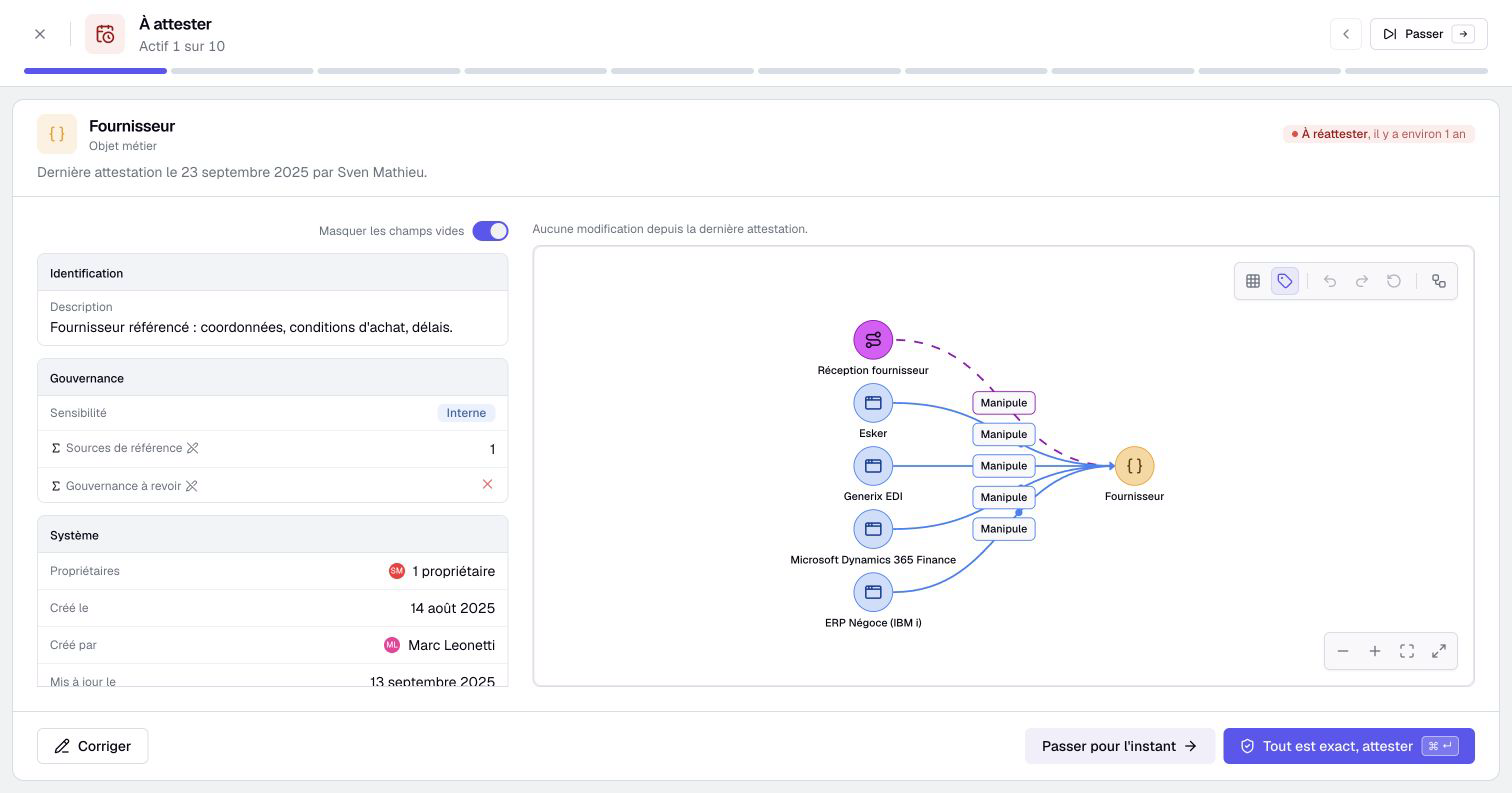
In Real data, click Review all in To attest. Each step shows an asset with its information and its relationships. Read it, then:
- if everything is still right, click Attest. The asset is confirmed as up to date, and its freshness starts again from today.
- if something is wrong, click Correct or Suggest a correction, depending on your rights.
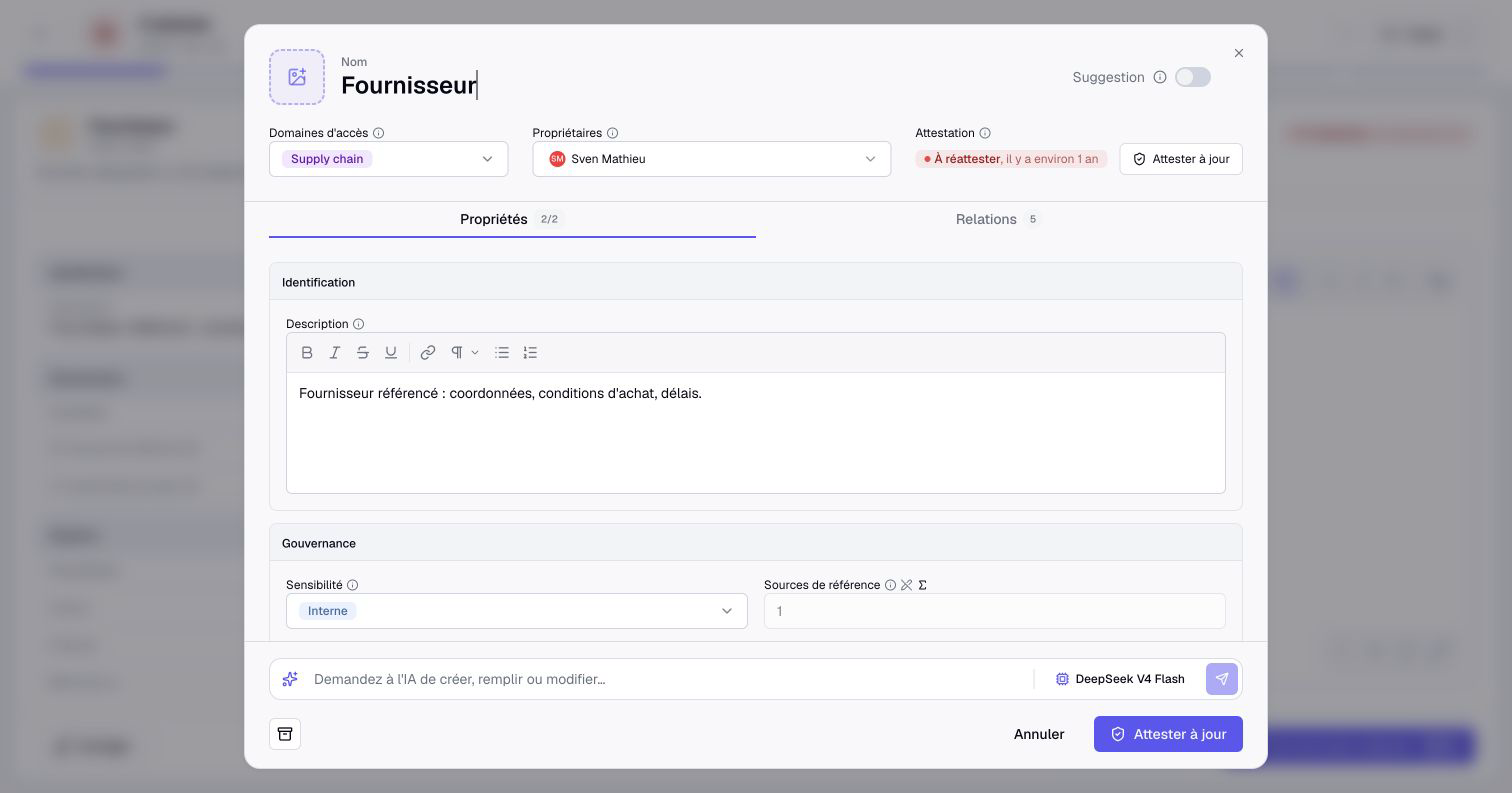
With edit rights, Correct opens the editing form. Fix the information, then use Save and attest when offered. If the form includes suggestions, Send suggestions sends them for review without attesting the suggested values. Without edit rights, Suggest a correction follows this suggestion workflow.
Saving a correction without attesting does not renew freshness. Attesting is what tells your colleagues that someone checked.
5. Fill in what is missing
With quality tracking, click Review all in Incomplete: it lists the assets you own. For each asset, Boldo shows the accessible empty fields that count toward completeness. Fill them in, then click Save and continue, or Suggest and continue when you can only suggest changes. Fields you can read but cannot edit are sent as suggestions. Only changes you can apply improve the projected score; suggestions improve completeness when an authorized Editor accepts them.
Edit everything opens the whole asset when you want to change more than the missing fields.
In every review, the right arrow key skips to the next asset, and Ctrl+Enter (Cmd+Enter on Mac) confirms the current step.
6. Look back and find your favorites
The My suggestions tab follows the suggestions you sent: pending, accepted or refused.
The Activity tab shows creations, updates, suggestions, comments and archiving on the assets you can read, and attestations with quality tracking, with who did what and when. With quality tracking and assets you own, My assets keeps only the activity on your own assets, and Everything brings back the rest. Its chart and its detailed list cover the last twelve weeks.
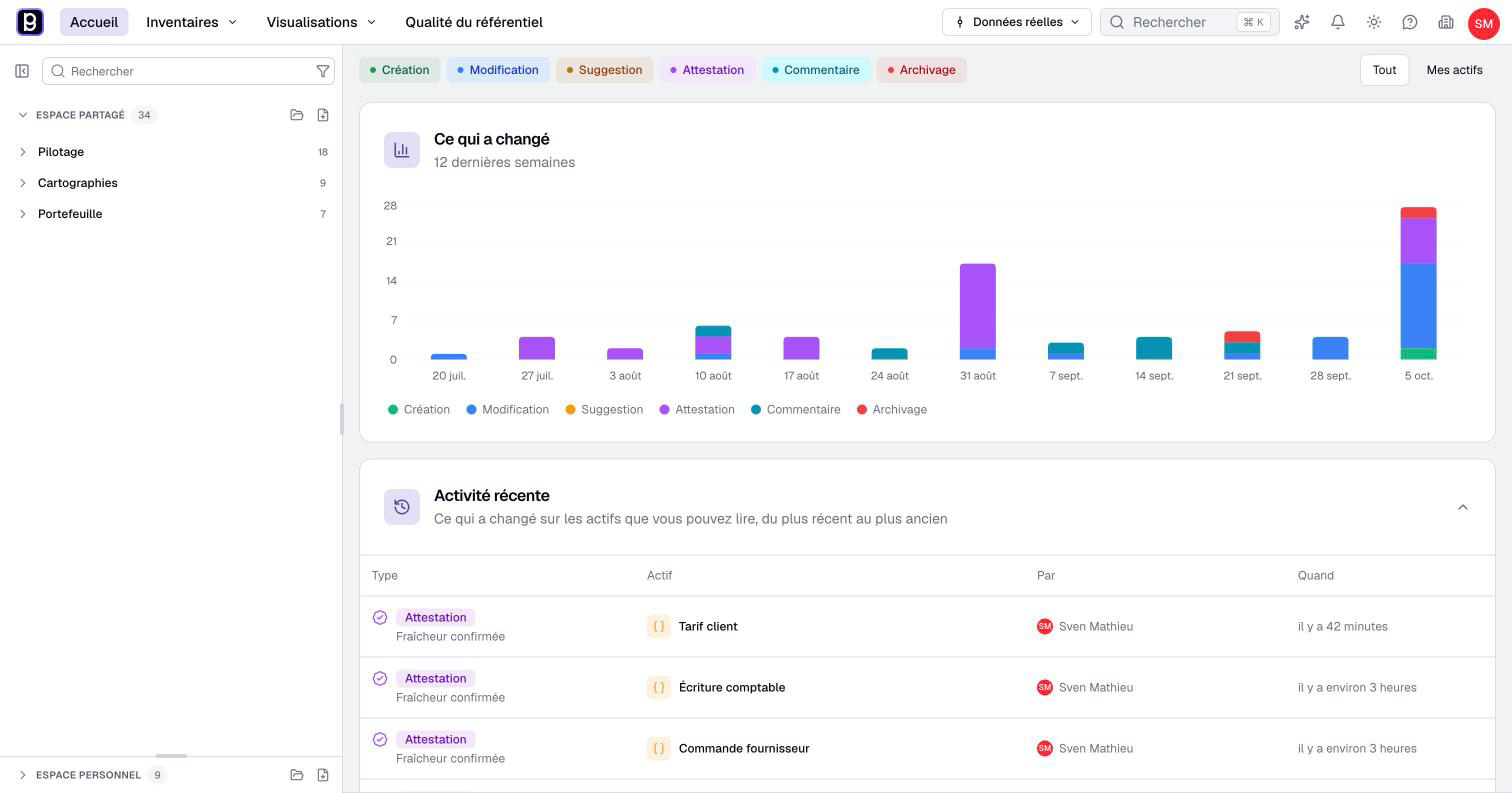
The Favorites tab brings back the views, charts, dashboards and diagrams you starred. Use it for the visualizations you open every week. Below, Recently opened lists what you opened lately in this browser.
Key points
- Suggestions covers the assets you own and the suggested assets naming you as an owner; you process those you can. With quality tracking, To attest and Incomplete add the work on the assets you own.
- Accept or reject suggestions, and give a reason when you reject.
- Attesting confirms an asset is up to date. Correcting alone does not.
Go further
- Set up repository governance: if you organize this follow-up for the whole team.
- Get help from the AI assistant: let the assistant fill in the missing fields for you.