Invite your team
You have started describing your applications. It is time to bring in the colleagues who know them: the architecture team, the leads of each domain, the management who reads. Give each person access with the rights that match their role.
This guide takes five minutes. It is an administration guide.
Before you start
- You need to be an administrator of the organization.
- Prepare the list of people and, for each one, what they should be able to do: view, edit, or administer.
1. Open the list of members
Open Organization settings, the building icon at the top right, then Users.
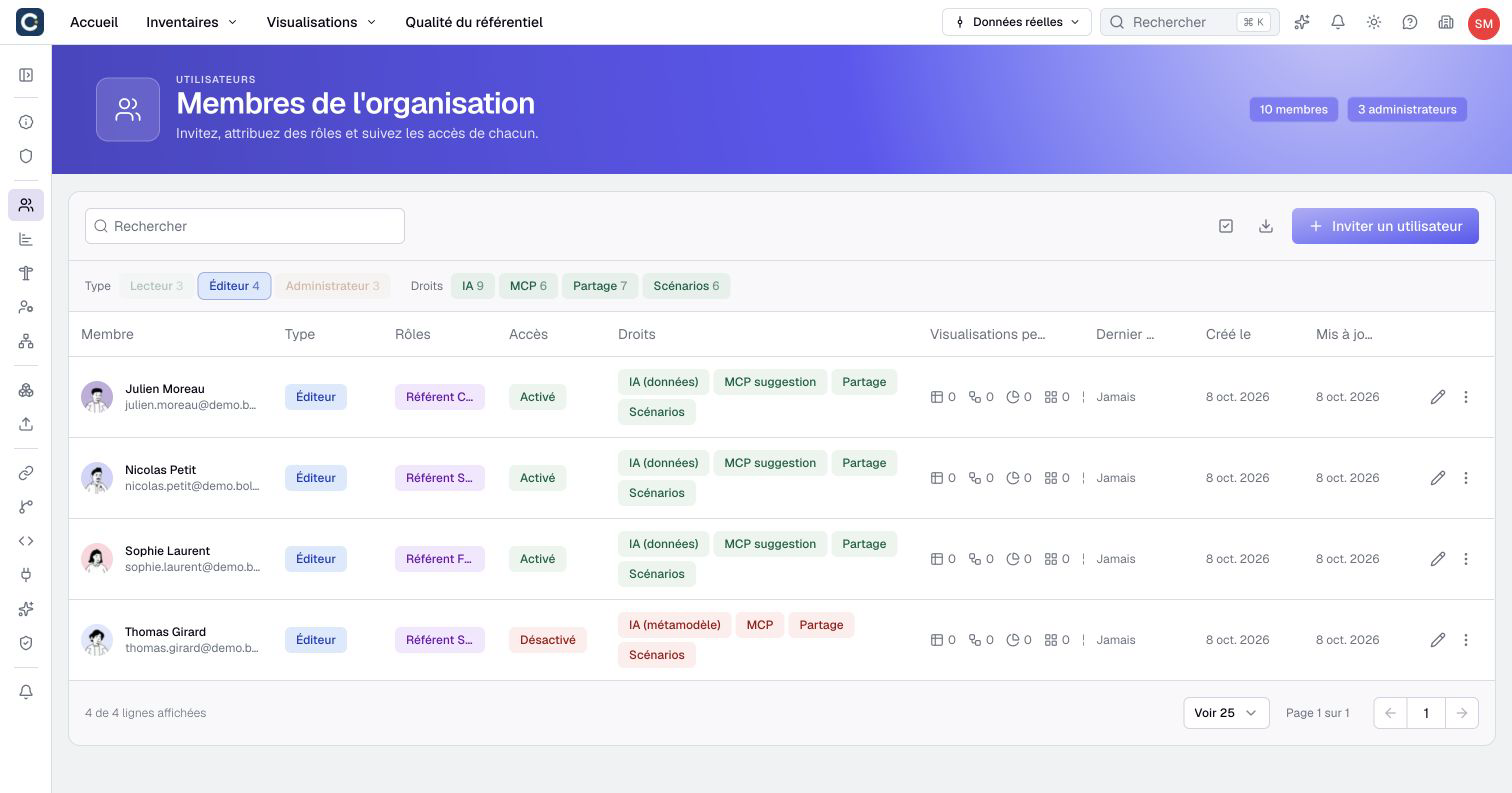
The filters at the top count members by type and by right. Click one to see, for example, only the viewers or the people who have access to the AI assistant.
2. Invite someone
Click Invite User. For an email invitation, choose Email user if the sign-in choices appear. Enter their email address, choose their user type and, if you have some, their roles. Click Create.
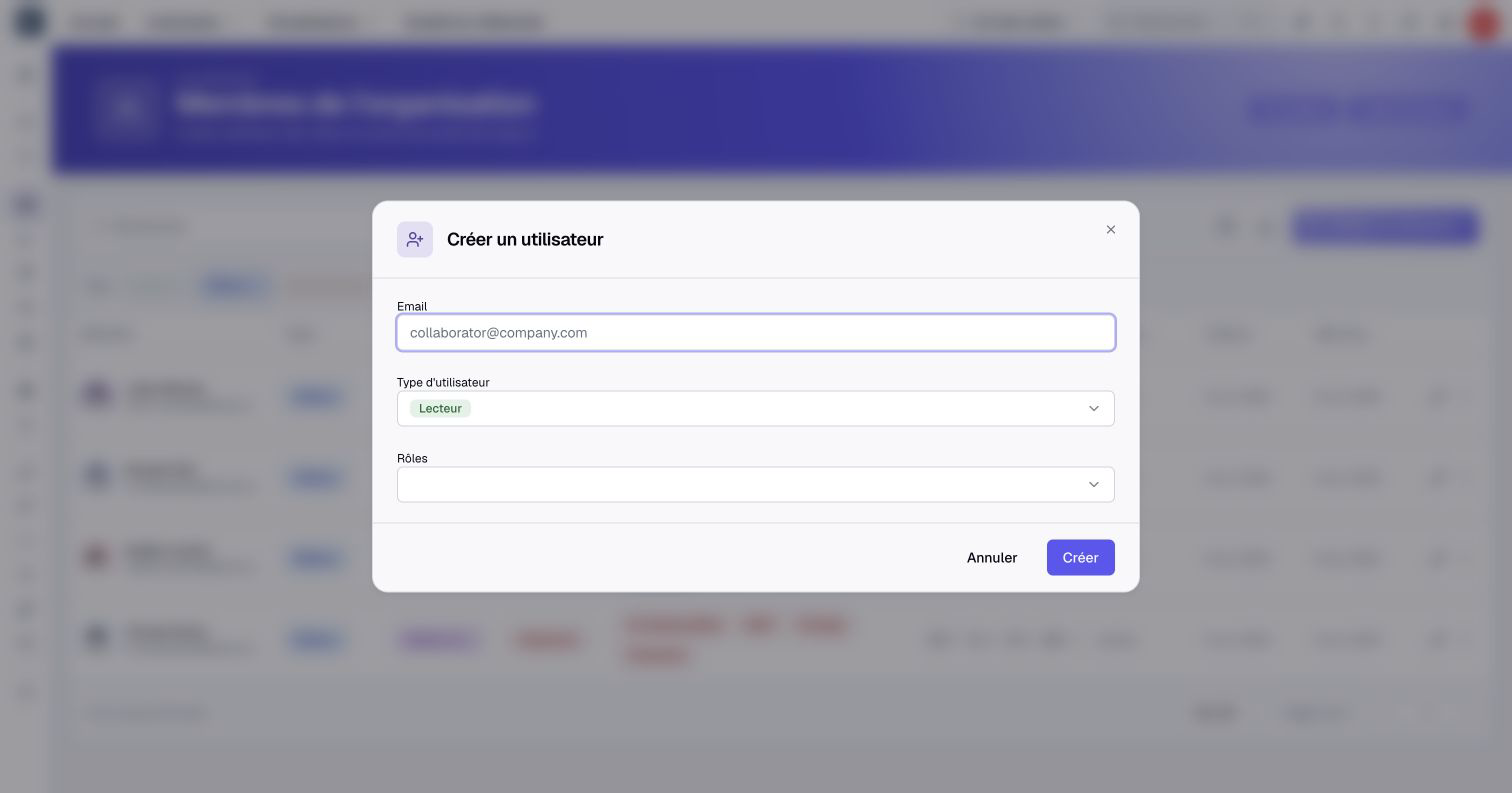
A person without a Boldo password receives a link to set one. Someone who already has a password keeps it and can open the organization with their existing account. With SSO, authorize them through the identity provider instead. If SSO is mandatory, email invitations are unavailable.
3. Choose the right type and roles
The user type sets the ceiling of what someone can do:
- Viewer: they read, comment and suggest corrections.
- Editor: they edit assets and create visualizations.
- Administrator: they also set up the organization, its members and its rights.
Roles then say what they act on, for example "edits the finance applications". Without a role, they follow the rule set for members without a role. To create your roles, read Set up your first role.
4. Open the optional access
To set up a member, click the pencil at the end of their row.
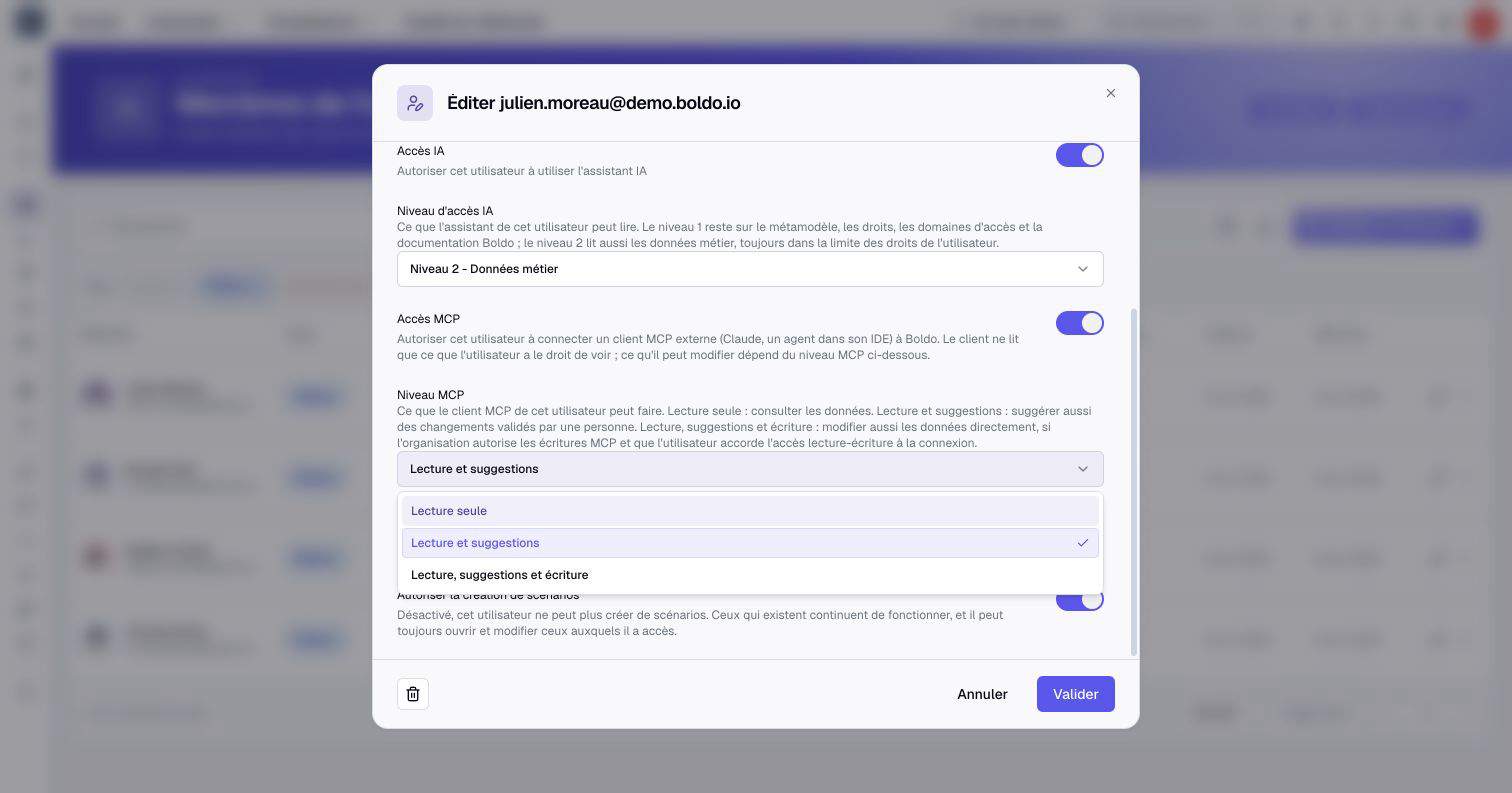
- AI access opens the assistant. AI access level says what it can read: the setup and the documentation at level 1, business data as well at level 2, always within the member's rights.
- MCP access authorizes external assistant connections. MCP level sets whether they can read, suggest or also write. Direct writes require additional organization and connection authorization; follow the MCP settings.
- Allow creating share links and Allow creating scenarios open these two features.
Click Validate to save these settings. To suspend a member in this organization, use Disable temporarily on every active sign-in method, then click Validate again. Disabling only one method leaves access through the others. If the member owns assets, choose who takes them over or release their ownership when prompted.
Key points
- Email invitations grant access with a Boldo password; SSO admission goes through the identity provider.
- The user type sets the ceiling, roles set the scope.
- The AI assistant, sharing and scenarios are opened member by member.
Go further
- Set up your first role: to decide who edits what, and where.
- Build your first repository: the full journey of a new organization.
- Invite and manage members: the reference page.