Own an asset and attest it
You were asked to look after a few applications or business objects. Your colleagues count on you to keep their information right. In Boldo, you are their owner: you keep an eye on them, and from time to time you confirm that they are up to date. This confirmation is called an attestation.
This guide takes five minutes.
Before you start
- Owners can be set in every plan. Attesting, the To attest list and owner notifications need quality tracking turned on for your organization. If it is not, ask an administrator.
- Being an owner does not give you the right to edit the asset. If you cannot edit it, you will suggest your corrections.
1. See who owns the asset
Open an asset and read Owners and Attested on in Information > System. They show who looks after the asset and when its information was last confirmed. If you can edit it, these details also appear at the top of the Edit form.
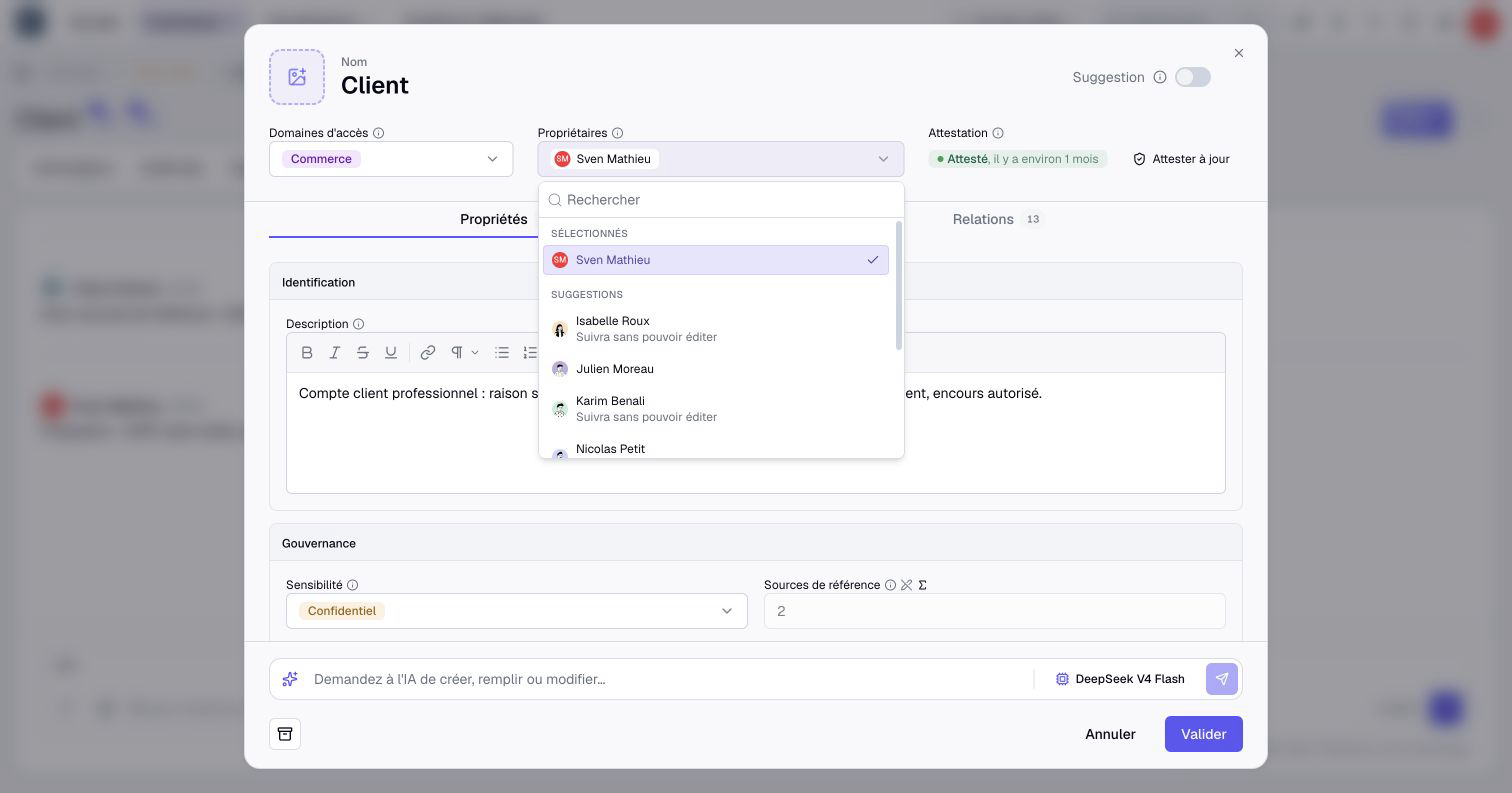
An asset can have several owners. When the only owner leaves the organization, the asset is left without an owner: nobody watches it anymore.
2. Choose the owners
If you can edit the asset, open Edit, click Owners, choose one or several members, then Validate. The mention Will follow, cannot edit points out a person who will look after the asset without being able to edit it.
Without editing rights, open Suggest to suggest an ownership change. It takes effect after someone with the necessary rights accepts it.
With quality tracking, an assignment operation groups each new owner’s readable assets into one notification and email, according to their preferences. Assigning yourself does not notify you. Administrative transfers follow the same principle for newly assigned active real-data assets.
For several assets at once, use Select multiple assets in the inventory, then Update. Choose Owner in Field, then Add to existing to keep the current owners, or Replace to replace them. Be careful: Replace is selected by default.
3. Find what needs attesting
Open Home, then the To do tab. The To attest section lists your assets whose attestation has expired or was never made, and those for which someone requested a new one.
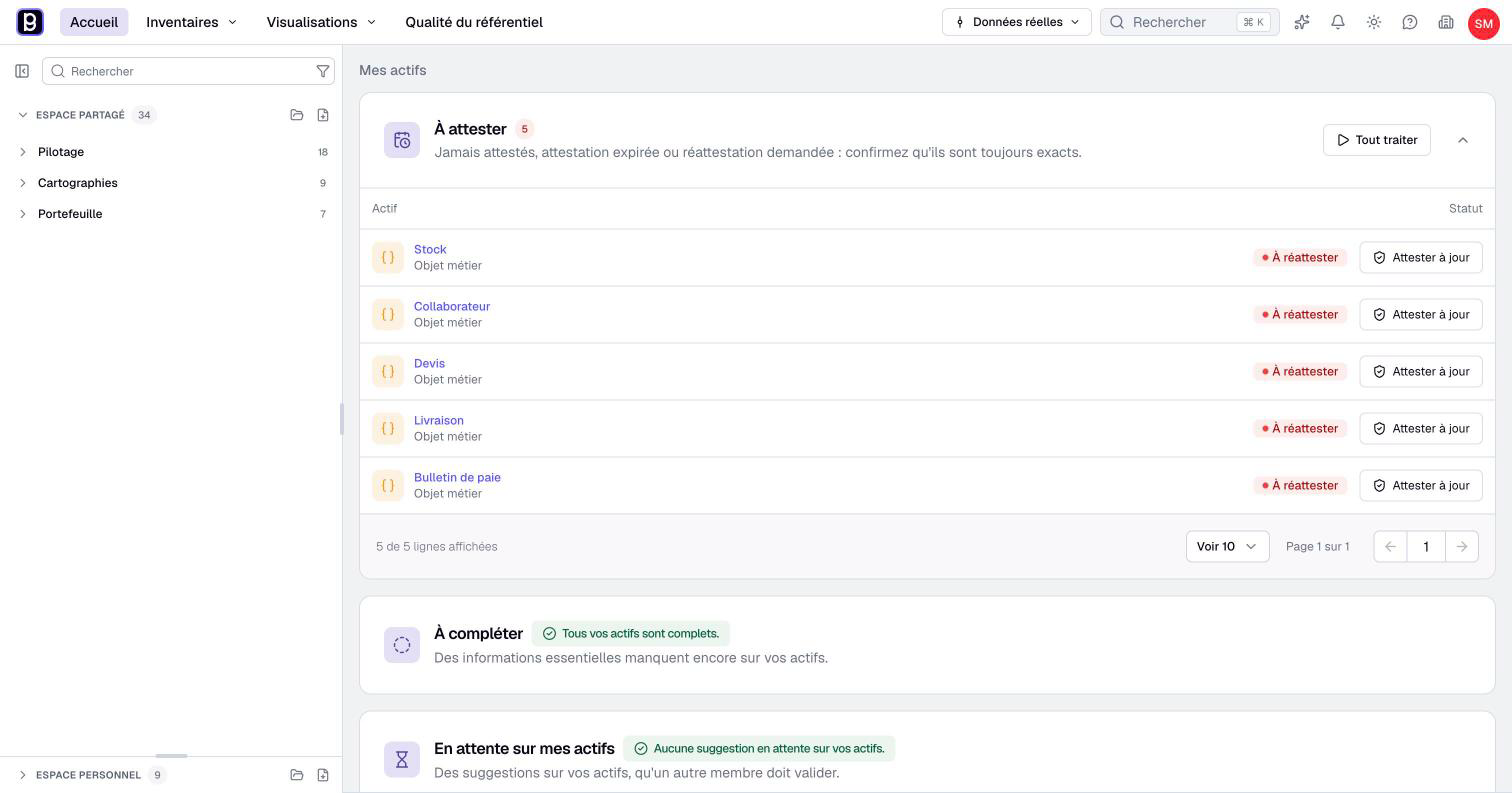
4. Attest
Read the asset again. If everything is right, click Attest up to date at the end of its row. The same button sits at the top of the preview of an asset, as a shield.
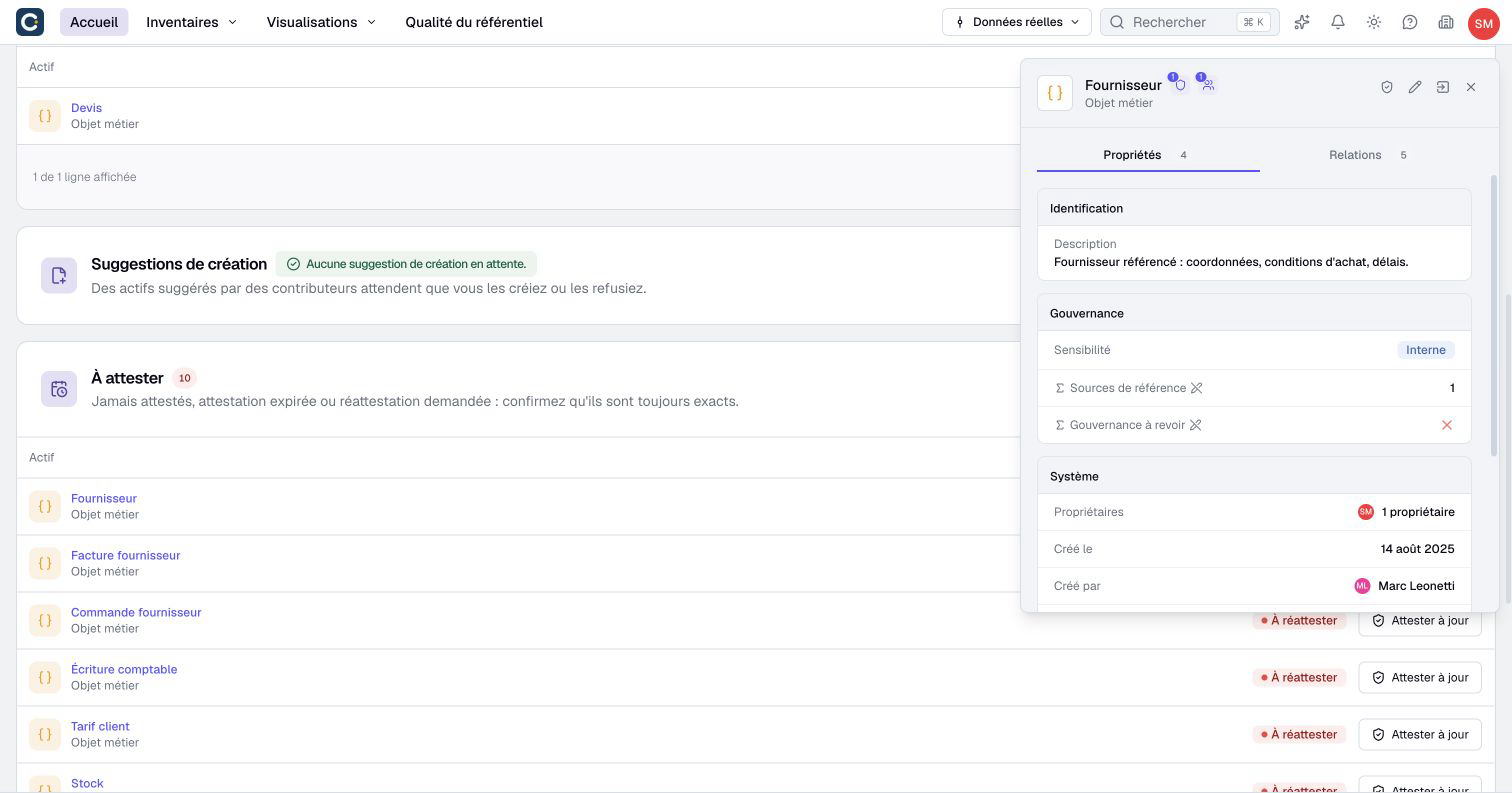
The attestation is recorded right away. Closing a form afterwards without saving does not cancel it.
5. Review your assets one by one
For several assets, click Review all. Boldo shows them to you one after the other.
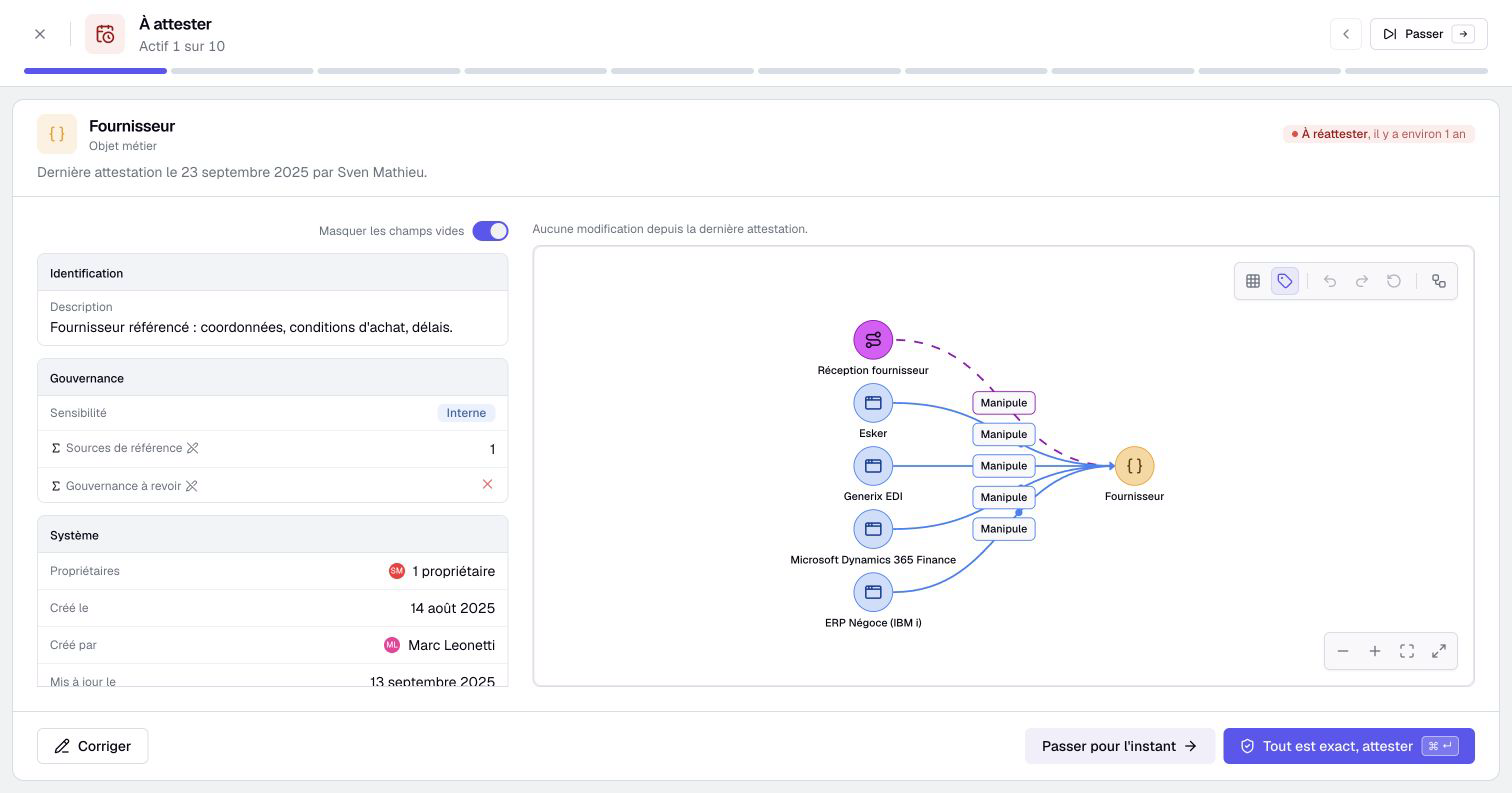
- Attest confirms the asset as it is.
- Correct, or Suggest a correction if you cannot edit, opens the information. Finish with Save and attest, or Send suggestions.
- Next asset moves on, Skip for now keeps it for later.
6. Stop being an owner
You no longer look after an asset? Use Remove me when the action is offered. If you were the last owner, tell the person who organizes the follow-up, so that they choose another one.
Key points
- The owner watches the asset and confirms it is right. It is not an editing right.
- Attest up to date confirms the information in one click, from the home page or the preview.
- Review all goes through your assets one by one.
Go further
- Your home page, day to day: everything waiting for you, suggestions included.
- Track repository quality: the overview for those who organize the follow-up.
- Assign or change owners: the reference page, with transfers and special cases.