Prepare a steering committee
The steering committee meets in a week. It wants the cost of the application portfolio, the applications to retire, the project budget and the technical risks. Rather than copying figures into slides that go stale, prepare an up-to-date dashboard in Boldo, share compatible source visualizations with committee members, and export visuals for the meeting.
Before you start
- To build the dashboard, you need to be able to create visualizations. To share with a link, your plan must include share links, the organization must enable them, and an administrator must allow you to create them. If you cannot, ask an administrator.
- Prepare the charts and views you want to show first. Read Create a view and filter and Build your first chart.
1. Start from the dashboard
Open Visualizations, then Dashboards, and open your management dashboard, or create one.
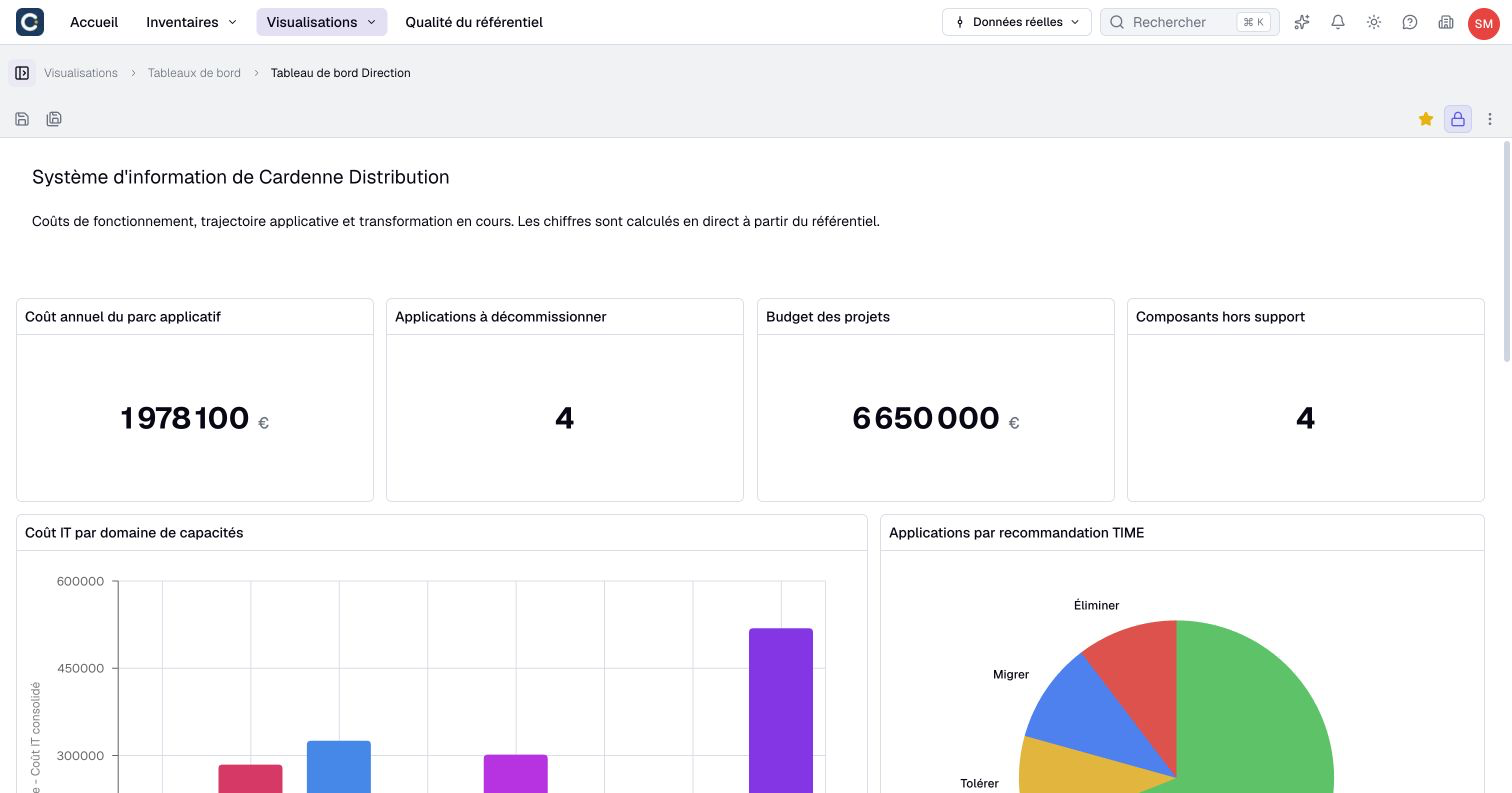
Put first what the committee must see first: four key figures, for example the annual cost of the application portfolio, the applications to retire, the project budget and the components out of support. The charts below explain these figures.
All figures are computed from the data. If an owner corrects an application the day before the committee, the dashboard is already up to date.
2. Add what is missing
If the dashboard is locked, click Unlock, then + in the toolbar. An empty widget appears: click Choose what to display.
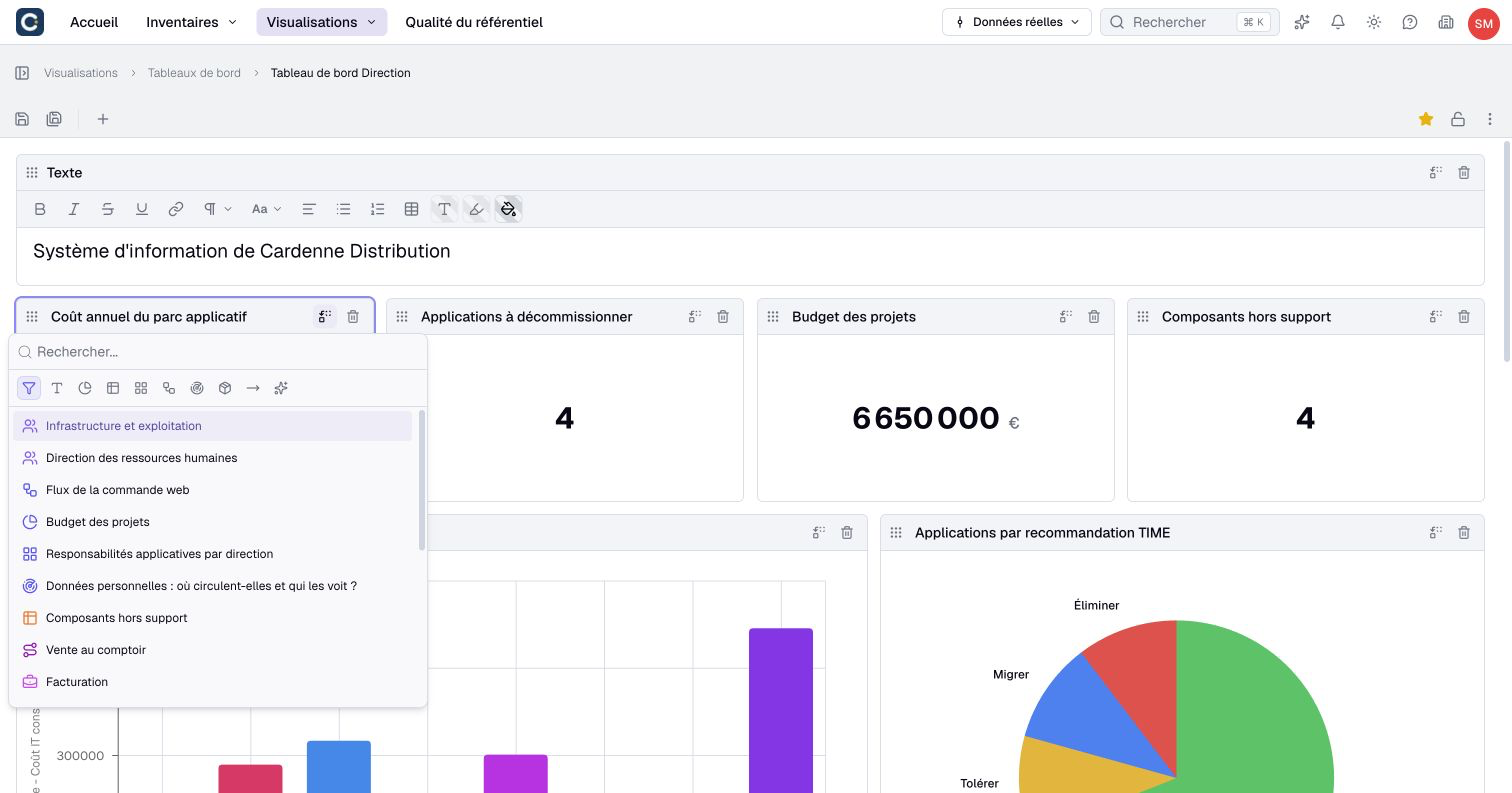
Choose a saved chart, view or impact analysis. For a key message or a conclusion, add a Text widget. Save, then lock the dashboard again.
3. Share without creating accounts
The committee members may not have a Boldo account. A share link gives them read-only access, without an account. Open a saved chart, view, diagram, nested map or impact analysis used in the dashboard. In its ⋮ menu, choose Share from Real data. The dashboard itself cannot be shared through an external link; Boldo members can consult it in the Shared catalog with the required access.
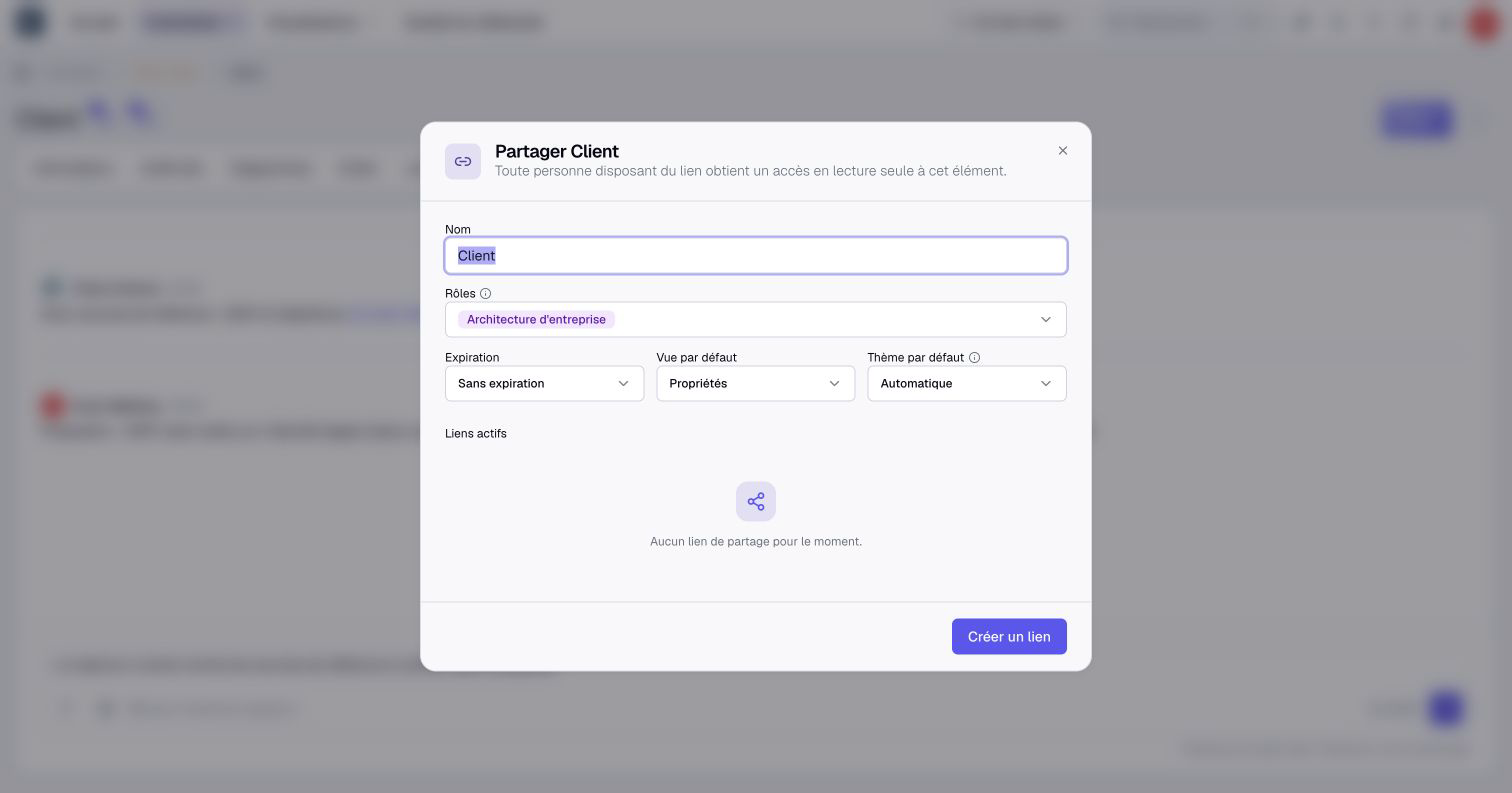
Choose the role whose rights the link applies, for example the management role. What this role cannot see stays hidden: if a role cannot see costs, the link does not show them either. Set an Expiration, then click Create link and copy it.
4. Export for the presentation
For the meeting, export the visuals. Open a chart, diagram, nested map or impact graph used in the dashboard, then choose Export to image in its ⋮ menu, or Export > Image for an impact graph. The dashboard itself does not offer image export.
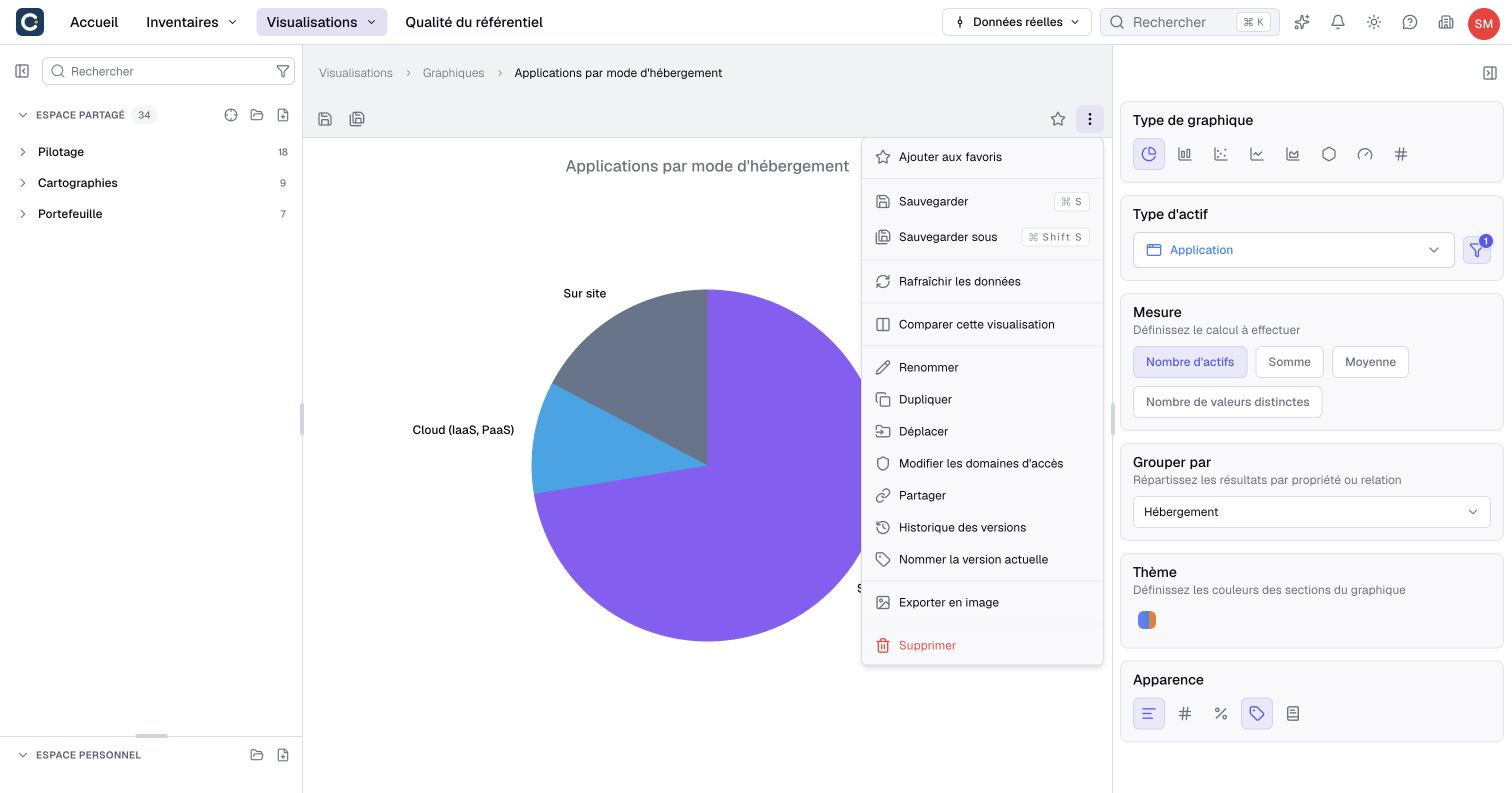
The image keeps the data as it was at export time. For questions during the meeting, keep the link open instead: it always shows today's data.
Key points
- A dashboard gathers the committee's figures, and they stay up to date.
- A share link gives read-only access without an account, with the rights of a chosen role.
- Export to image freezes the data for the slides. The link stays up to date.
Go further
- Build a dashboard: to arrange the widgets of your page.
- Share with a link: to set the expiration and remove a link after the meeting.
- Export, and manage share links: to export tables and follow all active links.