Prepare the annual IT budget
Every autumn, you prepare next year's IT budget. License prices go up, contracts come up for renewal, teams grow. You want to test these assumptions and show their cost, without changing the figures everyone uses today.
In this guide, you work in a scenario: a working copy of your data where you can change anything without touching the real data. Once the budget is approved, you apply the changes you keep, and only those.
In the examples, the "Budget 2028" scenario holds the assumptions for the 2028 budget.
Before you start
- Scenarios must be included in your subscription and turned on by an administrator.
- You need to be allowed to create scenarios. Applying also requires an Editor account or higher. You must be its creator, an administrator, or allowed to apply it, with permission to manage its parent scenario if it has one. If a button is missing, ask an administrator.
1. Open the budget scenario
Open the Data context selector at the top of the screen, next to the search bar. It lists Real data and the scenarios you can open. Select the budget scenario, or create one with New scenario if it does not exist yet.
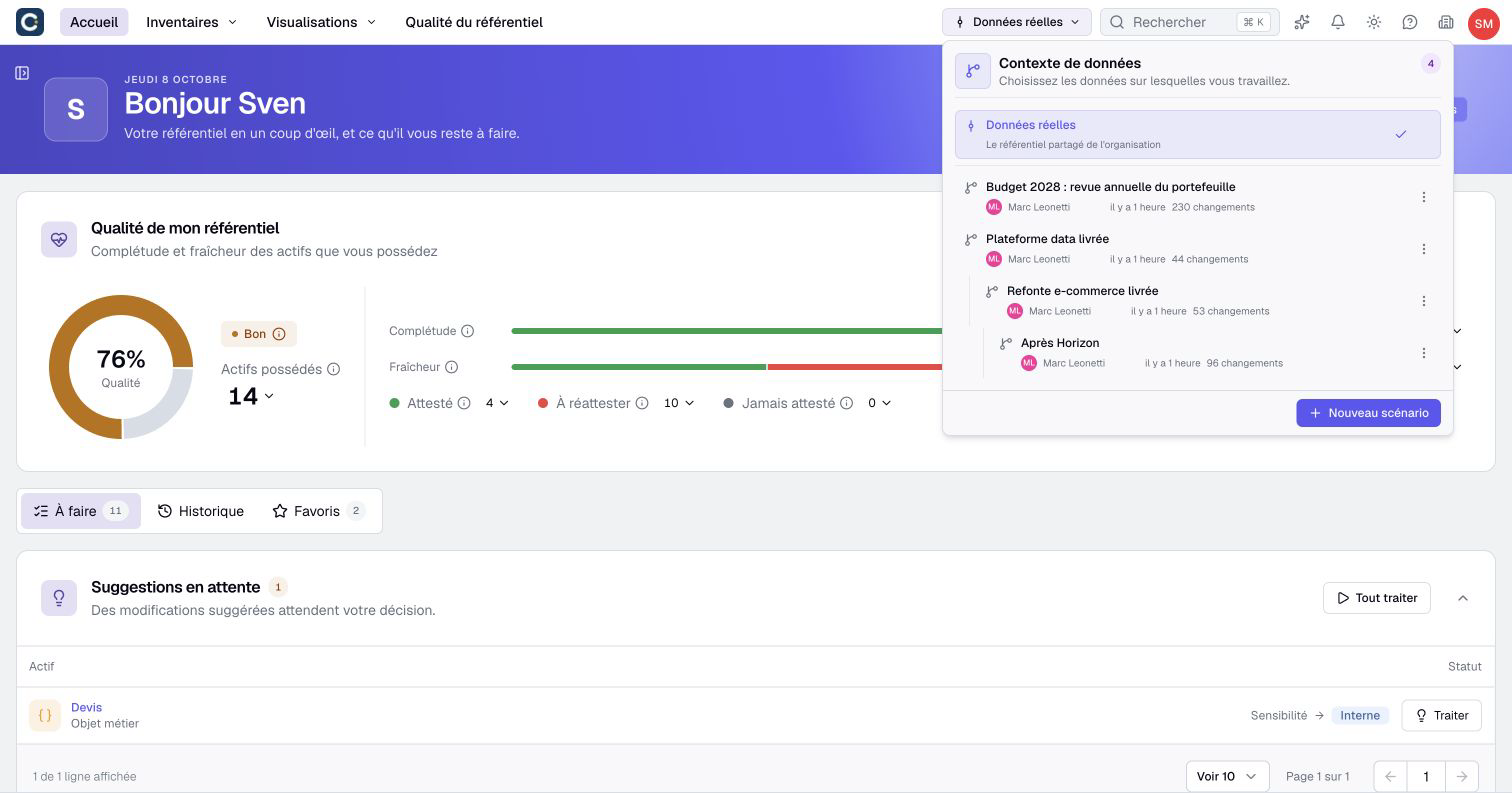
The top bar takes an orange tint and shows the scenario name. As long as it stays orange, everything you change stays in the scenario. The real data does not move.
2. Enter your assumptions
Work as you usually do: open an inventory, switch to edit mode, and change the values. In the example, the CRM license is renegotiated from €185,000 to €170,200, and its contract is renewed until May 2028.
Each value you change carries a small orange corner. Hover over it to see the value in the real data. A colored dot after the name tells you the asset was changed, created, or restored in the scenario.
Computed values follow your changes. The total annual cost and the cost per user of an application are recalculated inside the scenario.
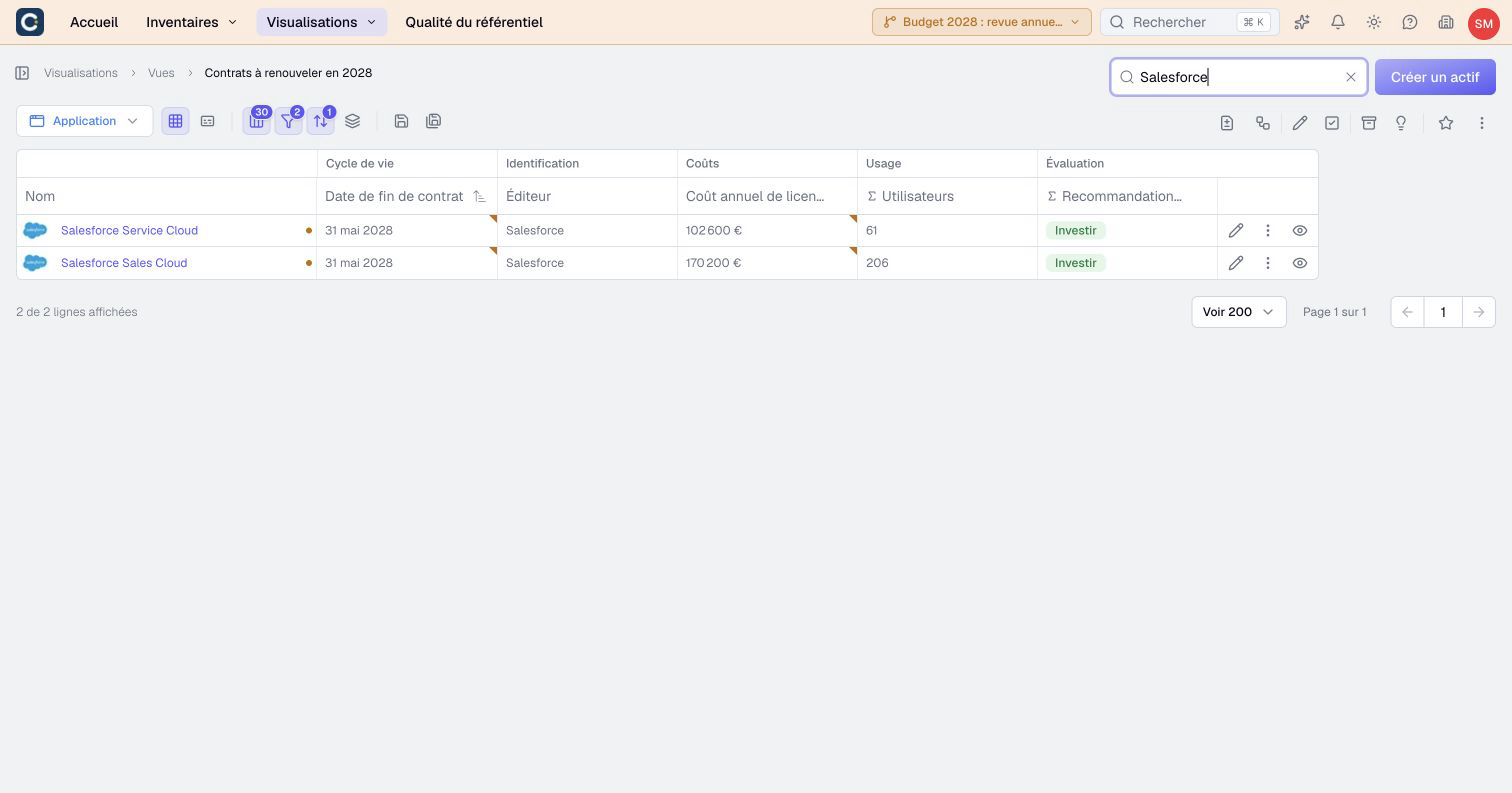
3. Review the contracts to renew
Build a view of the contracts ending next year, right inside the scenario. In the example, the view of contracts to renew in 2028 lists the renewed contracts with their new license cost, such as the CRM at €170,200.
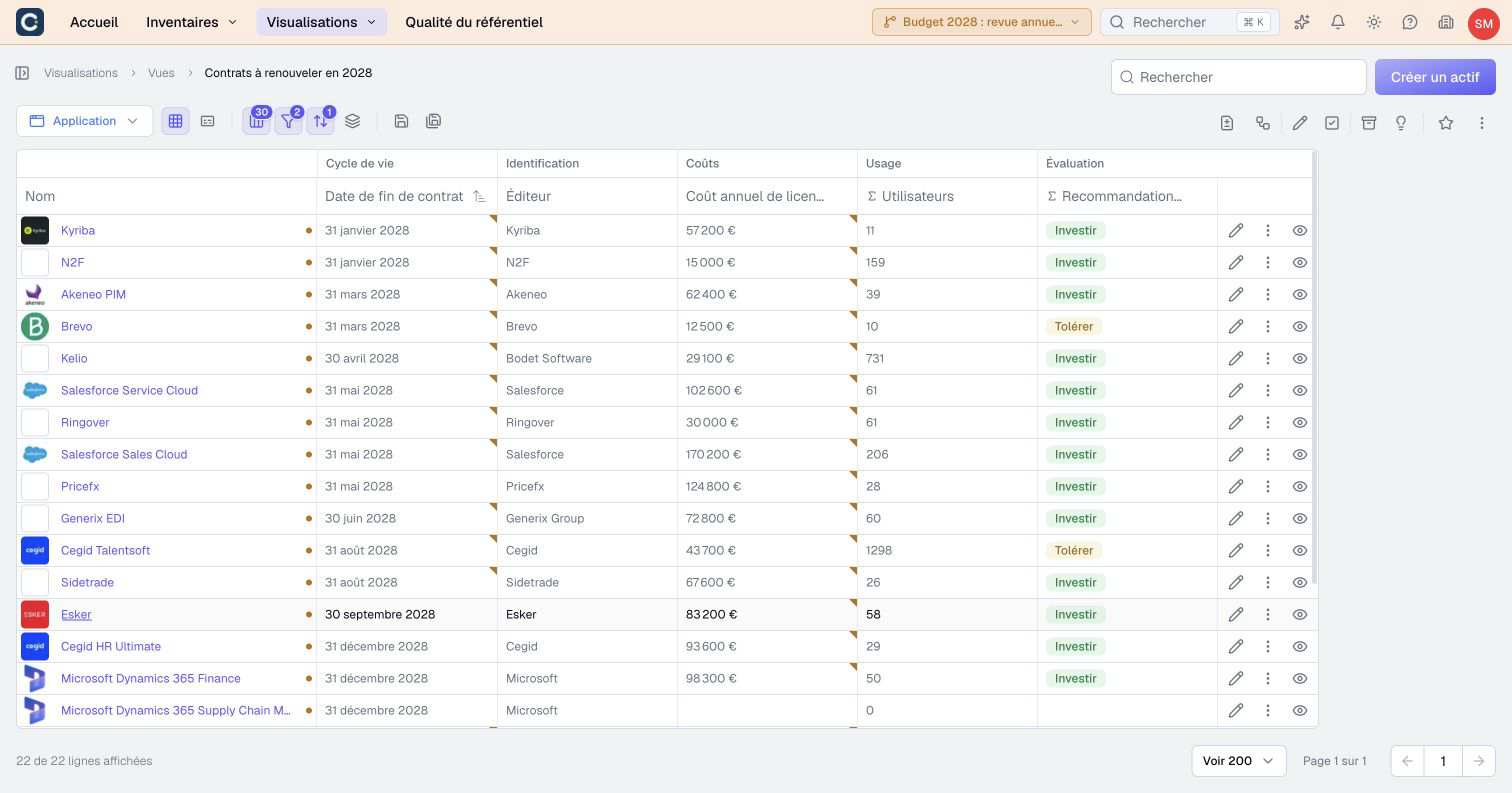
Since the view is created in the scenario, your colleagues on the real data do not see it until you apply it. To see only the contracts you have already handled, click Scenario changes only in the toolbar.
4. Measure the effect on the dashboard
Open the dashboard, then choose Compare this visualization in its actions menu. Select real data on one side and the budget scenario on the other. A Modification label indicates a changed dashboard configuration; changes to its underlying data alone do not add this label.
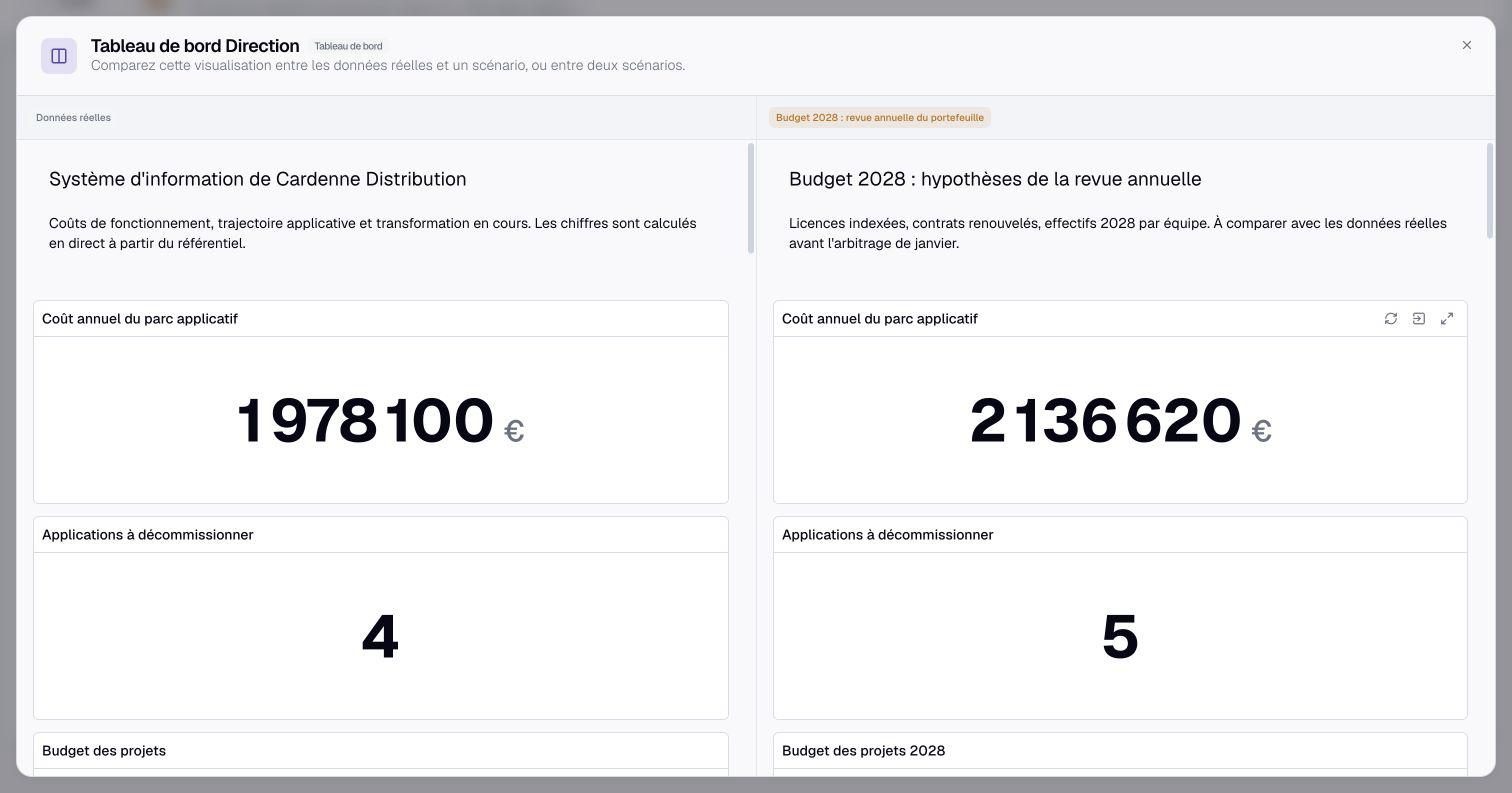
This is the view to show during the budget meeting. Every figure on the right comes from your assumptions, and every figure on the left from the current data.
5. Keep what was approved
Once the budget is approved, open the selector and click Apply. Boldo opens a full-screen review with one step per changed element. The asset page is on the left, and the changes are on the right, each as a card with the Source value and the Scenario value.
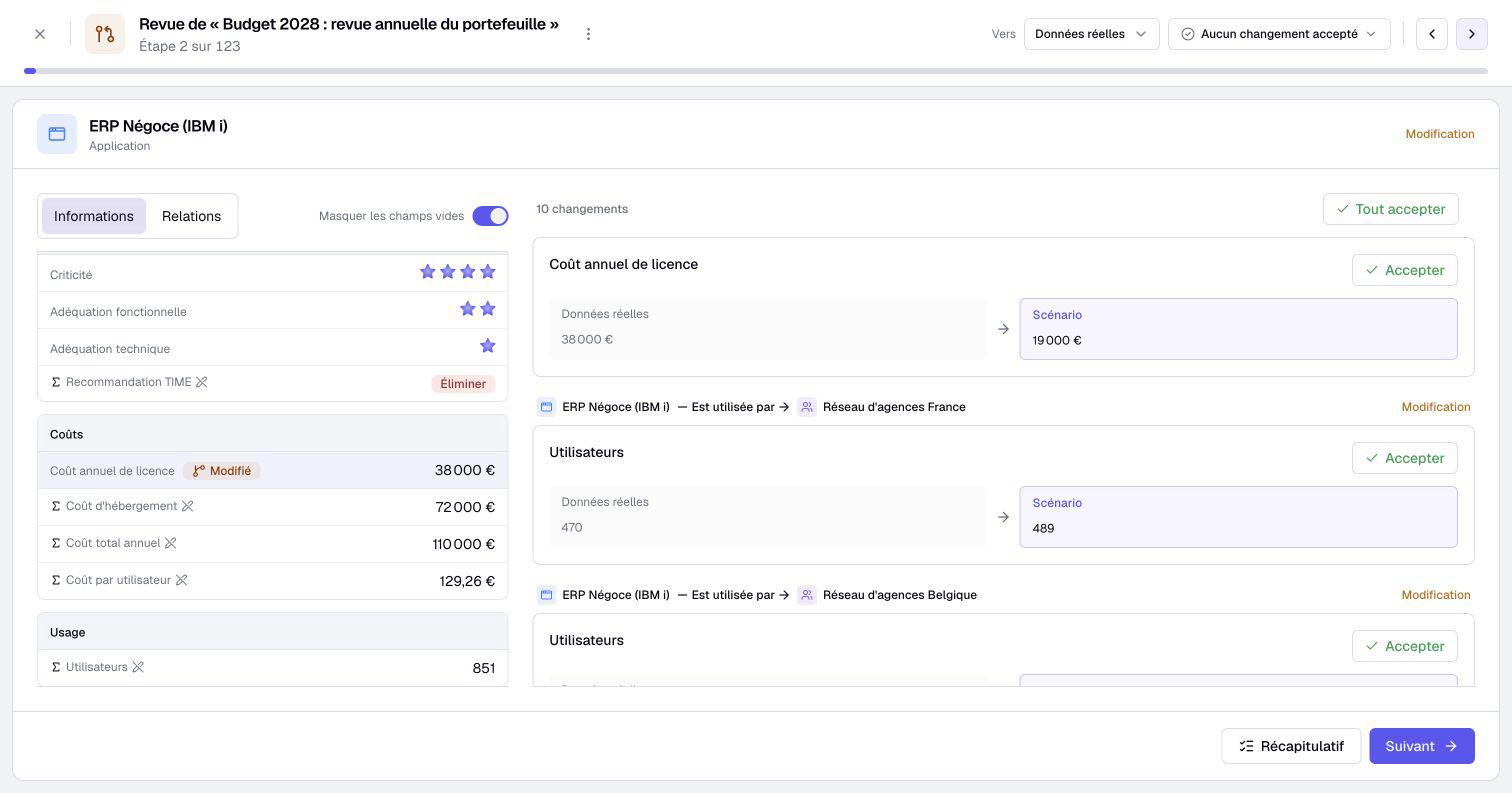
Check Accept on each change you keep, or Accept all above the cards for the whole step. What you do not accept stays in the scenario: you can apply it later. When the budget was approved as a whole, Accept all in the counter menu at the top accepts every change at once.
6. Apply the budget
At the end of the review, Boldo lists what will be applied. Click Apply to “Real data”.
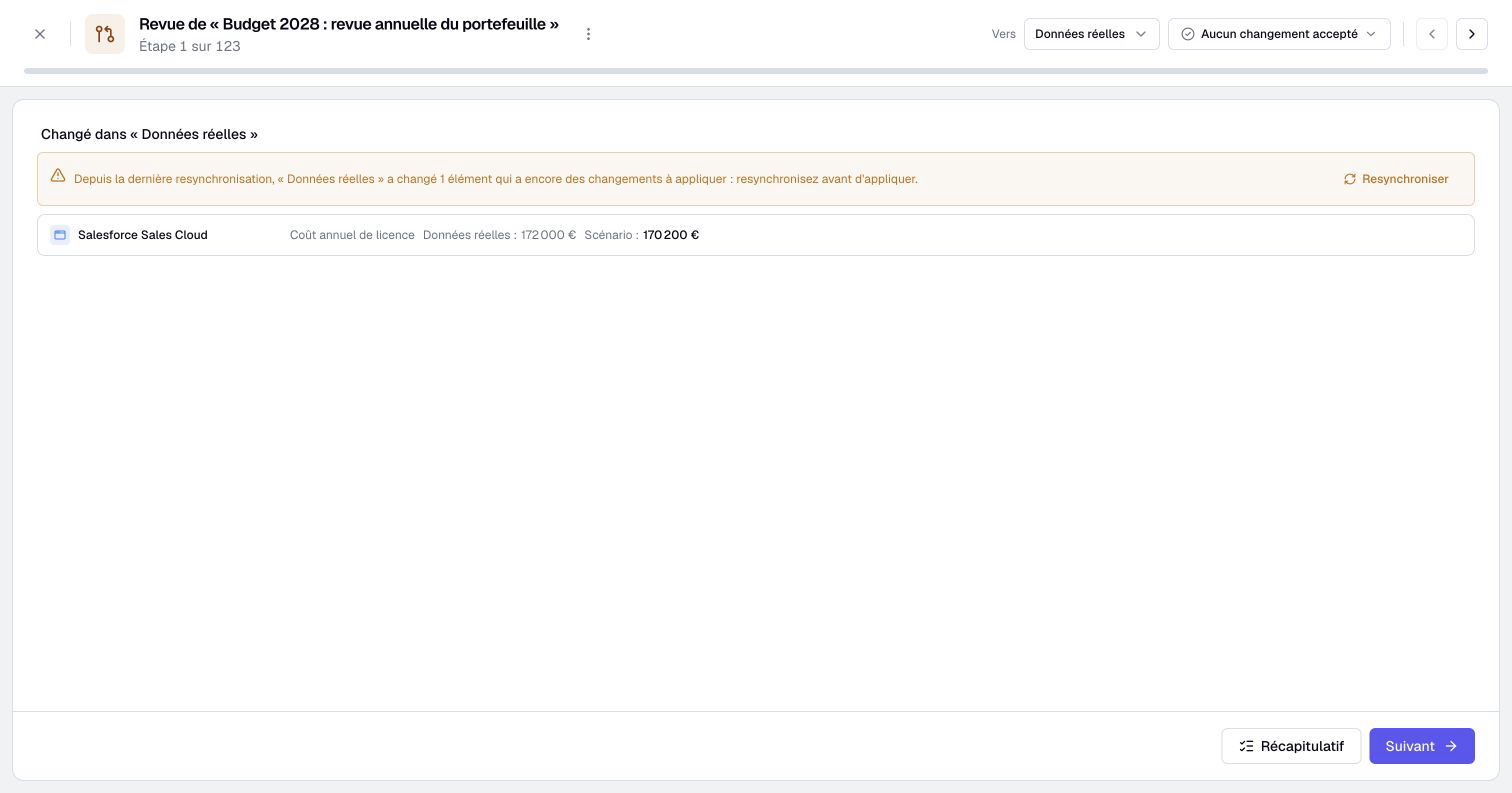
Sometimes a value changed in the real data after you created the scenario. In the example, someone updated the CRM license to €172,000 in the meantime. Boldo does not overwrite that change silently: it stops and names the element.
Click Resynchronize. The scenario takes in the latest real data and flags the conflict, so you can decide which value wins. Then apply again.
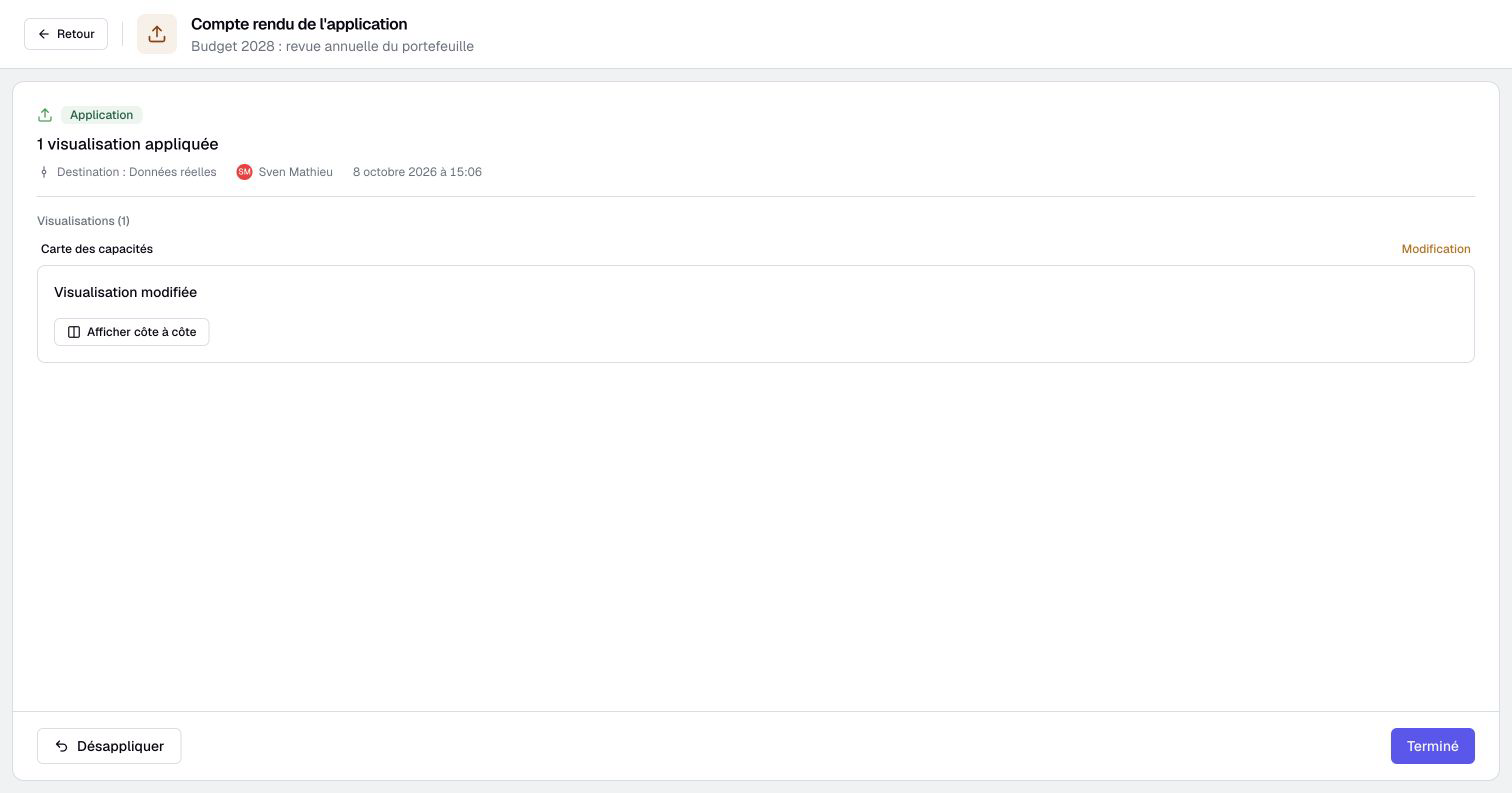
Boldo applies the changes and opens a report with one line per element. The real data now holds the selected changes; the others remain in the scenario.
Key points
- A scenario lets you prepare the budget without touching the figures everyone uses.
- Compare dashboards side by side to show the cost of your assumptions.
- You choose what you apply. The rest stays in the scenario, and an application can be undone.
Go further
- Work in a scenario: everything you can do in a scenario, beyond the budget.
- Apply a scenario, and undo if needed: what blocks an application, and how to undo it.
- Track technical obsolescence: the end of support dates to budget for.