Rationalize your application portfolio
Over the years, applications pile up. Some still do their job well, others are kept alive out of habit, and several tools end up doing the same thing. Rationalizing means deciding, application by application, whether to invest, tolerate, migrate or eliminate. This guide shows how to build that decision in Boldo, from the first overview to the presentation of the target portfolio.
Before you start
- Your applications need two ratings: functional fit (does it meet business needs?) and technical fit (is it sound, supported, maintainable?). Ask their owners to fill them in, for example through the home page.
- You may not be allowed to see costs. If they do not show, ask an administrator.
1. Start from the overview
Open Visualizations, then Charts, and open the chart that splits your applications by recommendation.
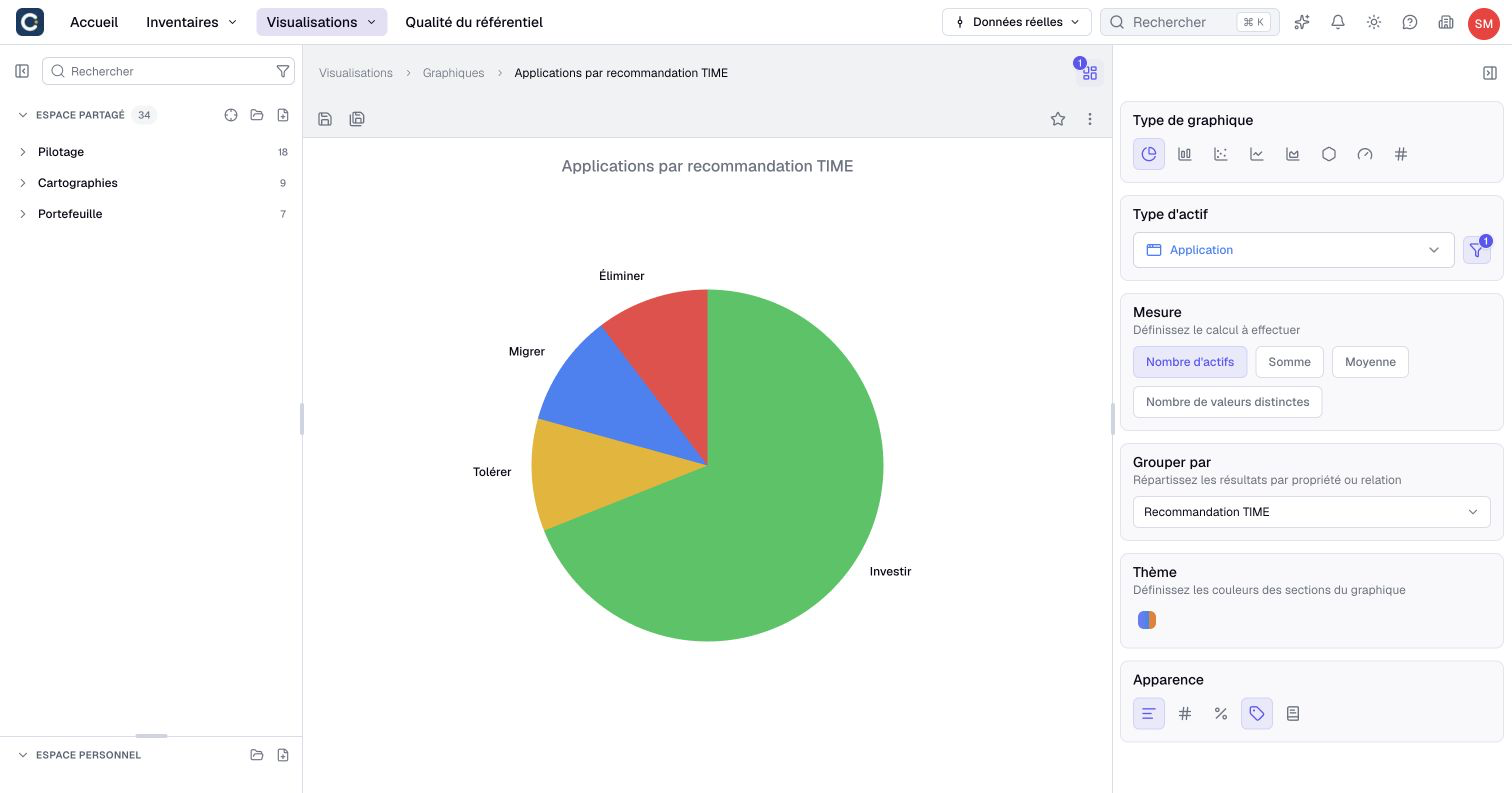
The four slices follow the TIME method: Tolerate, Invest, Migrate, Eliminate (Tolérer, Investir, Migrer and Éliminer in the example data).
2. Understand where the recommendation comes from
In this example, a computed property derives the recommendation from two ratings, on a scale of 1 to 4 stars. This calculation is not automatic in every metamodel: ask an administrator to configure a computed property if your recommendation is a manually entered field. The example uses this rule:
| Technical fit of 3 stars or more | Technical fit below 3 stars | |
|---|---|---|
| Functional fit of 3 stars or more | Invest | Migrate |
| Functional fit below 3 stars | Tolerate | Eliminate |
An application that serves the business well on a weak technical base should be migrated. An application that is technically sound but no longer fits the business can be tolerated for a while. When both are weak, it is a candidate for elimination.
If a recommendation looks wrong, do not argue with the result: check the two ratings with the application owner. Correct a rating and the recommendation updates on its own.
3. List the candidates
Open Visualizations, then Views, and open the view that keeps only the applications to migrate or eliminate. It shows their two ratings and their total annual cost.
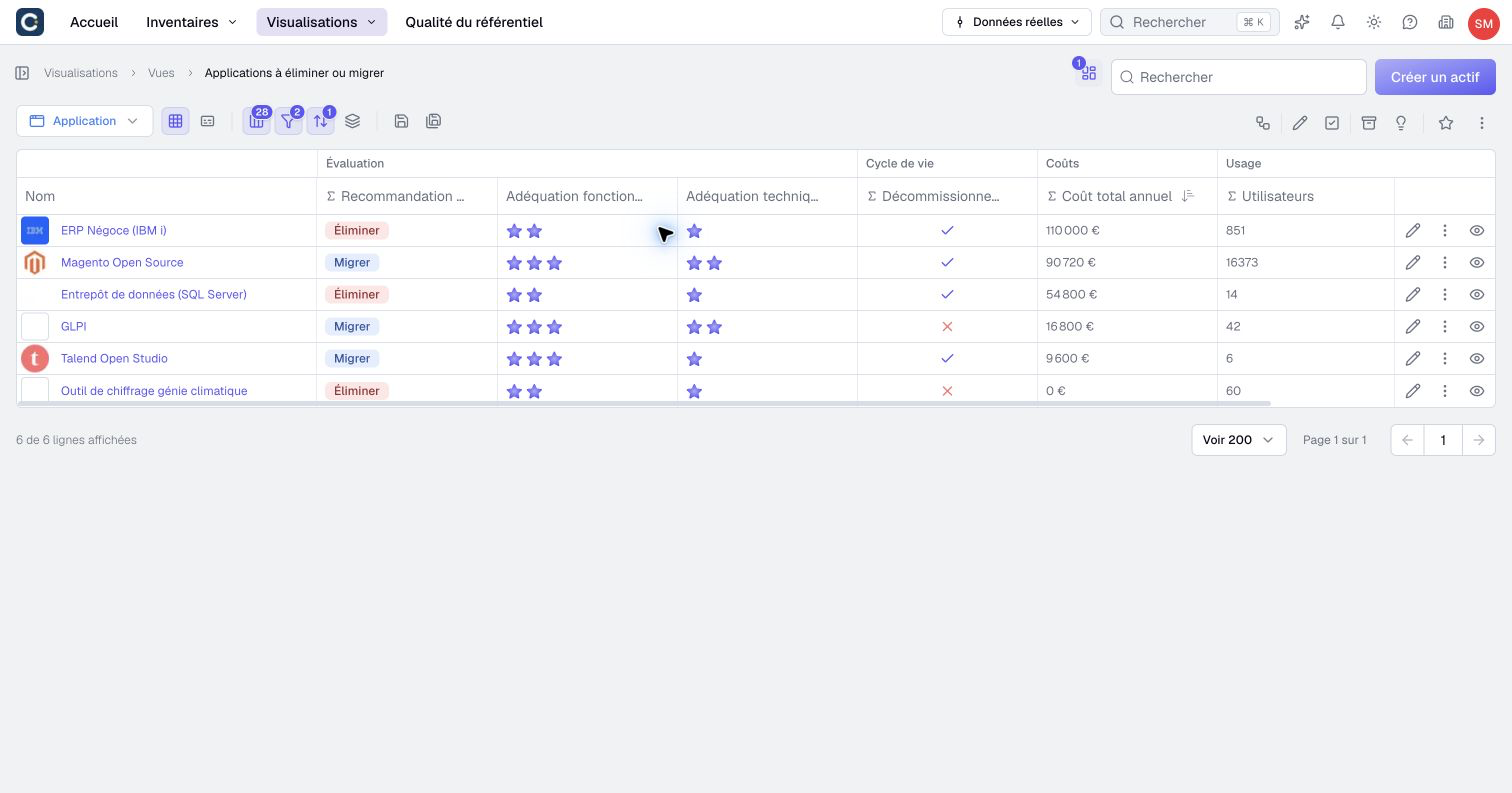
Sort by cost to see where the money is. In the example, the historic ERP alone costs €110,000 a year, and the old data warehouse €54,800.
4. Check where two tools do the same job
A candidate for elimination can only go if something else takes over its work. Open Visualizations, then Nested maps, and open the capability map. Each business capability lists the applications that support it, with their recommendation.
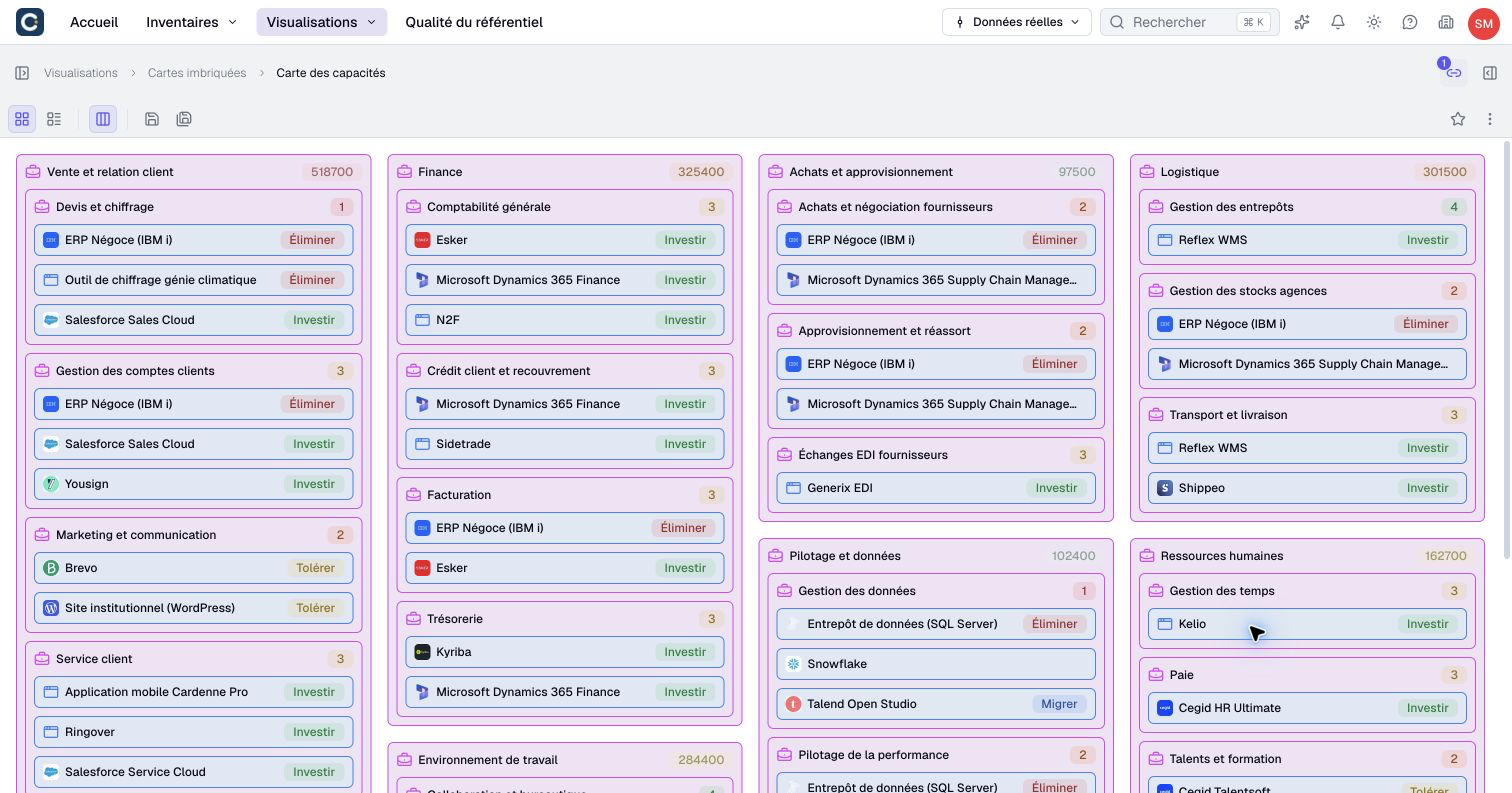
Look for capabilities covered by several applications:
- In the example, quotes and pricing are covered by the historic ERP, a small quoting tool and the CRM. The CRM is rated Invest: it can take over the quotes.
- Data management is covered by an old data warehouse to eliminate, an integration tool to migrate, and a recent data platform. The data platform is the natural target.
A capability supported only by a candidate for elimination is a warning sign: plan its replacement before retiring anything.
5. Decide in a scenario
Do not retire applications directly in the real data. Create a scenario, a working copy where you can change statuses, move relationships to the replacing tools and compare the result, without disturbing anyone.
In the example, two scenarios prepare the rationalization. The first replaces the old data warehouse and the integration tool with the new data platform. The second replaces the historic ERP and switches off the server it runs on.
Before retiring an application, run an impact analysis on it inside the scenario, to check that nothing still depends on it.
6. Present the target portfolio
Open the TIME chart, then Compare this visualization in its actions menu. Choose the real data on one side and your scenario on the other.
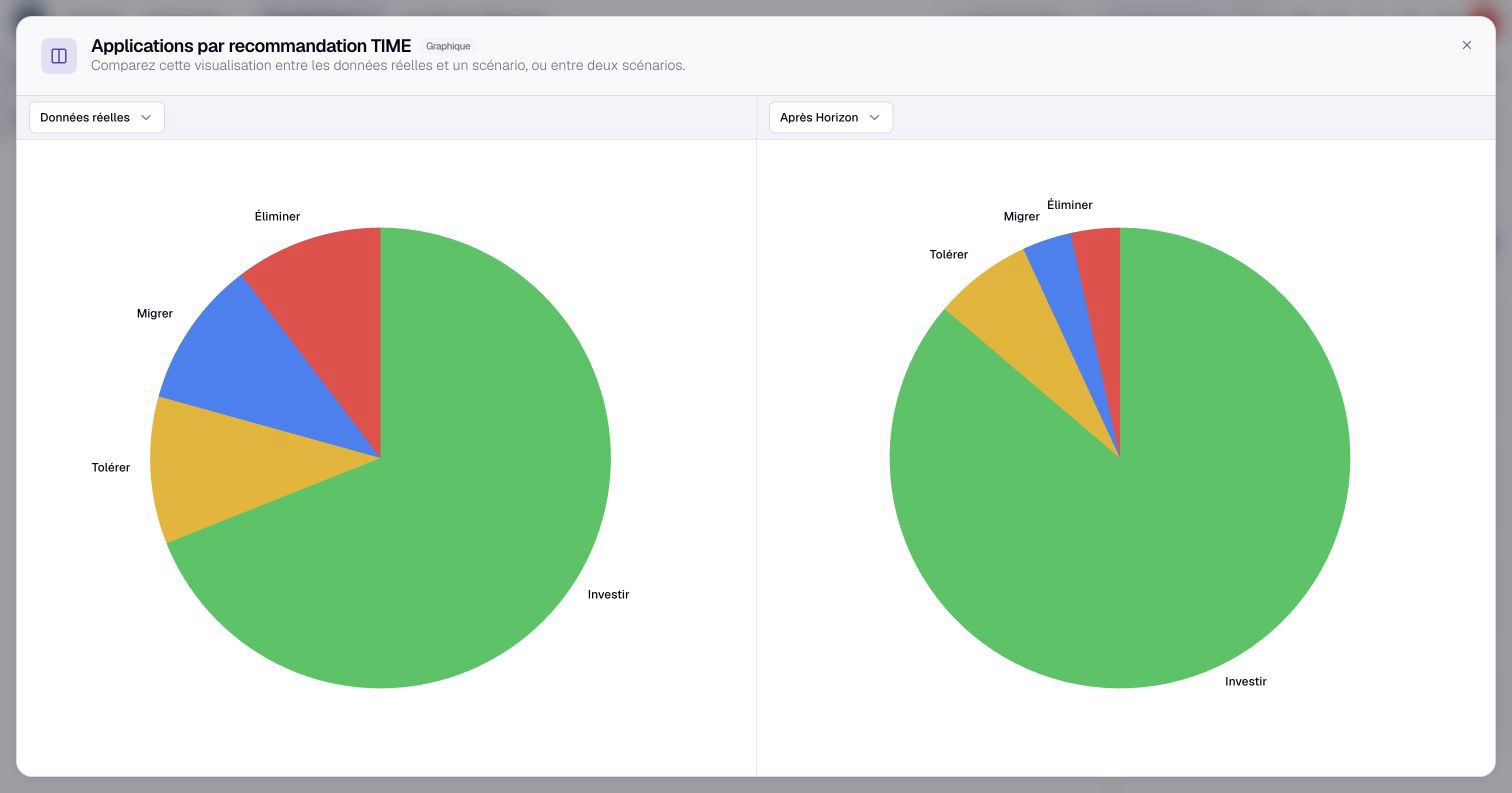
This is the view to show the steering committee: the same chart, before and after. Once the decision is made, apply the scenario to bring the changes into the real data.
Key points
- In this example, the TIME recommendation is computed from functional fit and technical fit. To change it, correct the ratings.
- The capability map shows where two tools do the same job, and which one can take over.
- Decide in a scenario, check the impact, then present the before and after side by side.
Go further
- Work in a scenario: prepare your decisions without touching the real data.
- Apply a scenario, and undo if needed: bring the approved decisions into the real data.
- Assess the impact of a decommissioning or an outage: check what still depends on an application before retiring it.