Read the usage report
You opened Boldo to your teams a few weeks ago. You want to know whether they come back, who has not logged in yet, and whether the licences are well used. The usage report answers these questions in a few clicks.
This guide takes four minutes. It is an administration guide.
Before you start
- You need to be an administrator of the organization, and your plan must include the usage report.
- The report measures presence in Boldo, not the work done. It says who was online and for how long, not who edited what.
1. Open the report
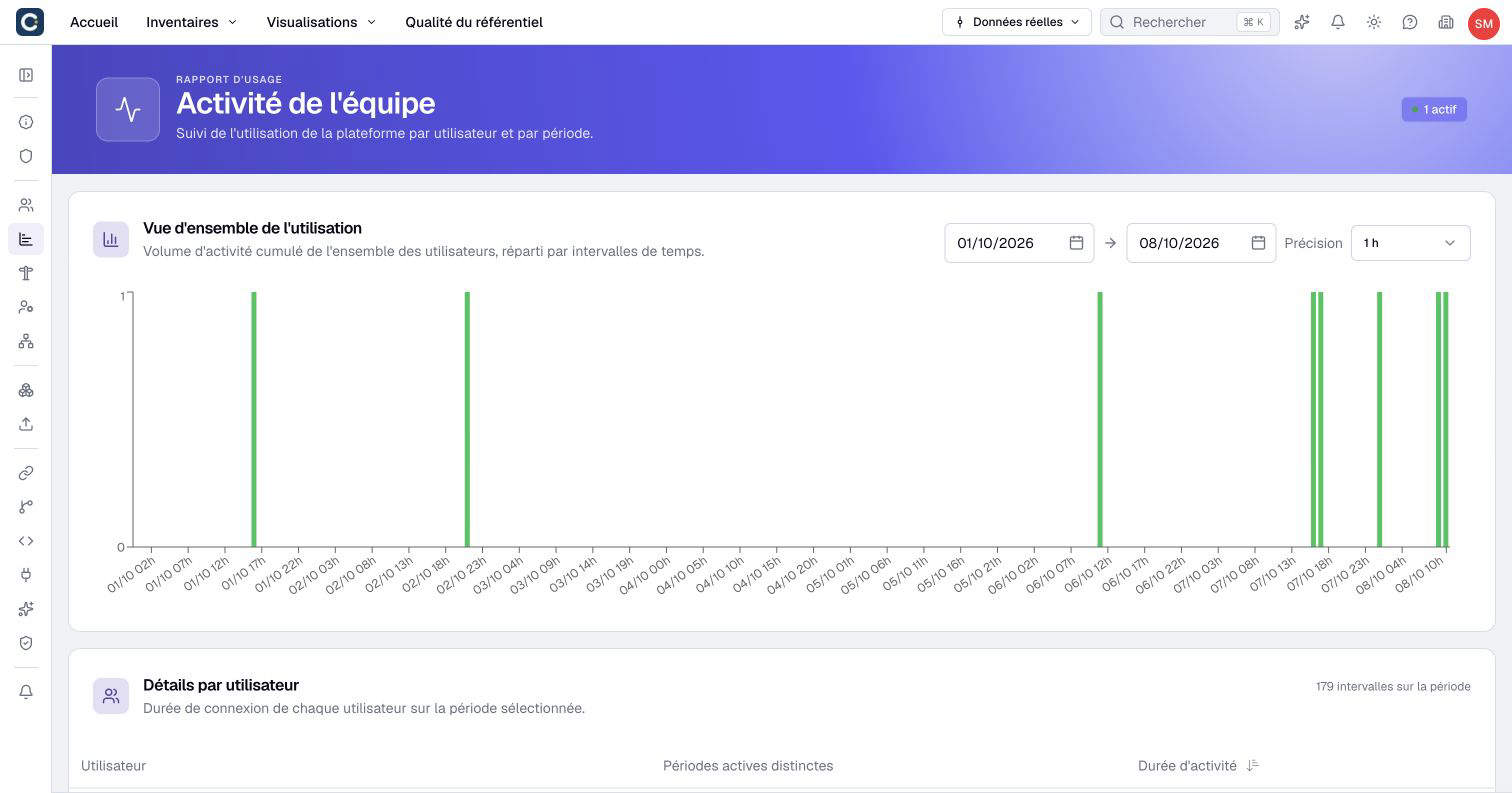
Open Organization settings, the building icon at the top right, then Usage report. The Team activity page opens on the last seven days.
2. Choose the period
At the top right of Usage overview, set the start and end dates. Then choose the Precision: an hour, a day or a month per bar. Boldo only offers the precisions that suit the length of the period.
Each bar counts the members online during that interval. Hover over a bar to see how many they were and who.
3. Read the details by user
Below the chart, the table lists each member with two figures:
- Distinct active periods: the number of intervals in which the person was online at least once. It depends on the precision you chose.
- Activity duration: the total time spent online over the period, rounded up to the minute.
Sort by Activity duration to see first the most regular members, or last those who have not come back. It is a good starting point to follow up with a team or to reassign an unused licence.
An empty result does not mean nobody ever used Boldo. Check the dates first. If loading fails, click Retry.
4. Receive the weekly summary
Every Monday, at the organization's email time (7:00 by default) and in its time zone, administrators can receive by email a summary of the organization's week: activity, work list and volumes, compared with the previous week. With repository quality, it adds the attestations, the assets to attest and the quality indicators.
To turn it on or off, open Organization settings, then Notifications under My preferences. Find Weekly administrator report and set its Email switch. The setting only applies to you. The sending time, by contrast, applies to the whole organization: Administrators and the Owner choose it, with the time zone, under Email schedule at the top of that page.
Other figures, other screens
The usage report does not show everything. Two other screens answer related questions:
- The number of assets, members and visualizations against your plan limits: Organization settings, then Information.
- The use of the AI assistant, by member and by model: Organization settings, then AI Assistant, Usage tab.
Key points
- The usage report measures presence: who was online, when and for how long.
- Choose the period, then the precision that suits it.
- The weekly administrator report sums up the week every Monday, by email.
Go further
- Invite your team: to add the colleagues who are still missing, or adjust their access.
- Track repository quality: to measure the state of the data, and not only the presence of users.