The relationship inventory
You want to know how many people use each application, department by department. This information is carried by the "used by" relationships. Rather than opening each application, open the inventory of these relationships: a table with one row per relationship.
This guide takes five minutes.
Before you start
- You need read access to both assets and the relationship type.
- Direct editing requires an Editor account or higher and permissions on the relationship and its properties, according to its source domains.
1. Choose a relationship type
Open an asset inventory, for example Inventories, then Application. Click the selector at the top left, which shows the name of the type.
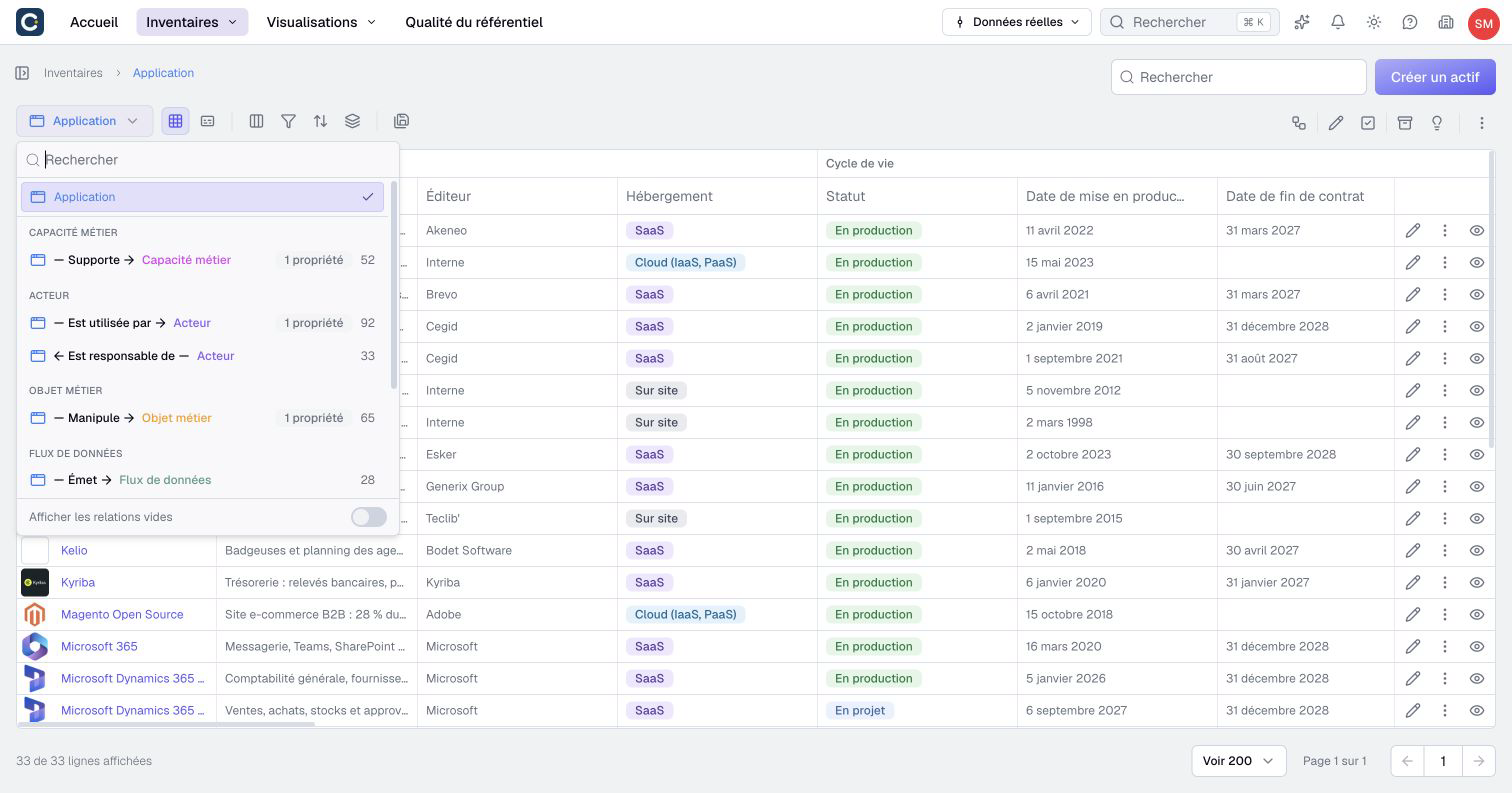
Under the asset type, the selector lists its relationship types, grouped by the kind of asset at the other end. Each one shows how much information it carries and how many relationships exist. Types without any relationship are hidden: turn on Show empty relationships to see them.
2. Read the table
Choose a relationship type, for example "Used by → Actor". The table shows one row per relationship.
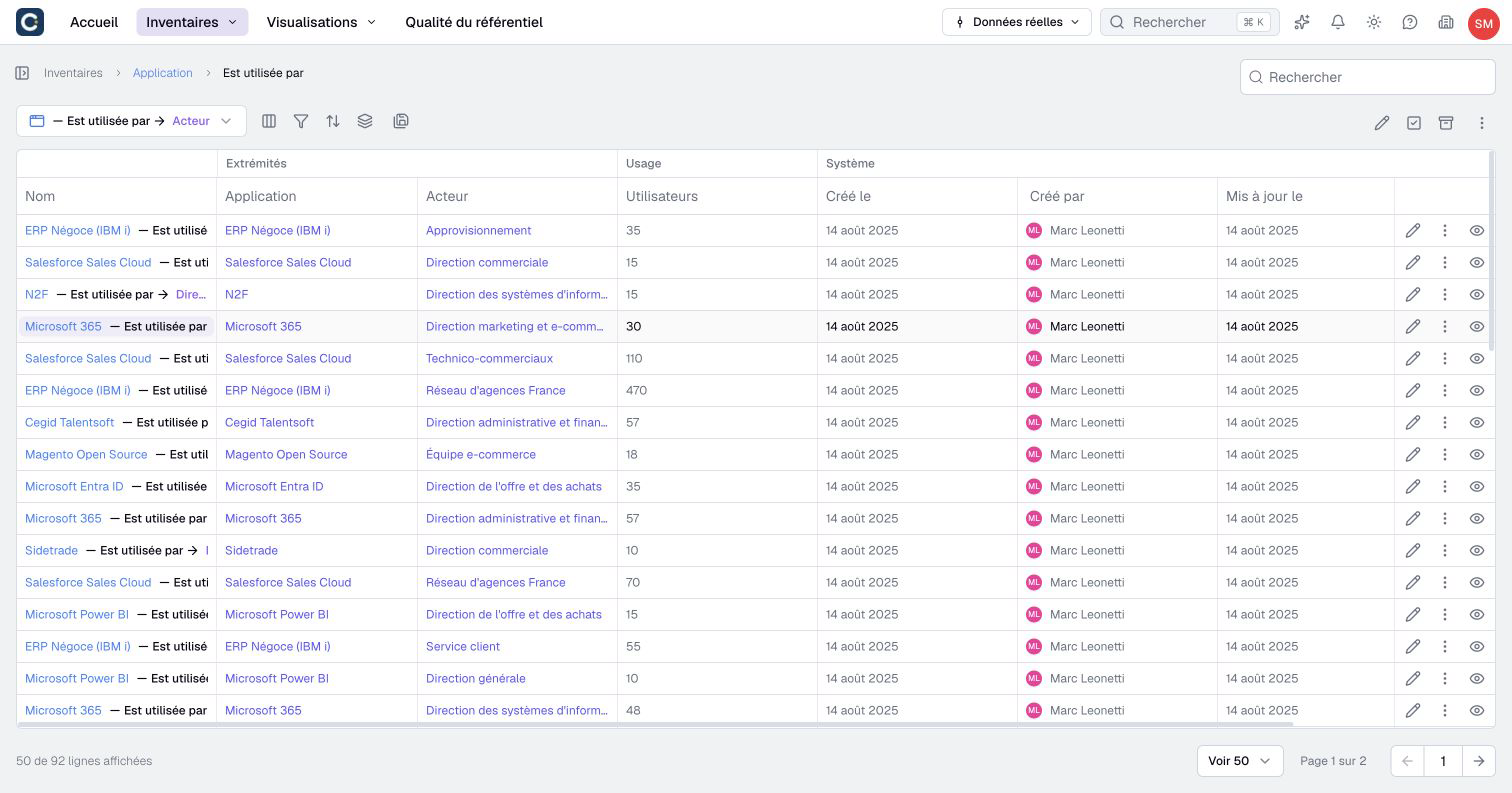
The columns give the starting asset, the target asset and the information of the relationship, such as the number of users. Sort or filter to spot links without a value, for example relationships where the number of users is empty.
3. Correct several relationships at once
The toolbar is the same as in an asset inventory. Cells edit mode lets you change the information right in the table, then save everything. Select multiple relations acts on several rows at once.
After selecting rows, Update opens a form for a shared property. Some values can be changed directly; others can only be suggested. Enable Suggestion to submit eligible changes for review. Read the counts before submitting, then inspect the final report.
You can also save this table as a view, with Save as: read Create a view and filter.
4. Open a relationship
Click a relationship's name, in the Name column, to open its full page. At the end of each row, the eye opens its Preview; the Actions menu, then Open, also leads to the page. The assets in the Source and Target columns open their own preview.
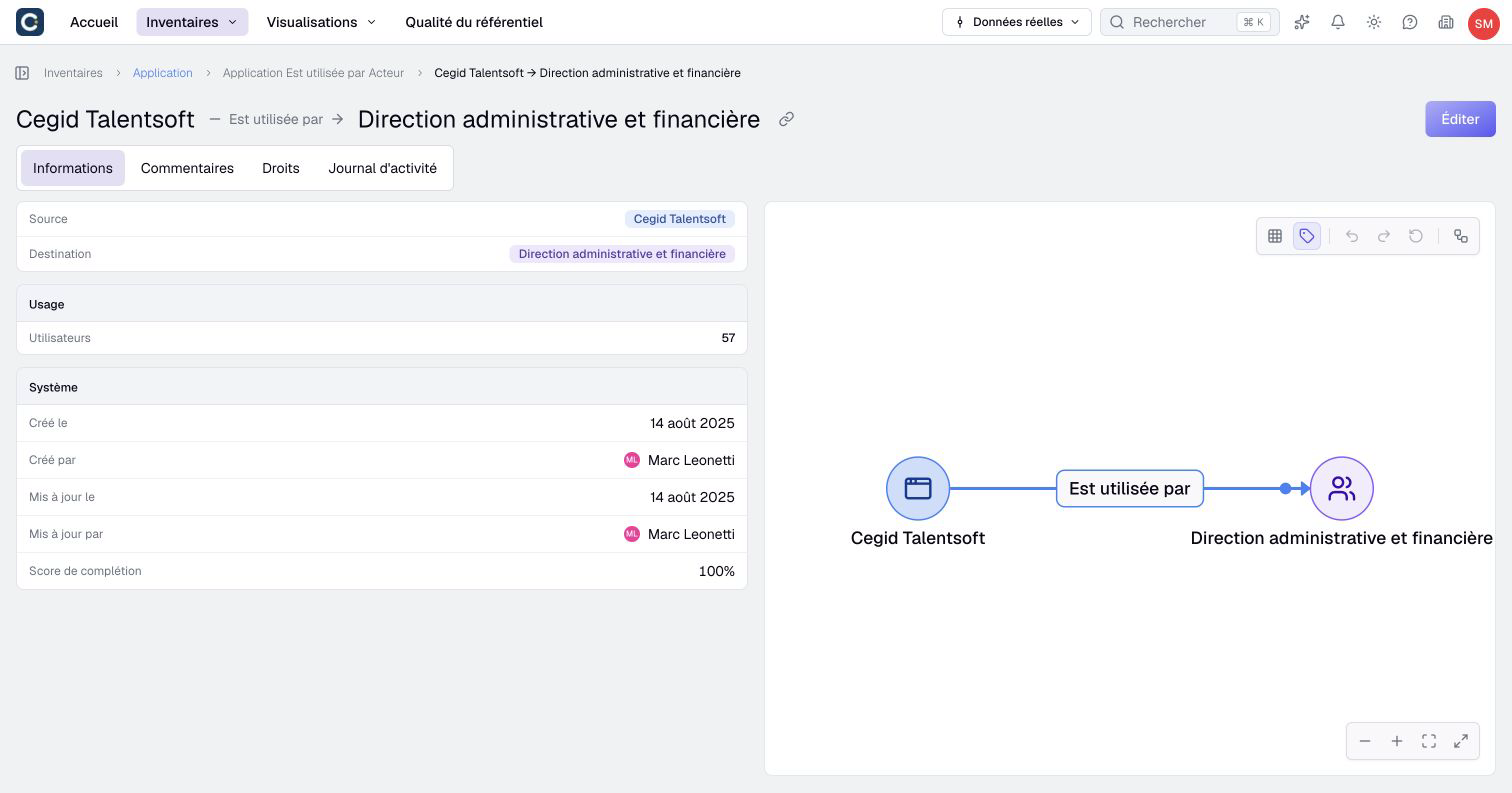
A relationship removed by mistake is not lost. Click View archives, find it, then Actions and Restore.
Key points
- The selector at the top of an inventory also opens the relationships of that asset type.
- One row per relationship, with the information that belongs to the link.
- You correct relationships like assets: in the table, then you save.
Go further
- Document a relationship: to link two assets and fill in the link.
- Edit several assets in the table: cell editing works the same way for relationships.