Apply a scenario, and undo if needed
Your scenario is ready and the decision is made. Now you bring the changes you keep into the real data. Boldo walks you through them one element at a time, so you know exactly what you apply. What you do not keep stays in the scenario for later. And if a decision turns out to be premature, you can undo it.
Before you start
- You need an Editor account or higher. You can apply a scenario you created, one you administer, or one whose creator allowed you to apply it.
- Other members can open the review to read the changes, but they cannot apply them.
1. Open the review
Open the Data context selector and click Apply, at the bottom of the selector or in the menu of the scenario. The review opens full screen. If you cannot apply the scenario but manage it and another one, the button reads Copy.
2. Read a step
Check To at the top: it names the destination whose values you are reviewing. Copying into another scenario uses the same review.
Each step shows one element: an asset with its relationships and its process flow, or a visualization. The asset page is on the left, with the changed fields marked. The changes are on the right.
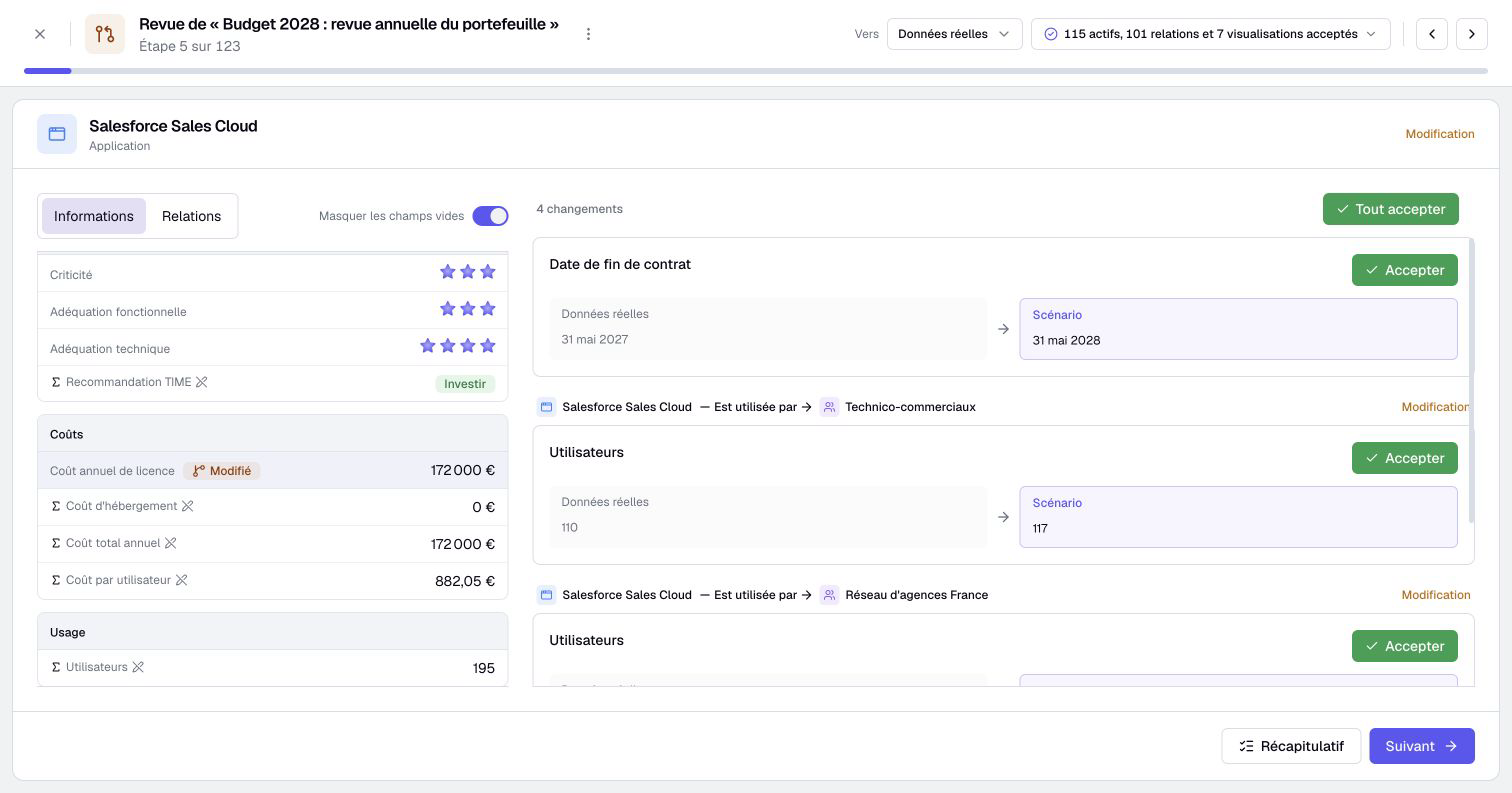
Each change is a card with two values. Source is the value in the real data. Scenario is the value you are about to apply. The bar at the top shows your progress, and the arrow keys move from one step to the next.
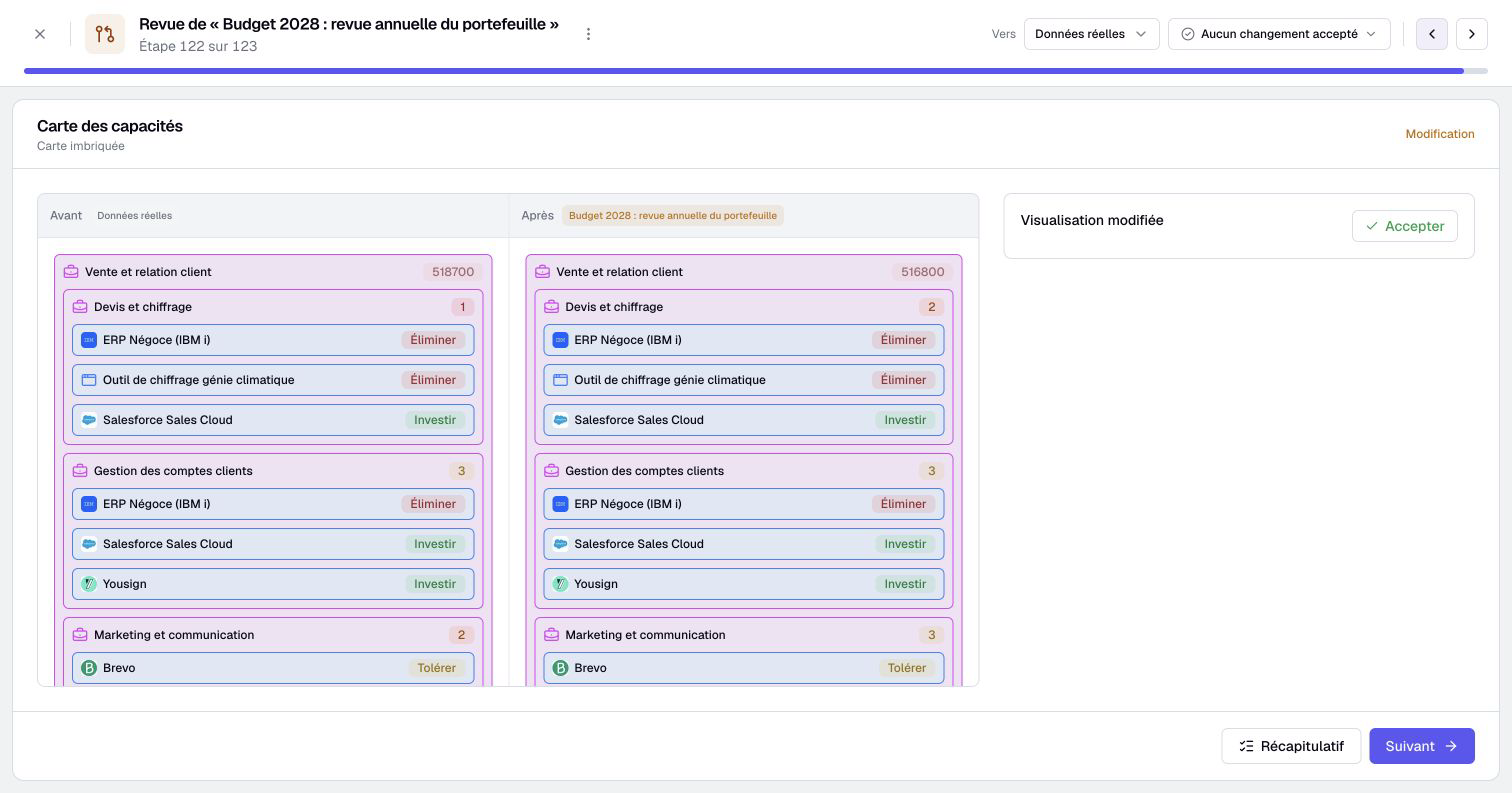
A visualization step shows its name, its type and the operation, such as Modification. On the left, a preview shows it before and after, side by side: only after for a creation, only before for a deletion.
3. Choose what you apply
On each card, check Accept to apply the change. Uncheck it to leave the change in the scenario: nothing is lost.
- Accept all, above the cards, accepts all the changes of the step at once.
- The counter at the top opens a menu: Accept all for the whole scenario, Accept nothing, and View the summary.
- Summary, next to Next at the bottom of every step, takes you straight to the summary.
Some changes depend on others. A new relationship needs its two assets, for example. Boldo keeps them together and tells you why. Remove this change and the ones that depend on it takes them out together.
Your choices and position survive leaving the review or reloading the same tab. If a change is edited meanwhile, review it again.
4. Handle the conflicts first
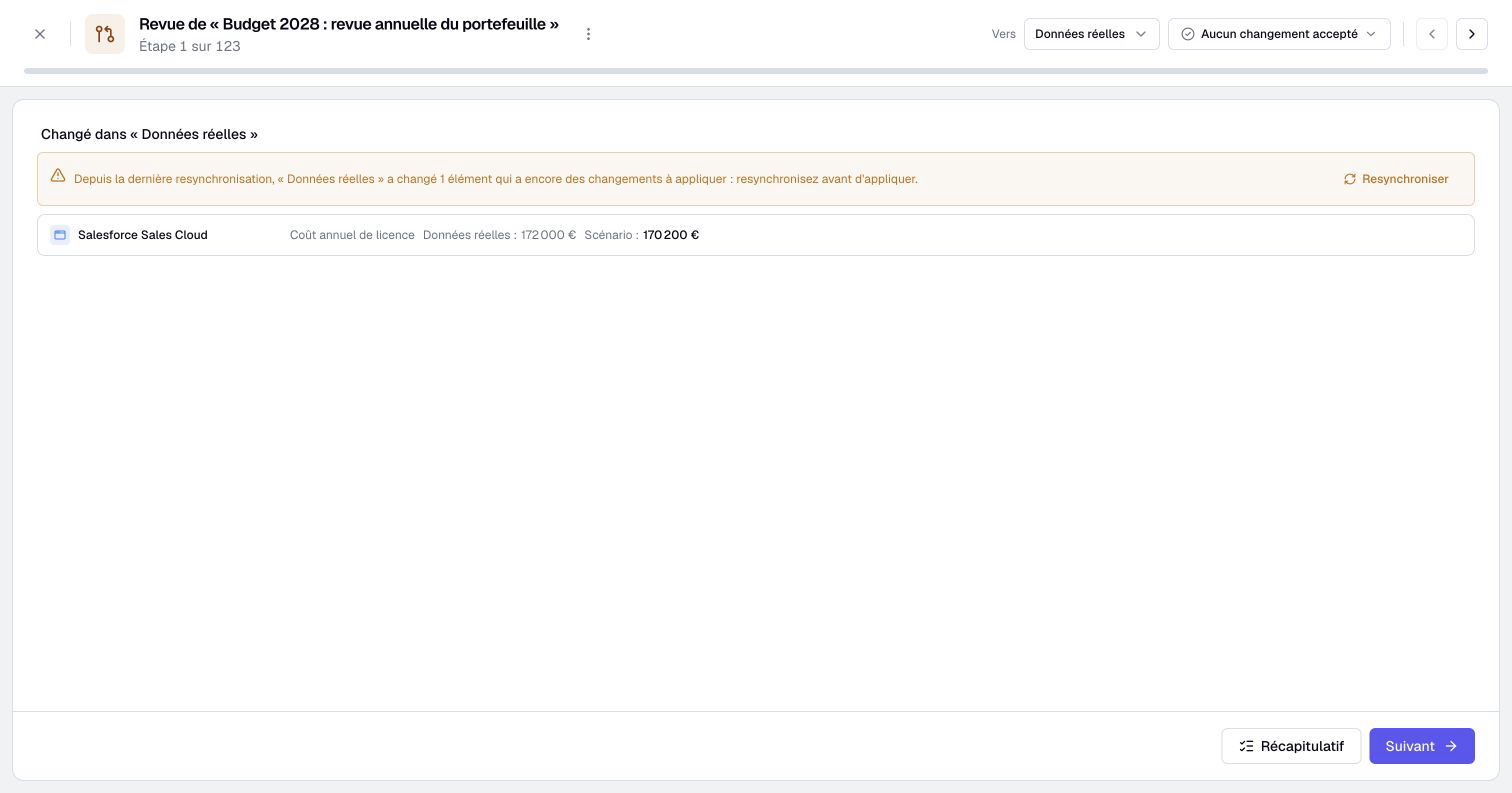
When a value changed both in the real data and in the scenario, the review starts with a Conflicts step. For each conflict, choose Keep the scenario or Keep the source. Above the conflicts, the step lists what the real data changed in the scenario's elements since the last resynchronization, with Resynchronize. Summary is already available at the bottom of this step.
5. Apply
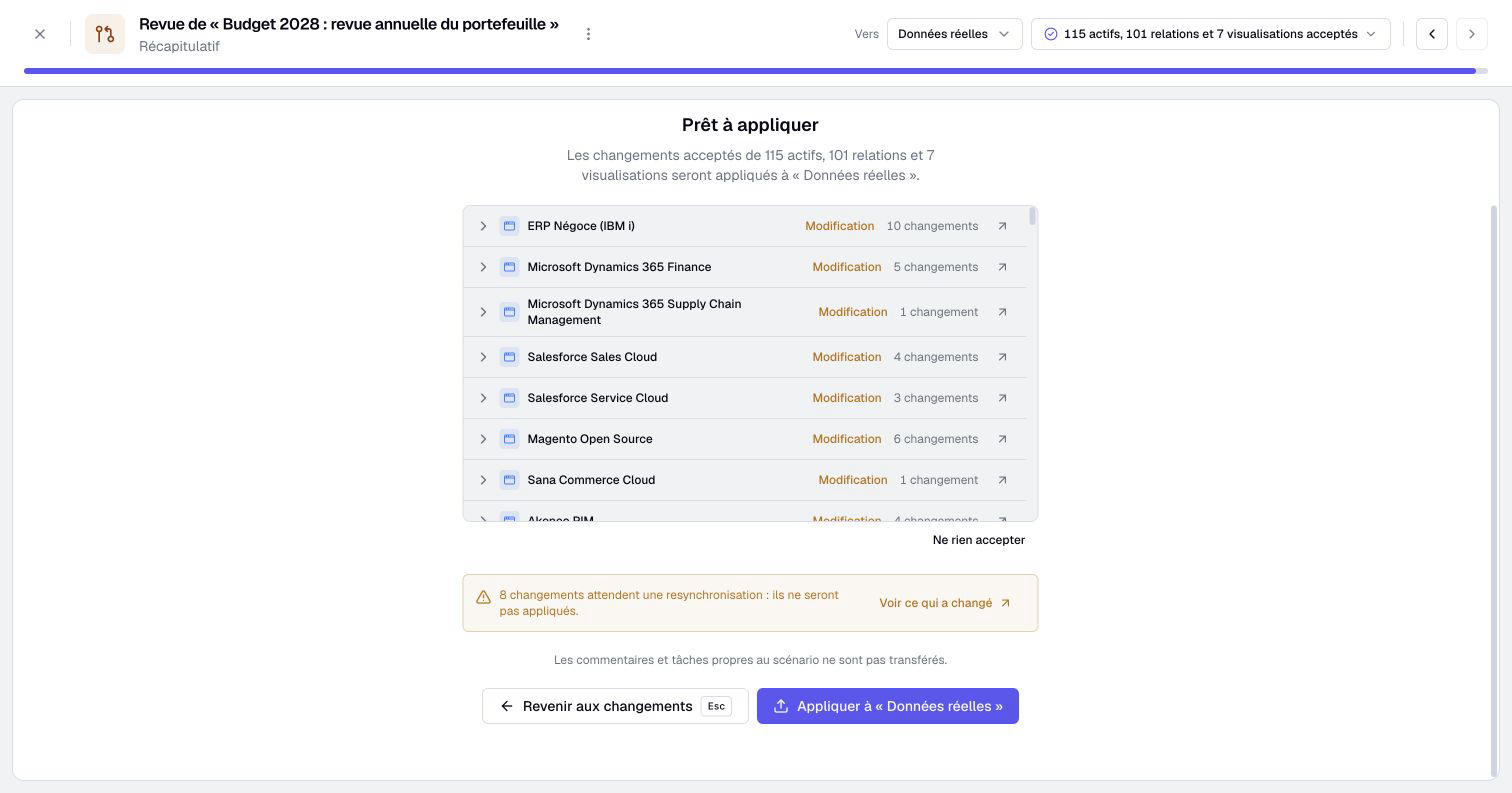
The summary lists one line per asset and one per visualization, with the number of accepted changes. Open a line to read the old and new values. Check it, then click Apply to “Real data”. There is no confirmation window: the review was the confirmation.
For a sub-scenario, the destination is its parent scenario instead of the real data. You must also manage that active, ready parent.
6. When something blocks
Boldo tells you during the review what cannot be applied. A change you do not have the permissions to apply cannot be accepted: its card gives the reason. A change whose value moved in the real data since the last resynchronization is not applied either.
The summary counts these changes and the undecided conflicts. Review conflicts takes you back to the Conflicts step. Click Resynchronize there: the scenario takes in the latest real data, replays your changes and turns the disagreements into conflicts you can settle. Then apply again.
If the real data changes again while you review, applying stops and explains why, with a link to each element concerned.
7. Read the report
Once applied, Boldo opens a report with one line per element and the before and after values.
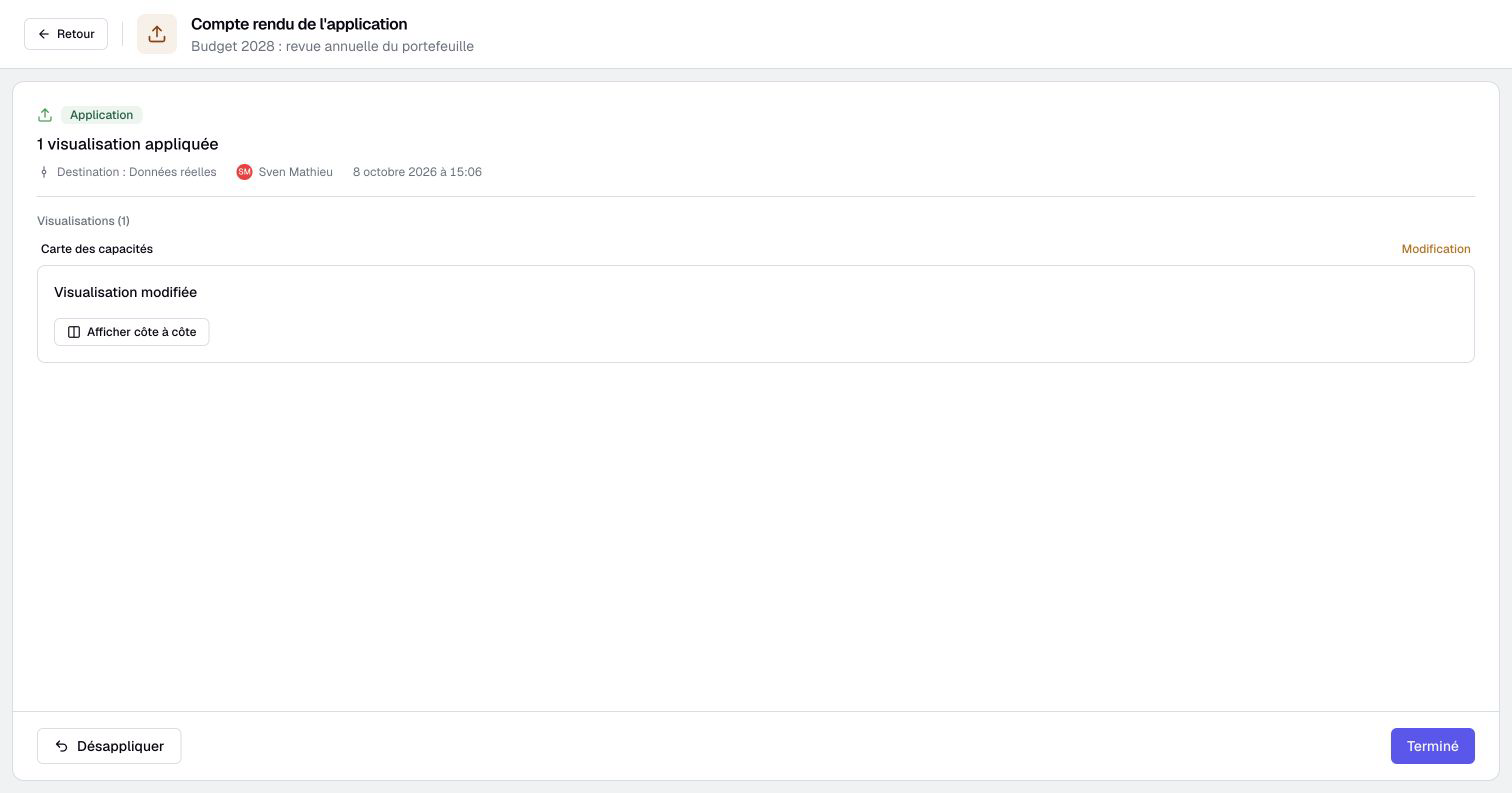
When every change is applied, the scenario closes: it is archived, with the Fully applied label. When you applied only part of it, the scenario stays open with the remaining changes. Each time you apply, Boldo records an operation: open History in the menu at the top of the review to find them all.
If you applied some changes and later discard all the rest, the review can offer Close the scenario. You need application rights, and no pending, conflicted or invalid changes may remain. A busy child can still delay closure.
8. Undo applied changes
Undo requires managing the scenario, with an Editor account or higher. Permission to apply alone is insufficient. For a parent destination, you must also manage that active, ready parent.
At the bottom of the report, which you find again under History, click Unapply. The menu of the scenario offers it too. The review works like the application: a Kept step first for what can no longer be unapplied, then one step per asset and per visualization. Check Unapply on the changes to take back, or use Unapply all. Then open the summary and click Unapply from “Real data”.
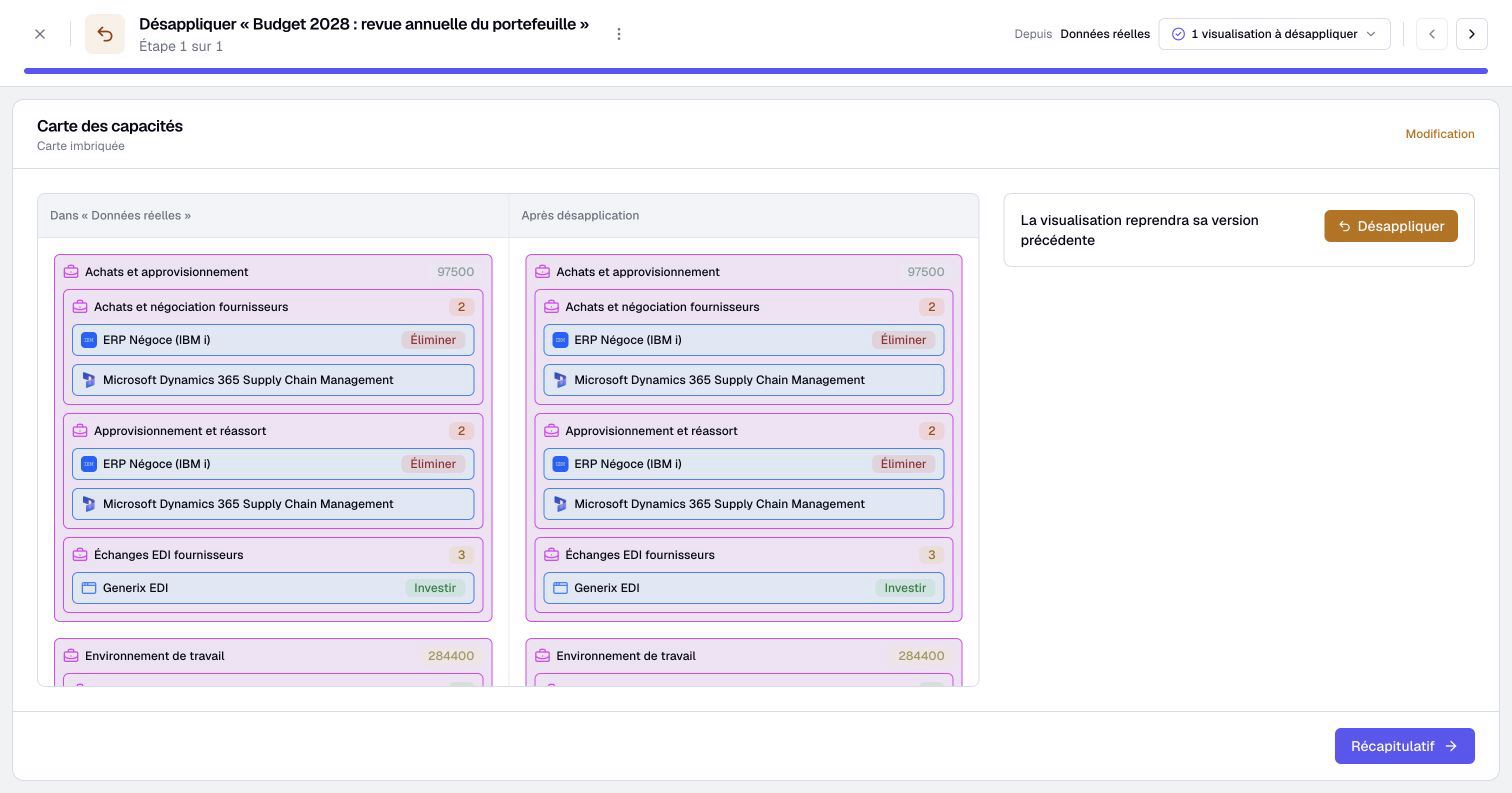
Someone may have edited the same values by hand since you applied. Boldo never erases their work: it shows the changes it will keep as they are before undoing. Notifications already sent are not recalled.
The unapplied changes go back into the scenario, ready to be applied again later. If the scenario is closed, for example after a complete application, open it and click Reactivate to work on them again.
When you unapply an asset creation, Boldo also selects its associated relationships from the same application operation. Keeping one of those relationships keeps the asset. Dependencies added later can still prevent reversal.
Remember
- You apply only what you keep. The rest stays in the scenario.
- Conflicts come first, and Resynchronize unblocks a value that moved in the real data.
- Undo reverses eligible changes while preserving later edits.
Go further
- Work in a scenario: create a scenario and make your changes in it.
- Sub-scenarios, copying changes and archiving: apply a sub-scenario to its parent.
- Prepare the annual IT budget: apply only what was approved.