Sub-scenarios, copying changes and archiving
A large program rarely fits in one scenario. You deliver a data platform, then a new e-commerce site, then a new ERP. Each step builds on the previous one. Sub-scenarios let you chain them. Copying changes lets you reuse a decision from one scenario in another. And archiving keeps the list of scenarios short.
Before you start
- With an Editor account or higher, creation permission and an available place in the quota, you can branch from an active, ready scenario you can open.
- To copy changes, archive, or delete, you must manage the scenario, with an Editor account or higher. Copying requires managing both scenarios.
1. Create a sub-scenario
Open the Data context selector. In the menu of the scenario you want to build on, click New sub-scenario.
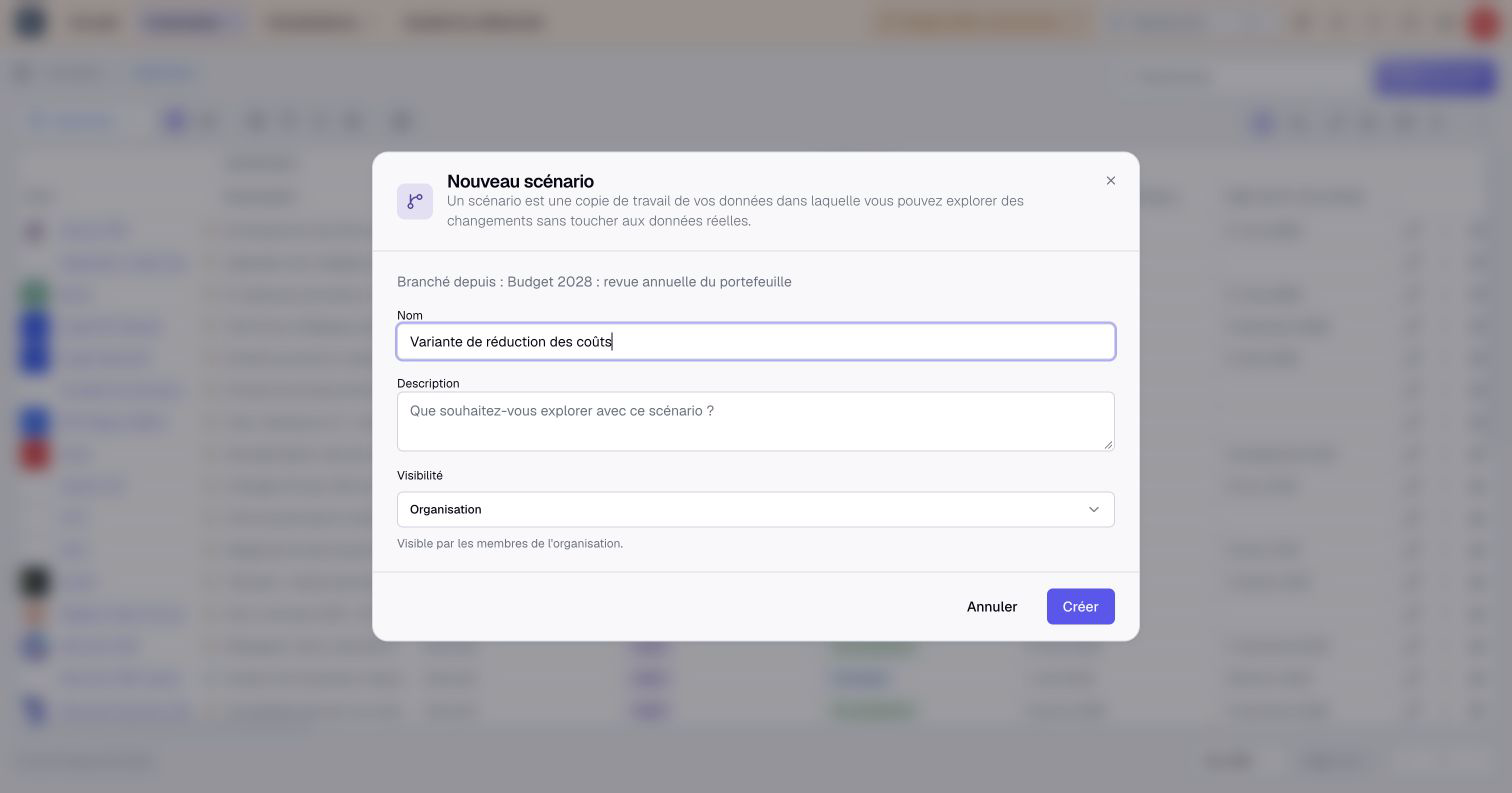
The sub-scenario starts from its parent, with all the changes already made there. It then records only its own changes.
When you apply a sub-scenario, its changes go to its parent. You must also manage that active, ready parent. You can also apply the parent first: once it is fully applied, its sub-scenarios move up one level and start from the real data, with their own changes intact.
2. Read the tree
The selector shows sub-scenarios indented under their parent. In the example, the e-commerce redesign builds on the data platform, and the end of the program builds on the redesign.
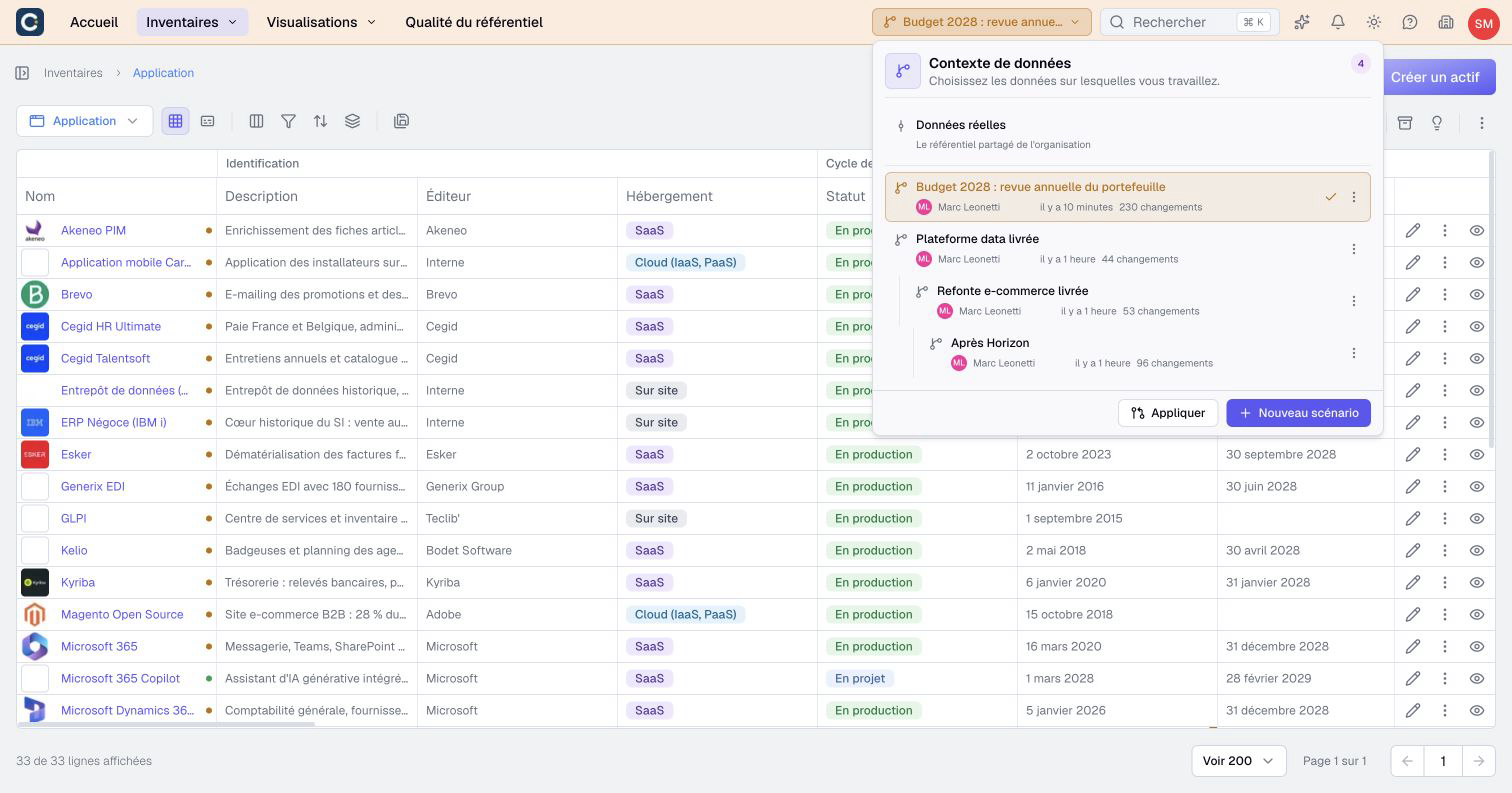
To see what one step adds to the previous one, open the review of the sub-scenario, then choose Overview in its More menu. It compares the sub-scenario with its parent by default.
3. Copy changes into another scenario
Sometimes a decision made in one scenario also belongs in another one. Instead of redoing it, copy it. Copying goes through the same review as an application. Open it with Apply in the menu of the source scenario, or Copy when you cannot apply it.
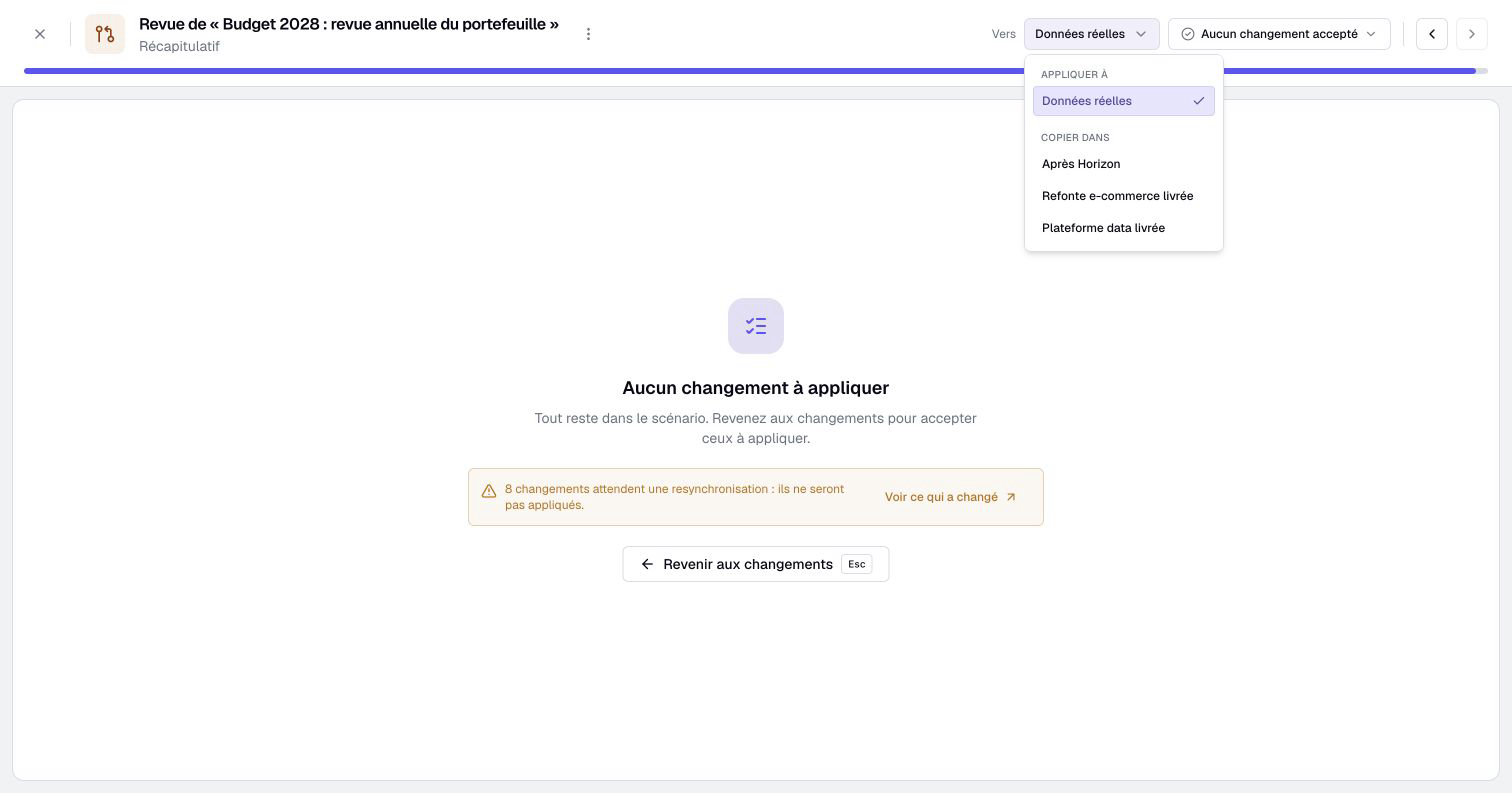
In the header, choose the target in the To list, under Copy into. If you cannot apply the scenario, the review first asks Where do the changes go? Accept the changes you want, step by step. In the summary, click Copy into “…”, with the target's name. The changes are copied into the target. They also stay in the source.
The cards compare the target’s values with the source scenario’s values, field by field. Conflicts shows divergent values and explains blocked changes. Accepting a conflicting value replaces the target’s value; leaving it unchecked preserves that value. Changes already present in the target are omitted. Read replacement warnings in the summary before copying.
4. Archive or delete
In the menu of a scenario:
- Archive frees a place for a new scenario. The working copy is removed, but the changes are kept. Reactivate brings the scenario back later.
- Delete removes the scenario and its changes for good.
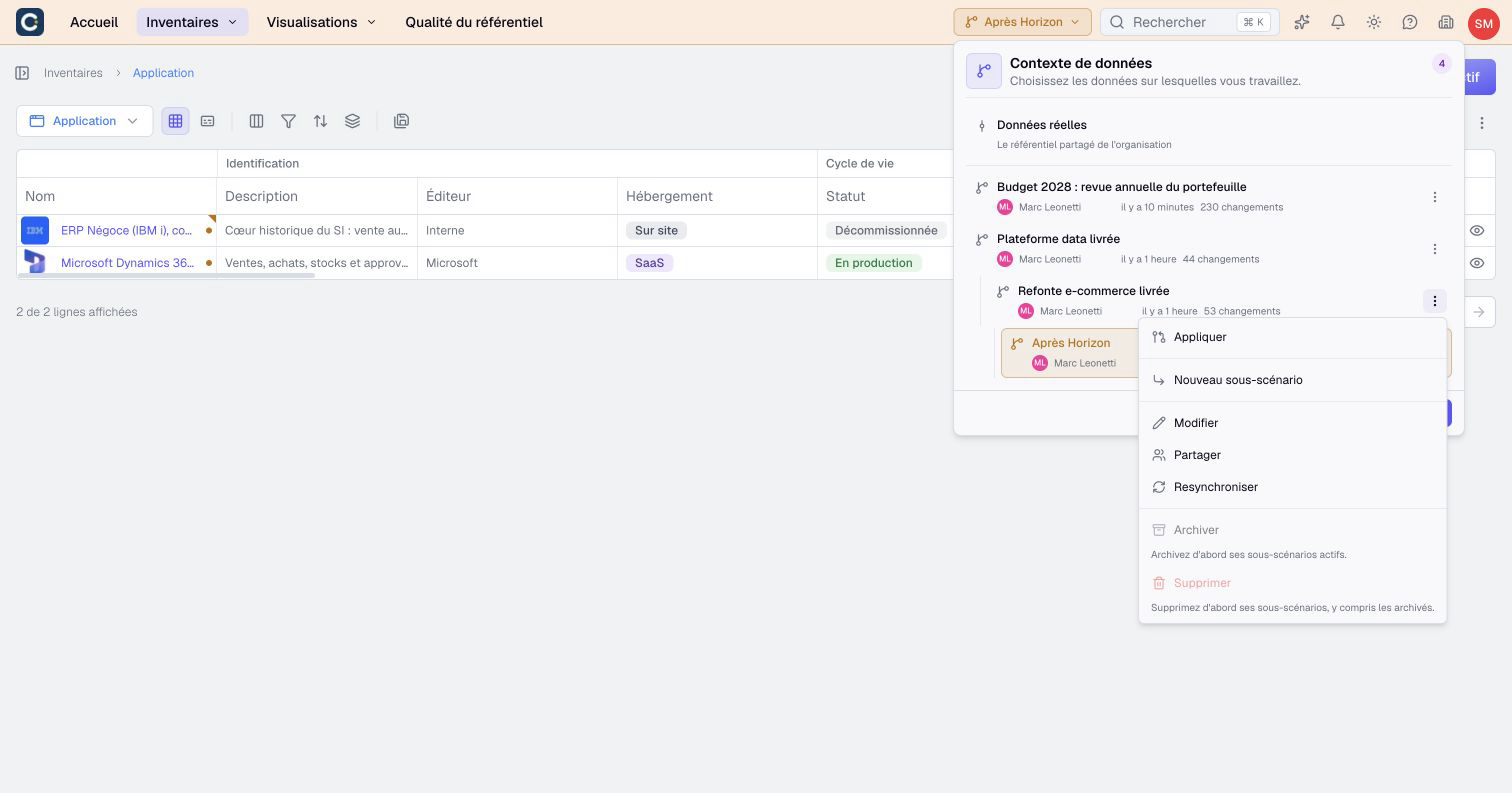
A scenario with active sub-scenarios cannot be archived, and a scenario with sub-scenarios cannot be deleted. The greyed out action tells you why. Archive, apply, or delete the sub-scenarios first.
5. See all the scenarios of the organization
Open Organization settings, the building icon at the top right, then click Scenarios. The page shows how many scenarios are active out of the number your plan allows, and lists every scenario you can see, with its source, status, and last activity.
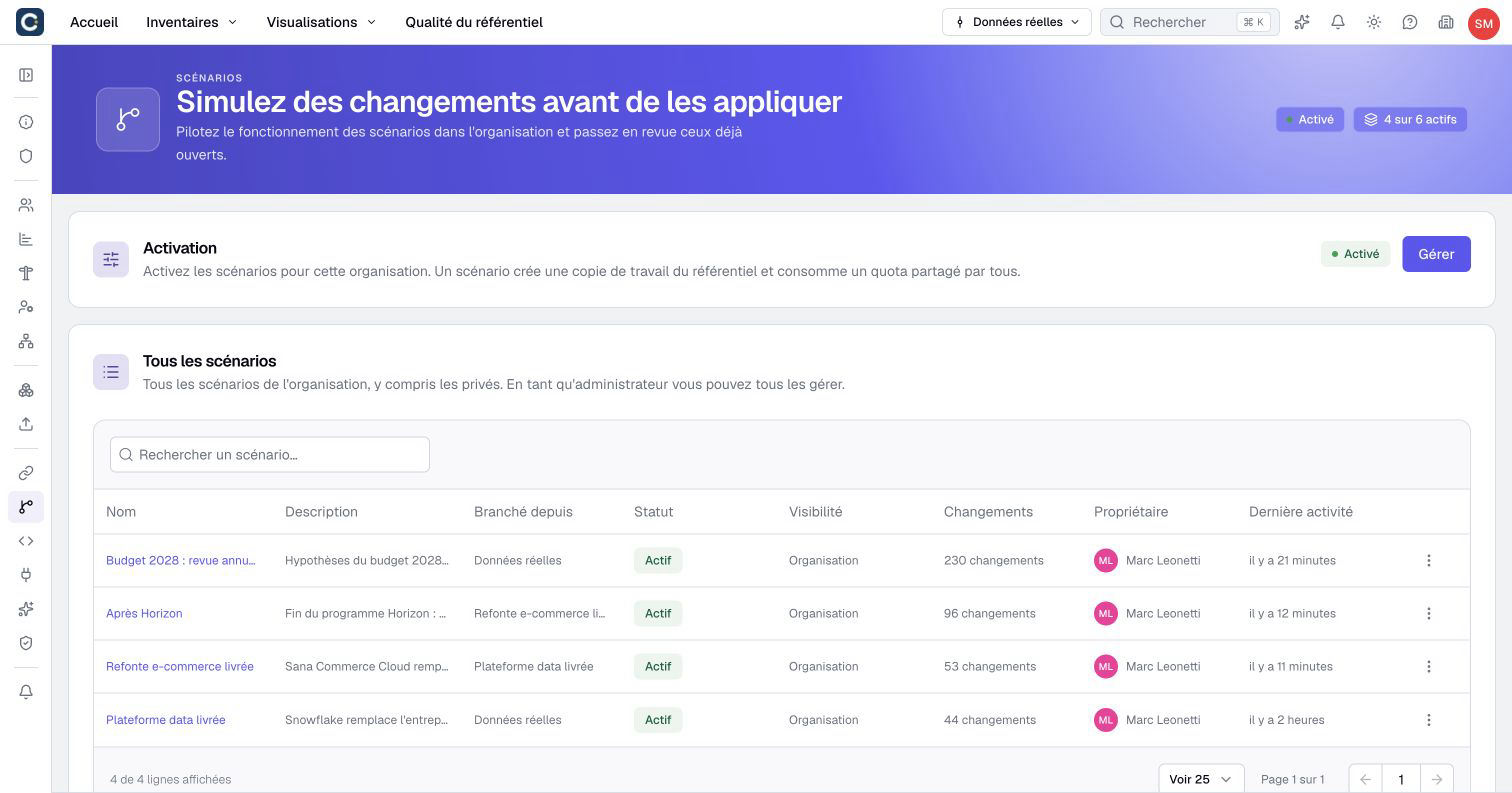
Administrators see every scenario, including private ones, and can manage all of them.
Remember
- A sub-scenario builds on its parent. Apply it into the parent, or apply the parent first and the sub-scenario then moves up.
- To copy a decision into another scenario, choose it under Copy into in the review.
- Archive the scenarios you no longer use: their changes are kept.
Go further
- Work in a scenario: the basics, if you have never created a scenario.
- Apply a scenario, and undo if needed: carry the changes over, step by step.
- Steer a transformation program: a program in several steps, from start to finish.