Work in a scenario
You want to test an idea: retire an application, move a team to a new tool, revise a budget. But your data is shared, and your colleagues rely on it every day. A scenario solves this. It is a working copy of your data where you change what you want. The real data stays as it is until you decide to apply your changes.
A scenario is a hypothesis: "what if we did this?". It has no date. When something is planned for a given year, that date belongs on the assets themselves.
Before you start
- Your organization plan must include scenarios, and an administrator must have enabled them.
- To create a scenario, your account needs the right to create scenarios. Ask an administrator if the New scenario button is missing.
1. Create a scenario
Open the Data context selector at the top of the screen, next to the search bar. Click New scenario.
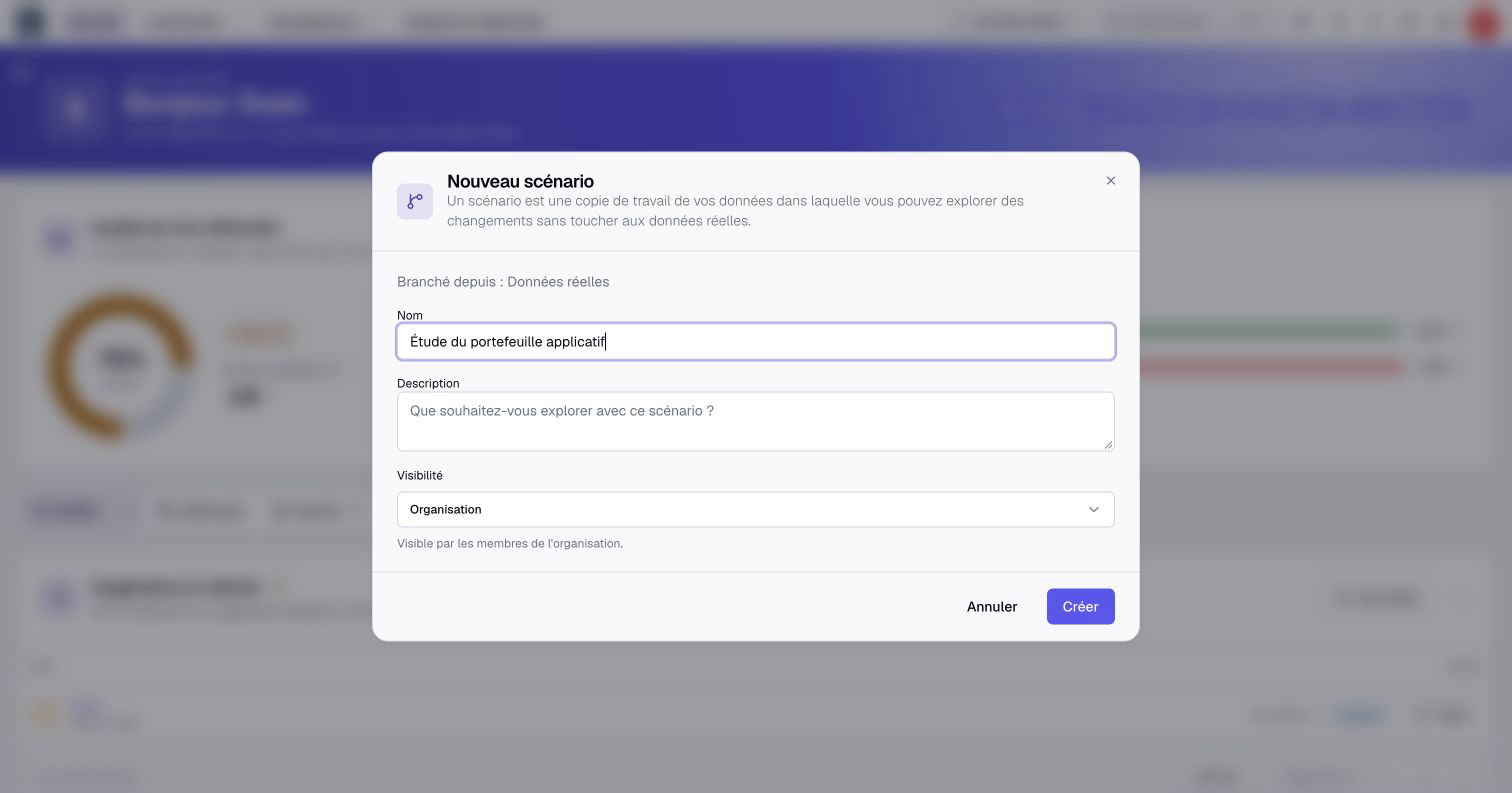
Give the scenario a name that says what it explores, and describe it in one sentence. Your colleagues will see both in the selector.
Under Visibility, keep Organization so every member can open it, or choose Private to limit it to you, the administrators, and the people you pick. Use Can apply to delegate application to Editors. In a private scenario, selecting them also adds them to Share with.
Click Create. Boldo prepares the copy and switches you into it. If your organization has a lot of data, the preparation runs in the background: the scenario becomes available in the selector after a few minutes.
2. Check where you are
As soon as you are in a scenario, the top bar takes an orange tint and the selector shows the scenario name. This is your safeguard: glance at it before any important change.
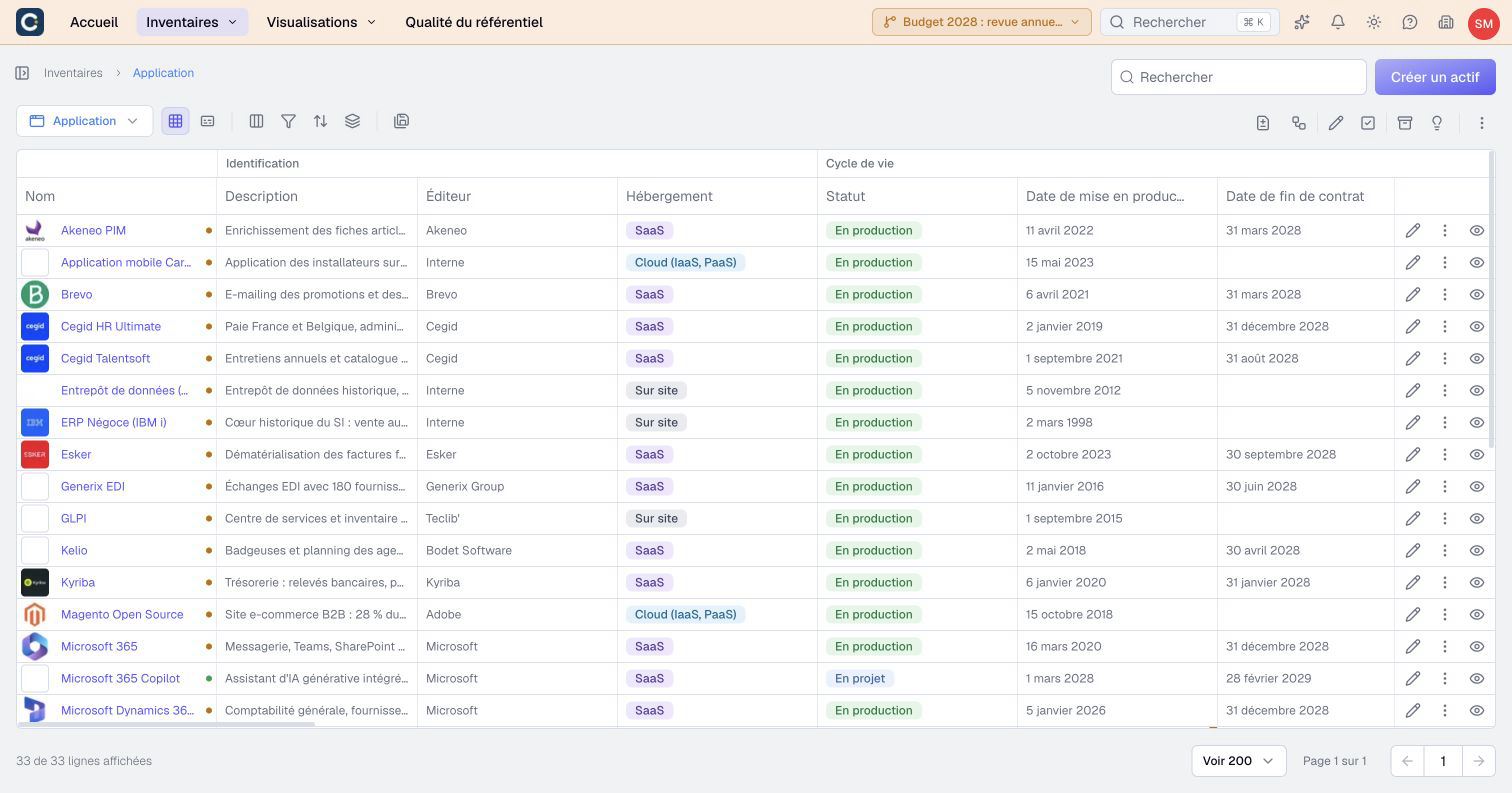
To go back to the real data, open the selector and click Real data. Your scenario is still there, and you can come back to it at any time.
3. Work as usual
Open inventories, edit assets and relationships, draw diagrams, build views and dashboards. These data changes stay in the scenario. Home and the quality report also follow this context, so you can handle suggestions, completeness and ownership there.
Attestation, re-attestation requests and reminders remain limited to real data. The scenario’s quality score still includes real-data freshness, although freshness indicators are hidden. Real-data attestations update existing scenario copies automatically.
Computed values follow your changes. Charts, nested maps, and impact analyses read the scenario data, so you can measure the effect of a change before applying it.
A few actions are reserved for the real data and are hidden in a scenario: deleting permanently, creating share links, creating folders, and administering the organization.
4. See what you changed
Boldo marks the changes of the scenario directly in your lists.
A colored dot after the name tells you what the scenario did to the element. Hover over it for a sentence that explains it.
| Color | Meaning |
|---|---|
| Green | Created in the scenario |
| Orange | Changed in the scenario |
| Violet | Archived in the real data, reactivated in the scenario |
| Red | Deleted in the scenario |
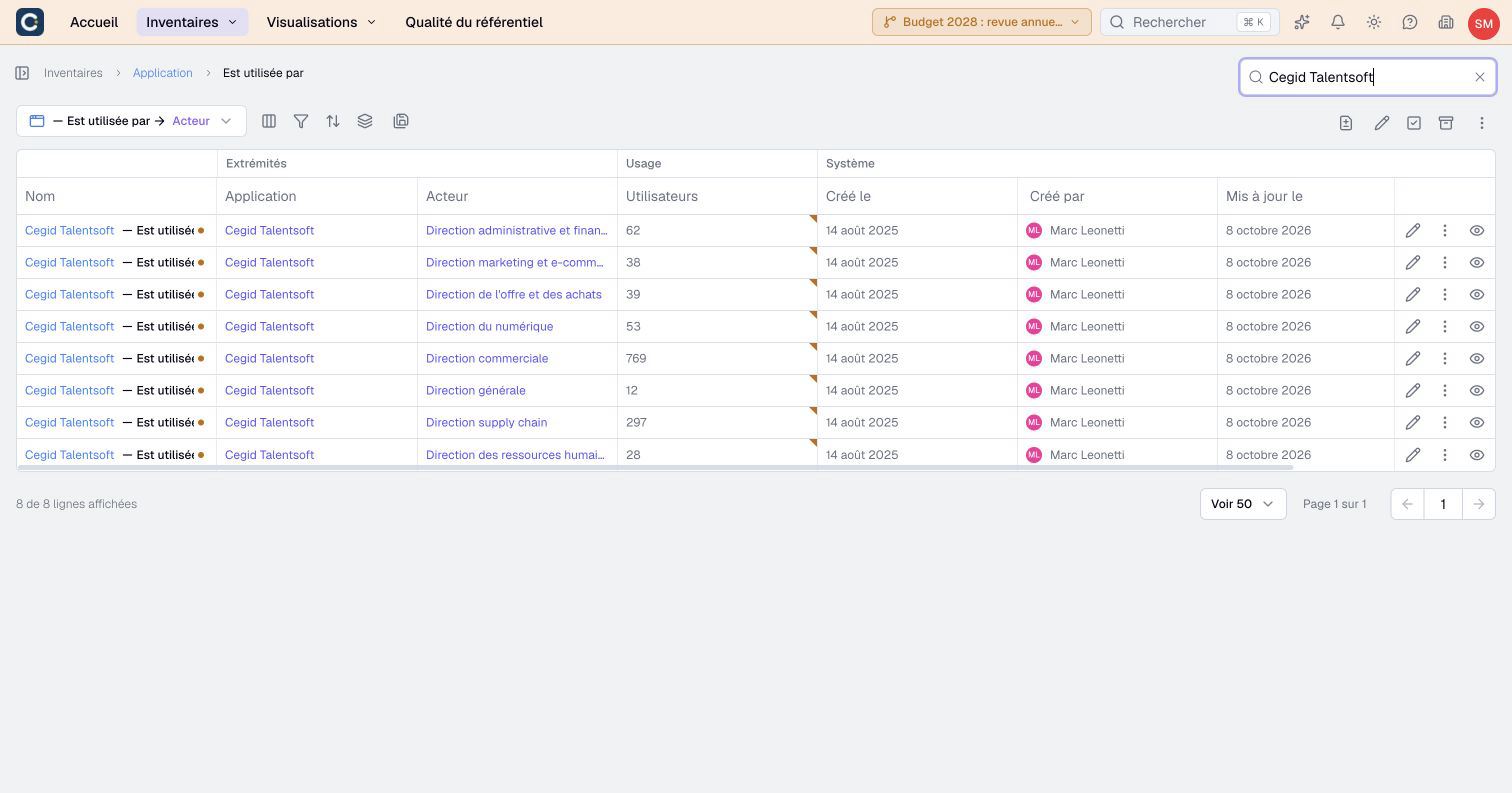
A small orange corner marks each value the scenario changed. Hover over it to read the value in the real data.
In the example, the scenario raises the number of users of an application in one department from 57 to 62. The cell shows 62. The corner reminds you that the real data still says 57.
5. Keep only the changes
Click Scenario changes only in the toolbar of a list. The list keeps only the elements the scenario created, changed, or restored. Click again to see everything.
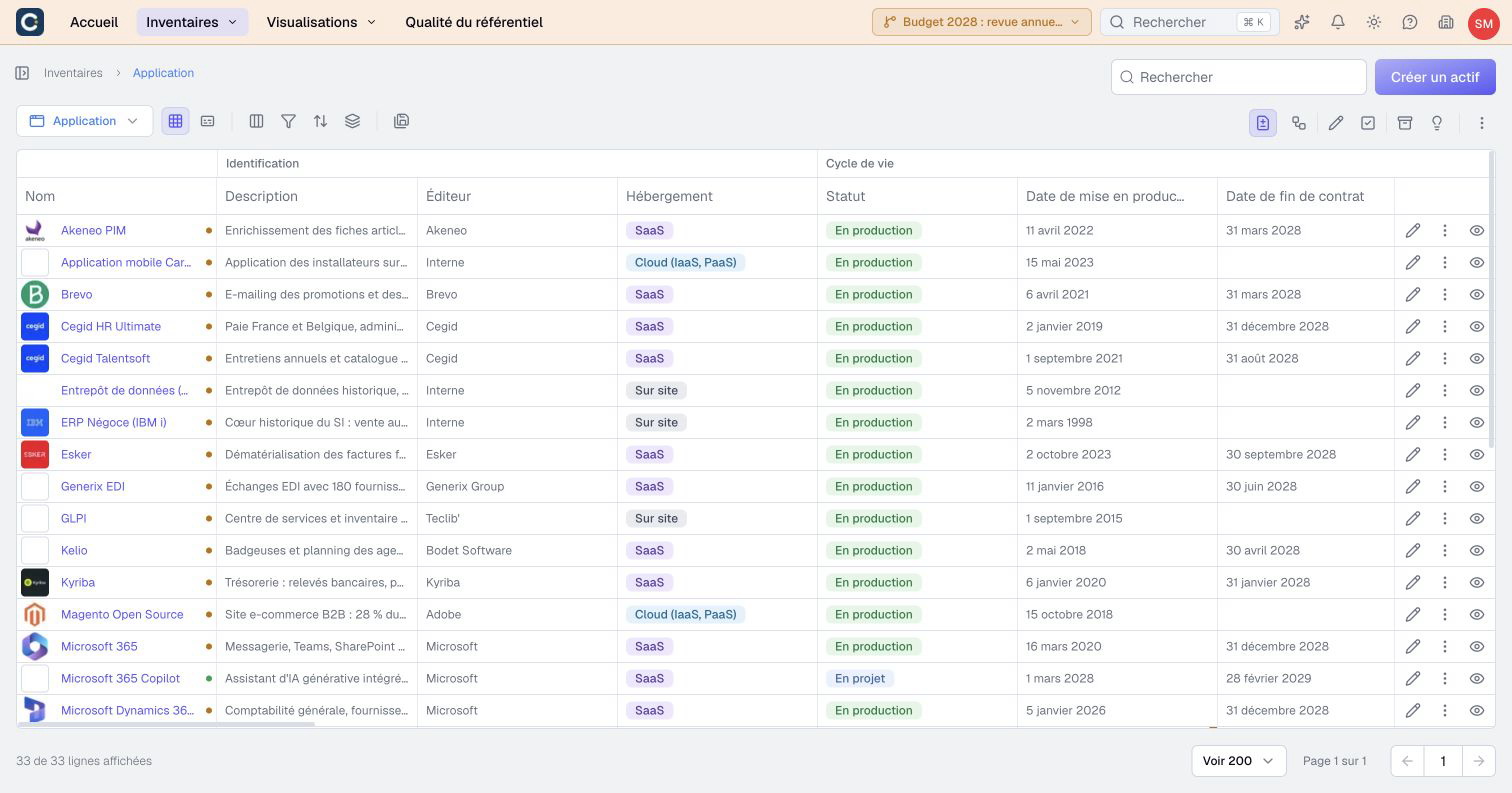
The filter is never saved in the view. If the button is greyed out, the scenario did not change anything in this list. Deleted assets no longer appear in the list: look for them in the archives.
6. Compare with the real data
In the lists of views, charts, dashboards, diagrams, nested maps, and impact analyses, a label tells you when a visualization was created, changed, or deleted in the scenario. Click the icon next to the label to compare it with the real data.
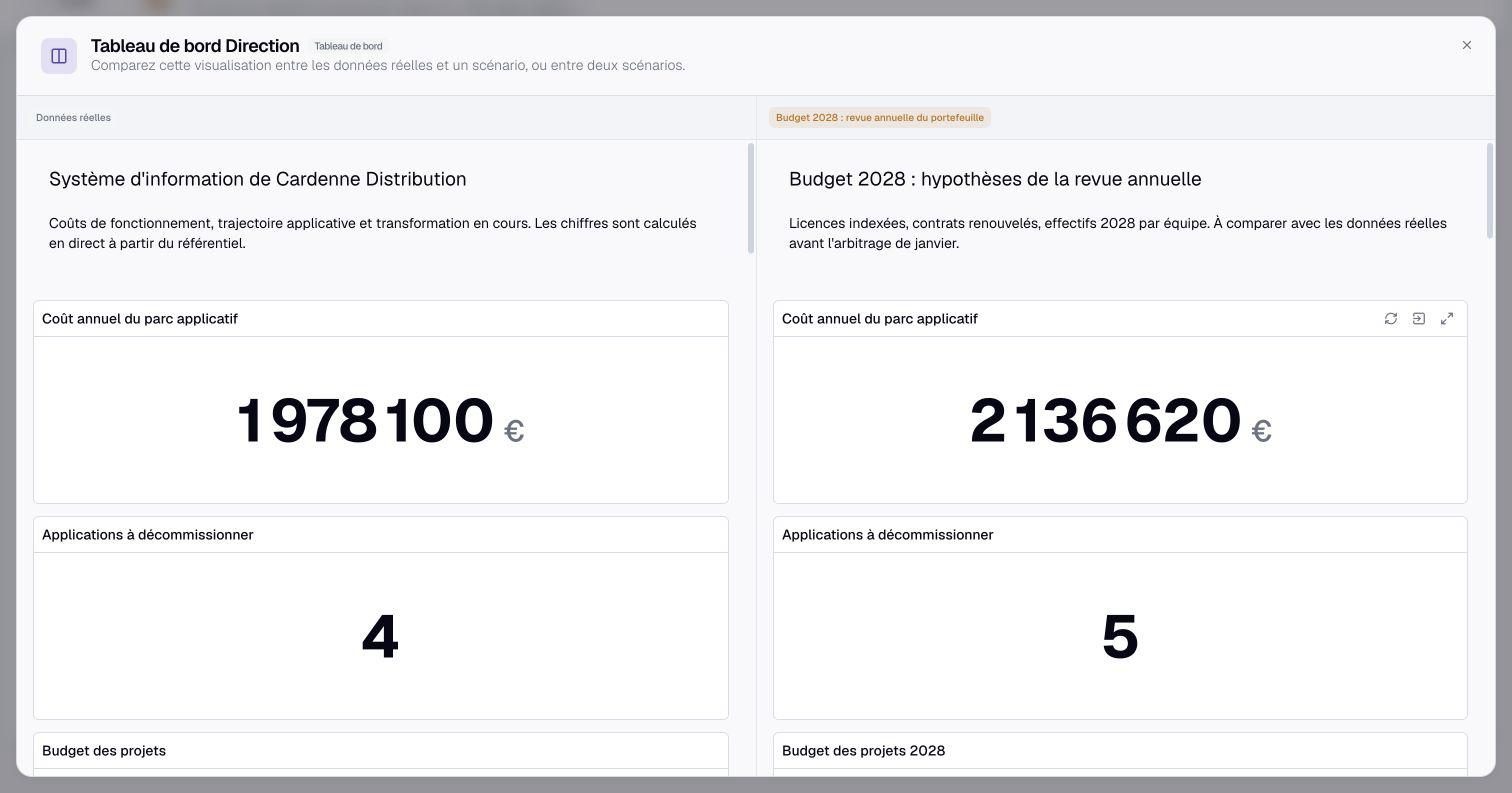
To see everything the scenario changes, open the review with Apply in the selector. Then choose Overview in the More menu at the top. The Compare with selector lets you compare with the real data, the parent scenario, or any other active scenario.
7. Manage your scenarios
Each scenario line in the selector has a menu.
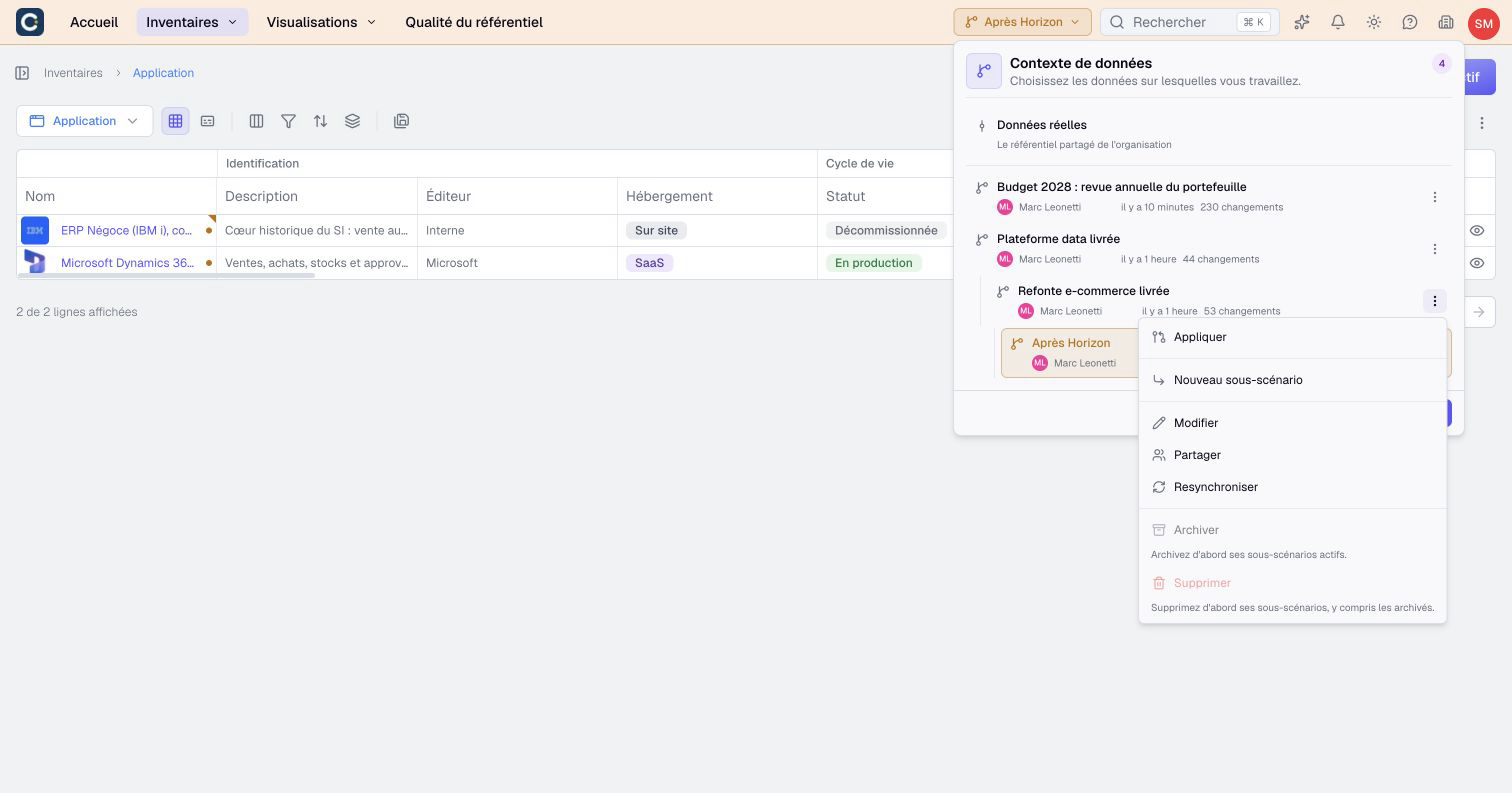
- Edit changes the name and the description.
- Share chooses who can open the scenario, and who can apply its changes.
- Resynchronize brings in the latest real data and replays your changes on top of it.
- Archive frees a place when you no longer work on the scenario. Its changes are kept, and you can reactivate it later.
- Delete removes the scenario and its changes for good.
Your organization can keep a limited number of active scenarios at the same time. Archive the ones you no longer use.
Remember
- A scenario is a working copy: the real data does not change until you apply.
- The orange bar tells you that you are in a scenario.
- Dots, corners, labels, and the Scenario changes only filter show what the scenario changes.
Go further
- Apply a scenario, and undo if needed: carry your changes over to the real data.
- Sub-scenarios, copying changes and archiving: chain several scenarios for a large program.
- Prepare the annual IT budget: a scenario from start to finish, on a real case.