Secure your account and organization
Your repository describes the whole information system of the company: its applications, its servers, sometimes its costs. A password alone is not enough to protect it. This guide shows how to protect your account, then, if you administer the organization, how to protect the whole team's.
This guide takes five minutes.
Before you start
- The first part covers sign-in with email and password. With SSO, your identity provider manages sign-in security.
- The second part, from step 3, is for administrators.
1. Turn on two-factor authentication
Click your avatar, at the top right, then Security.
Next to Two-factor authentication, click Activate and enter your password. Scan the code shown with an authenticator app on your phone, then enter the code it gives. From now on, Boldo asks for this code on top of your password.
On the same page, Change password changes your password if your account has an email and password sign-in method. With an SSO session, Boldo does not offer its own two-factor activation.
2. Keep an eye on your sessions
The Active sessions section lists the devices connected to your account, with their last activity. The one you are using is marked "This device".
You do not recognize a device? Click Sign out on its row. Sign out others closes every session except yours at once.
3. Set the rules for the organization
If you are an administrator, open Organization settings, the building icon at the top right, then Security.
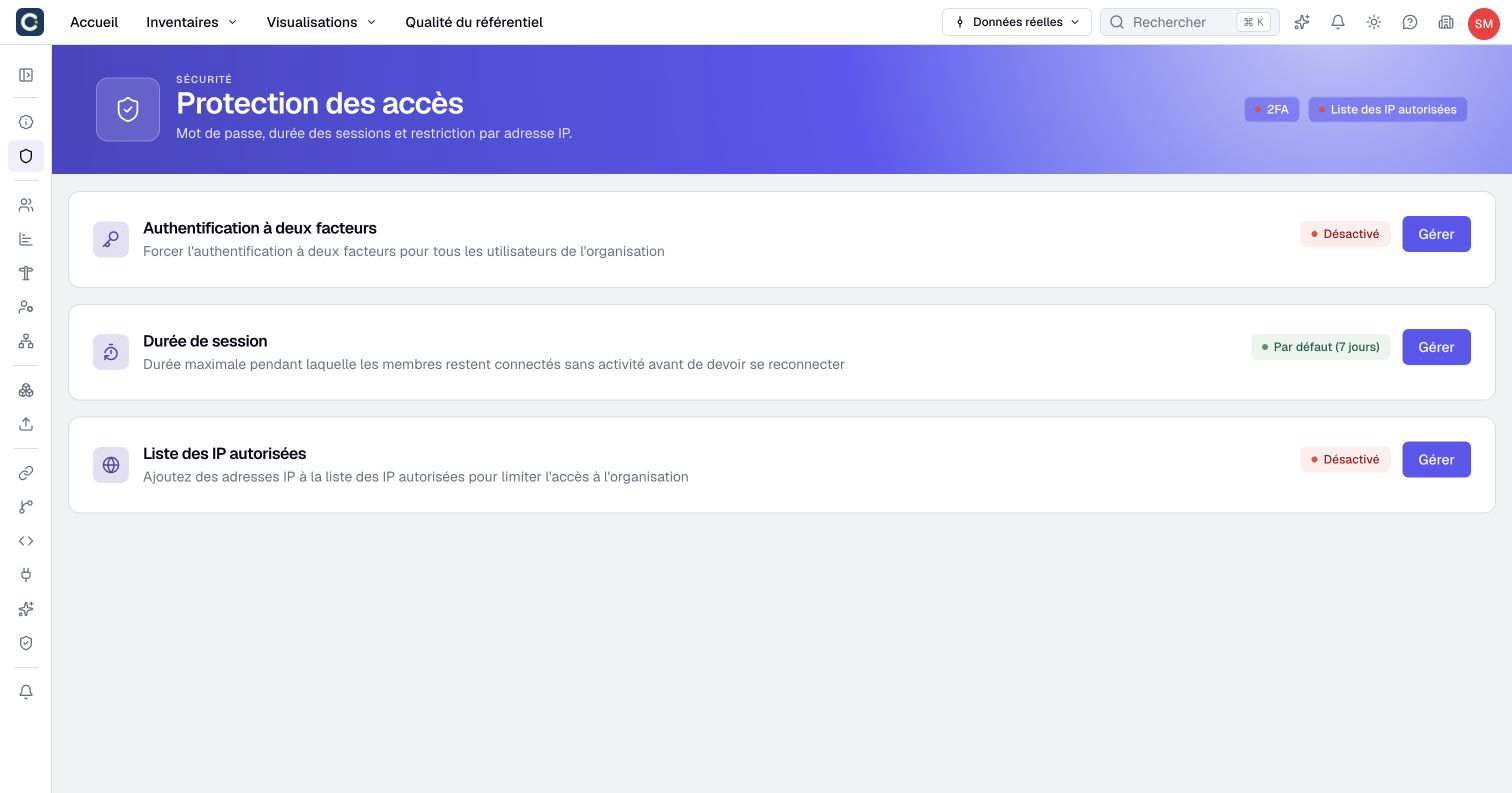
- Two-factor authentication, then Manage: turn on Enforce 2FA and Validate. To do so, you must have turned on two-factor authentication yourself or be using an SSO session.
- Session duration: how long a member stays signed in without activity, 7 days by default.
- IP whitelist: limit access to the addresses of your company, with Add an IP address or Add my IP. This option depends on your plan.
4. Set up single sign-on
With single sign-on (SSO), your colleagues sign in to Boldo with their company account, for example Microsoft Entra ID or Okta. There is no wizard on the Security page: SSO is set up with the Boldo team and the administrator of your identity provider.
Plan how access will be recovered with them before requiring SSO. Once it is required, sign-in with email and password is no longer accepted for the organization.
Key points
- Two-factor authentication protects your account: turn it on now.
- Active sessions lets you sign out an unknown device.
- Administrators set the rules for the whole organization, in Organization settings, then Security.
Go further
- Invite your team: to set up the access of each member.
- Secure your personal access and Configure security and SSO: the reference pages.